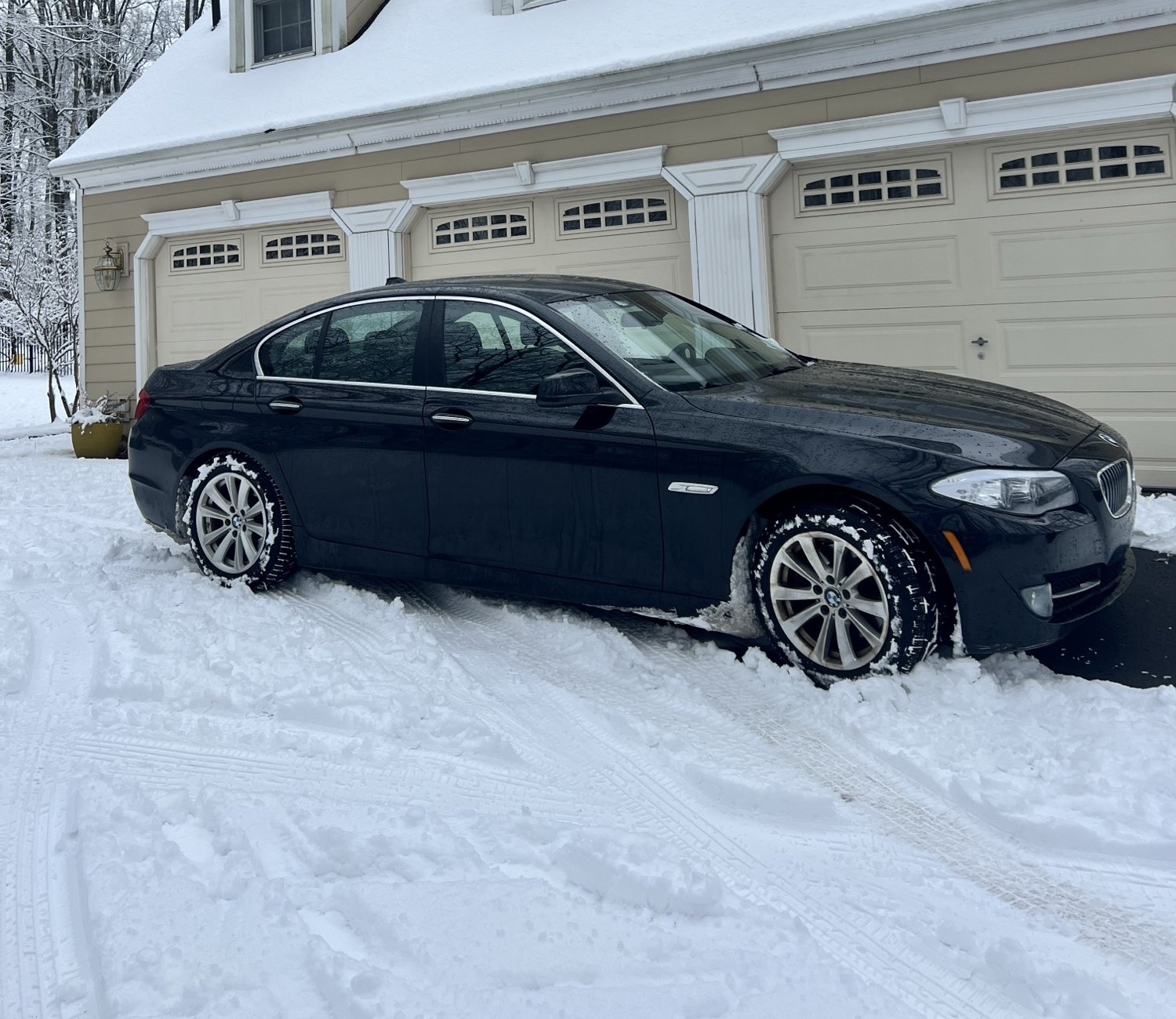
Service log
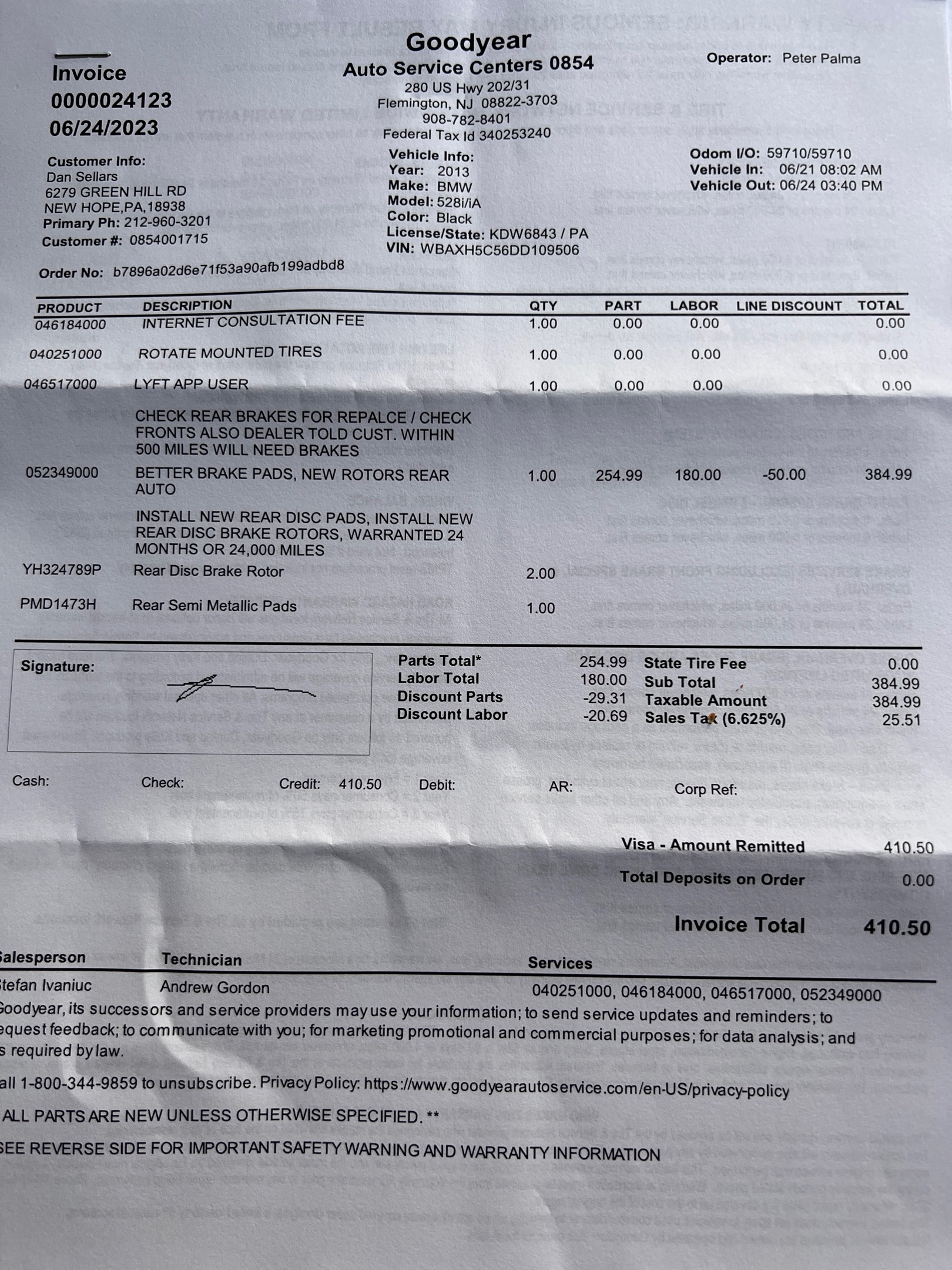
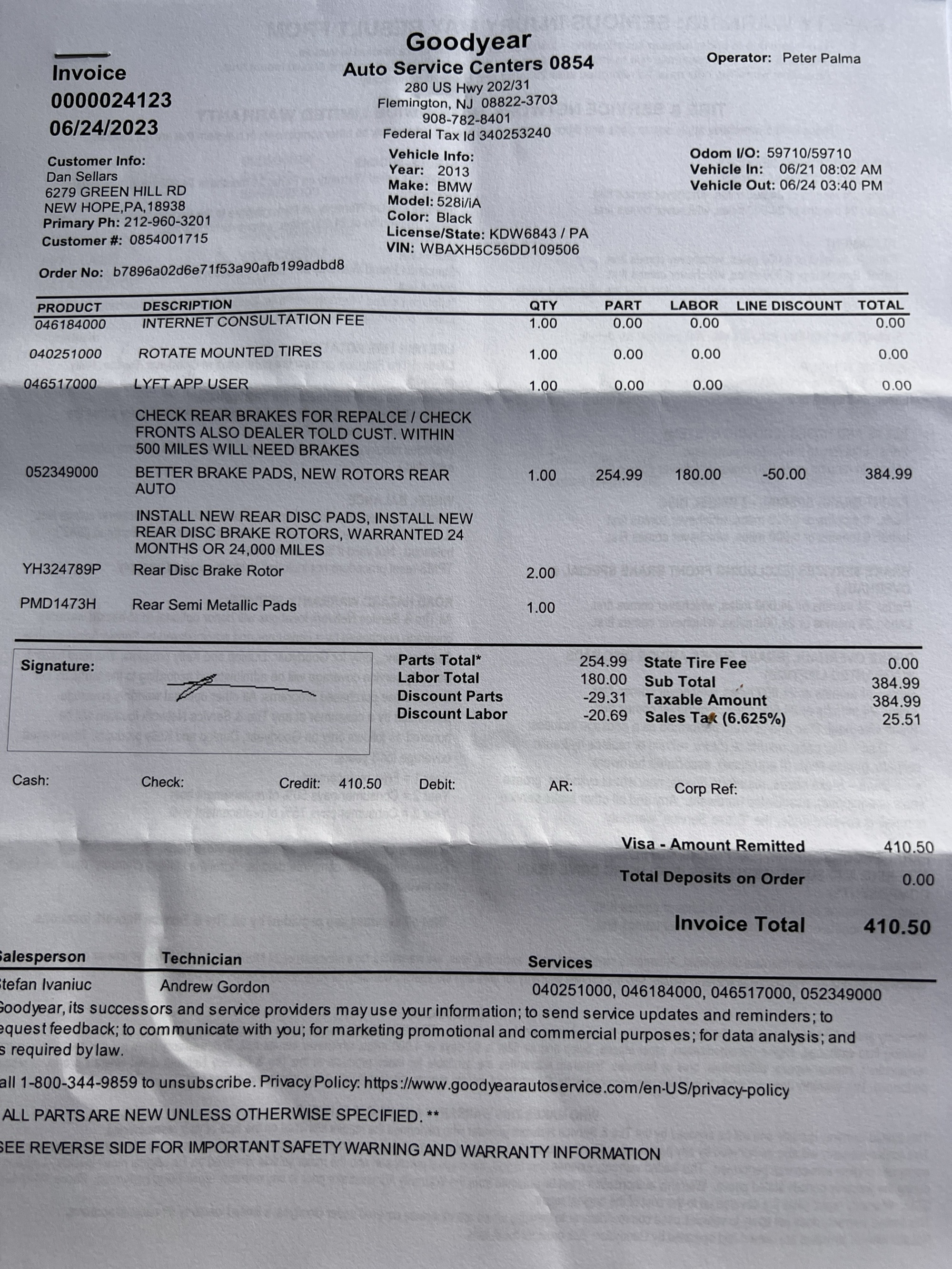
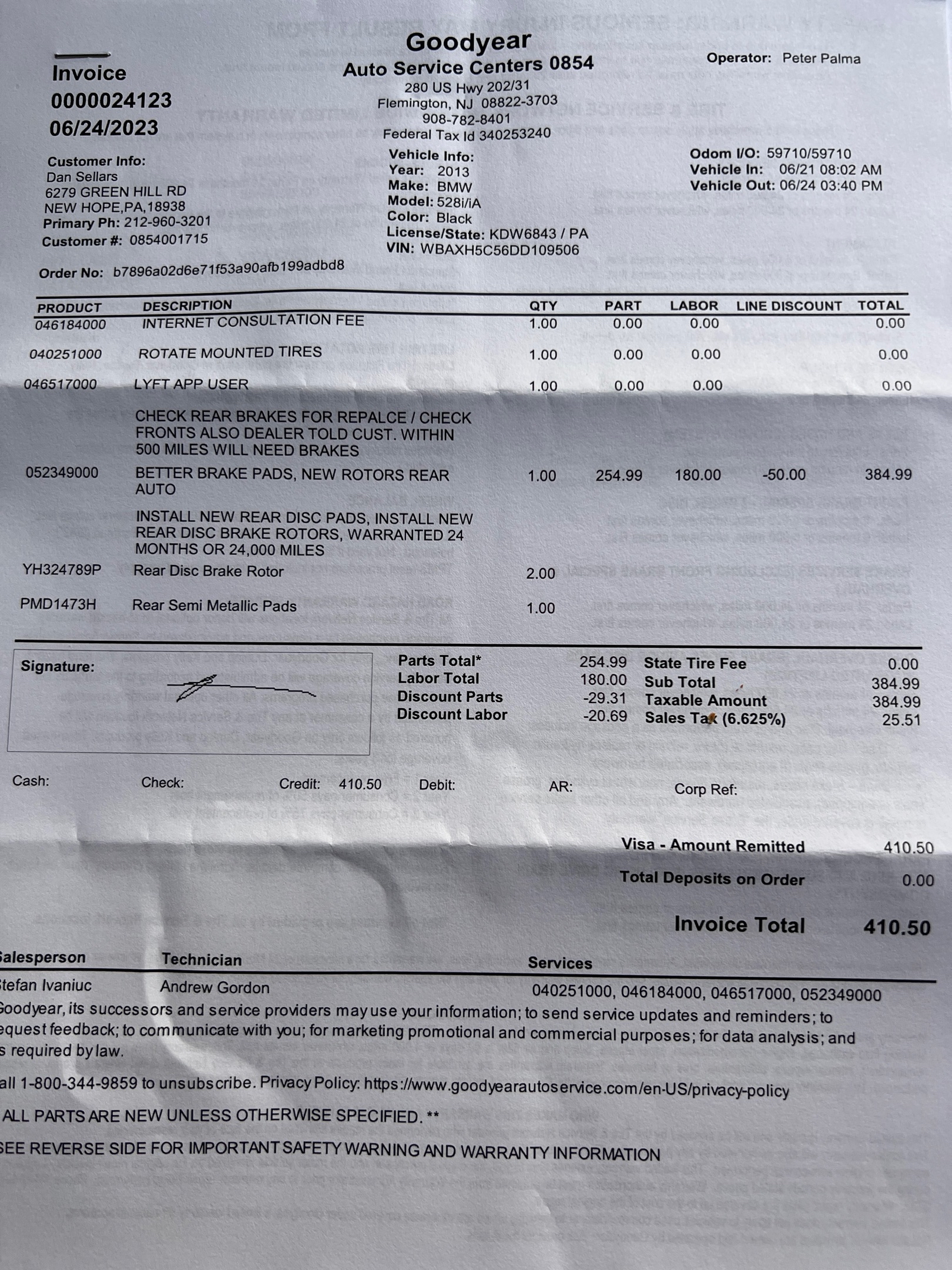
Rear brakes service. New rear disc rotors (YH324789P, qty 2) + rear semi-metallic pads (PMD1473H). Better Brake Pads + new rotors rear auto · part $254.99, labor $180.00, $50.00 line discount. Tires rotated. Note from dealer (prior): customer told within 500 mi will need brakes. Service window 21-24 Jun 2023; salesperson Stefan Ivaniuc, technician Andrew Gordon, operator Peter Palma. Warranted 24 months / 24,000 mi — so warranty active through ~Jun 2025 or ~83,710 mi, whichever first. Invoice 0000024123.
Historical curio: invoice flags "LYFT APP USER" — vehicle was at one point enrolled in a Lyft program (discount tier or driver scheme). Worth confirming whether still active.
Service inspection video — 20 Jun 2026
Flemington BMW multi-point inspection — bent right rear wheel & worn brake-sensor wiring
Technician walkaround recorded during the 20 Jun 2026 stage-maintenance / oil service at Flemington BMW (the visit the X3 loaner covered). Verbatim findings called out on camera:
- Right rear wheel is badly bent — visible flat spot in the rim; “this one is bent pretty bad.” → recommends straightening the right rear wheel.
- All four wheels are bent — the other three “bent slightly,” right rear the worst.
- Brake wear sensor wiring worn through — the brake warning light is on because the brake wear sensor contacted the wheel and wore through the sensor wiring. → recommends replacing the right rear brake wear sensor.
- Steering pulls right / vehicle wanders — steering wheel off-centre on the road test. → recommends a full wheel alignment.
- Brake linings healthy — front and rear both at 10 mm.
- Tyre tread — RR 5.6 mm · LR 5.5 mm · LF 5.7 mm · RF 6.2 mm.
- Engine oil service performed at this visit.
media.gf.cx/home/video/bmw-2013/2026-06-20-service-inspection/ · 2:21 · transcribed 22 Jun 2026
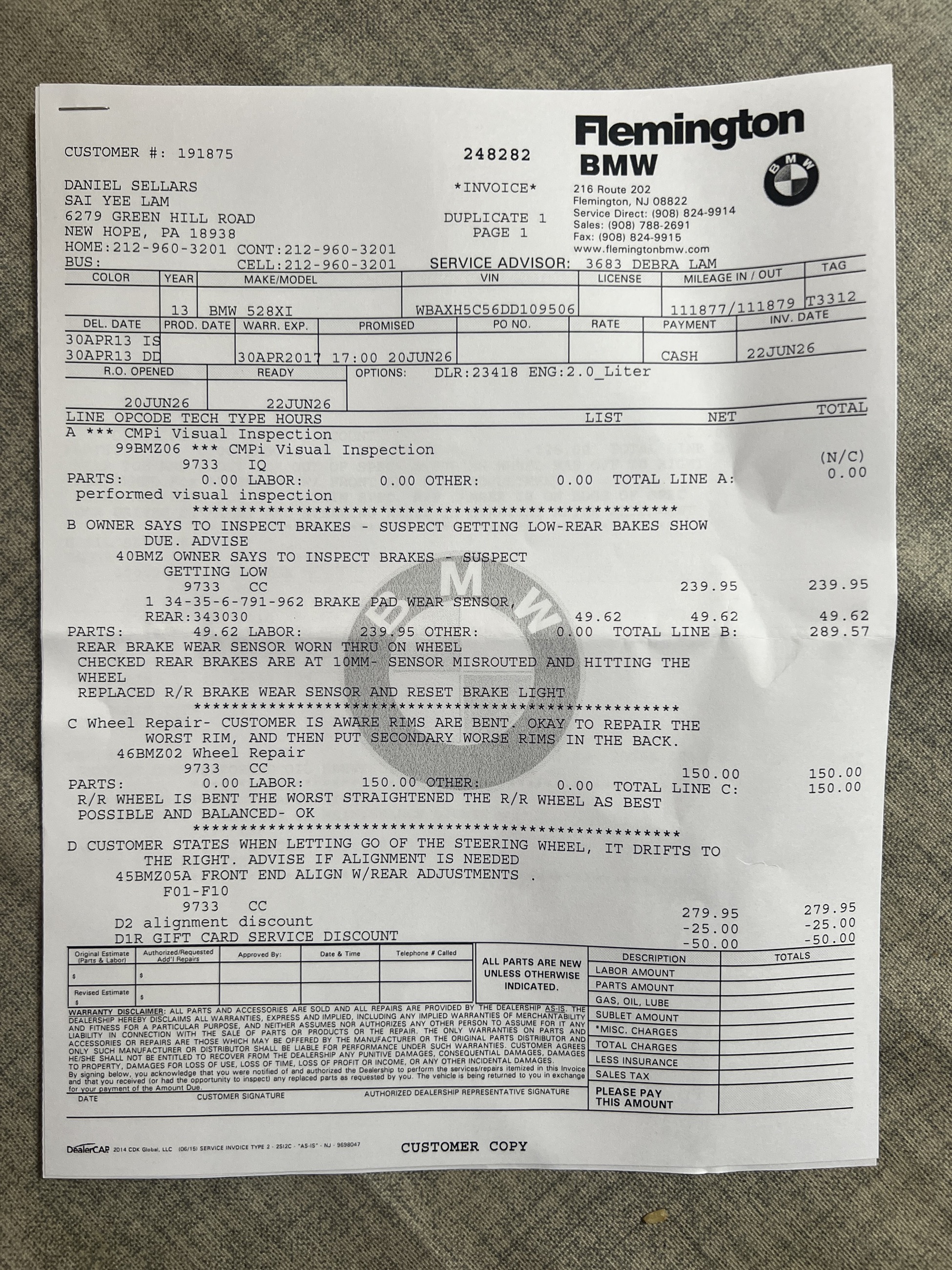
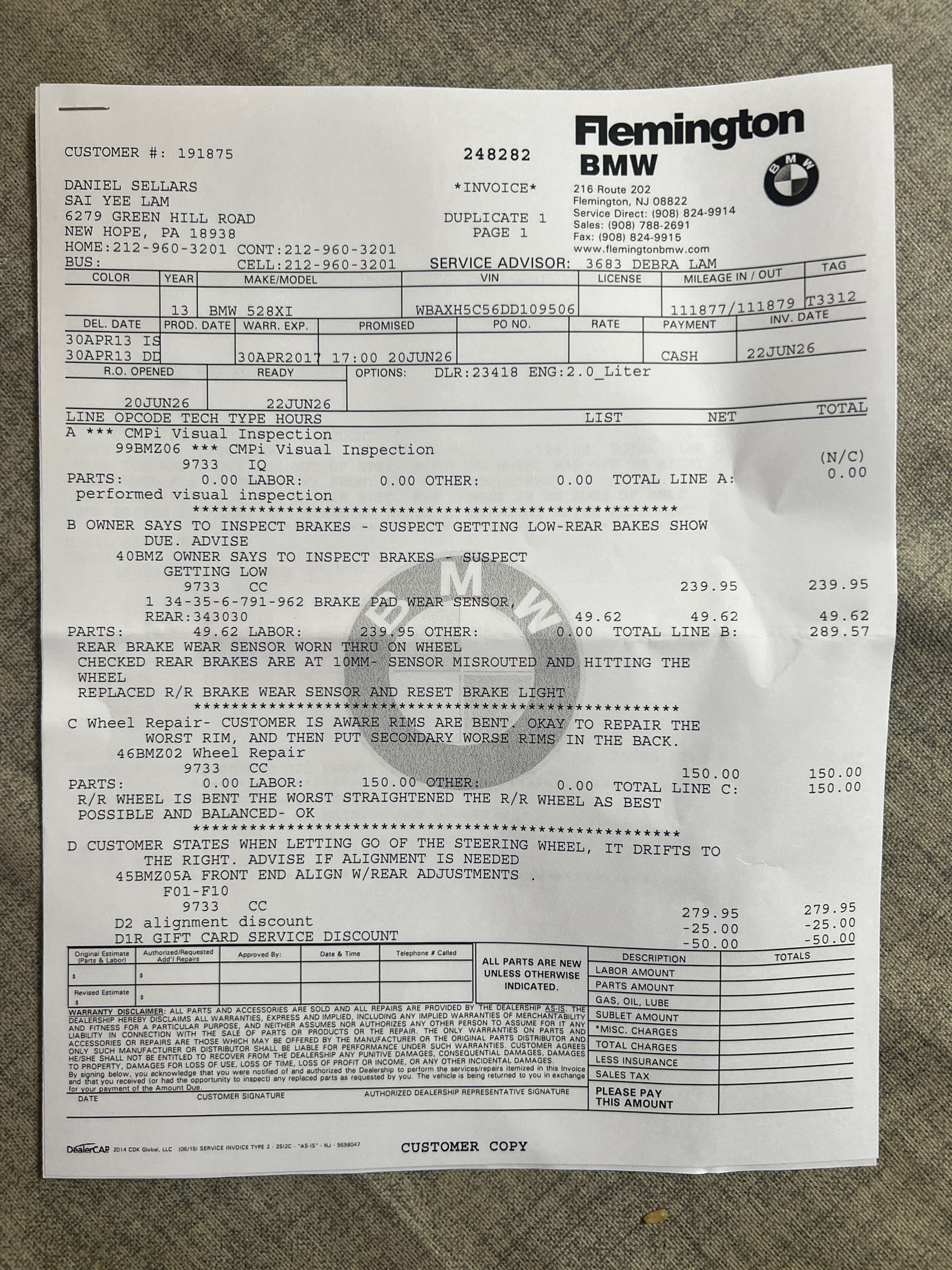
Service invoice #248282 — 22 Jun 2026, Flemington BMW
The completed-work record for the 20 Jun 2026 inspection above — all three flagged items were repaired on this visit. RO opened 20 Jun 2026, invoiced 22 Jun 2026, paid cash. Odometer 111,877 mi in → 111,879 out. Service advisor Debra Lam (3683) · VIN WBAXH5C56DD109506 · customer #191875 · tag T3312.
| Line | Work performed | Parts | Labor | Total |
|---|---|---|---|---|
| A | CMPi multi-point visual inspection. Performed visual inspection; brake linings 10 mm front & rear. | $0.00 | $0.00 | $0.00 N/C |
| B | Right-rear brake wear sensor — replaced. Rear brakes checked at 10 mm; the sensor was misrouted and contacting the wheel, wearing through its wiring (brake warning light on). Replaced the R/R brake wear sensor and reset the brake light. Part 34-35-6-791-962. | $239.95 | $49.62 | $289.57 |
| C | Right-rear wheel — straightened & balanced. Customer aware all four rims are bent; authorised repairing the worst (R/R) and rotating the next-worst rims to the rear. Straightened the R/R wheel as best possible and balanced — OK. | $0.00 | $150.00 | $150.00 |
| D | Front-end alignment w/ rear adjustments. Customer reported the car drifts right when letting go of the wheel. Aligned (F01-F10). Includes a −$25.00 alignment discount and −$50.00 gift-card service discount. | $0.00 | $279.95 | $204.95 |
| + | Oil service. Engine oil & filter change performed at the same visit (itemised on a later page of the RO, not on this page-1 scan). | — | — | incl. |
| Total paid — alignment, oil service, brake-sensor cable & wheel (cash, 22 Jun 2026) | $633.00 | |||
The scan is page 1 of the repair order — it itemises lines A–D (inspection, brake-sensor cable, wheel, alignment); the oil-service line and the final totals box sit on a later page. Final amount paid was $633.00 (per Dan) · invoice scan (JPG) ↗
Seeking contractors
Detailing / interior: TBD — find when interior refresh becomes a priority.
Mechanical: dealer-only until trim is identified.
Installed accessories
Uniden R4 In-car radar / laser detector · windshield-mount
Purchase: $200 · date TBD · mounted in the BMW.
Connectivity split: firmware updates are USB-C to a PC (Uniden R/TACH Tool, Windows or macOS). Bluetooth pairs the R4 with the official Uniden iOS app for live-alert log, GPS settings, sensitivity tuning — the iOS app shows firmware versions but cannot push updates. That's a deliberate Uniden design choice, not a missing feature.
| Module | Current | Latest | Action |
|---|---|---|---|
| UI | 130 | 139 | update |
| DSP | 123 | 126 | update |
| GPS | 116 | 123 | update |
| SoundDb | 103 | 108 | update |
| GPSDb | 20240124 | 20260407 | update (~2 years out) |
| Keypad | 000 | — | no update |
| Laser TP | 000 | — | no update |
| BT | 107 | 113 | update |
Next steward action: bring the R4 to a PC (Windows or macOS), connect via USB-C, run the R/TACH Tool, push all six pending updates in order (UI → DSP → GPS → SoundDb → GPSDb → BT). Log the post-update versions back on this page as the second accessory entry.
- Firmware installer Uniden R4 downloads — direct · downloads index Direct link lands on the R4 download page (R/TACH Tool for Windows or macOS, latest firmware bundle, manual). Gateway index linked alongside as a fallback. The iOS app's Firmware screen is read-only; it can't install.
- iOS companion app Uniden R4 product page Official iOS app for the R4 line — pair via Bluetooth for live alerts, settings, firmware-version inspection. Search "Uniden" in the App Store; the app pairs once and reconnects automatically when the R4 powers on.
- Manufacturer Uniden America Corporation · Irving, TX · uniden.com
BMW OEM Euro Headlight Switch Rear fog light activation · pending procurement · F10 · xenon + rain sensor config
Why: US-market F10 528i ships without the rear fog light stalk activated. The bulbs are already in the taillights from the factory — the only missing piece is the euro-spec headlight switch, which has the rear-fog symbol on the face and enables the function. Swap is plug-and-play; no wiring required.
Confirmed config: Headlight washers present on this car → xenon-equipped (washers are xenon-only on the F10). This locks the part choice to the xenon + rain sensor branch. Halogen-spec switch will not match.
| OEM part number | Notes | Status |
|---|---|---|
| 61 31 6 803 965 | Primary reference · euro switch · F10 · fog + xenon + rain sensor · chrome accent face | Lead |
| 61 31 9 265 303 | Interchangeable sibling — same spec, use if 965 is out of stock | Alternate |
| 61 31 9 169 404 | Interchangeable sibling — same spec | Alternate |
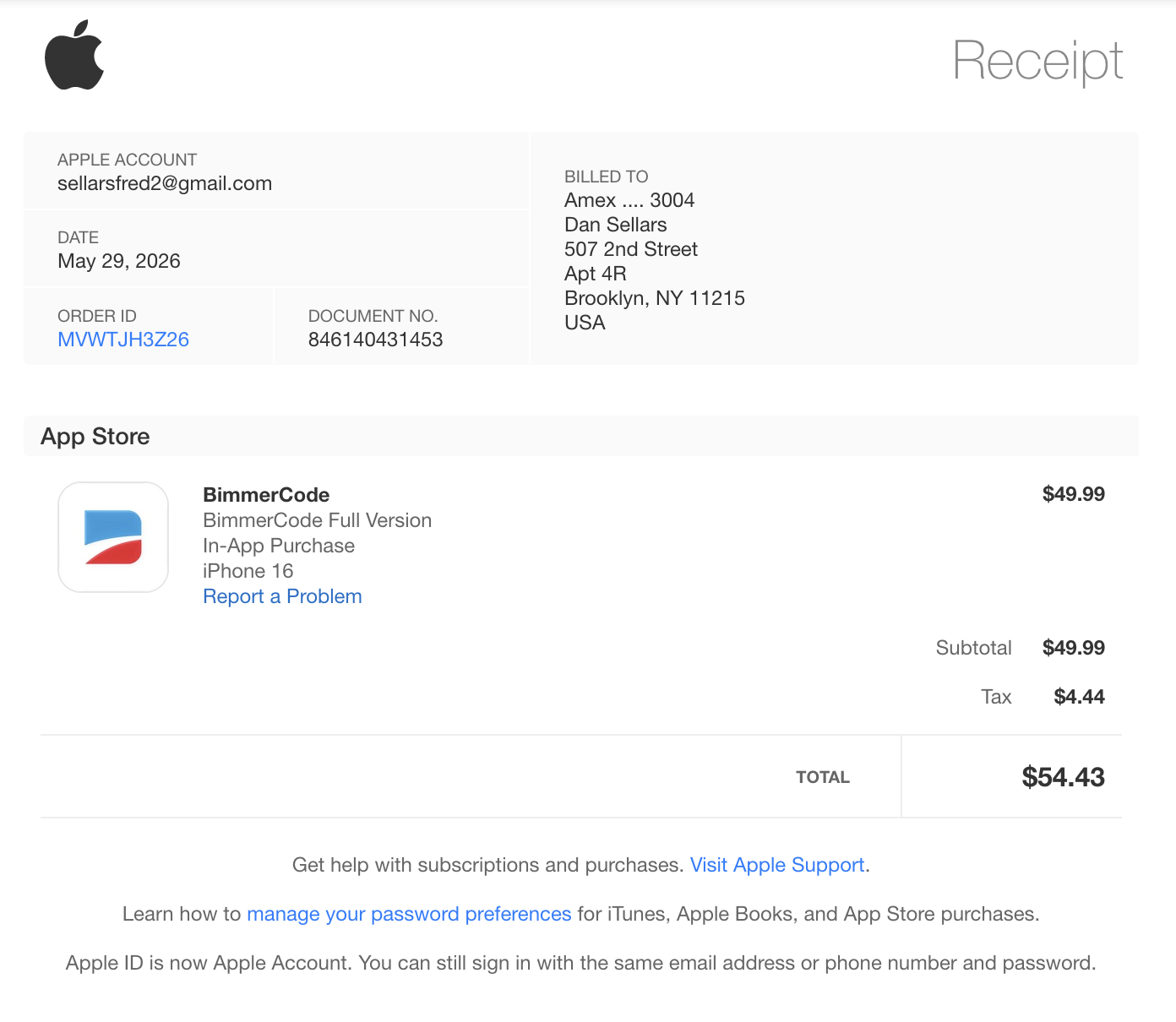
Install: pop the trim panel with a plastic pry tool · T20 Torx to release the switch · swap the plug · done. ~10 minutes. No coding required in most cases — a small number of F10s need a quick recode if the tail lights misbehave afterward. BimmerCode app + a cheap OBD dongle (~$30) handles that in minutes if needed.
Budget: OEM new ~$100–150 shipped. eBay UK/DE listings for the part number run £30–70 used — search 61316803965 or "BMW F10 euro headlight switch rear fog". On any used listing confirm: (1) rear-fog symbol physically present on the face, and (2) OE reference list includes one of the three numbers above.
- OEM new sources FCP Euro · ECS Tuning · cars245.com (~$105, VIN-match available on request) Part number to search: 61316803965. Alternates: 61319265303 · 61319169404.
- eBay search
Search
61316803965on ebay.co.uk or ebay.de for used OEM at £30–70. Verify: rear-fog symbol on face + OE reference includes one of the three part numbers. Avoid listings without a clear face photo.
MTA Bridges & Tunnels E-ZPass Transponder Interior windshield toll tag · Triborough Bridge & Tunnel Authority · active
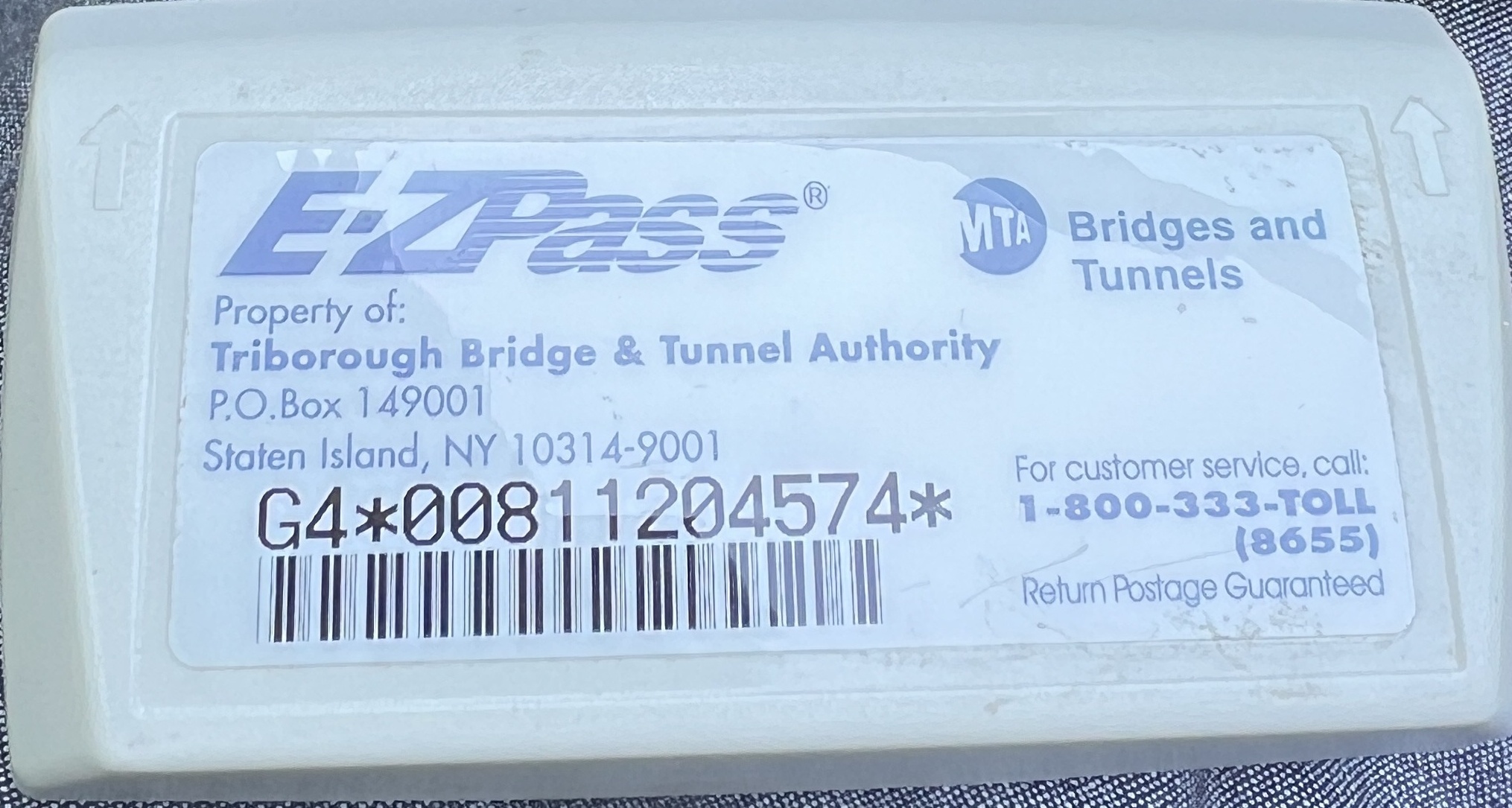
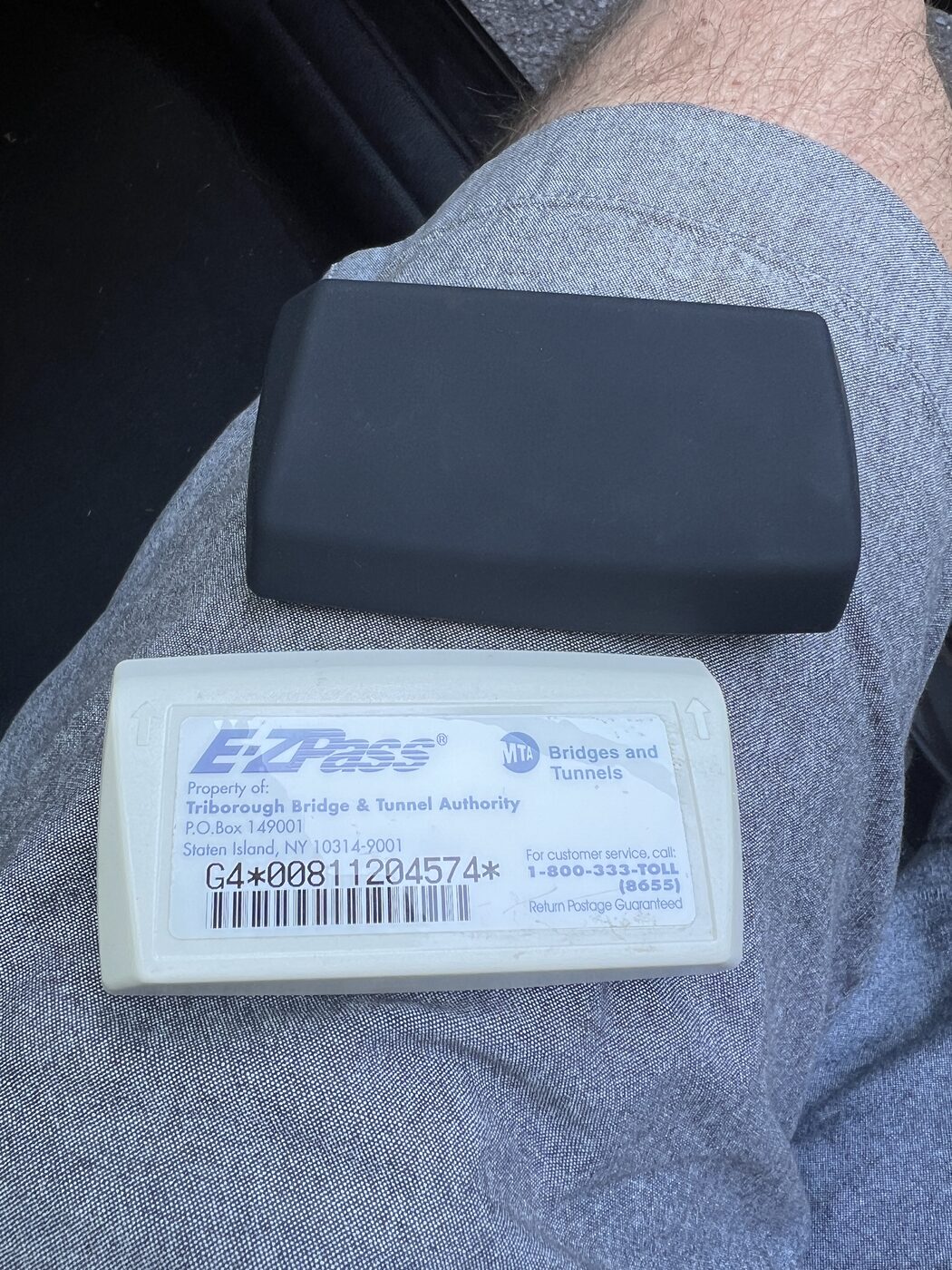
Interior-windshield E-ZPass on-board transponder (white MTA B&T tag in a black silicone sleeve), assigned to the BMW. Issued by the Triborough Bridge & Tunnel Authority (MTA Bridges and Tunnels) — remains their property.
Steward note: tag is account-linked — moving it between vehicles is fine (the account is billed, not the car), but keep this serial paired to the BMW here so plate/tag reconciliation stays clean. Manage the account at ezpassny.com.
PA vs NY — no functional difference: this is a New York (MTA) tag, but E-ZPass is a single interoperable network (~19 states) — it pays the same tolls on the PA Turnpike and every out-of-state crossing that a PA-issued tag would. Issuing state only matters for residency discount plans: NY's Staten Island / Verrazzano resident discounts require a NY tag (not applicable here), and PA has no equivalent lock-in. A separate PA Turnpike E-ZPass (serial G4*00603459979*, on the F-250 record) is also kept active (~$3/yr) as belt-and-braces — functionally interchangeable with this one.
Total cost of ownership
Running cost pulled from Harvest substrate. Acquisition + match-regex defined in pa/_data/vehicles.json. Under-counts: multi-vehicle insurance/registration policies that don't tag the specific vehicle. See Car Tax & Insurance for the full pool.
| Category | N | $ |
|---|---|---|
| Car Maintenance & Repair | 15 | $10,652.34 |
| Car Fuel | 99 | $6,058.47 |
| Transportation | 4 | $1,471.32 |
| Car Tax & Insurance | 2 | $206.00 |
| Transfers Bank & Savings | 1 | $200.00 |
| Hardware | 1 | $91.54 |
| Year | N | $ |
|---|---|---|
| 2016 | 2 | $736 |
| 2017 | 6 | $1,931 |
| 2019 | 4 | $907 |
| 2021 | 3 | $236 |
| 2022 | 2 | $154 |
| 2023 | 9 | $1,914 |
| 2024 | 36 | $4,689 |
| 2025 | 51 | $5,705 |
| 2026 | 9 | $2,409 |
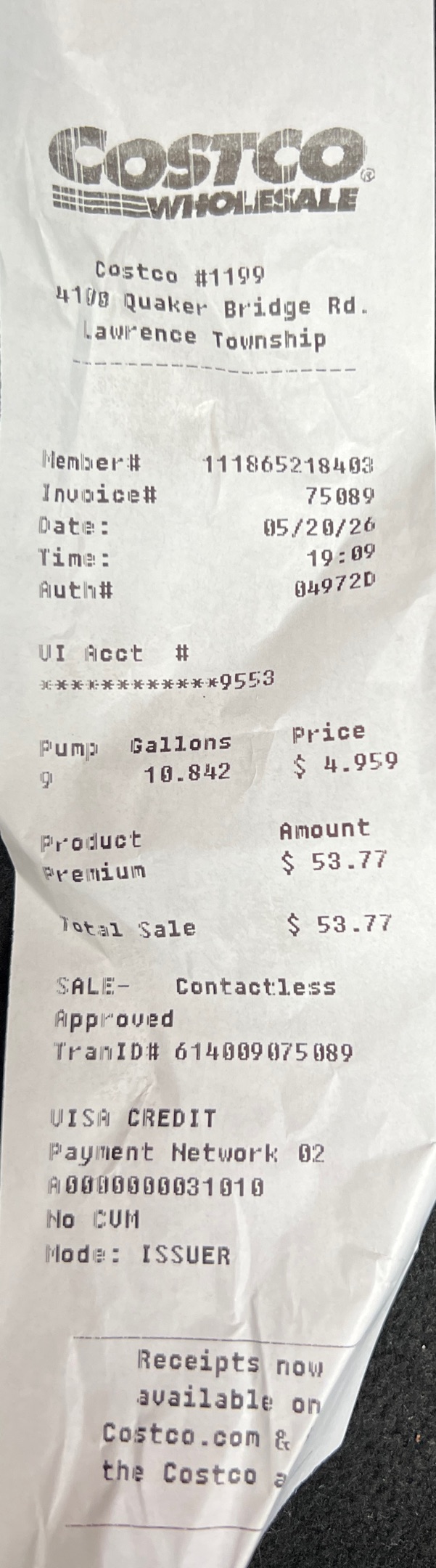
Receipts · 112 files (most recent first) — show scans
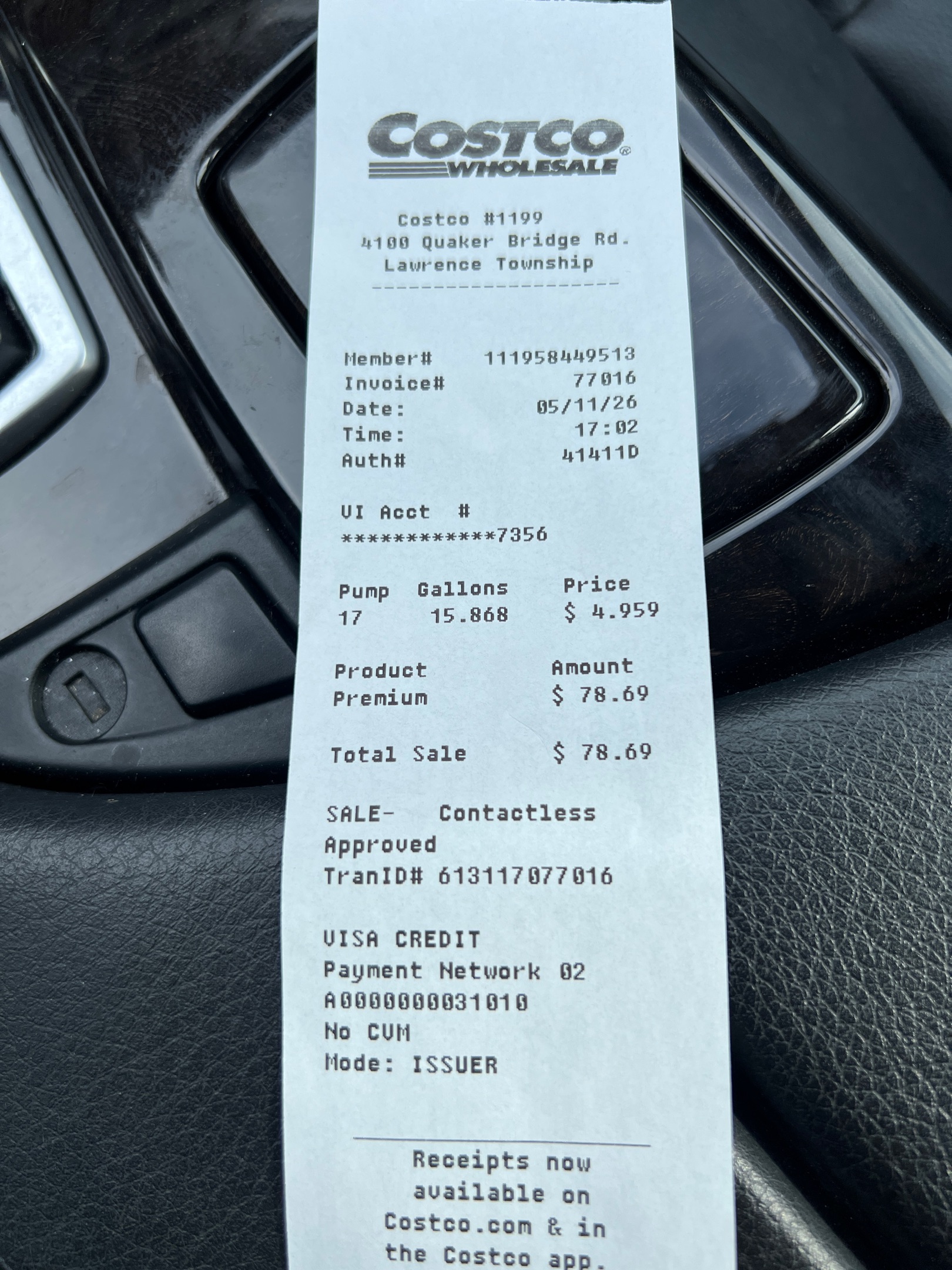
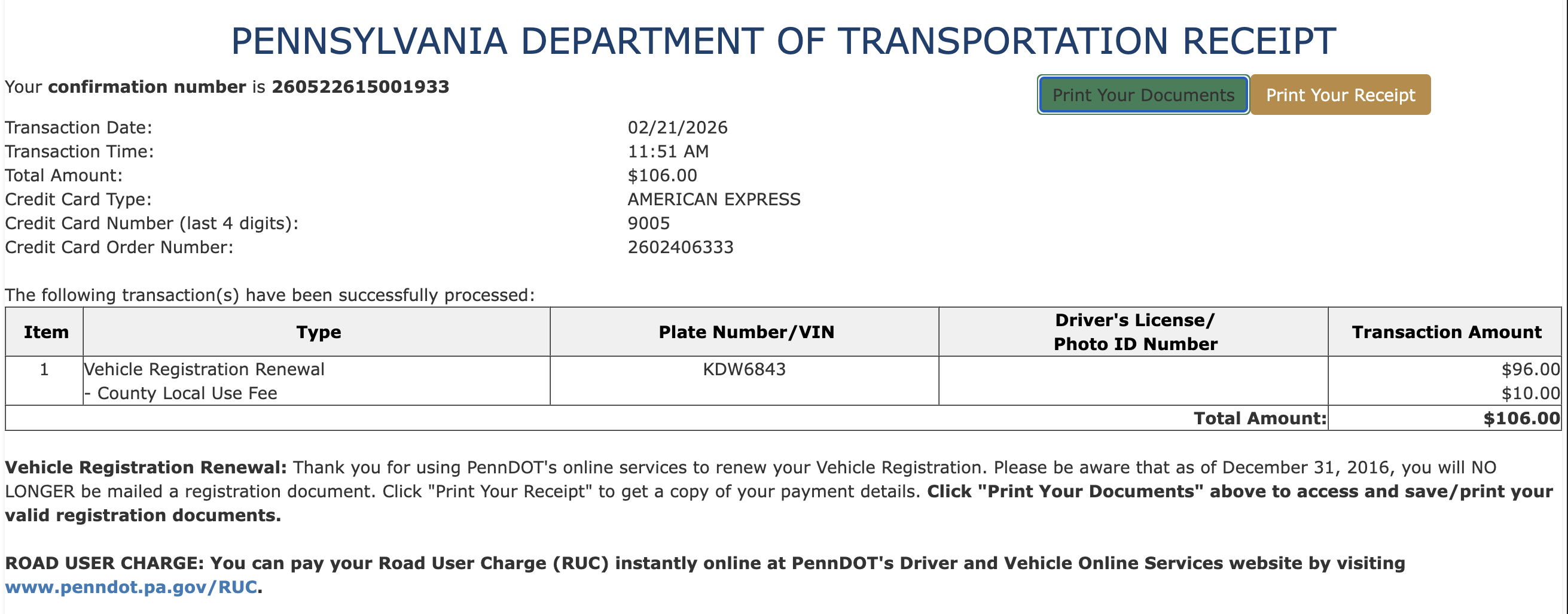
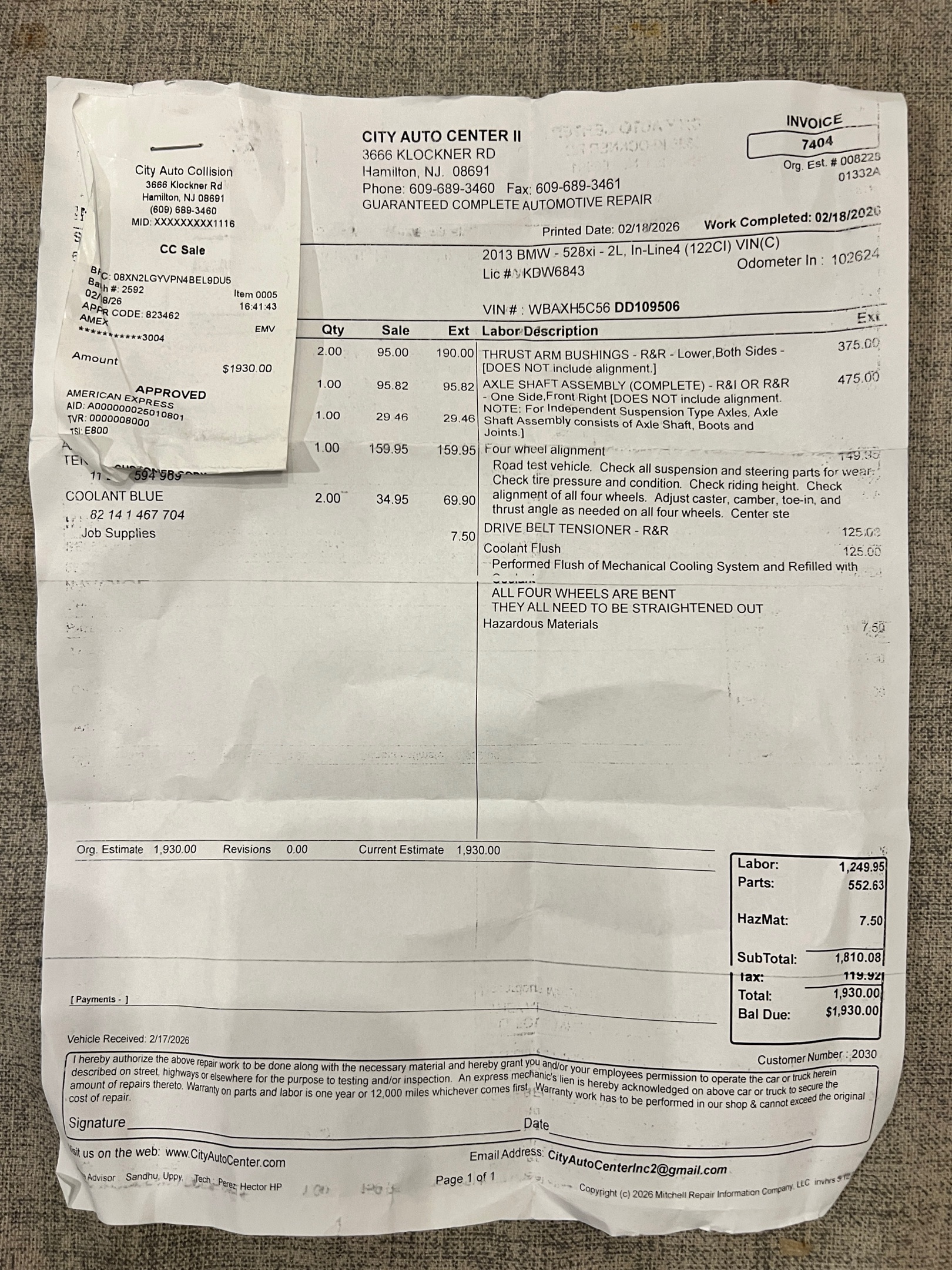
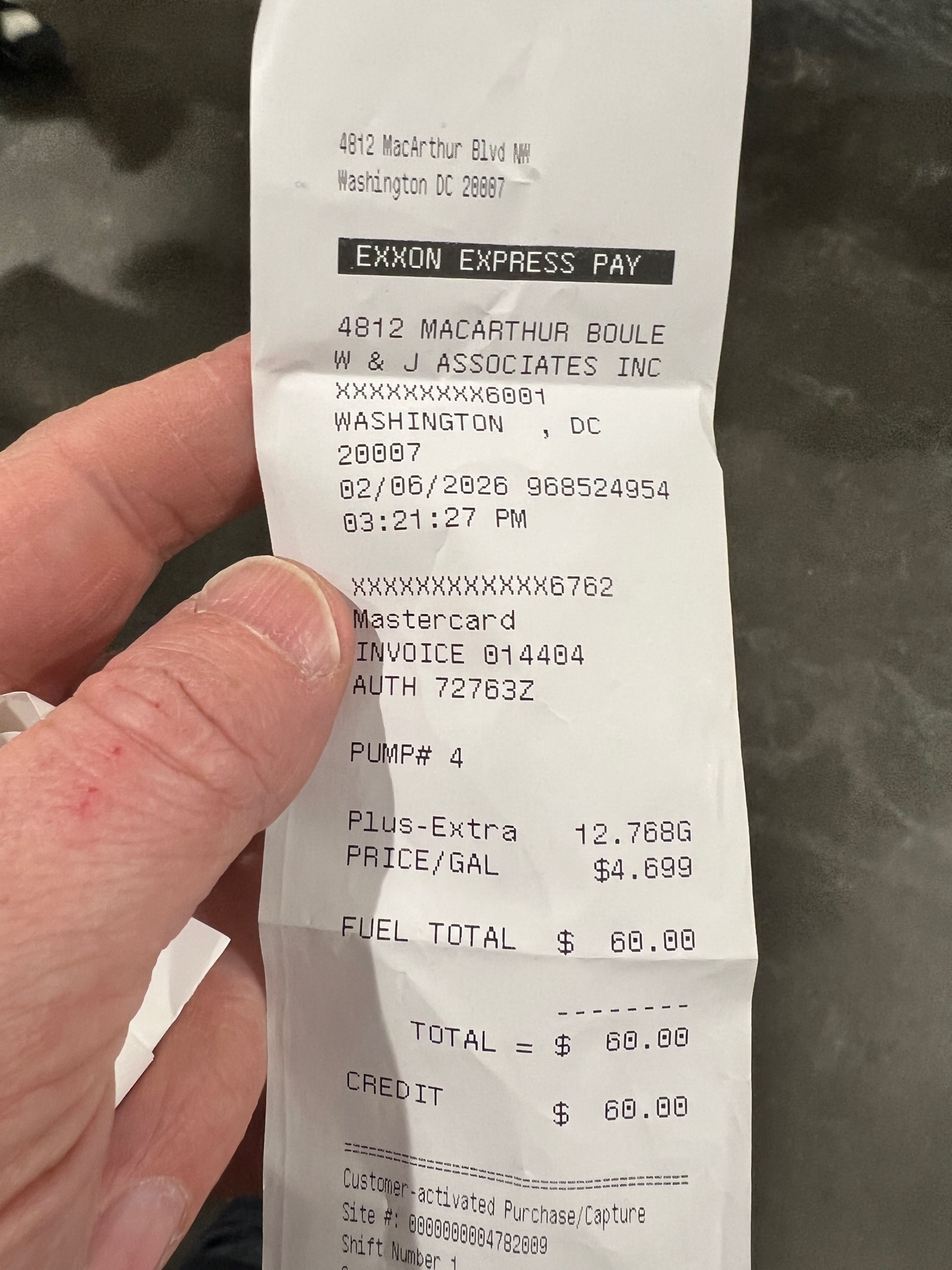
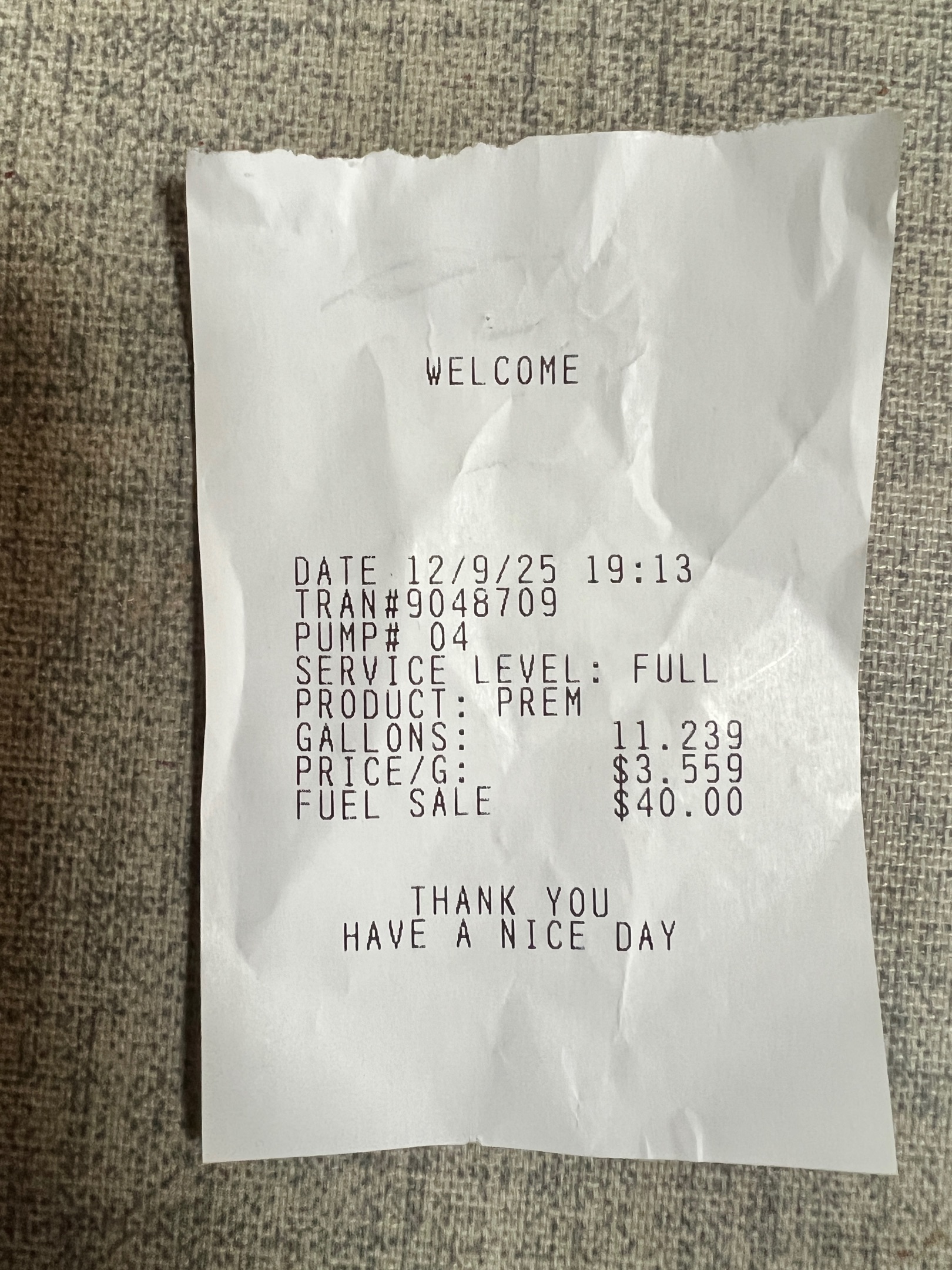
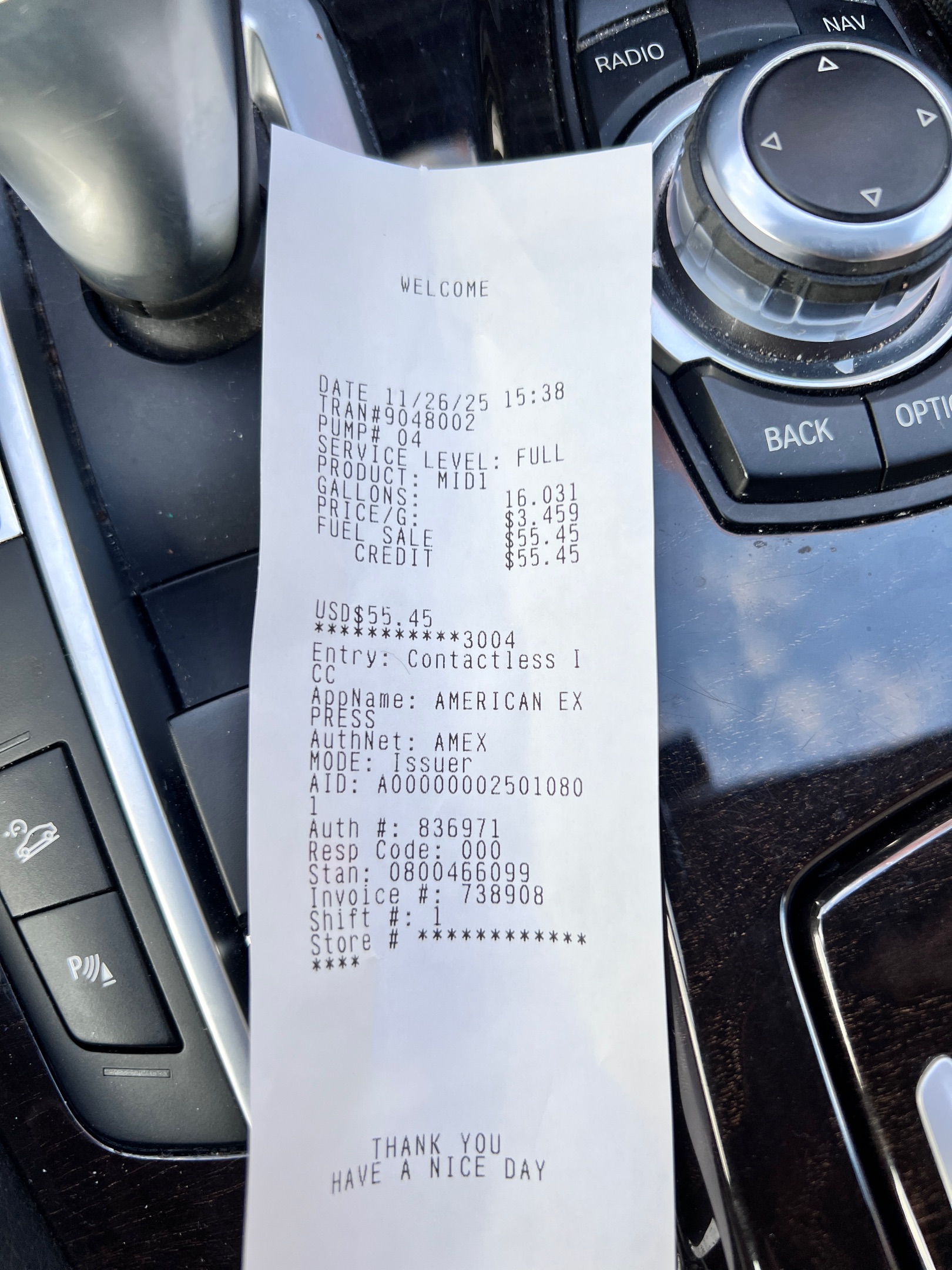
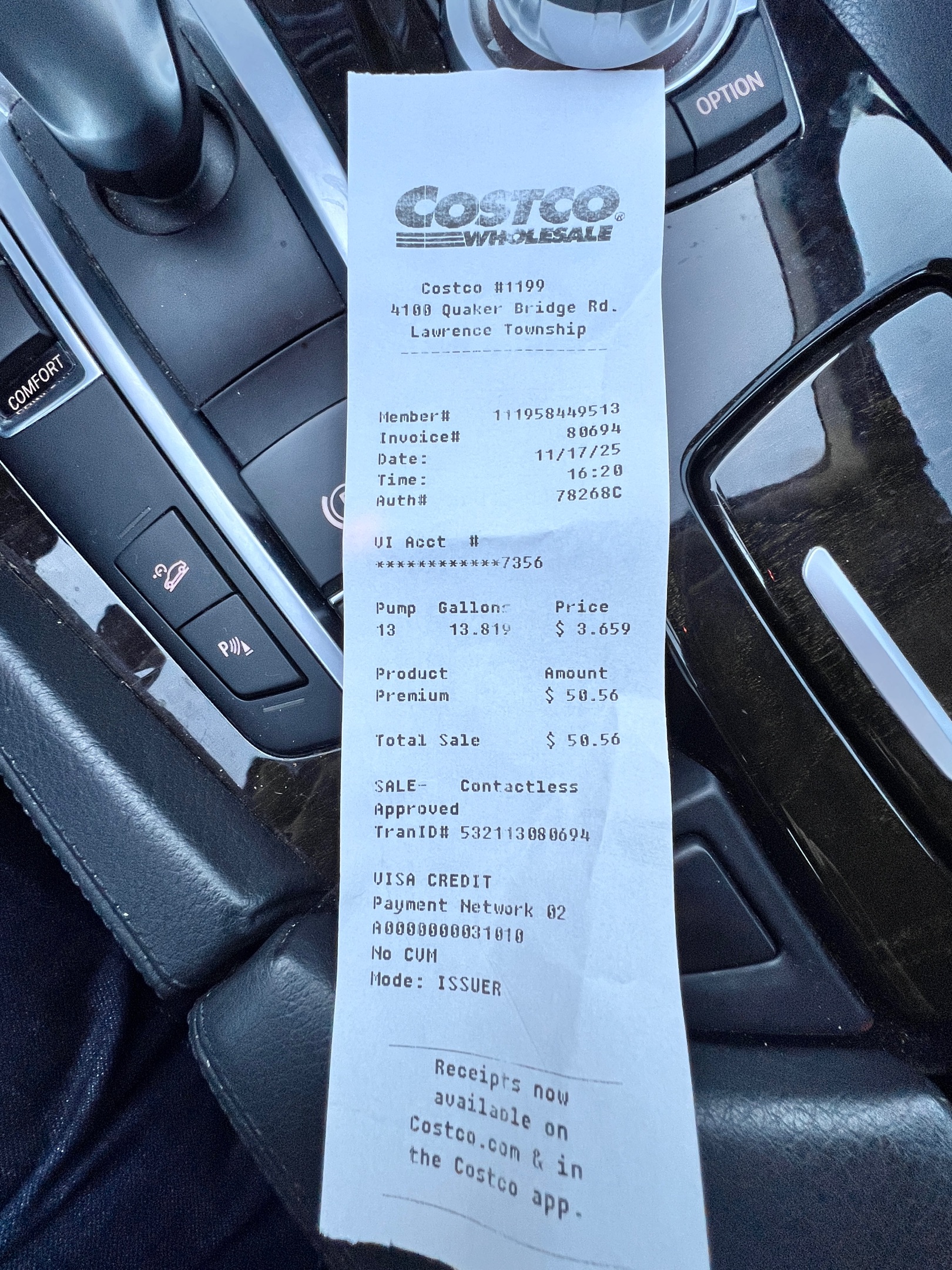
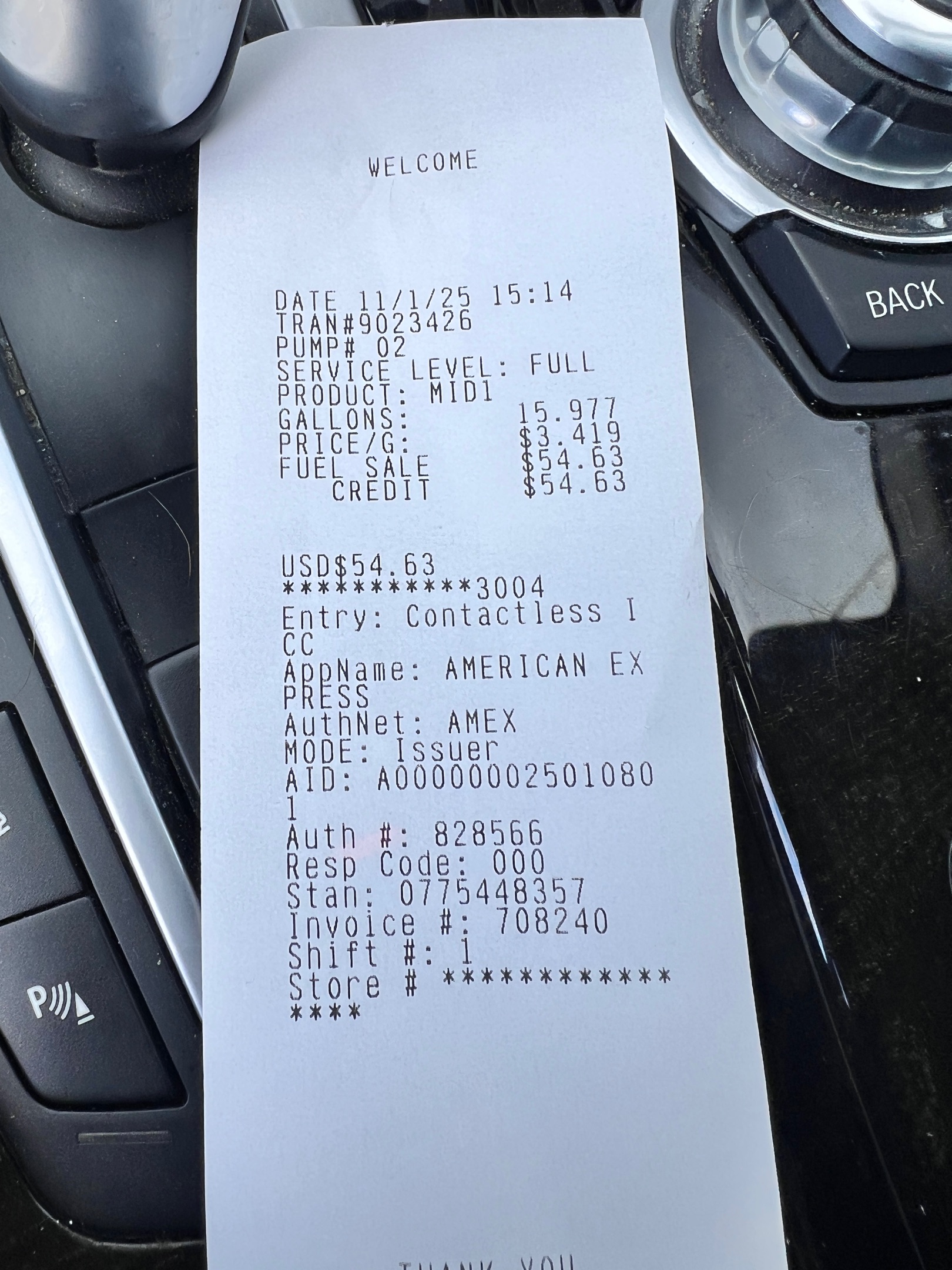
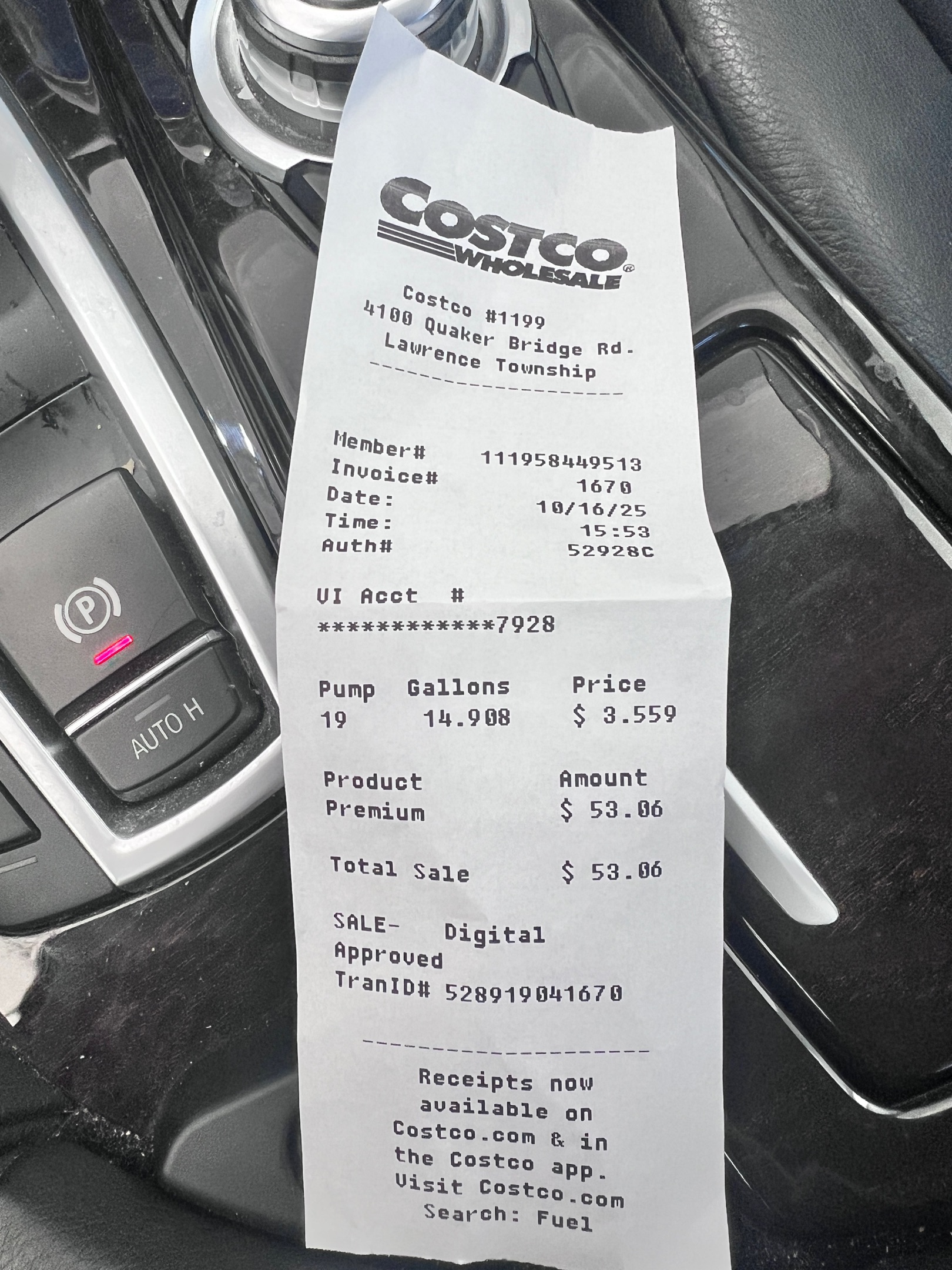
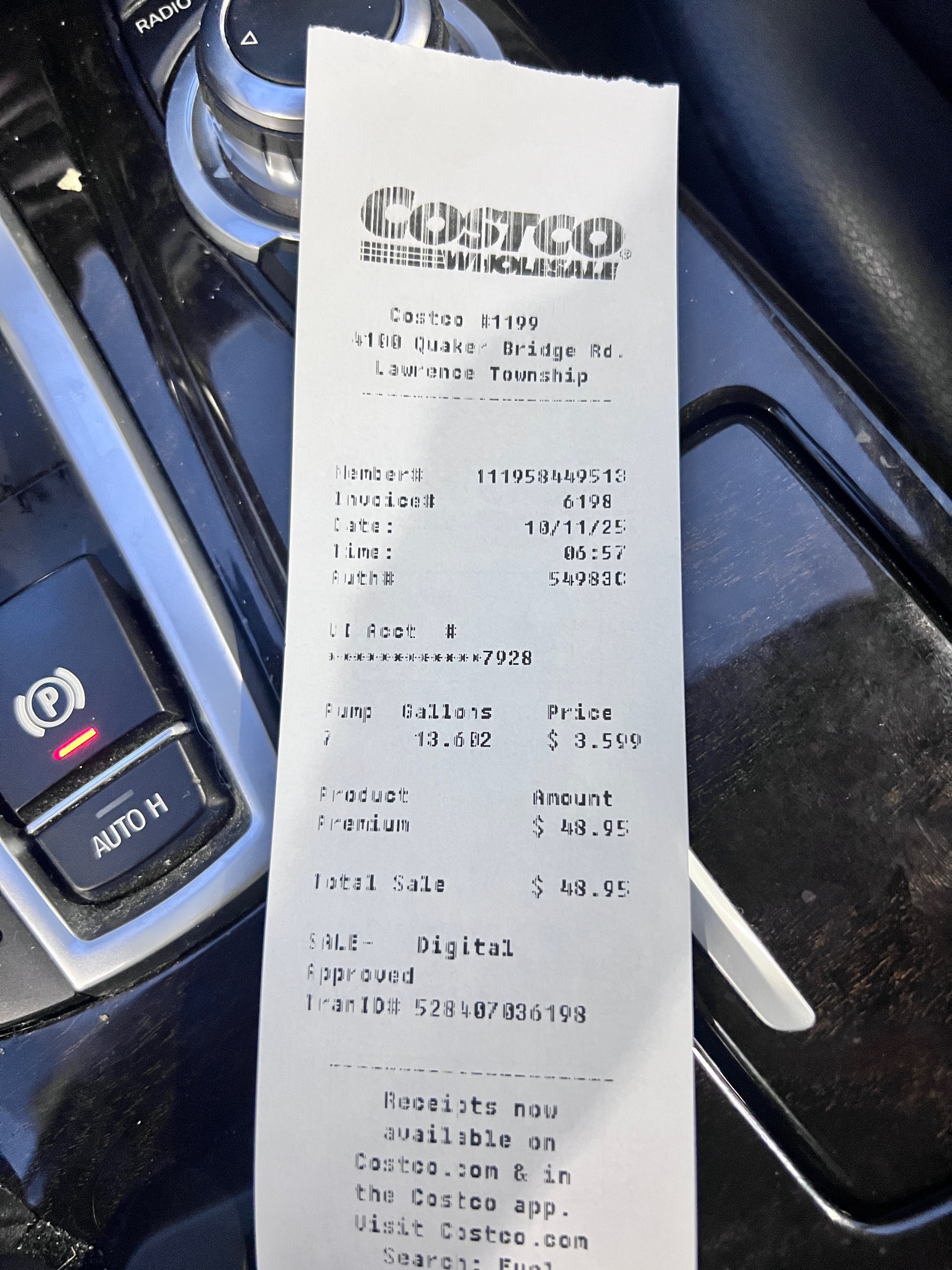
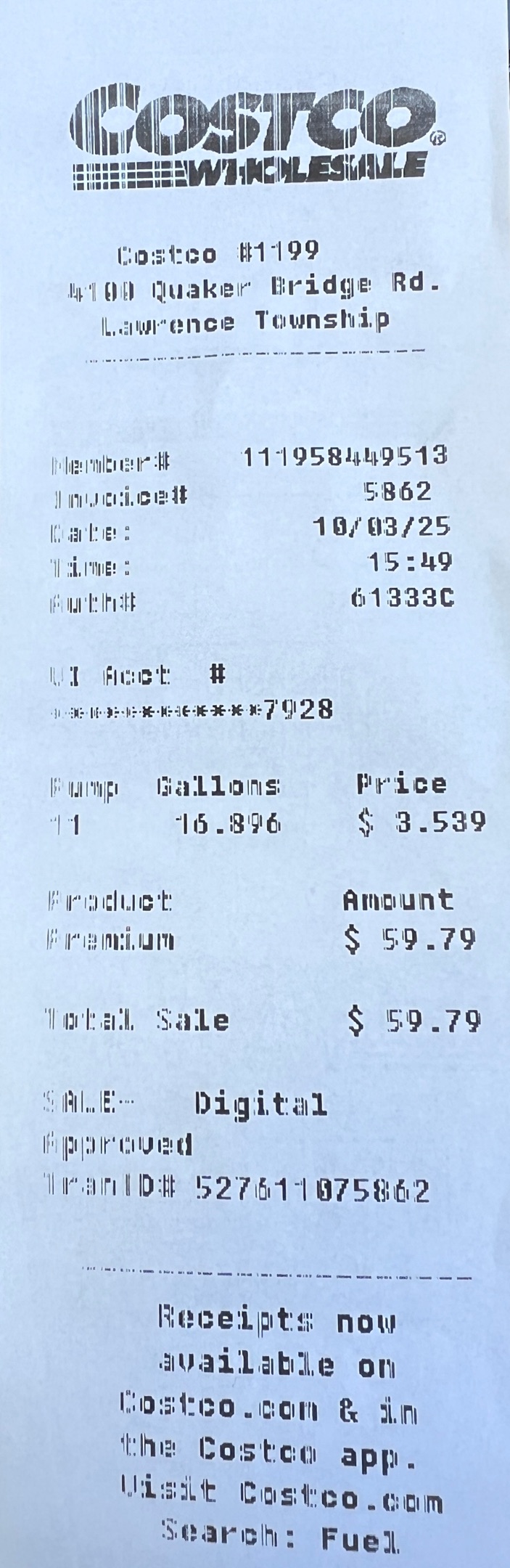
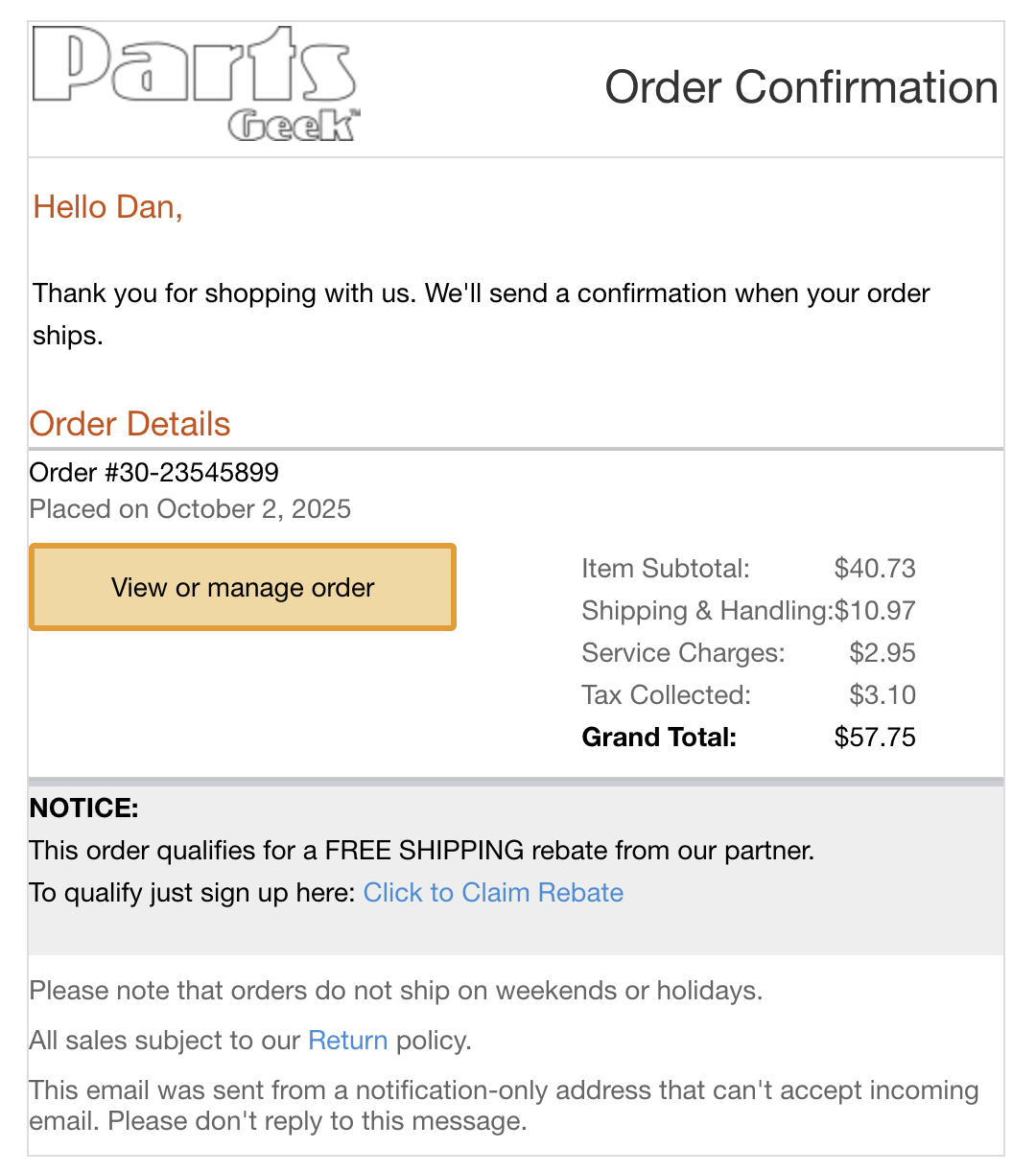
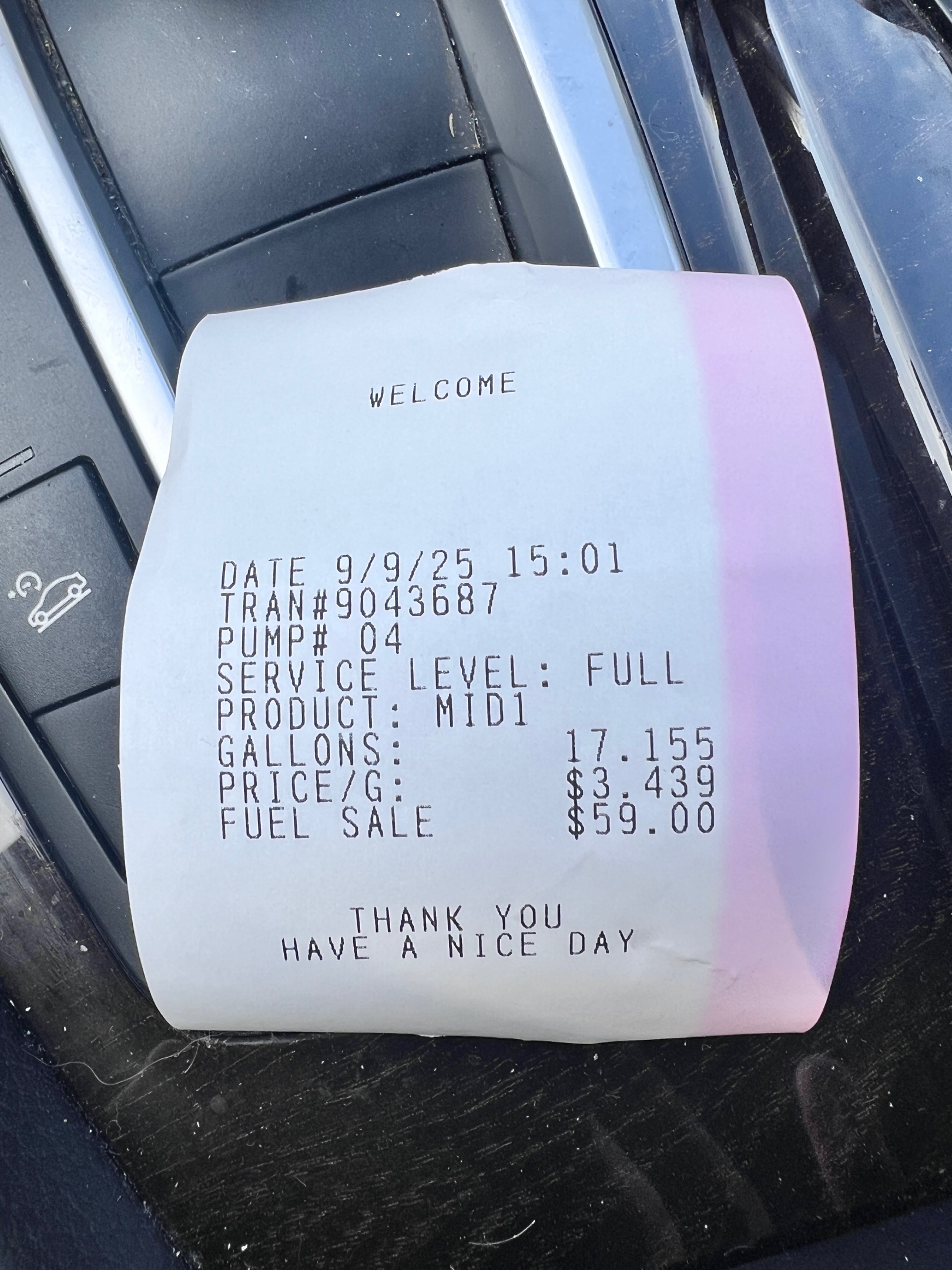
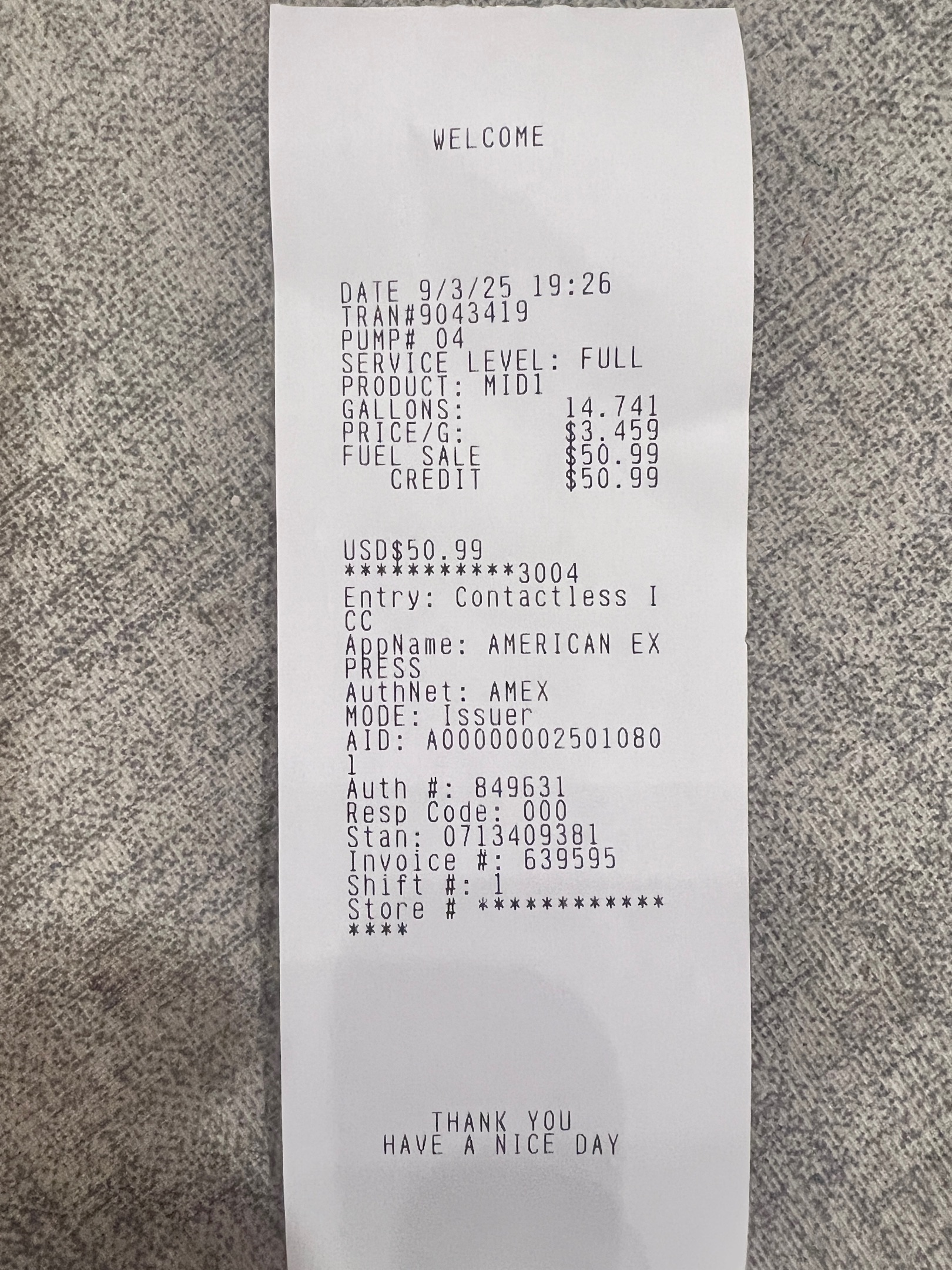
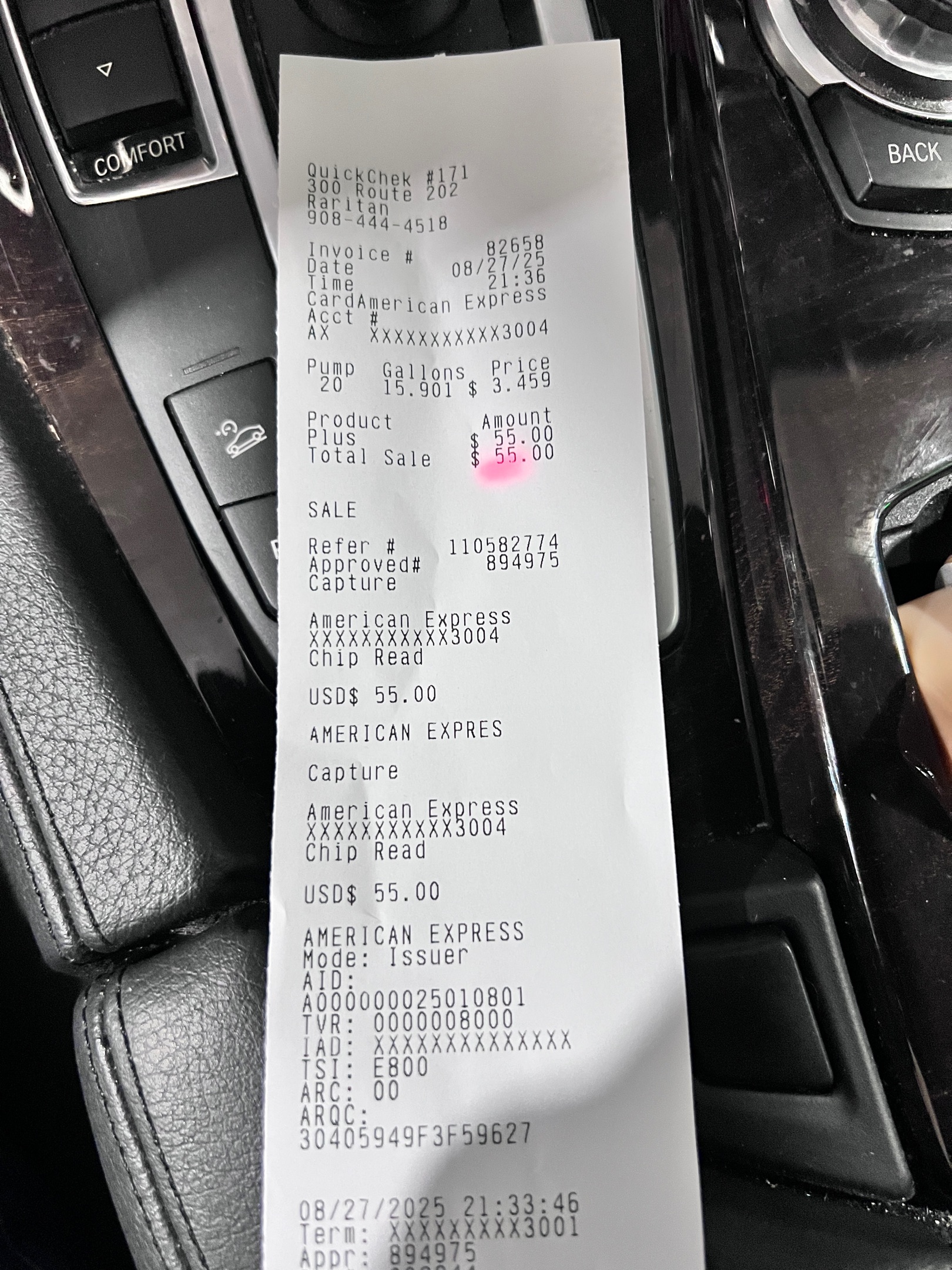
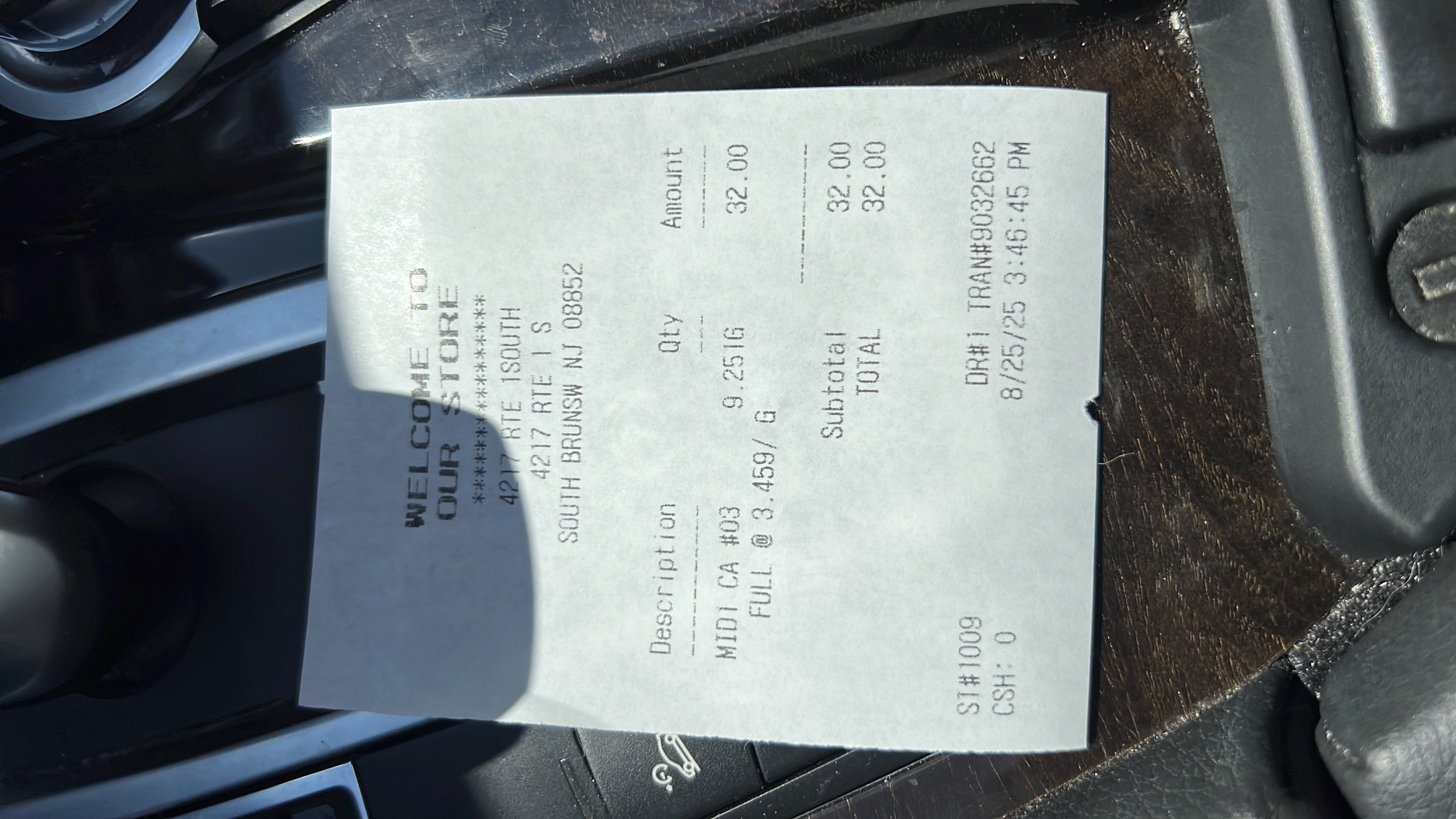
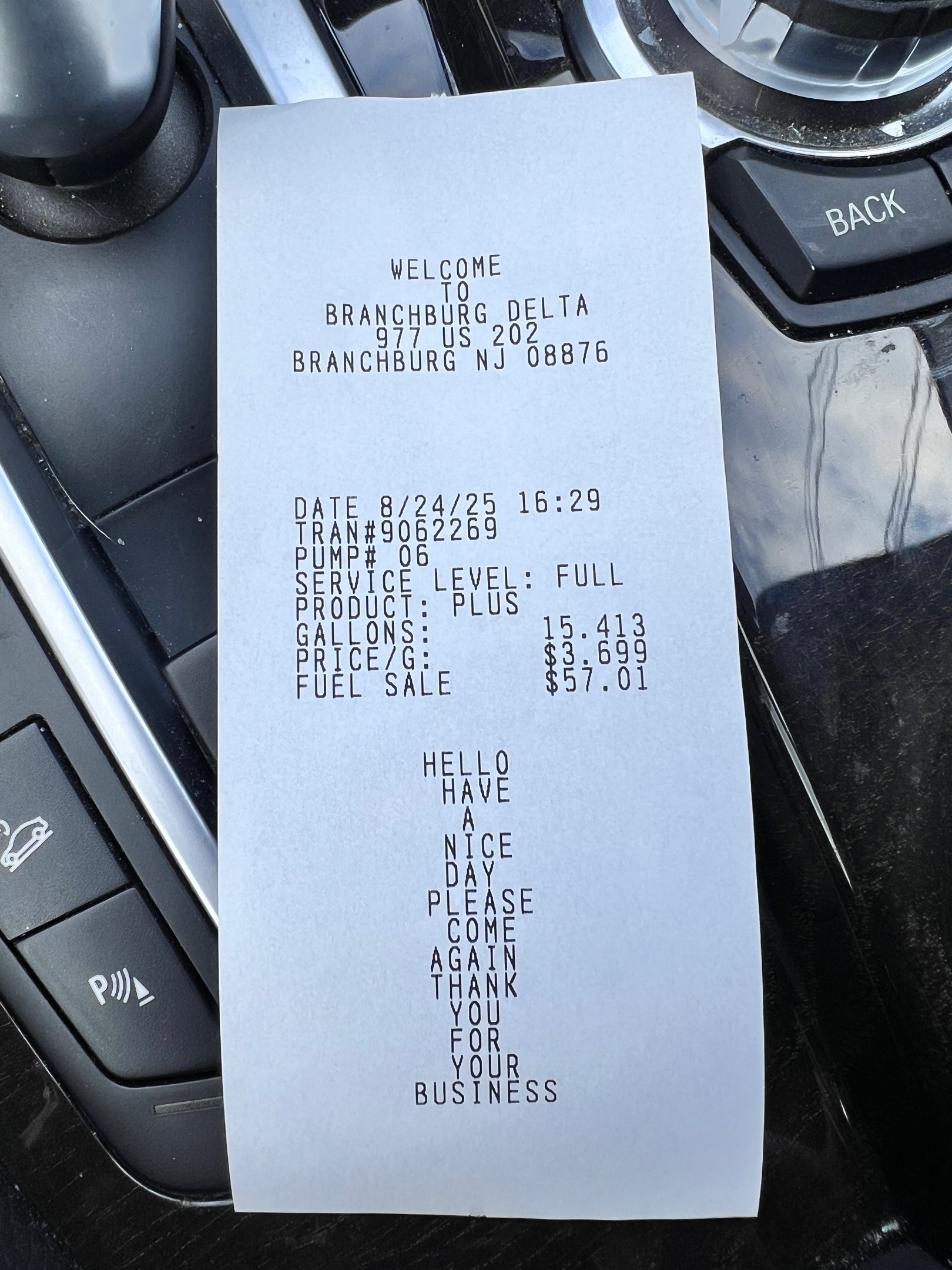
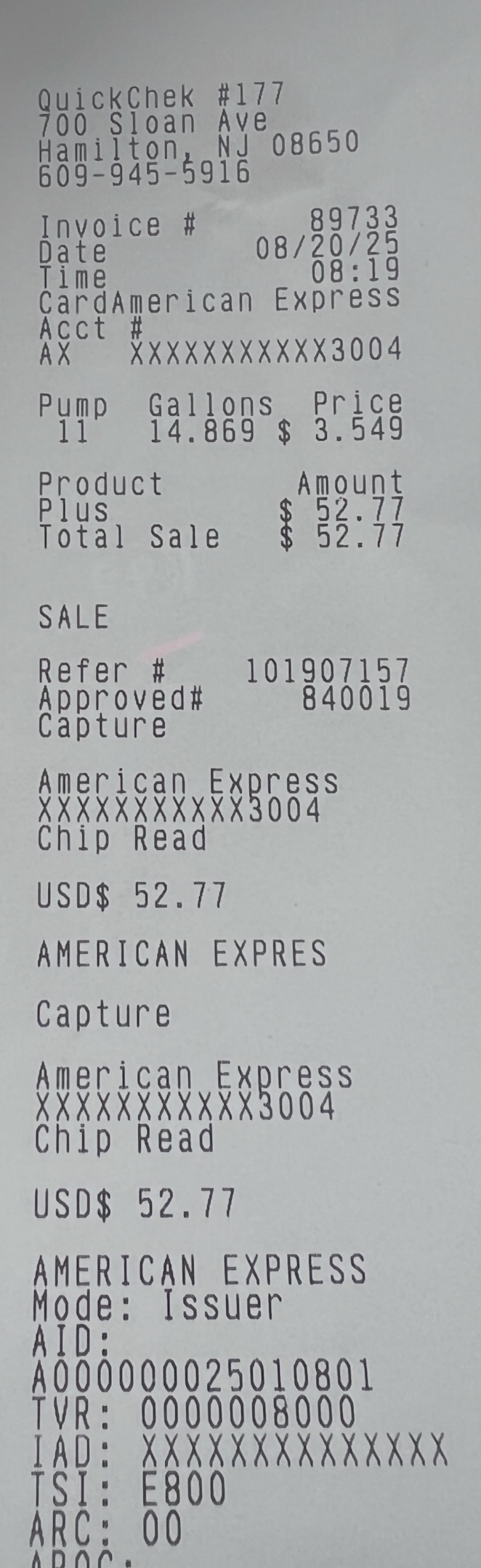
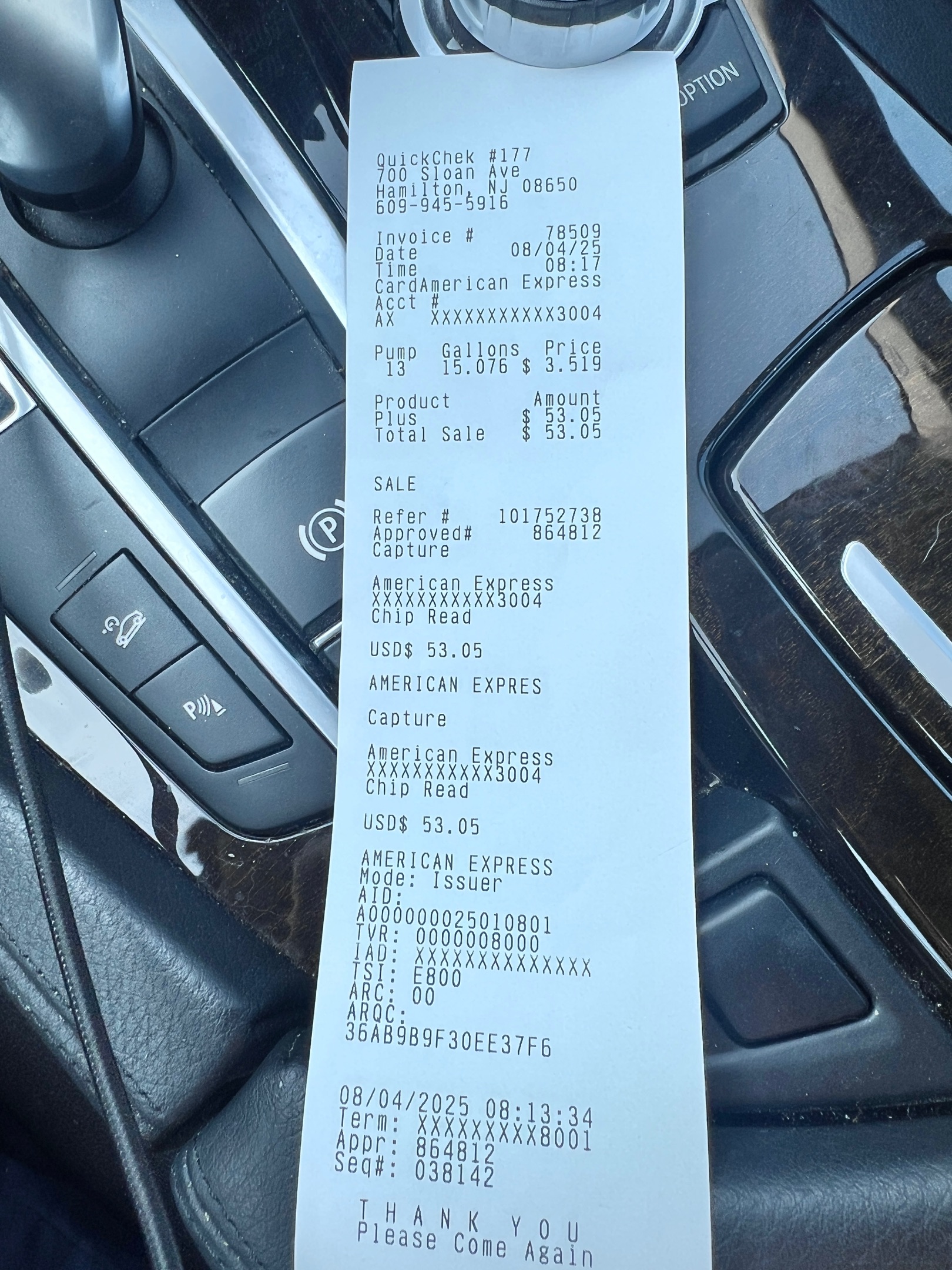
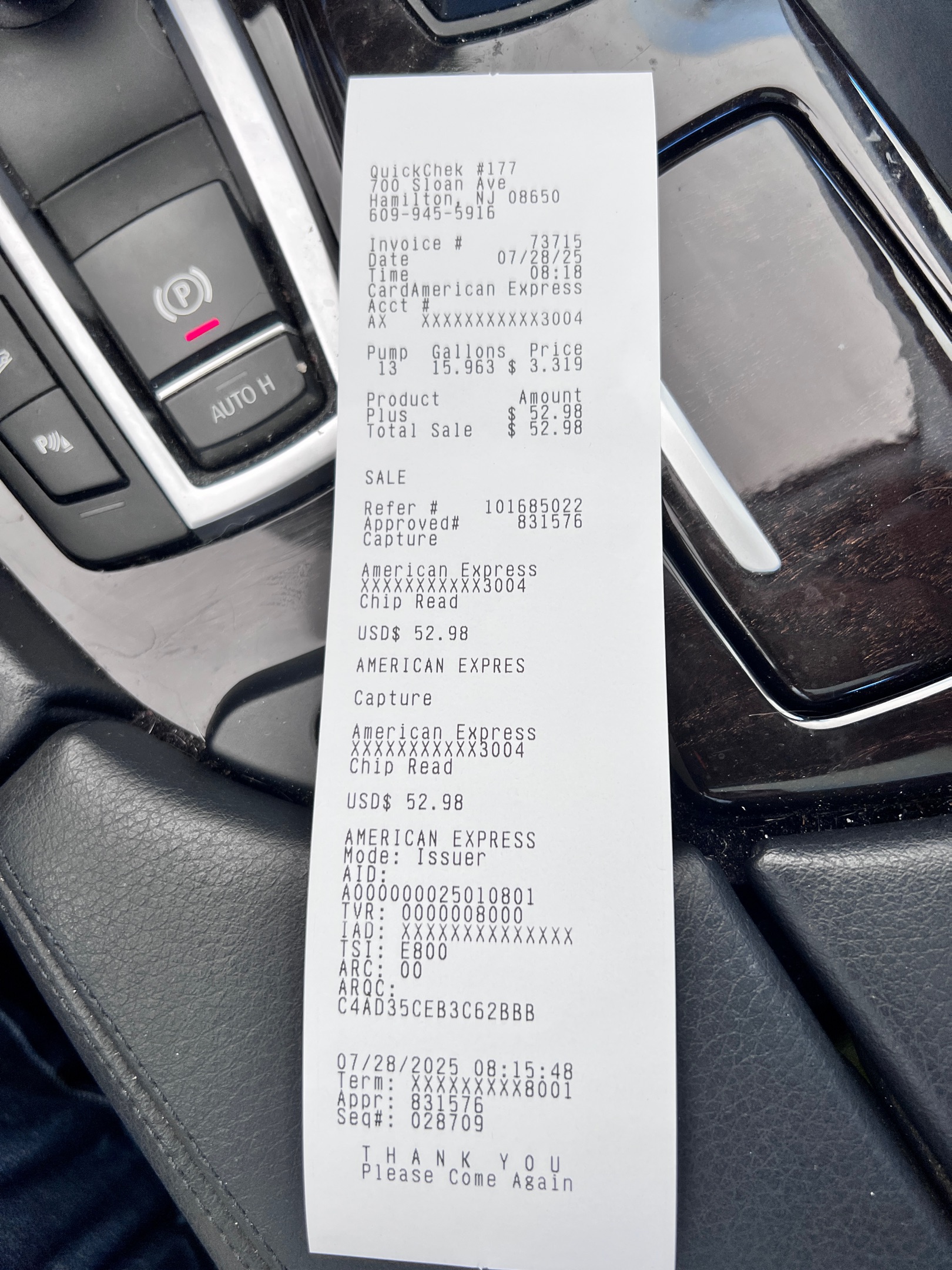
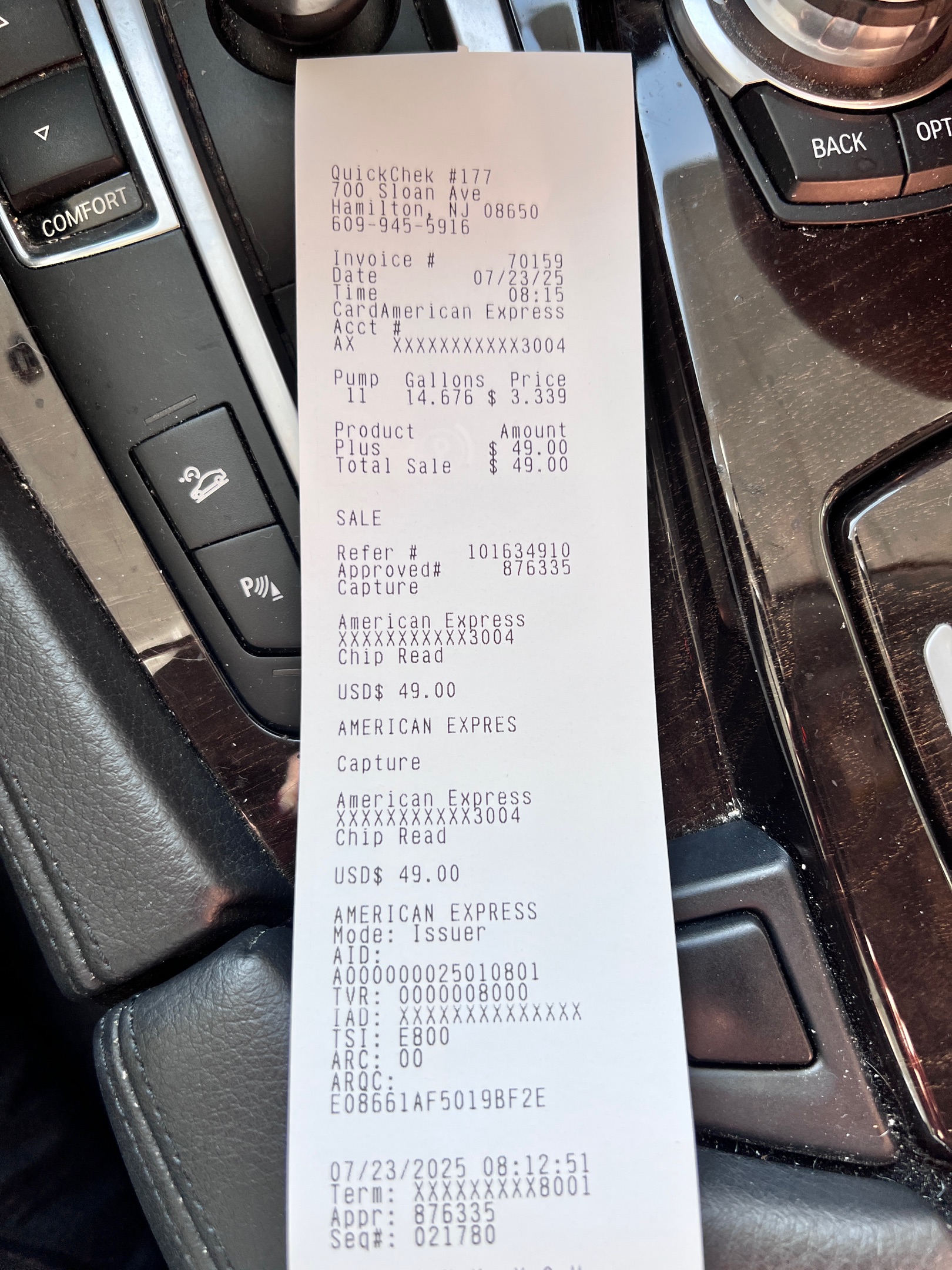
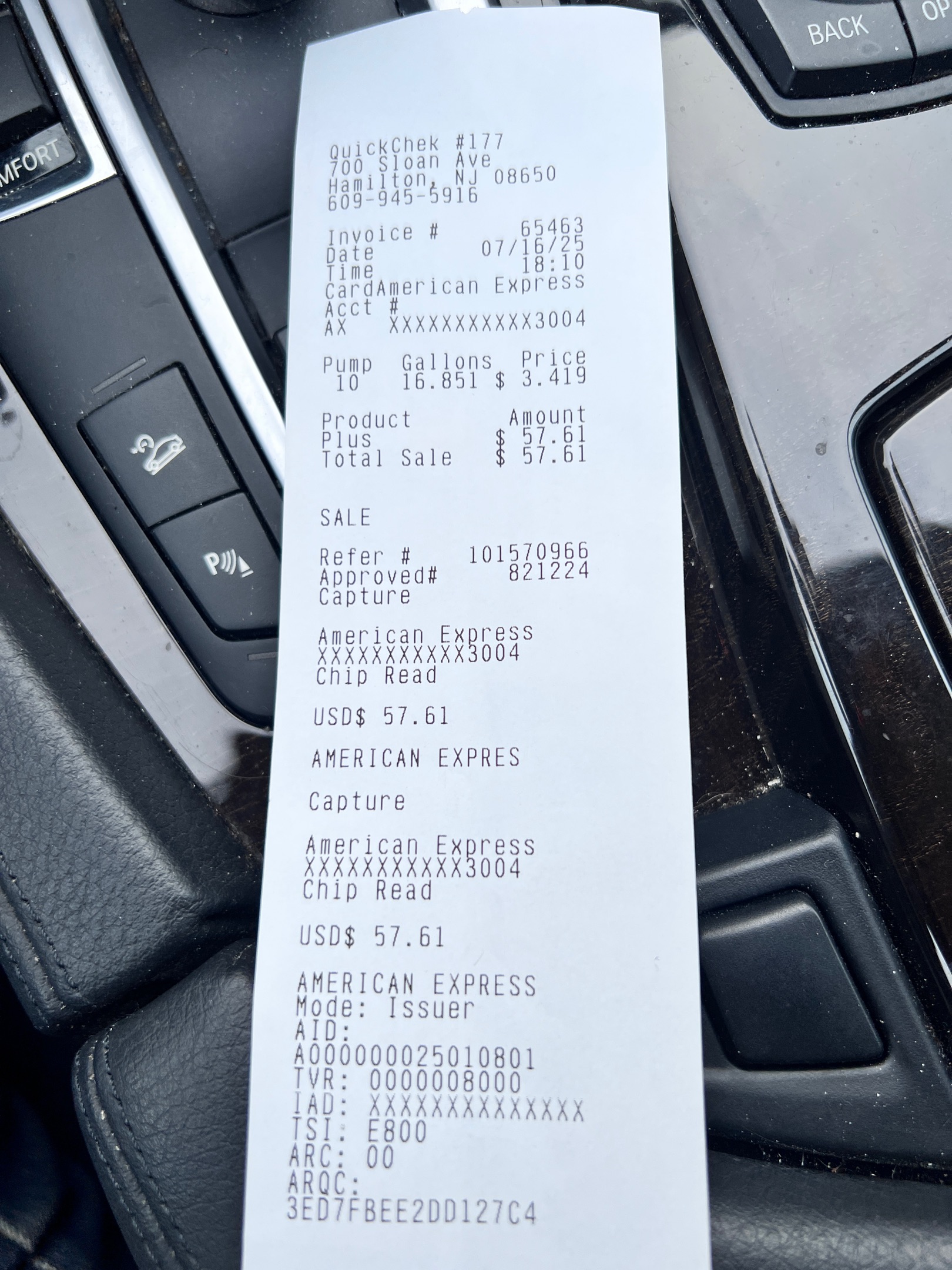
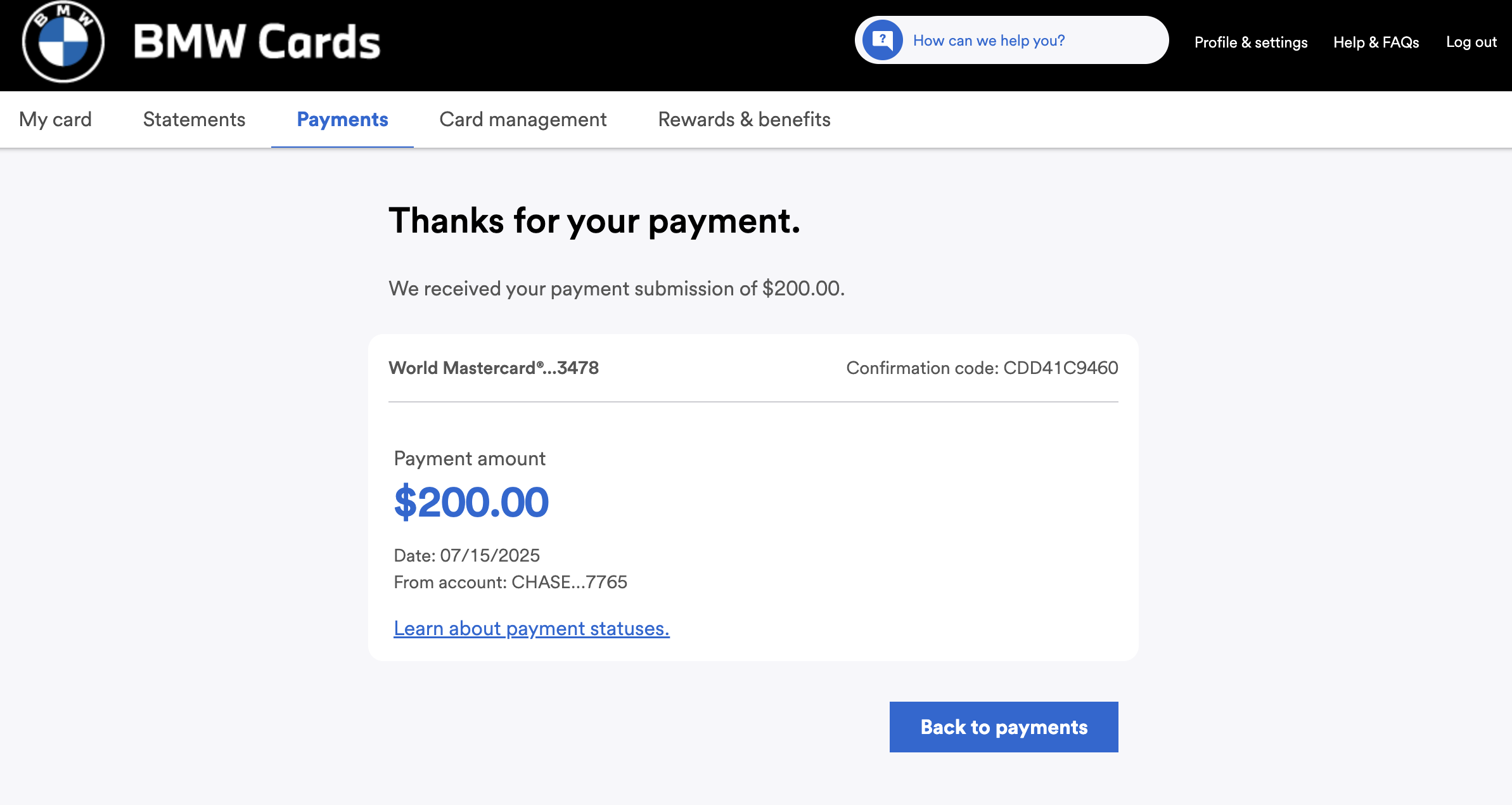
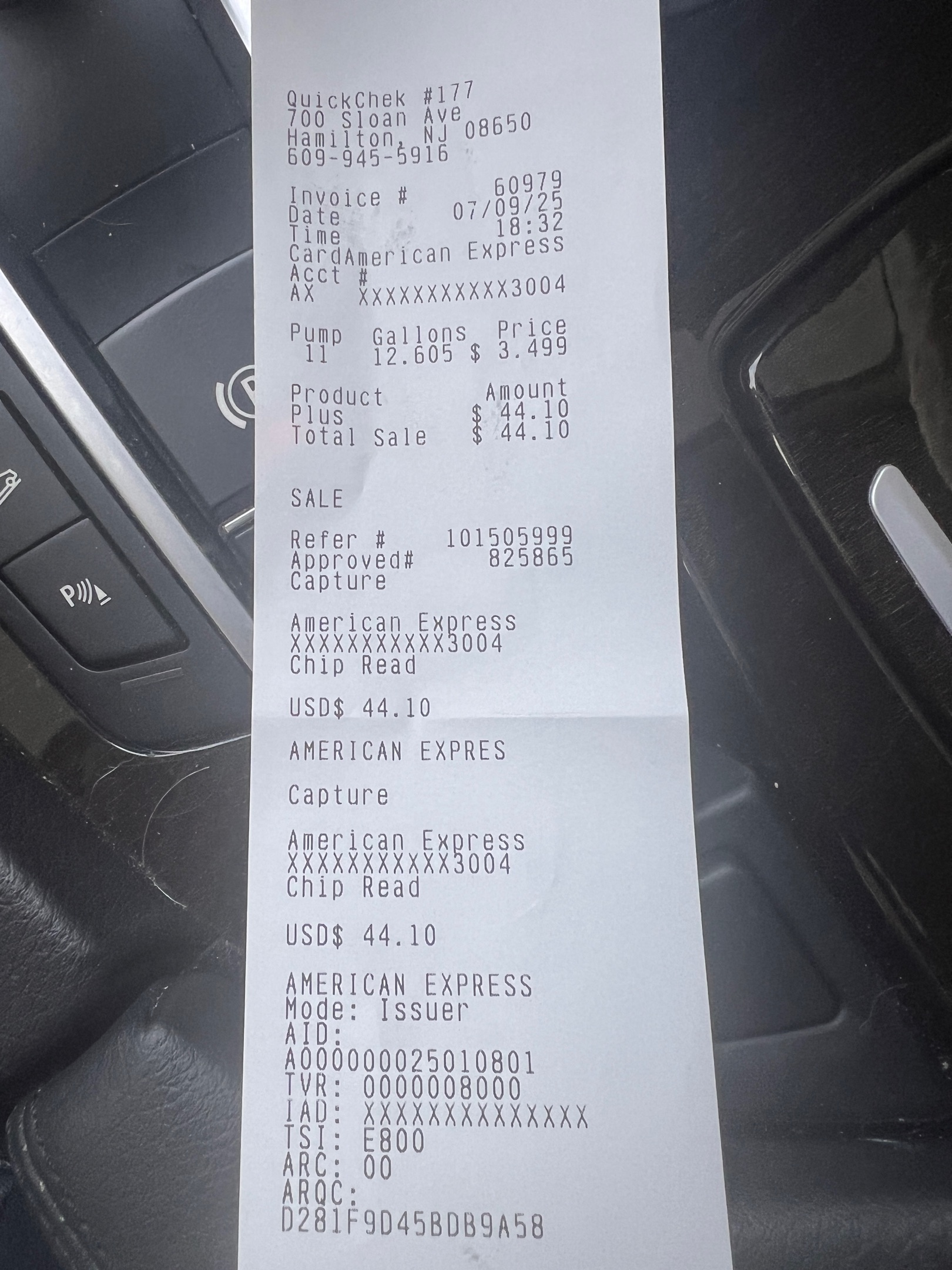
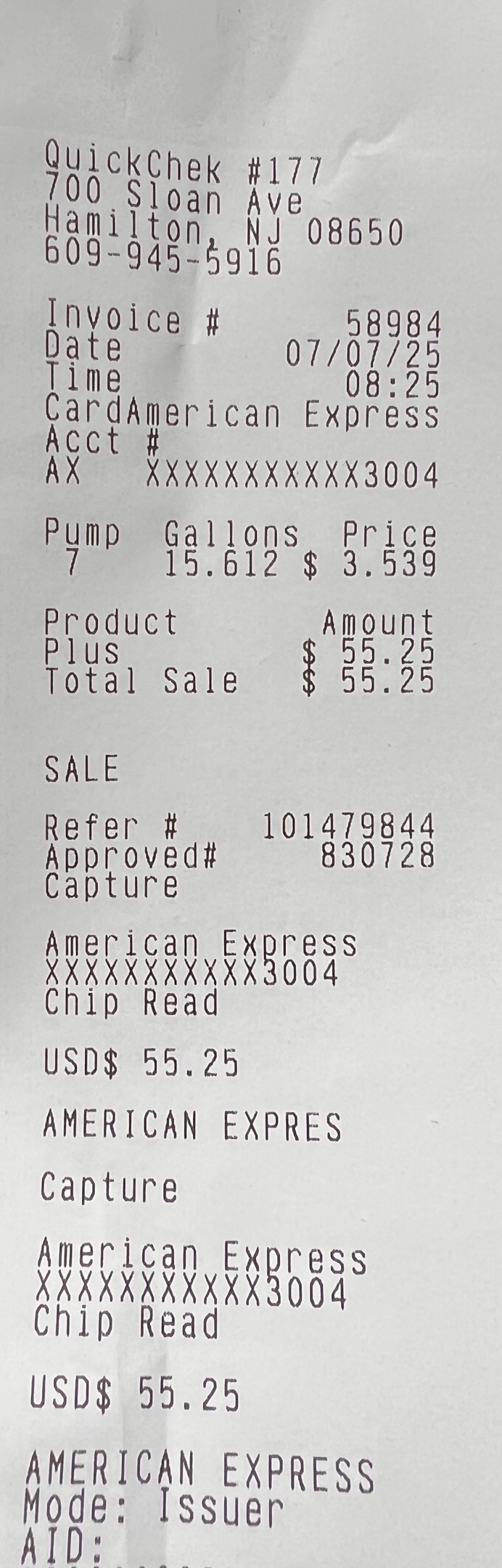
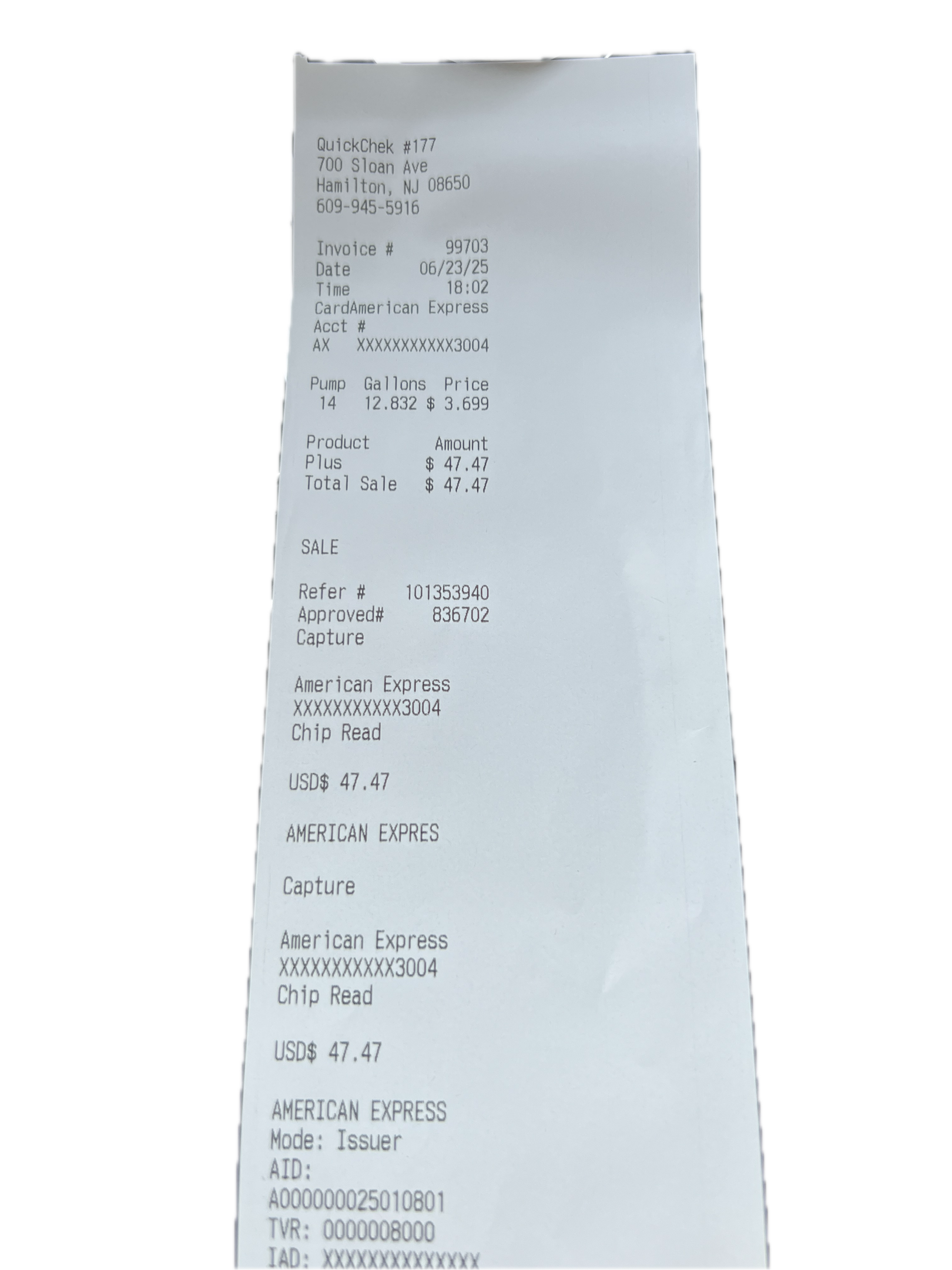
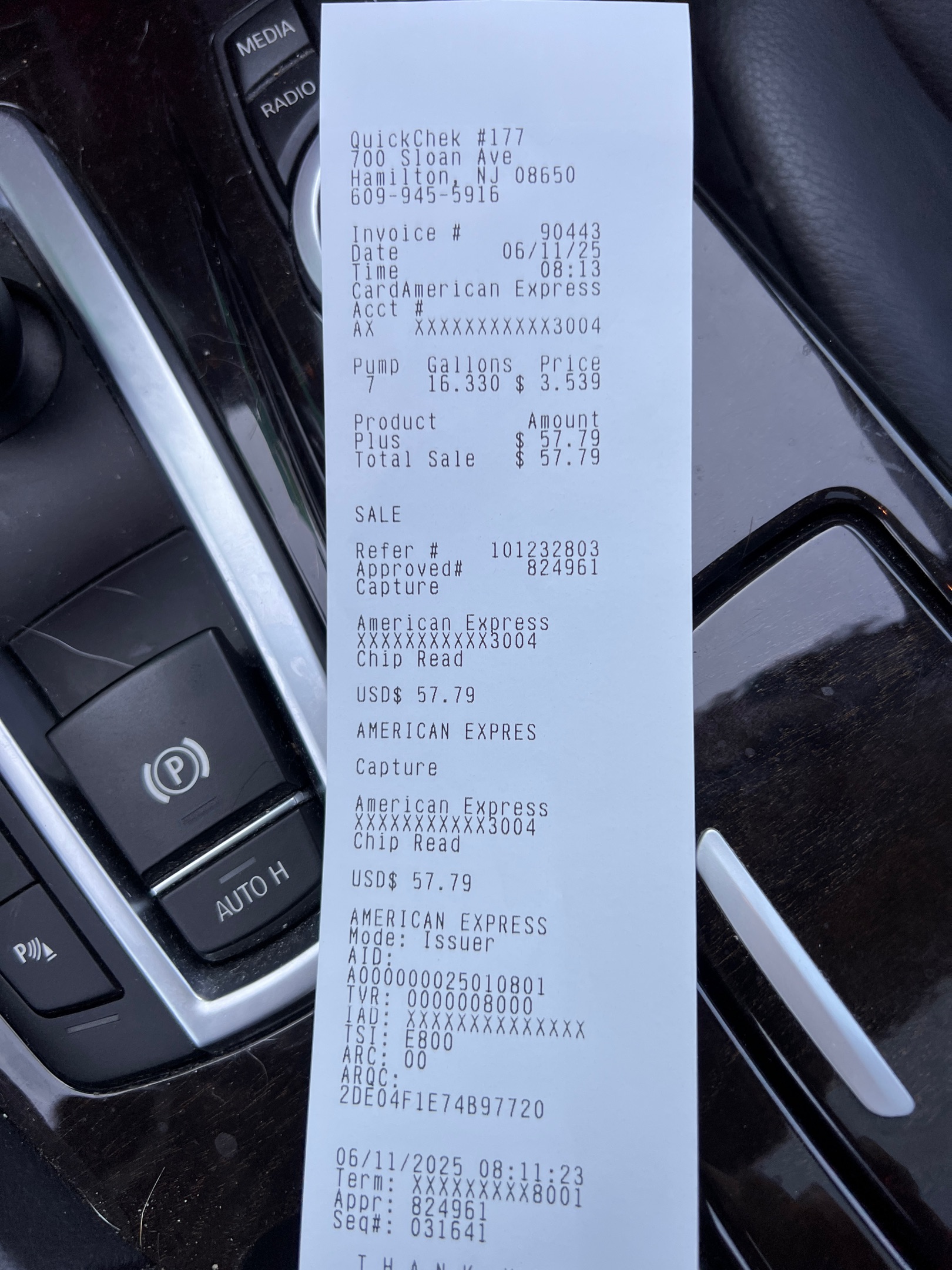
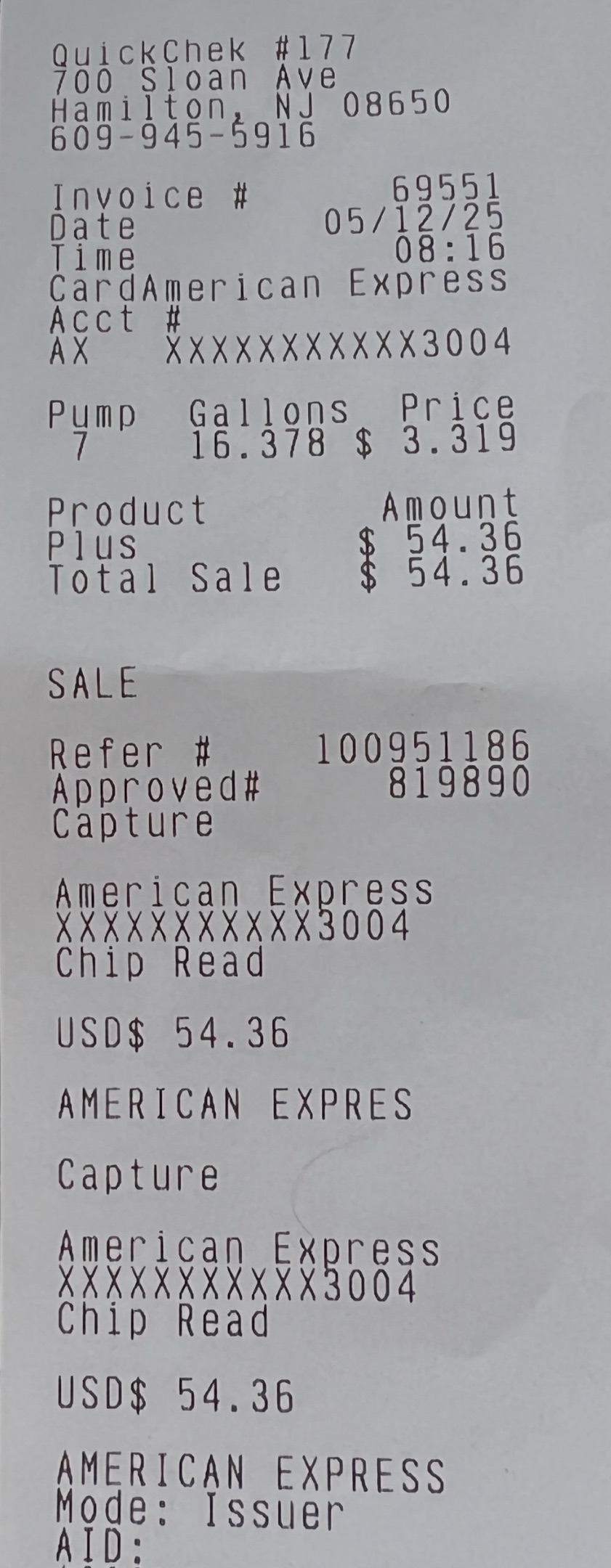
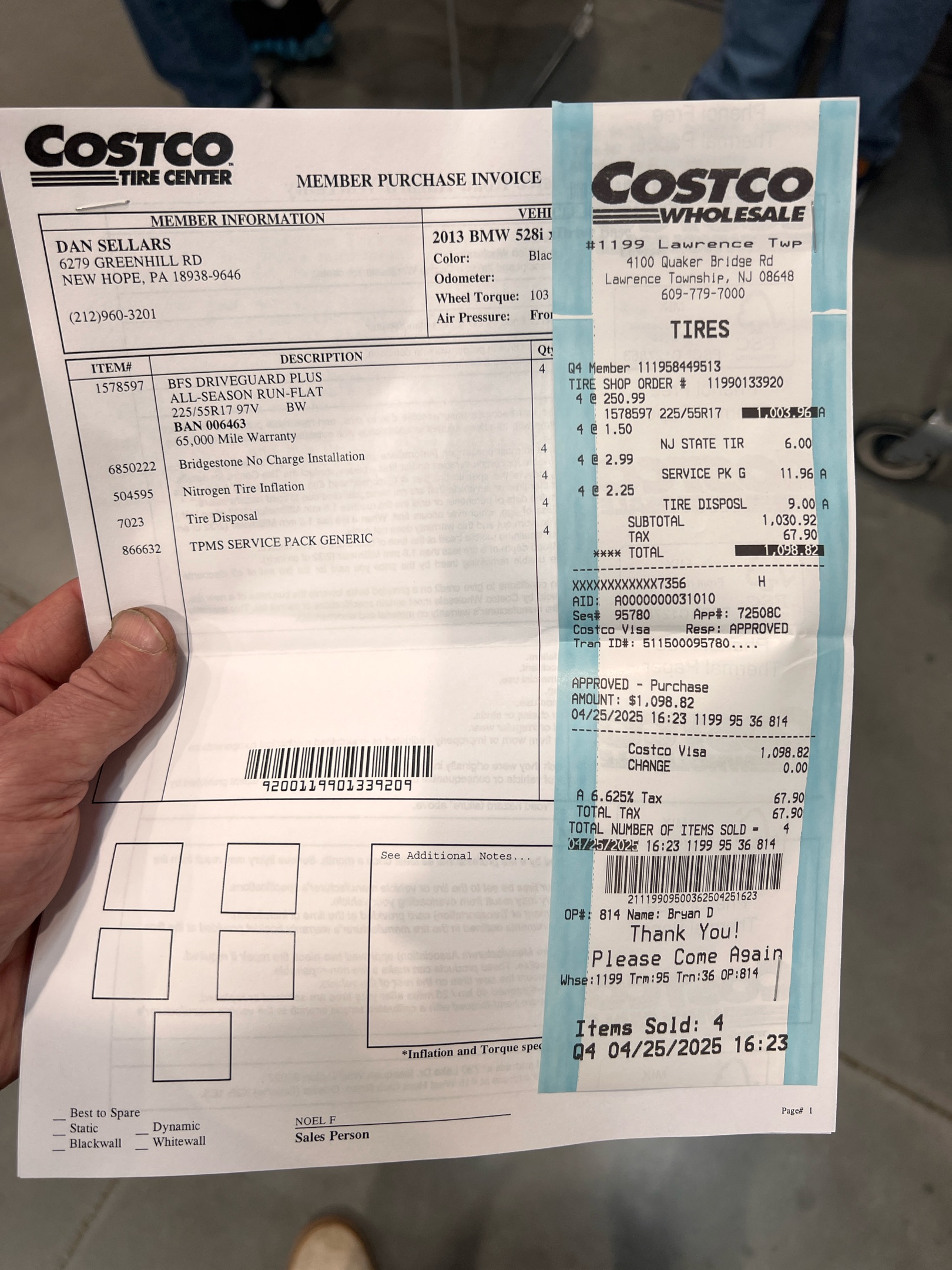
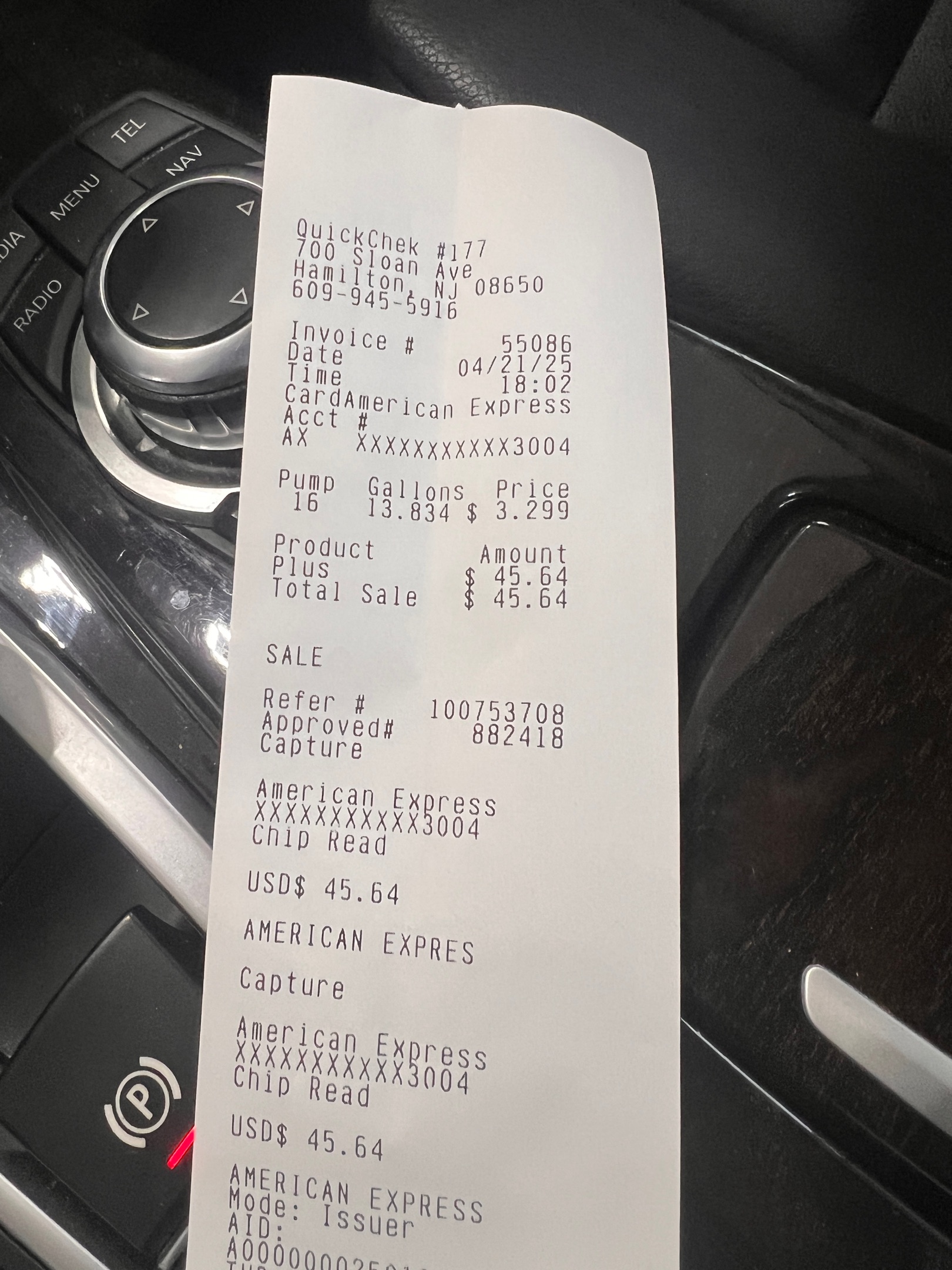
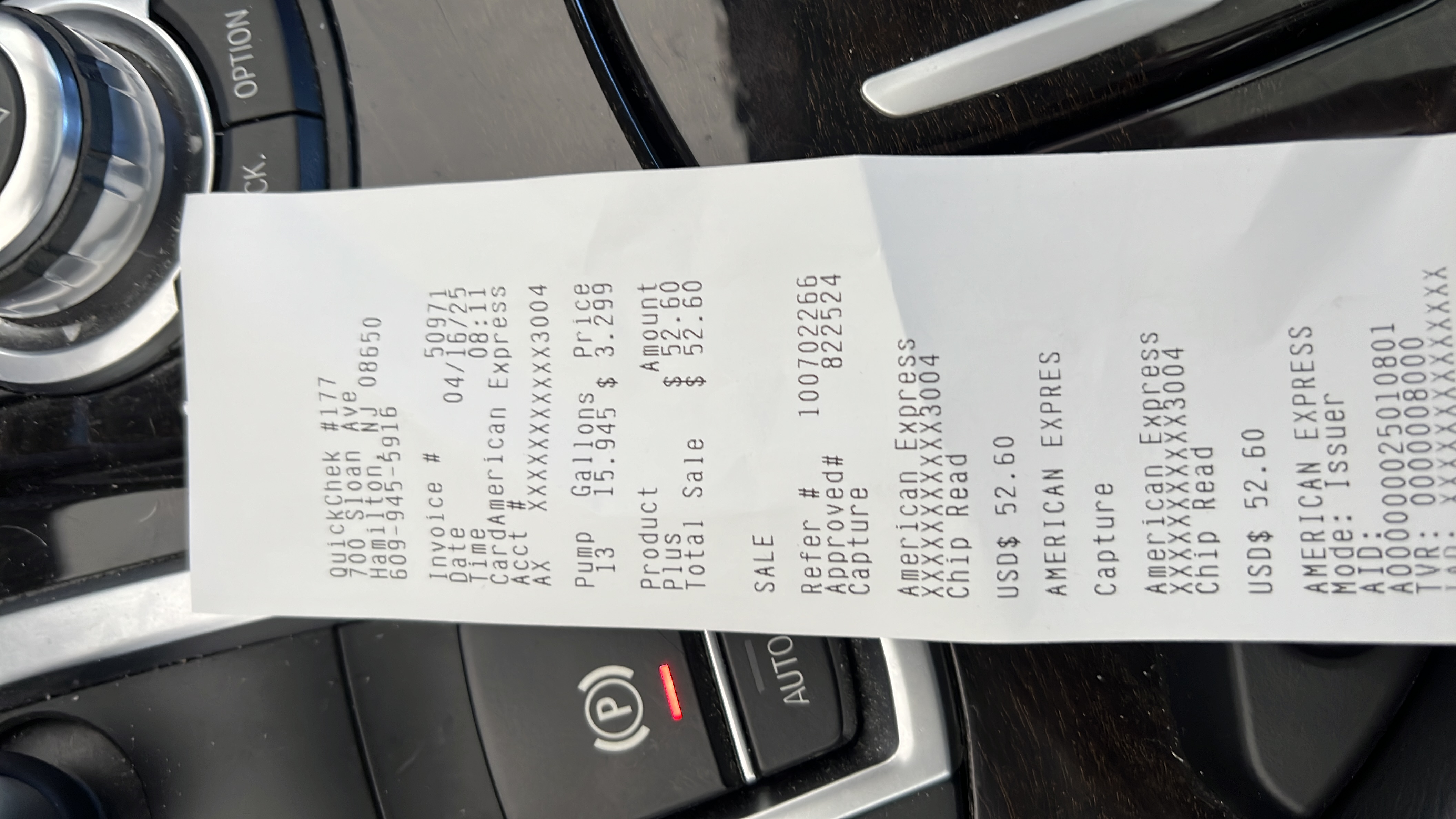
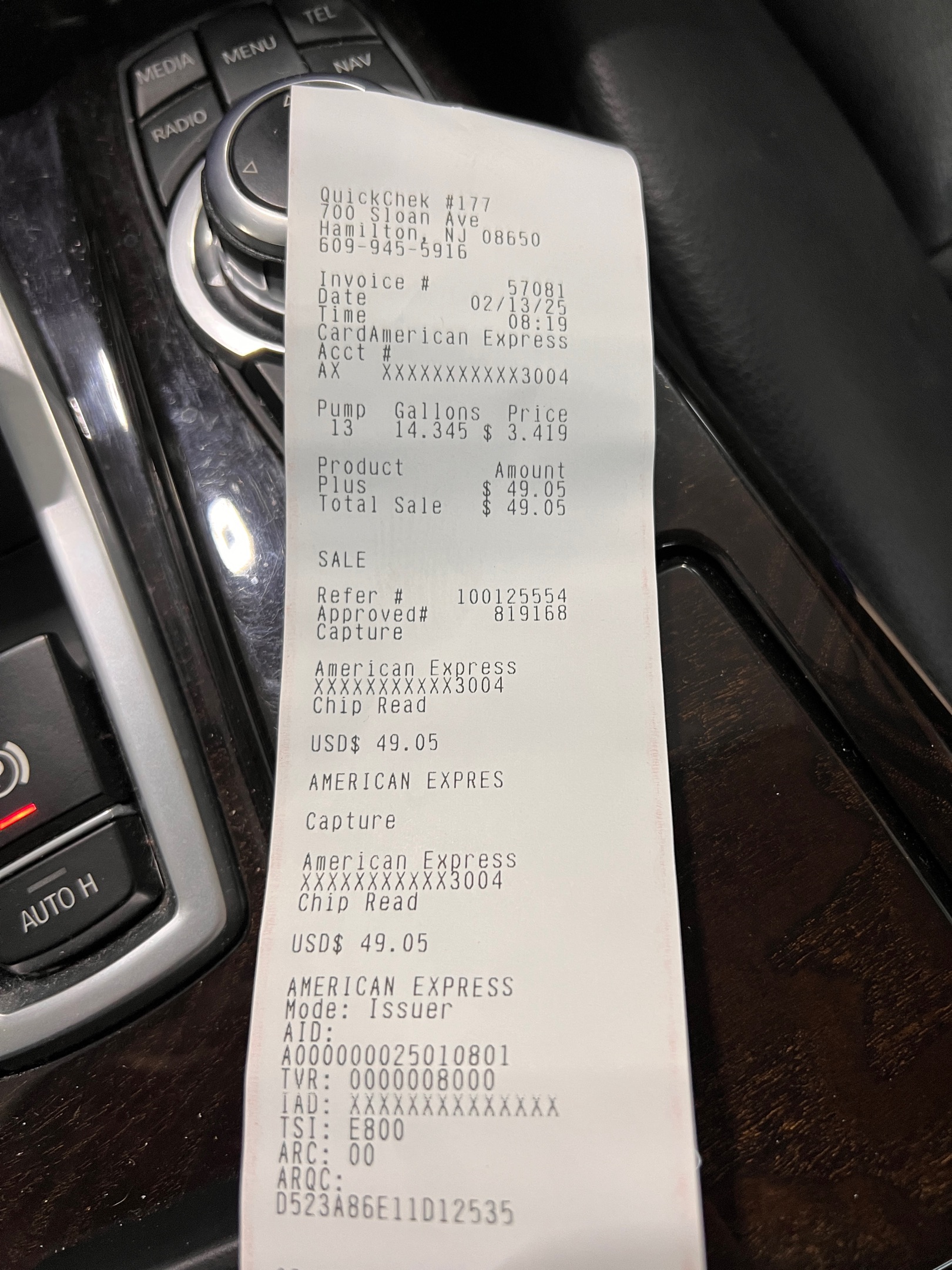
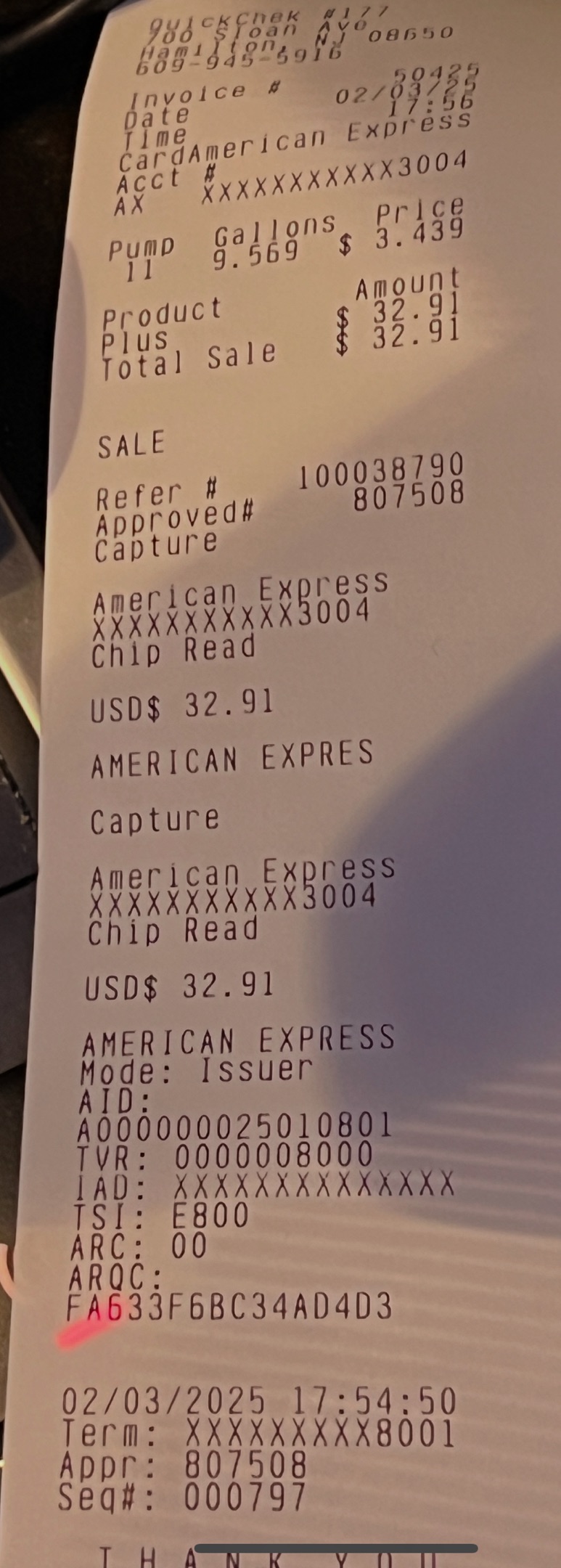
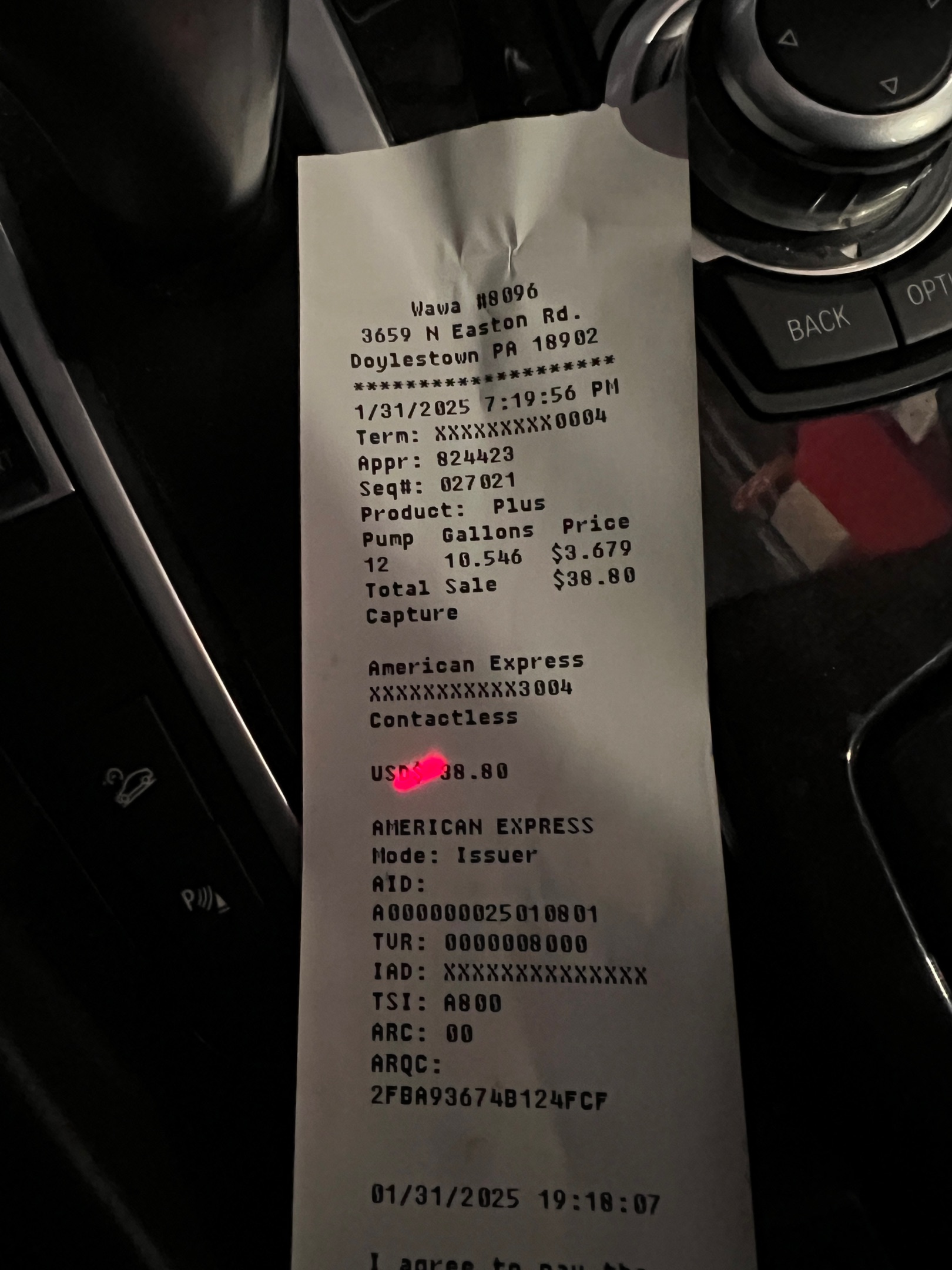
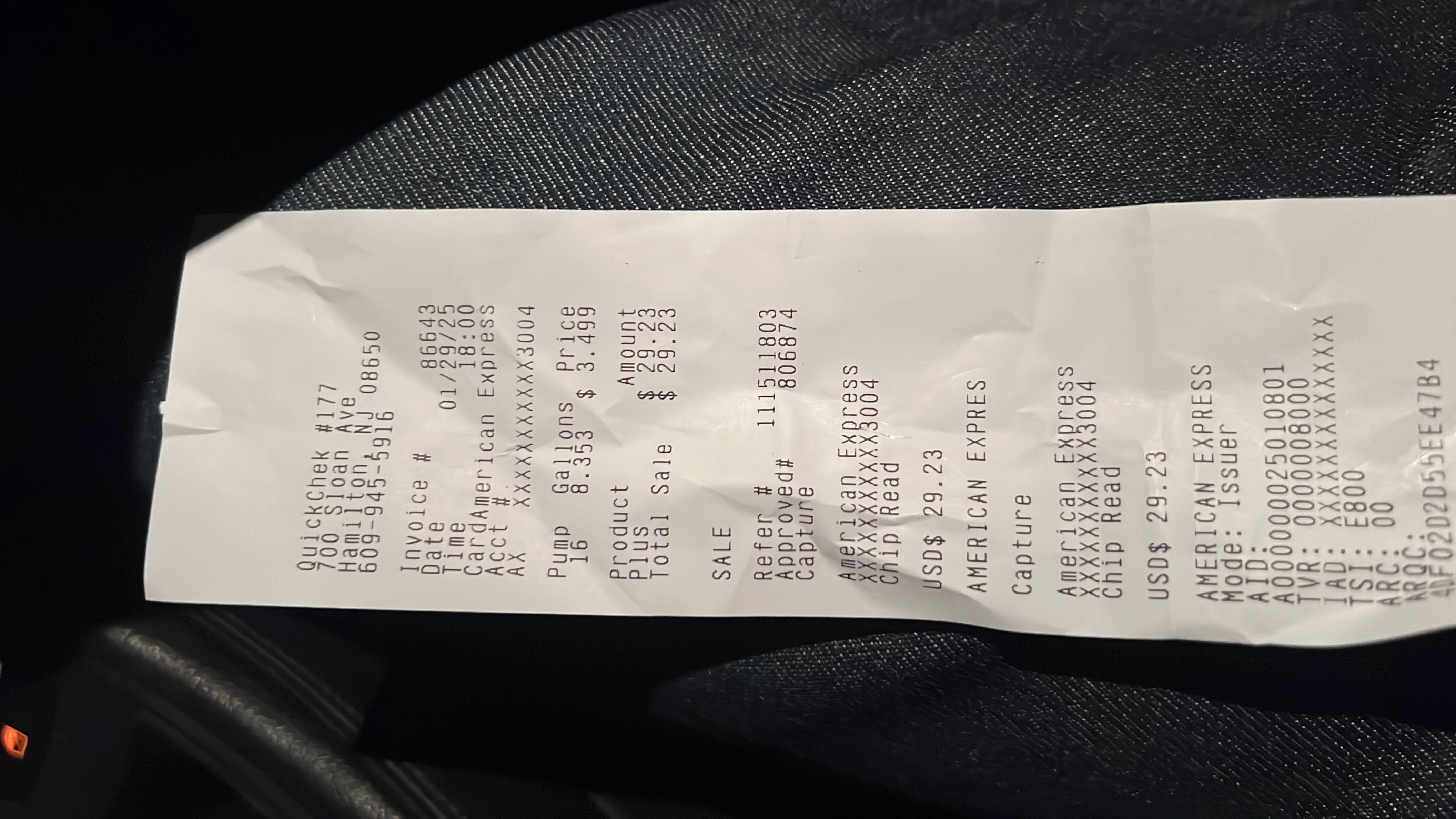
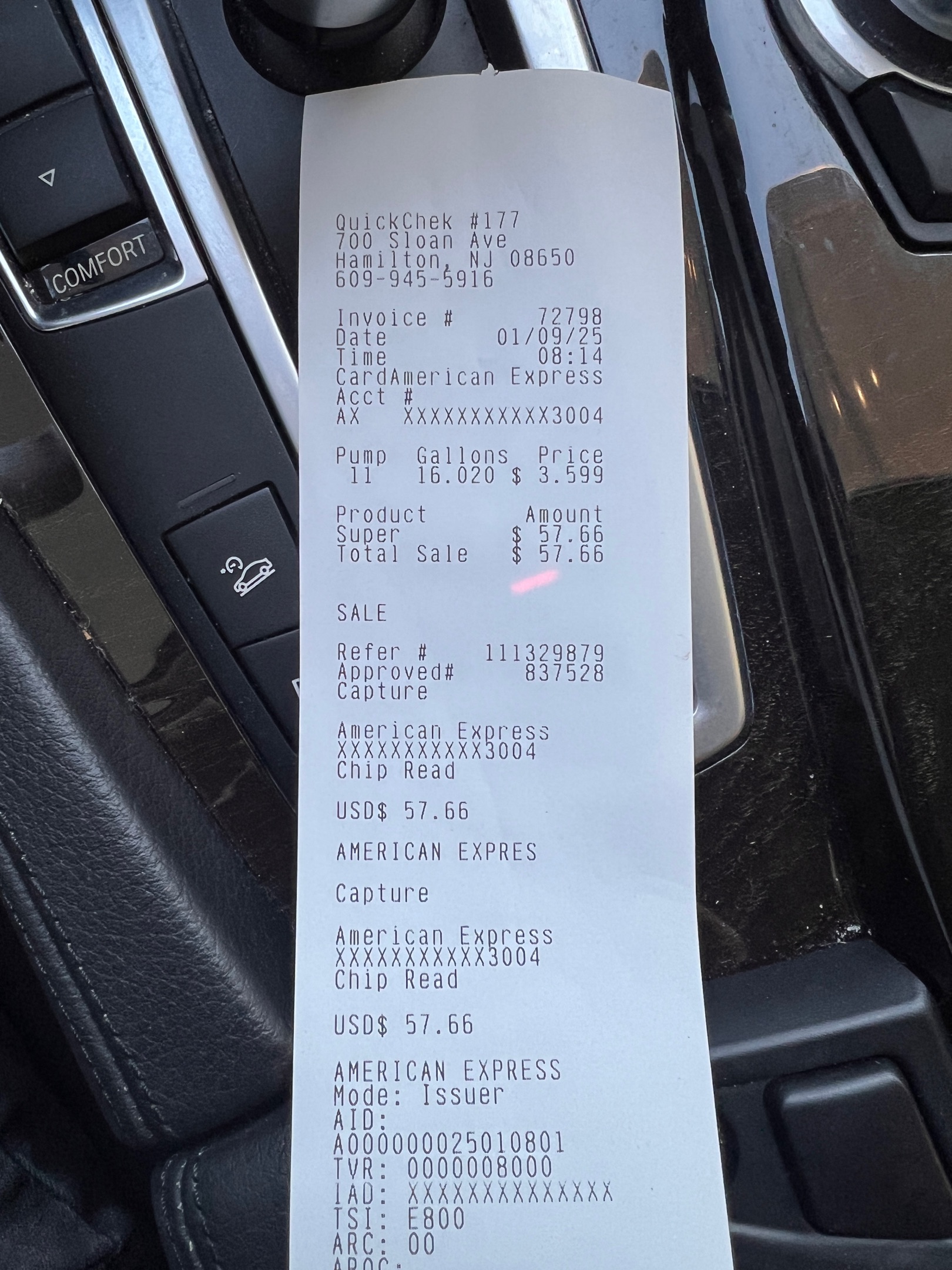
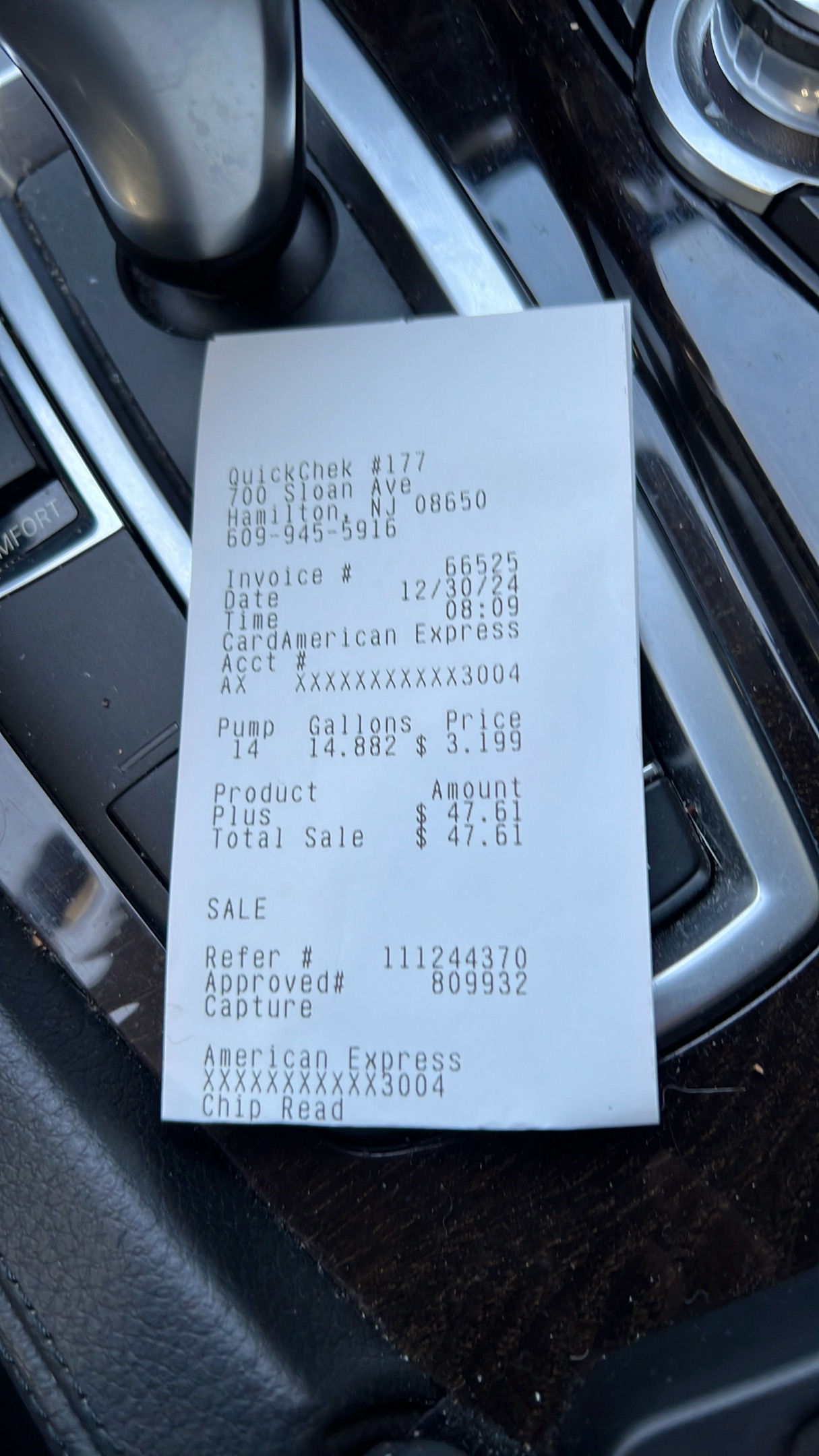
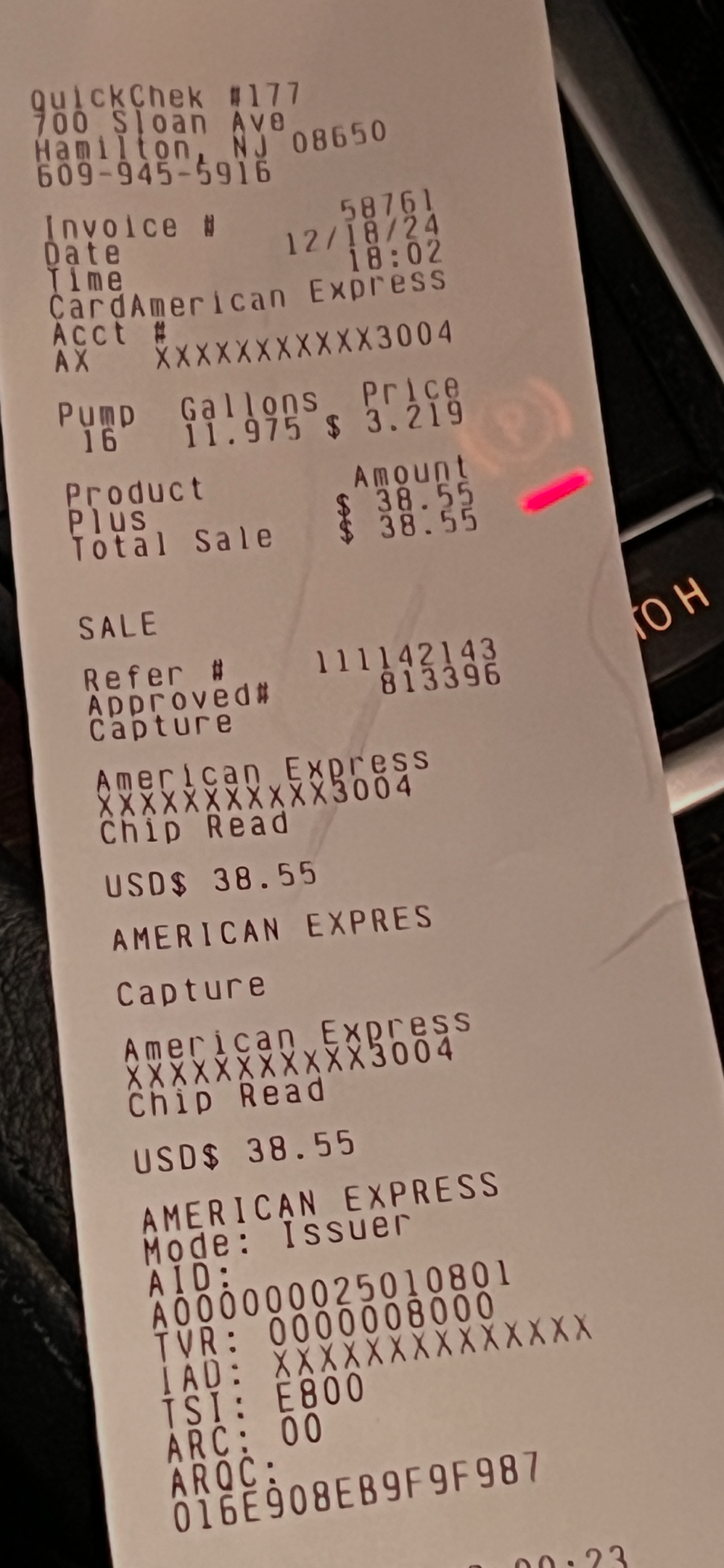
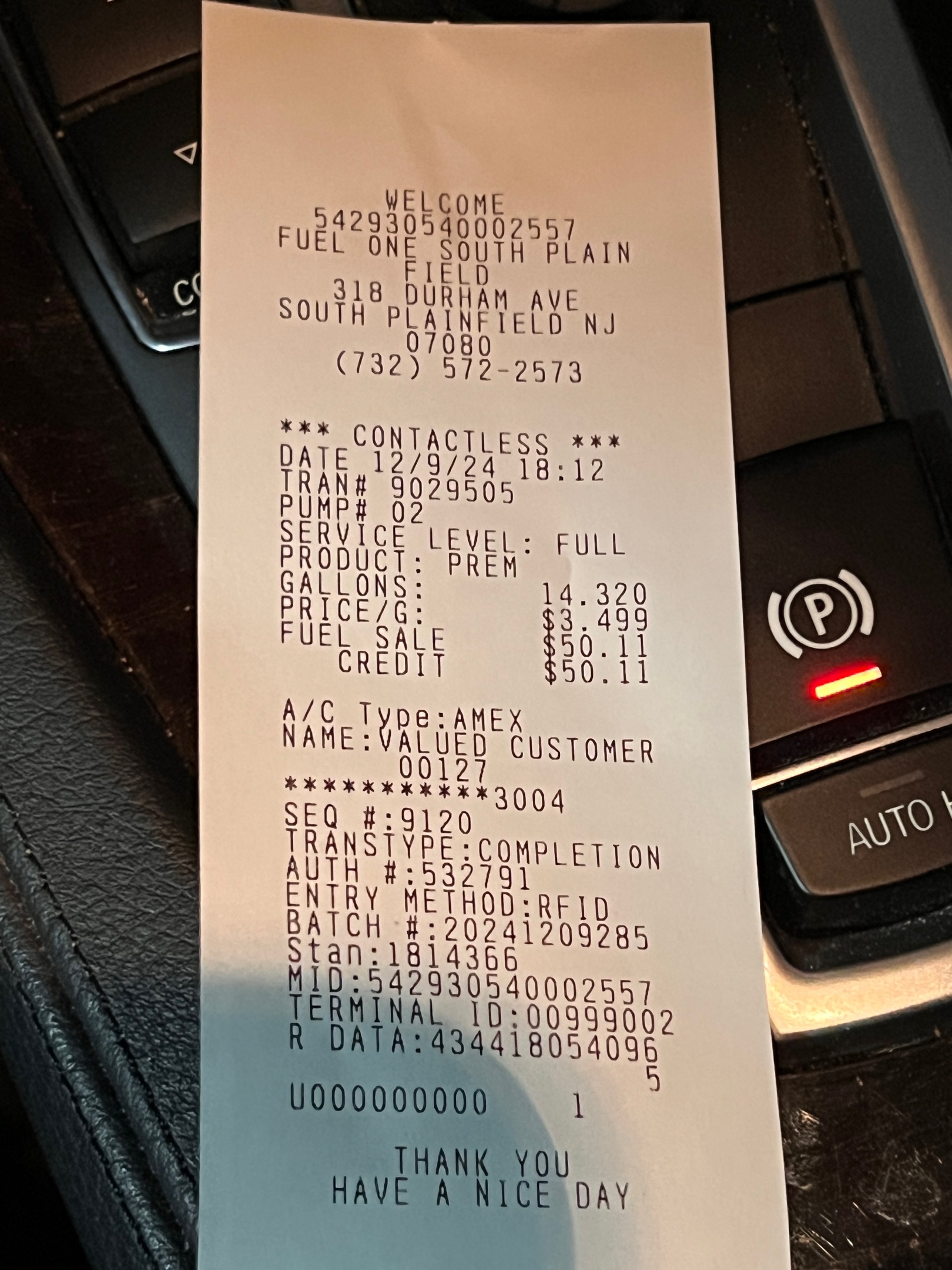
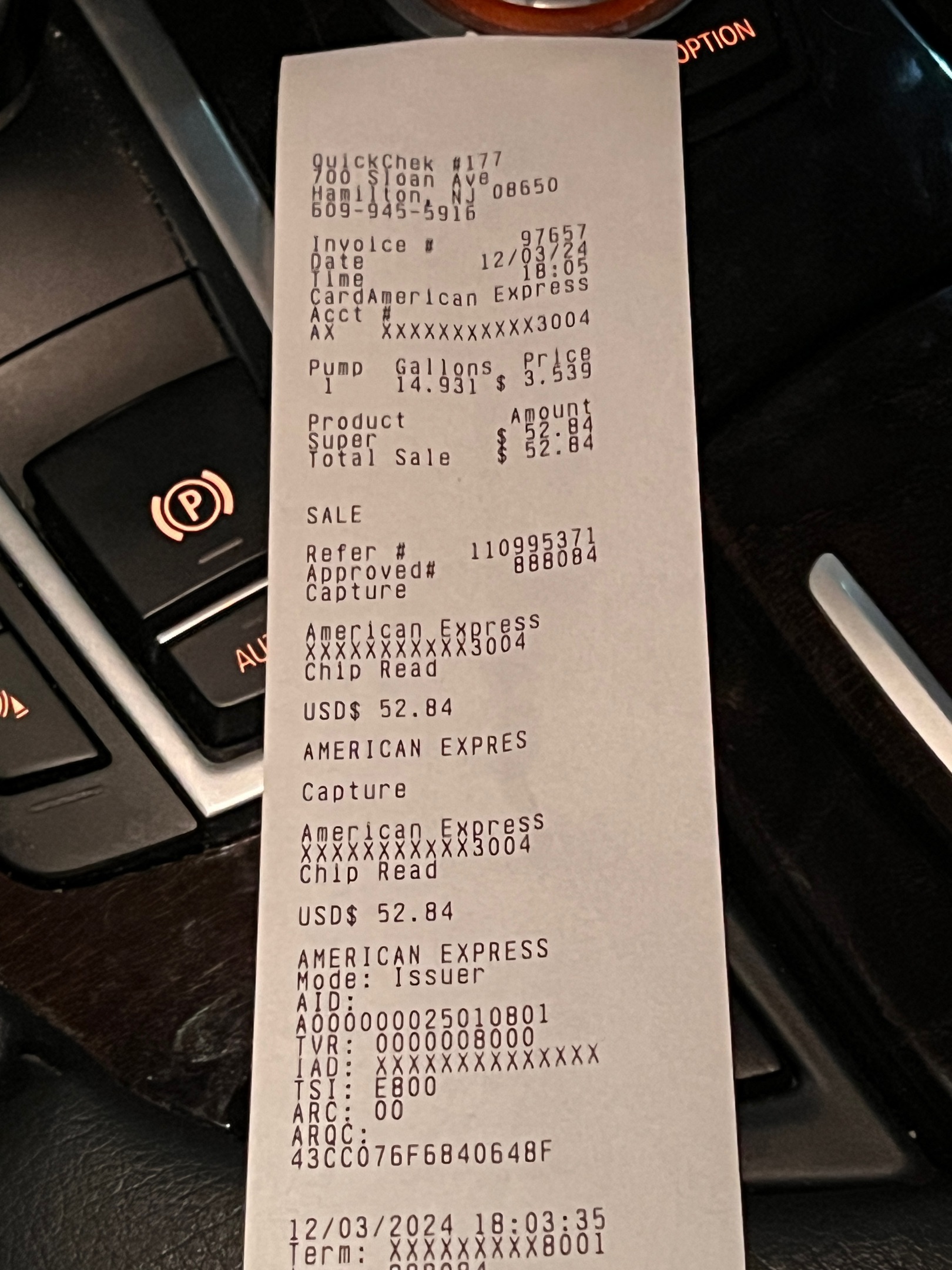
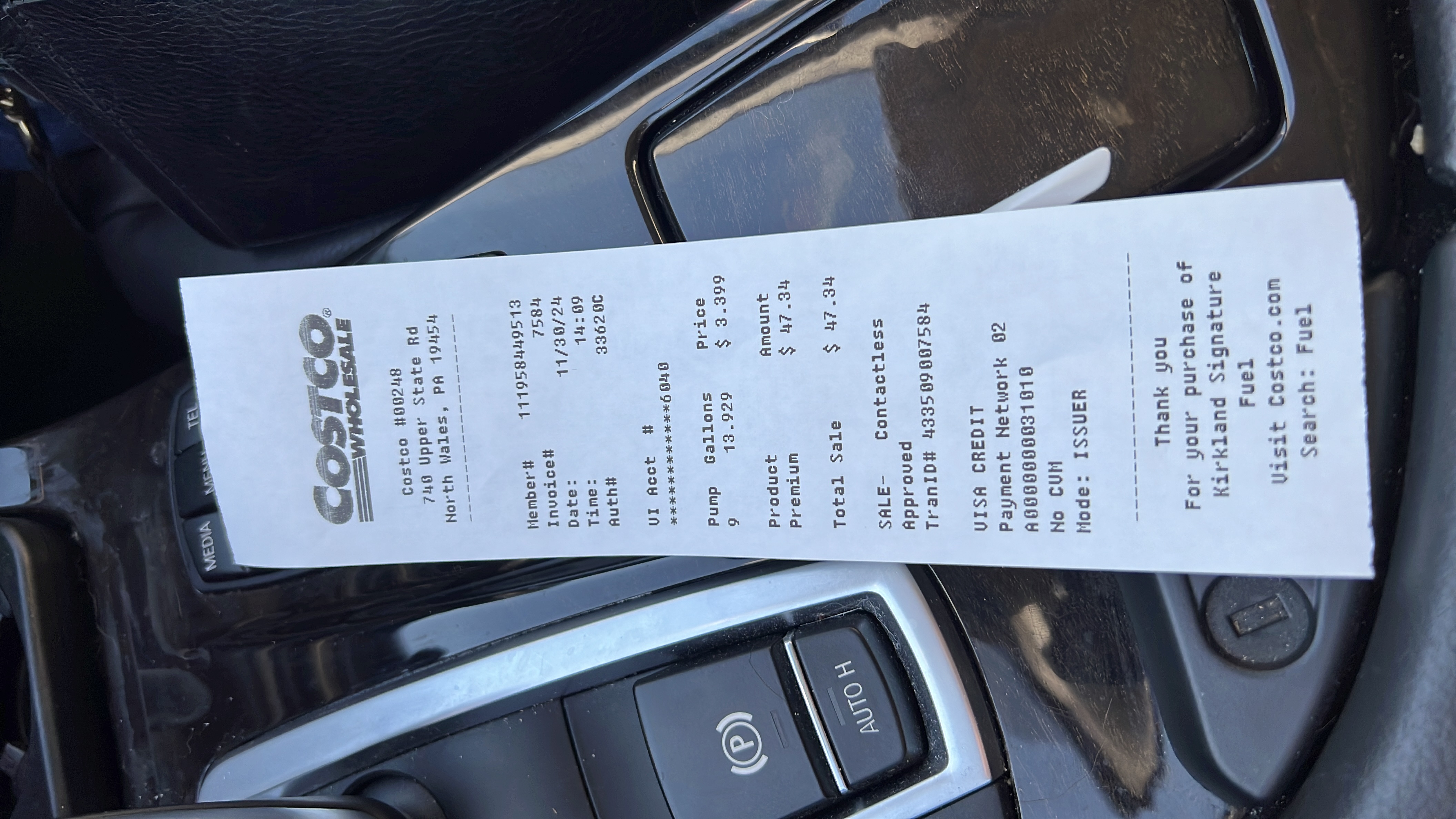
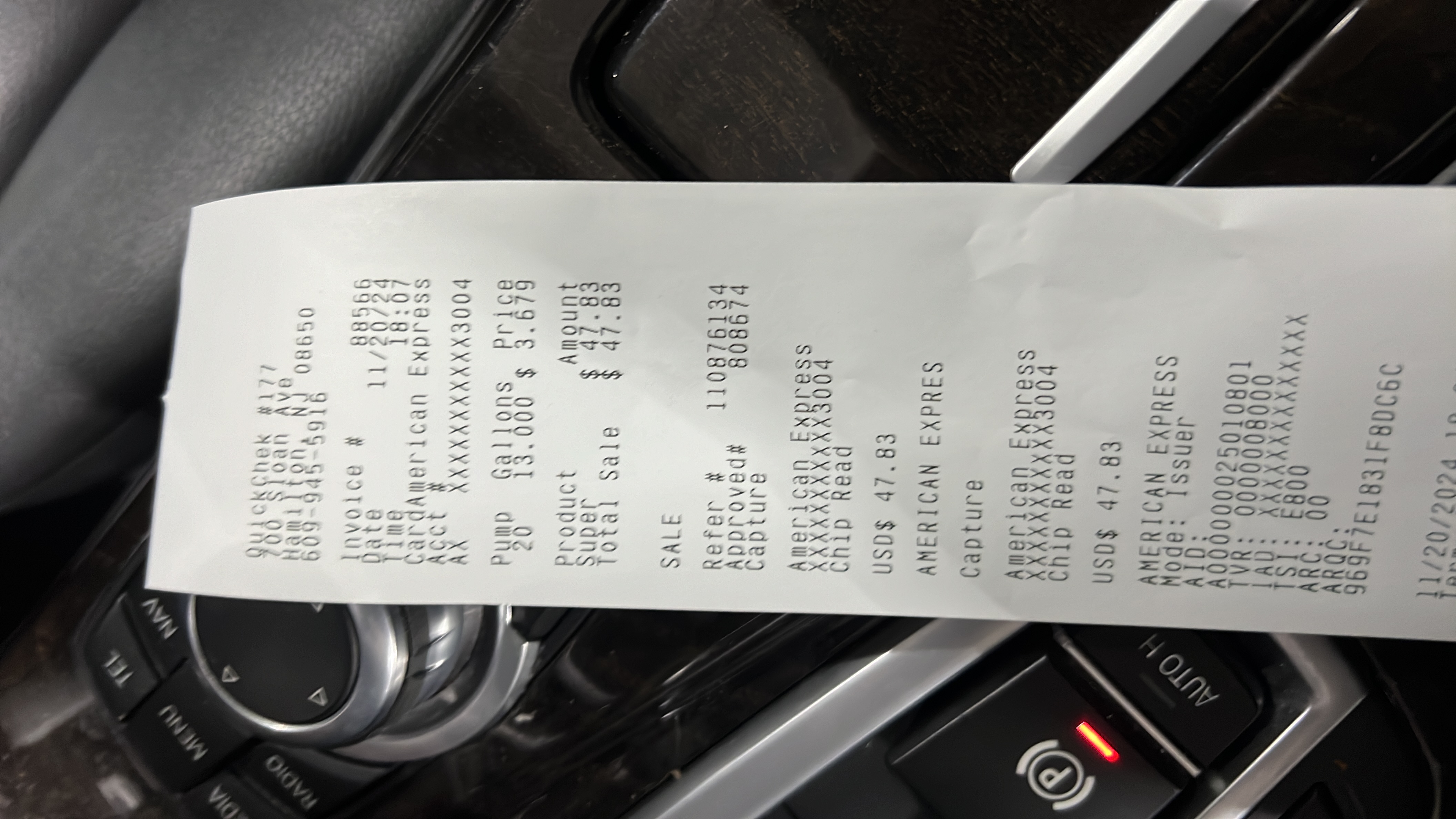
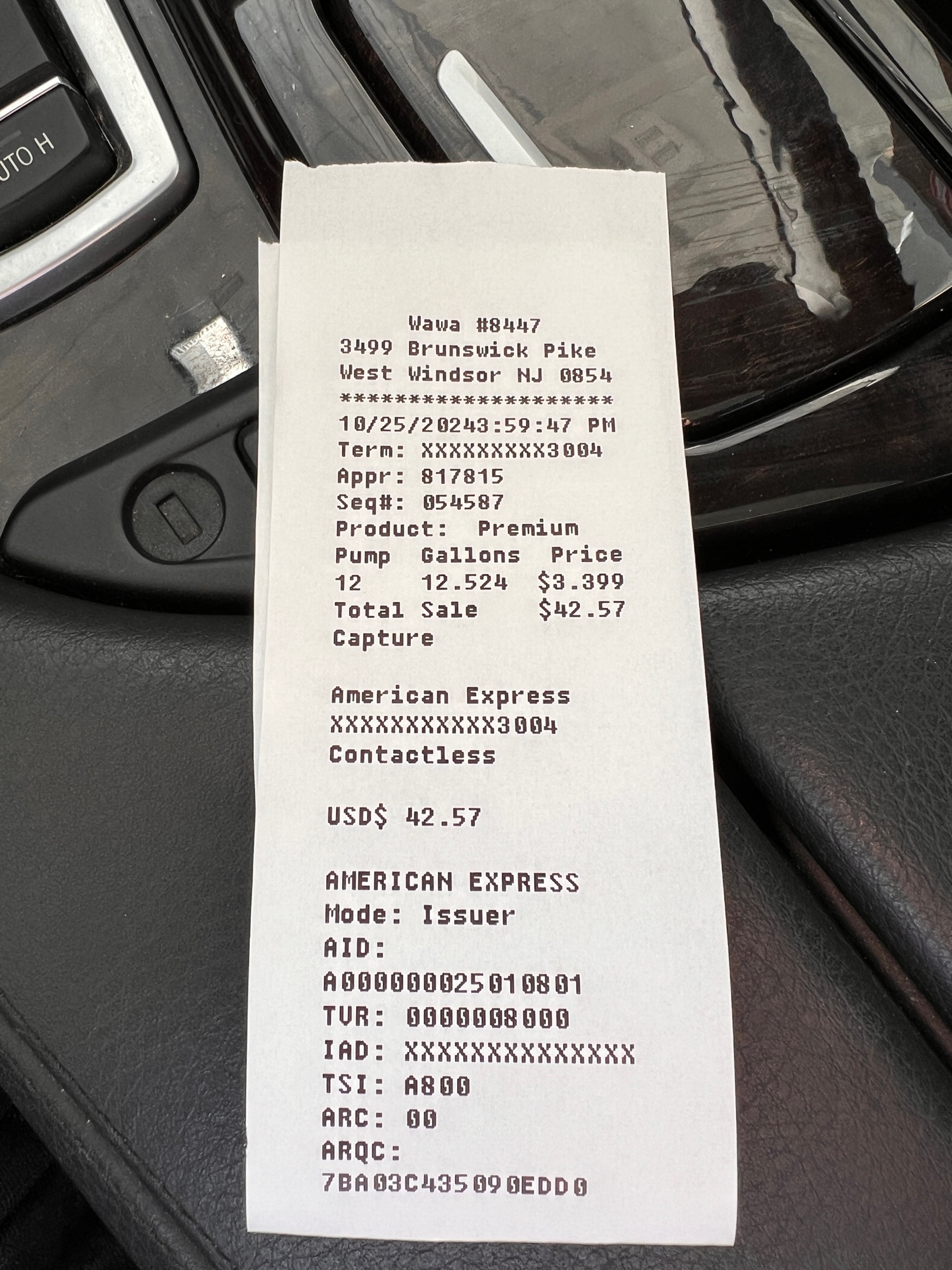
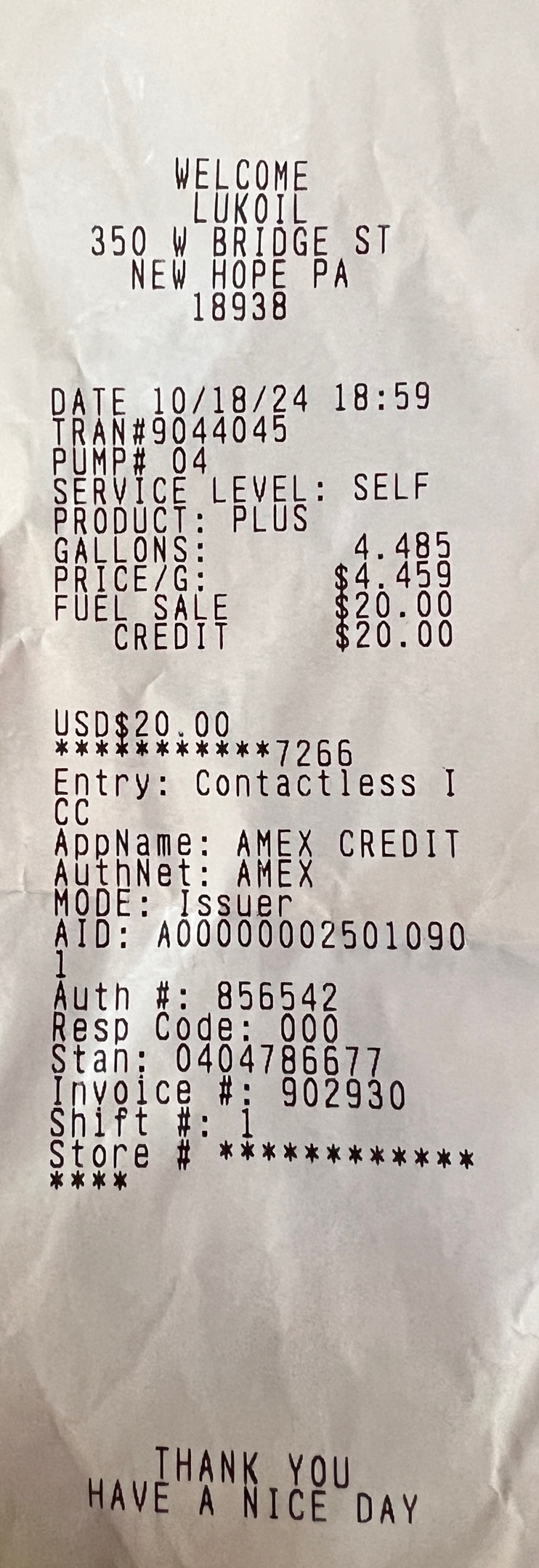
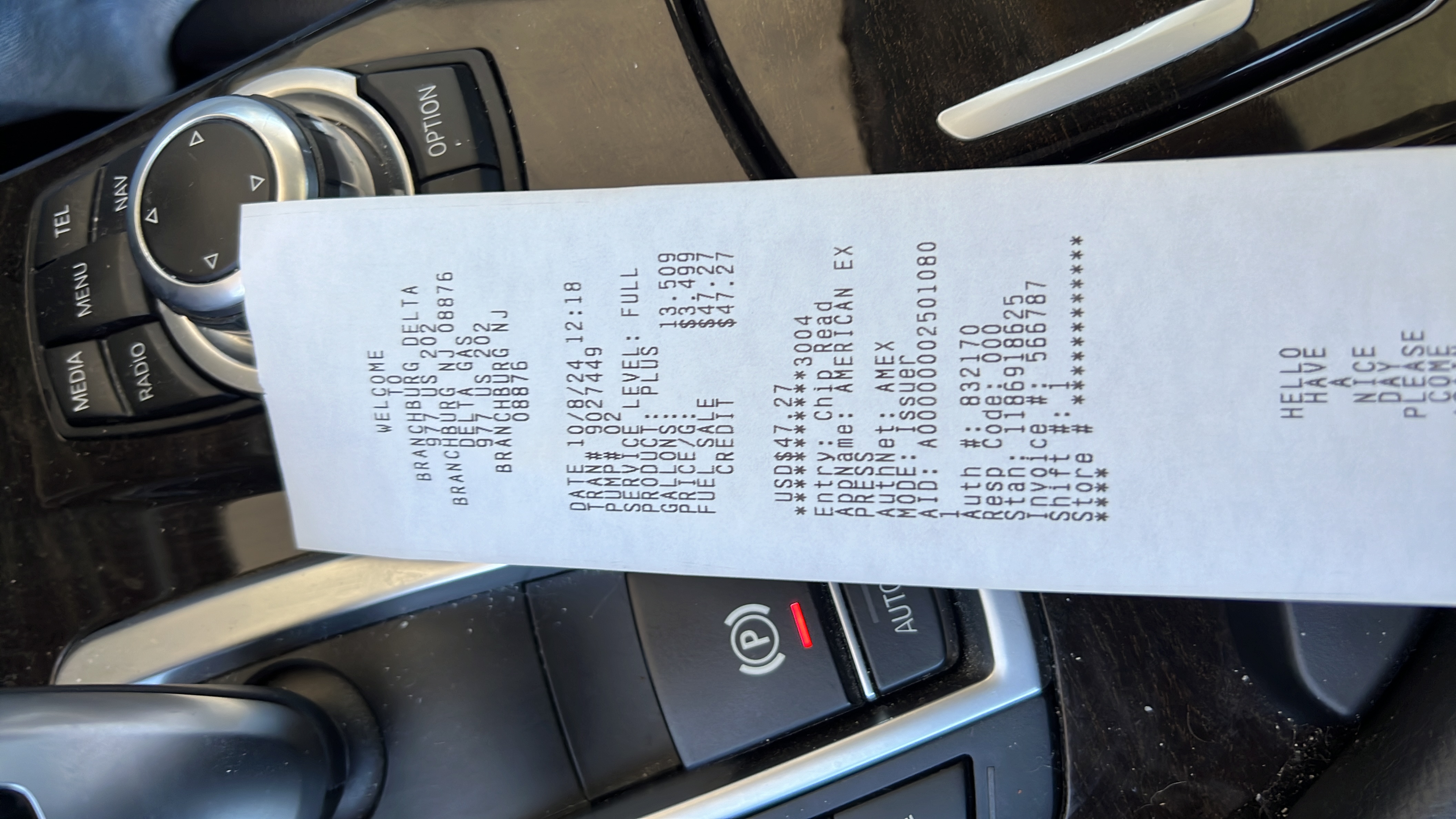
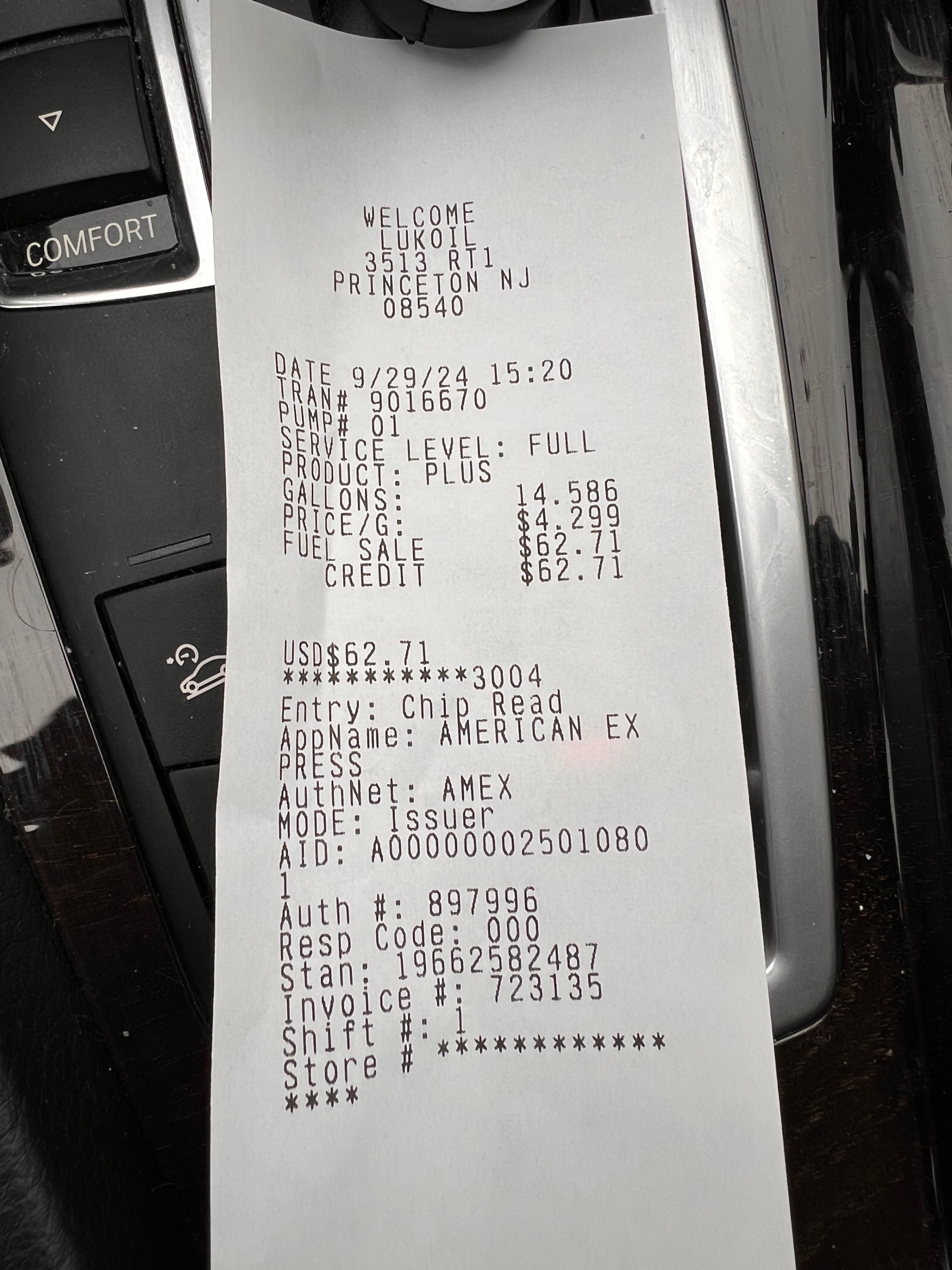
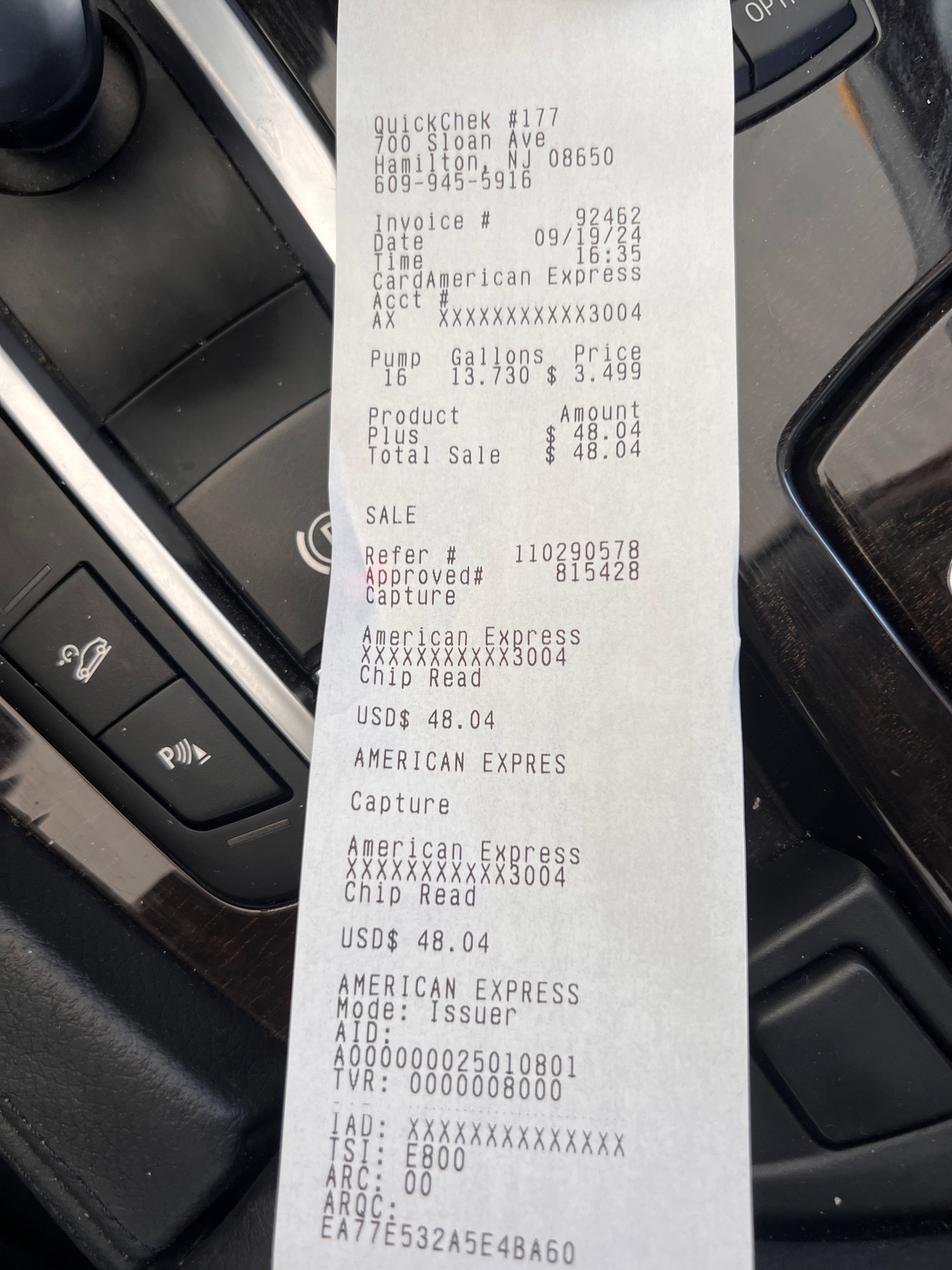
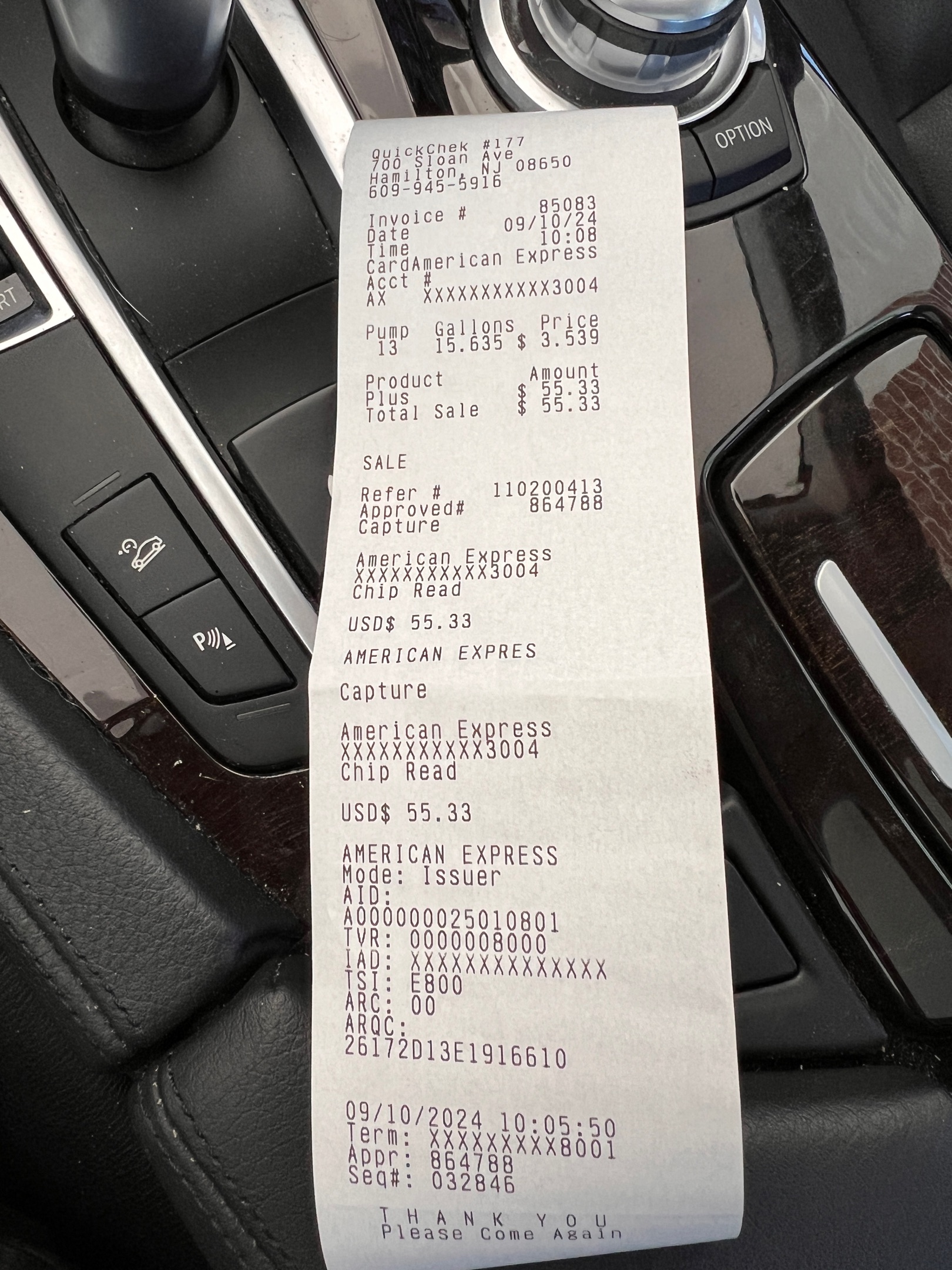
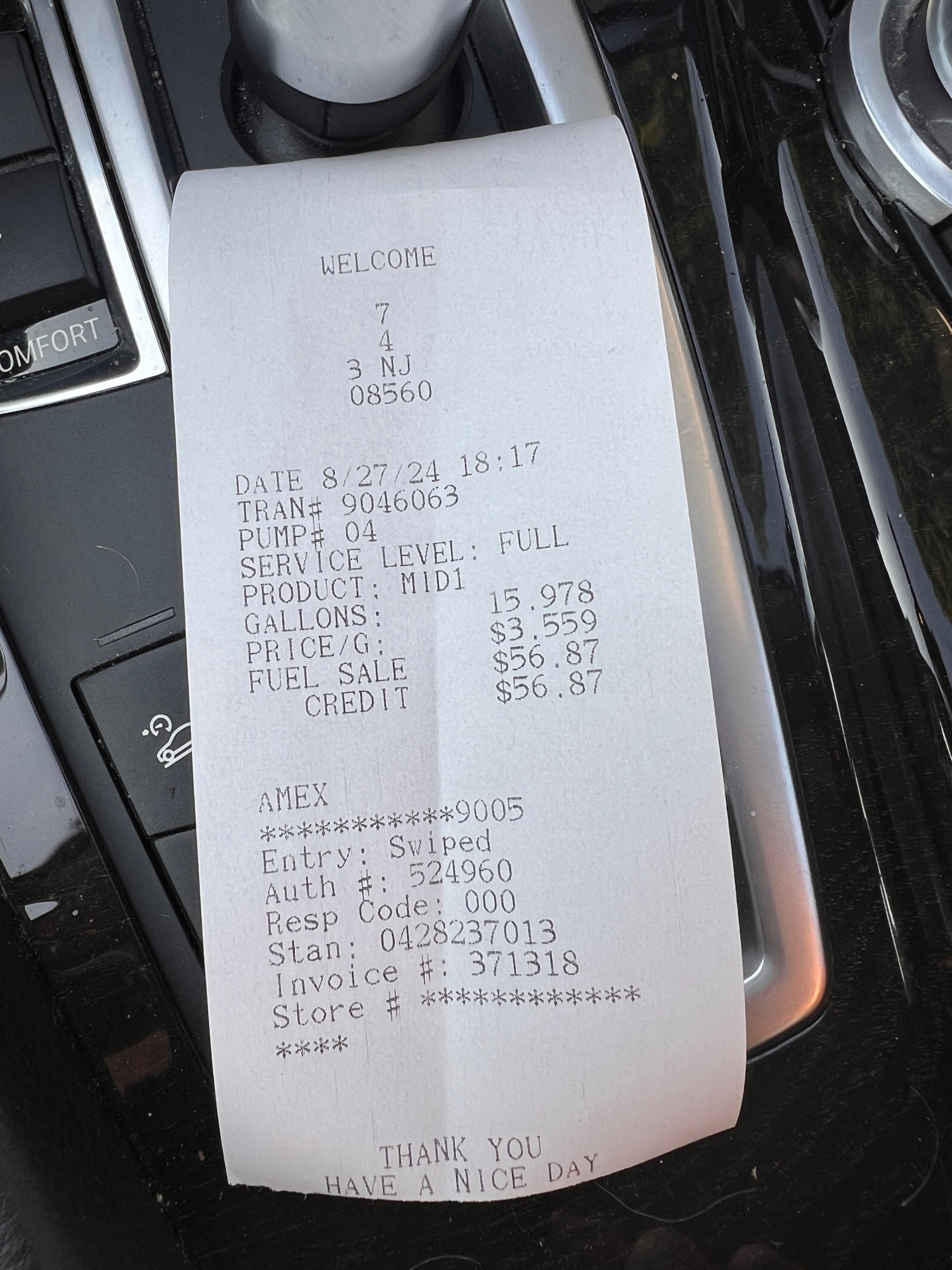
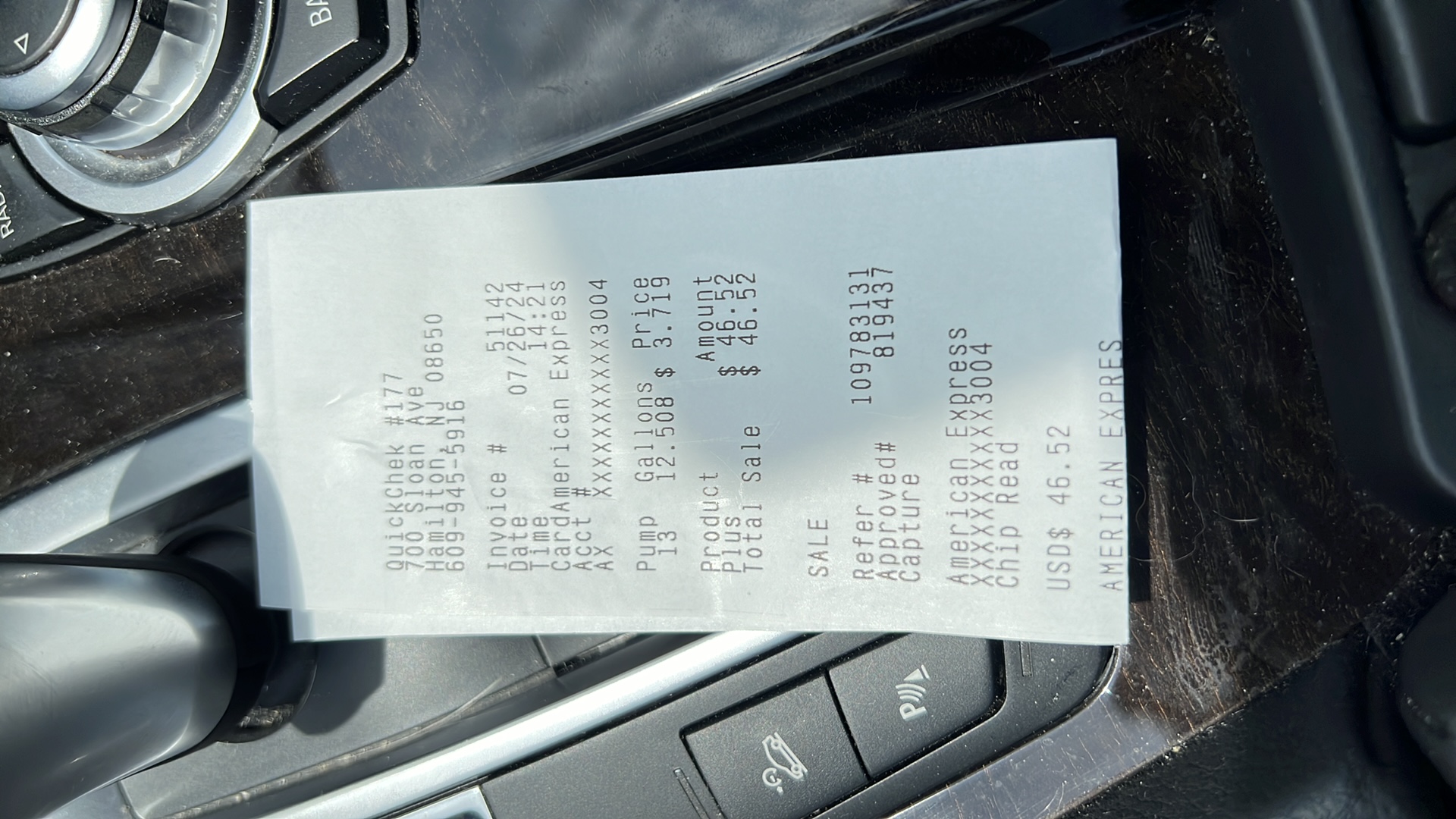
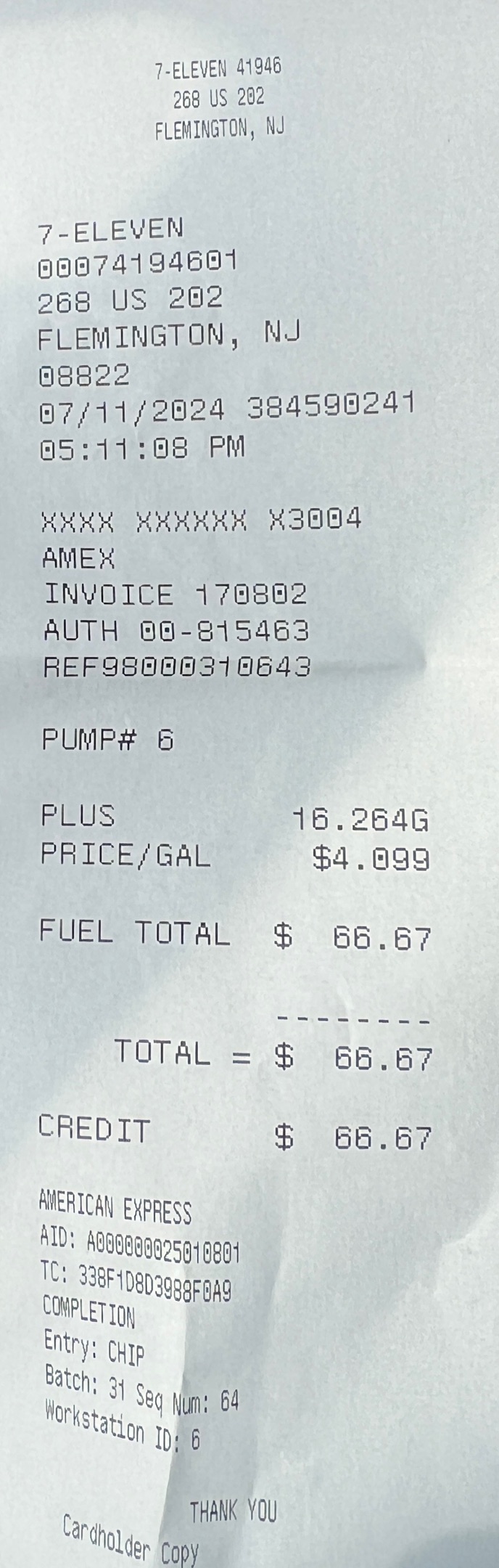
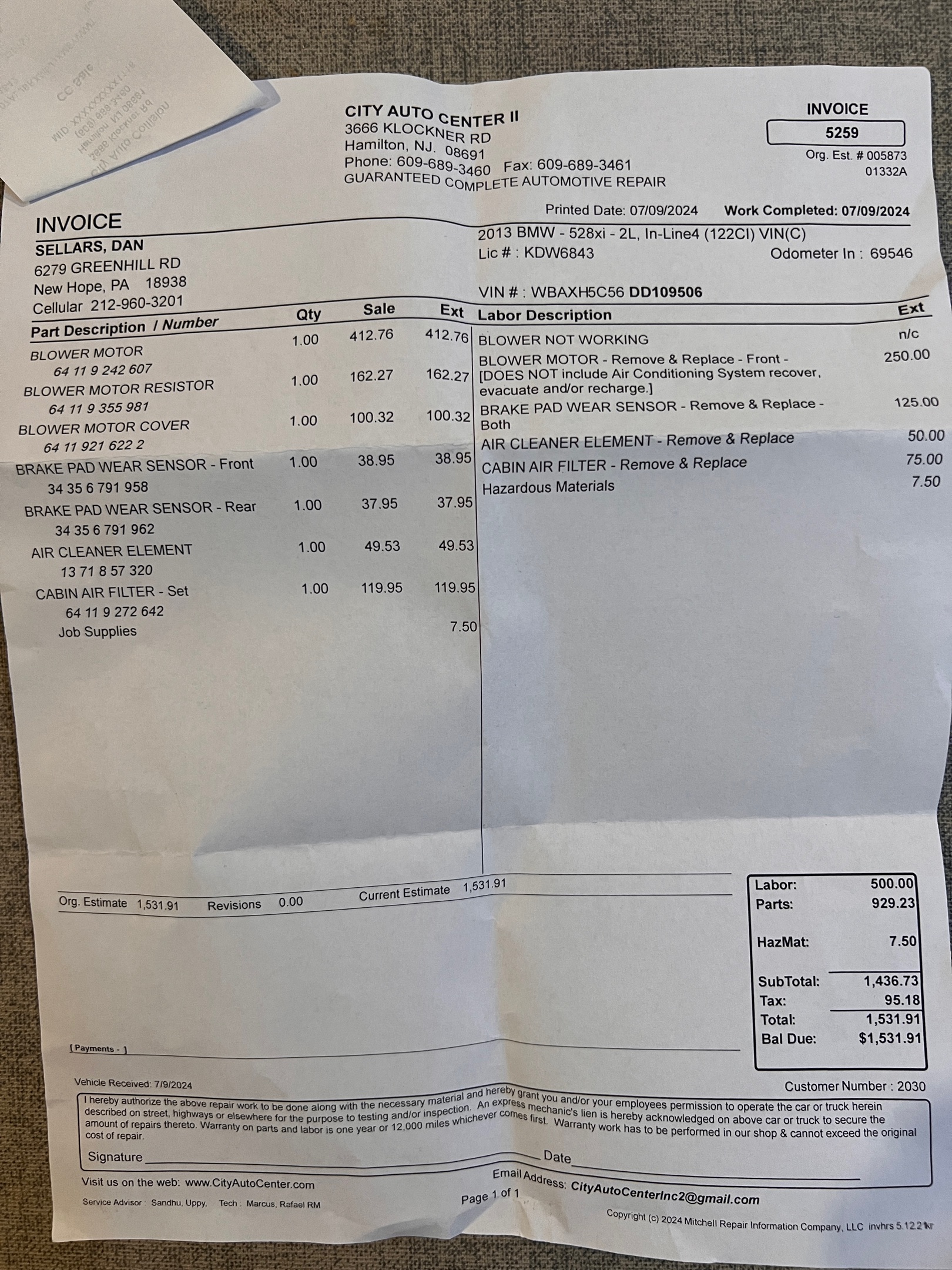
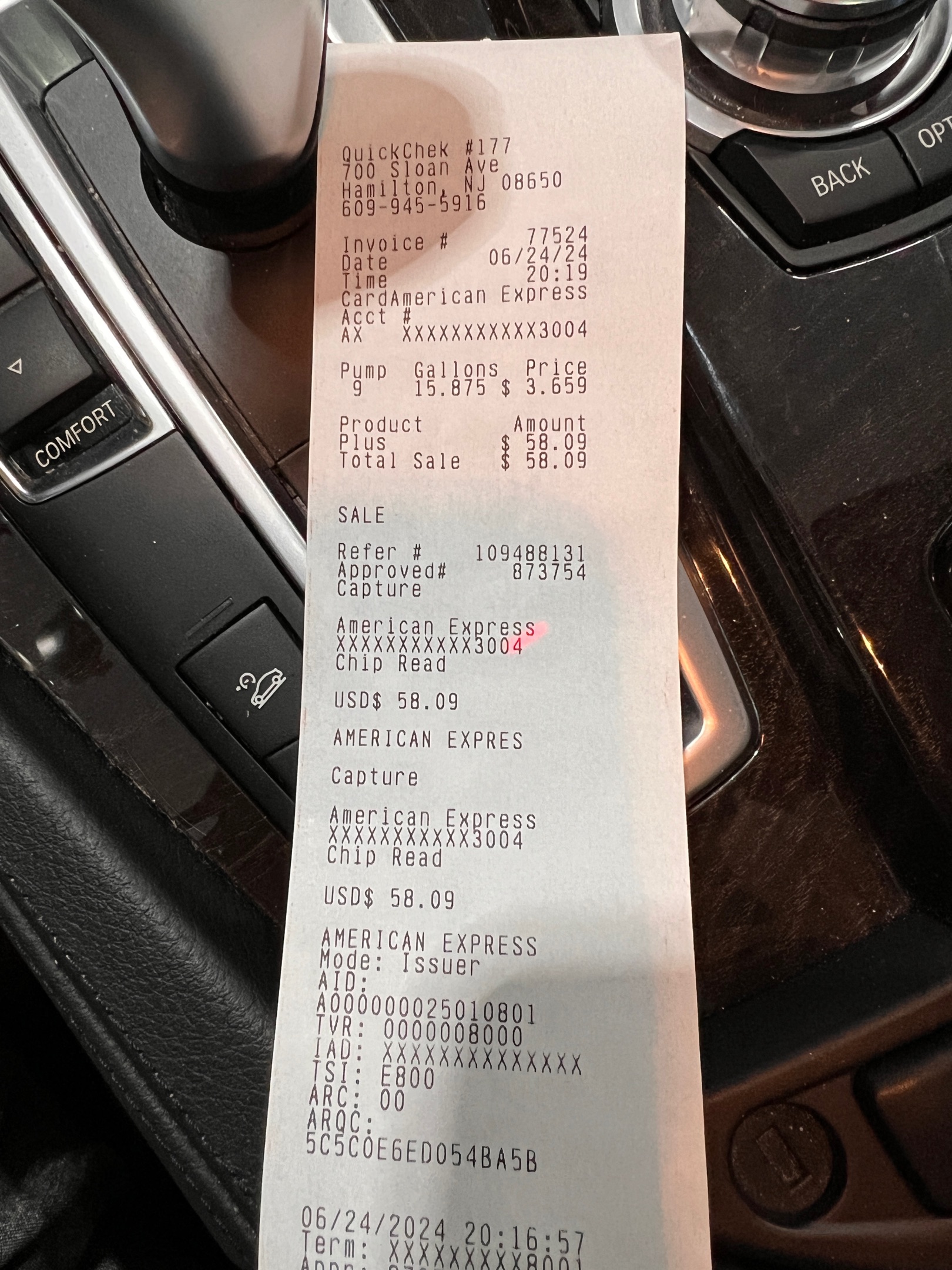
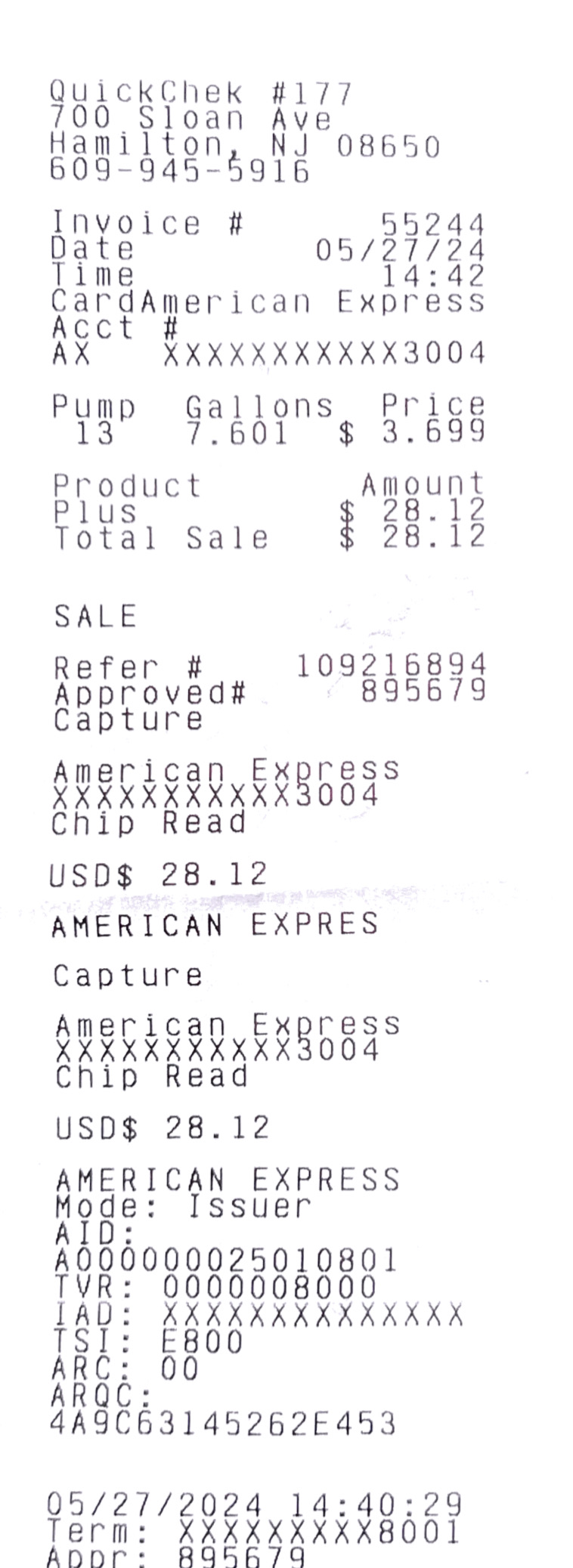
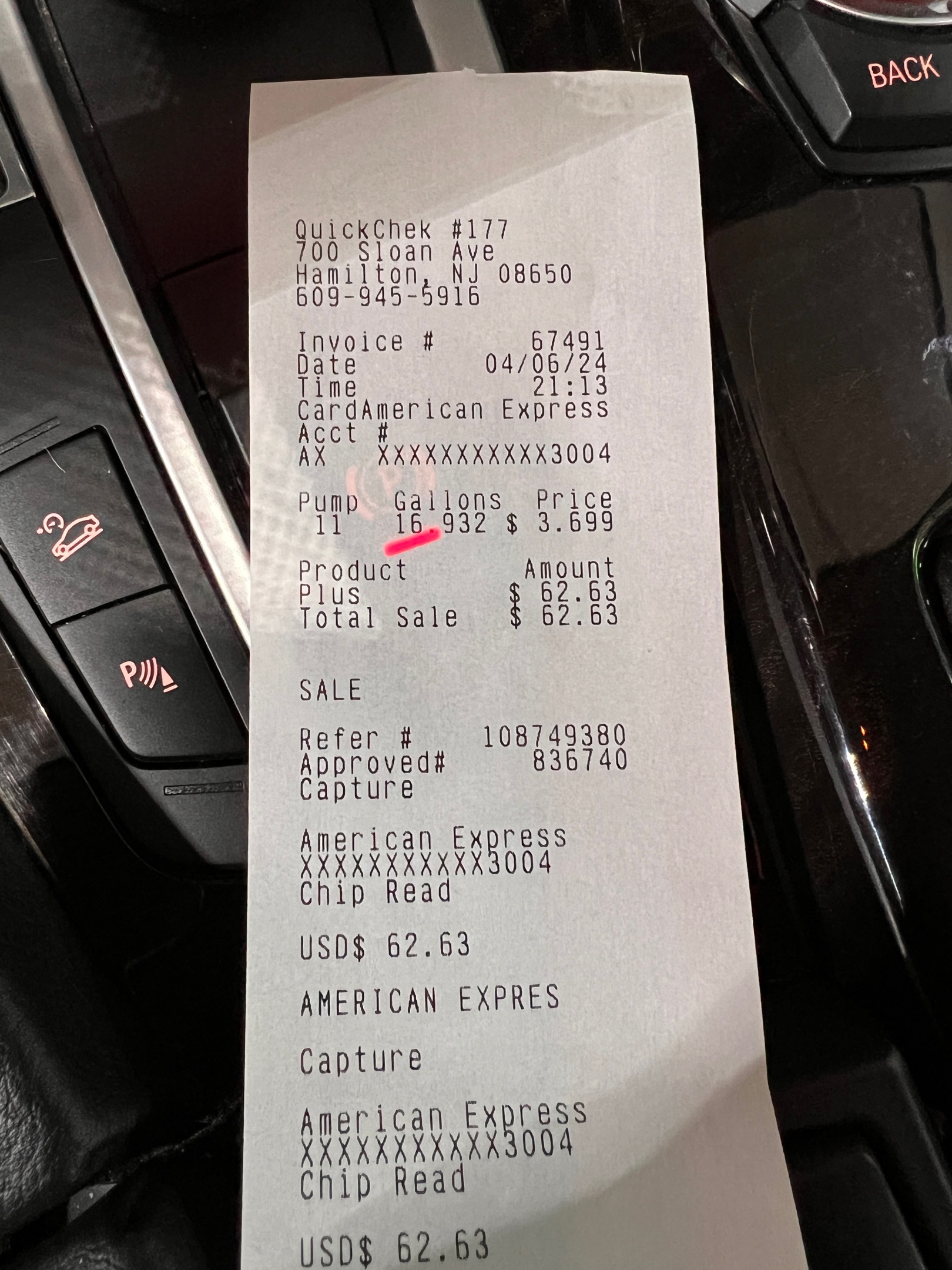
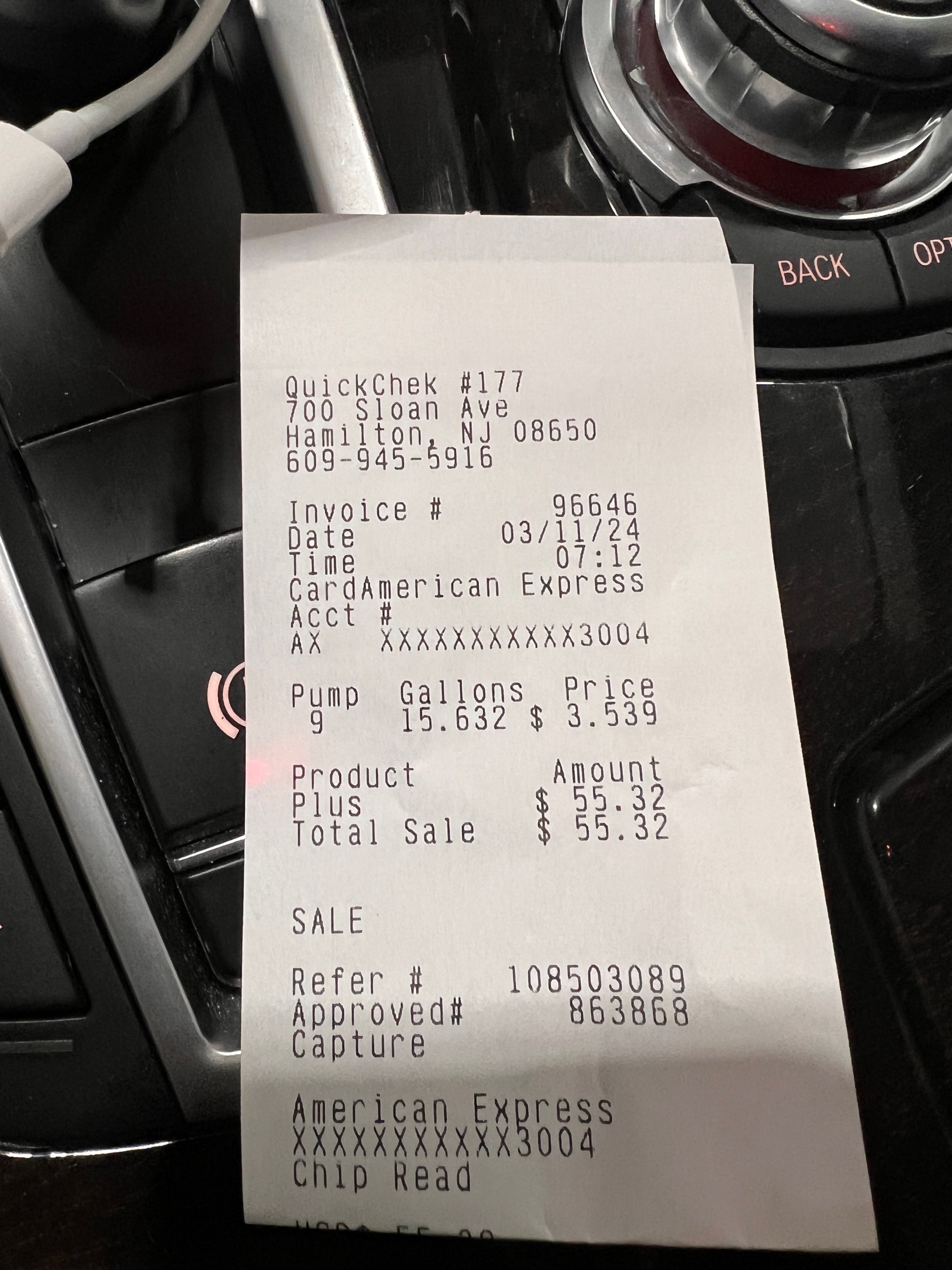
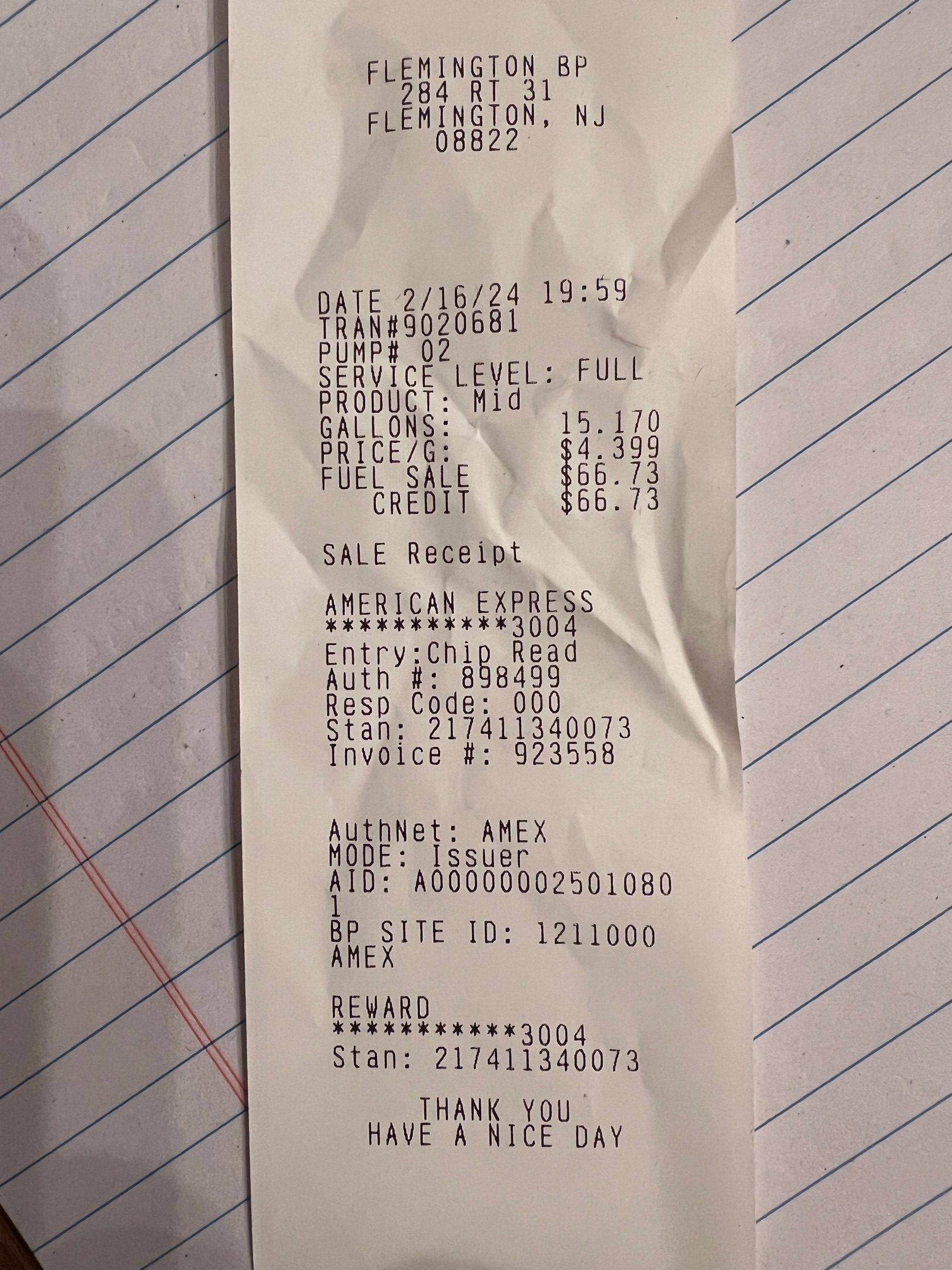
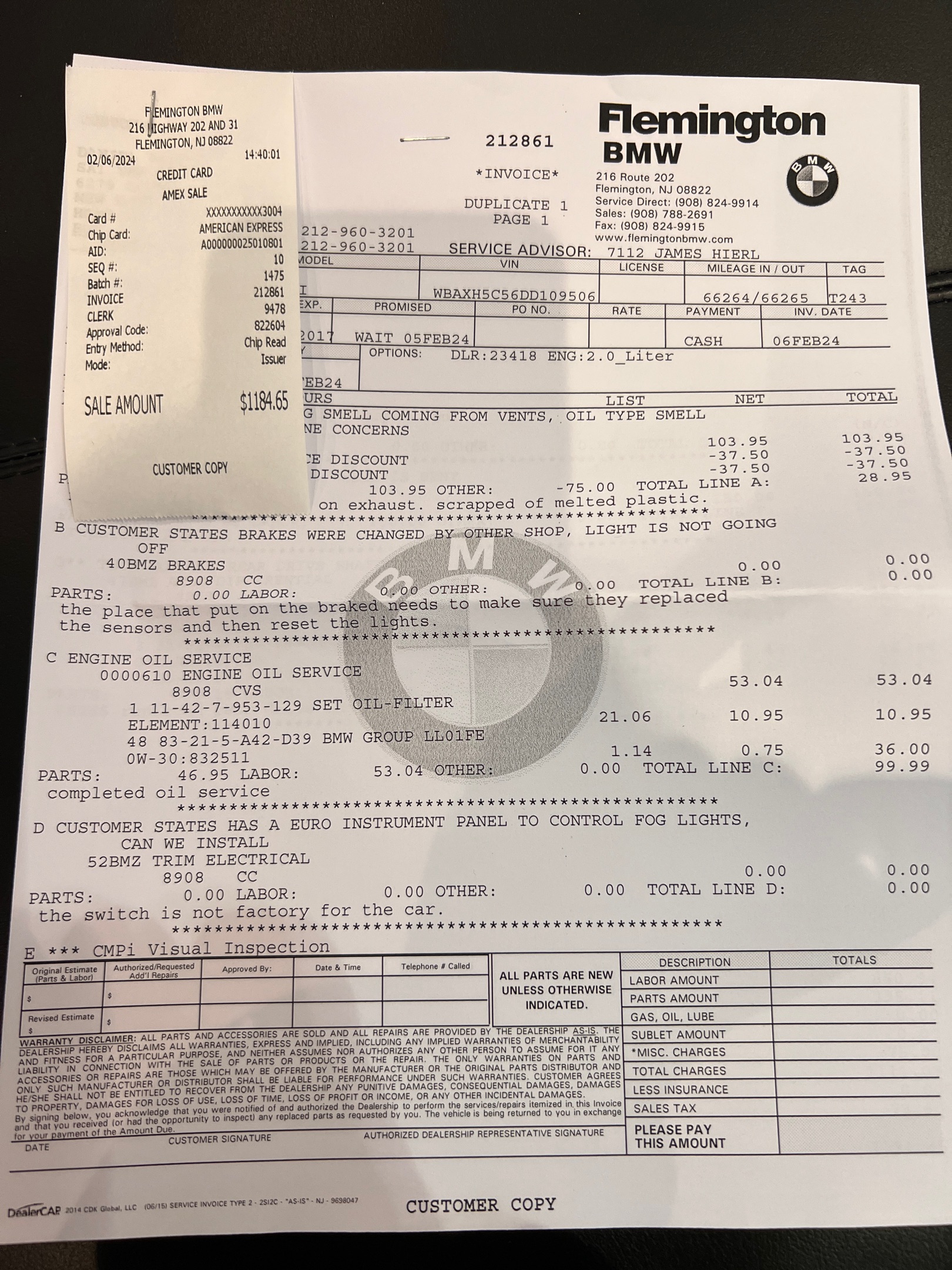
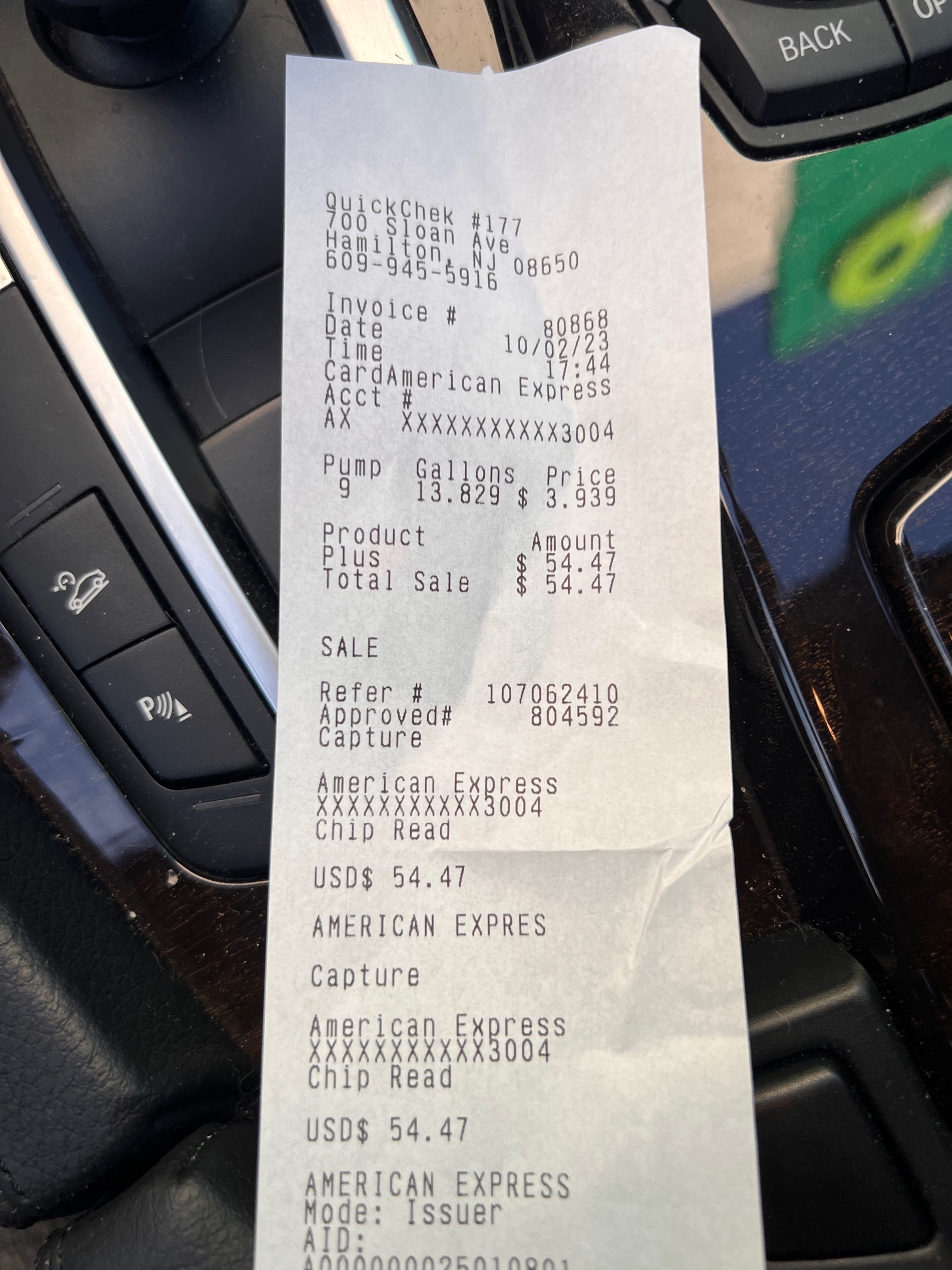
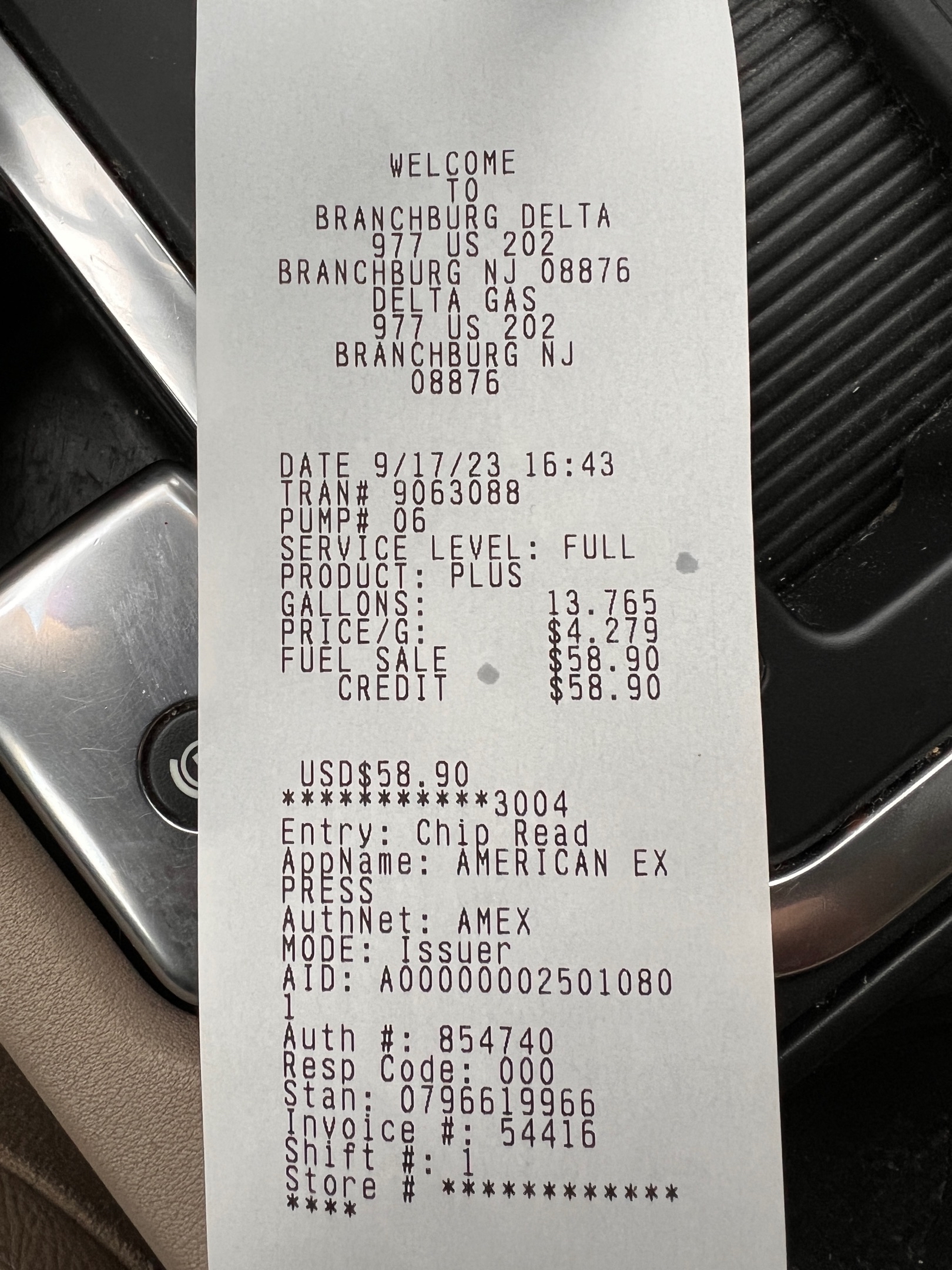
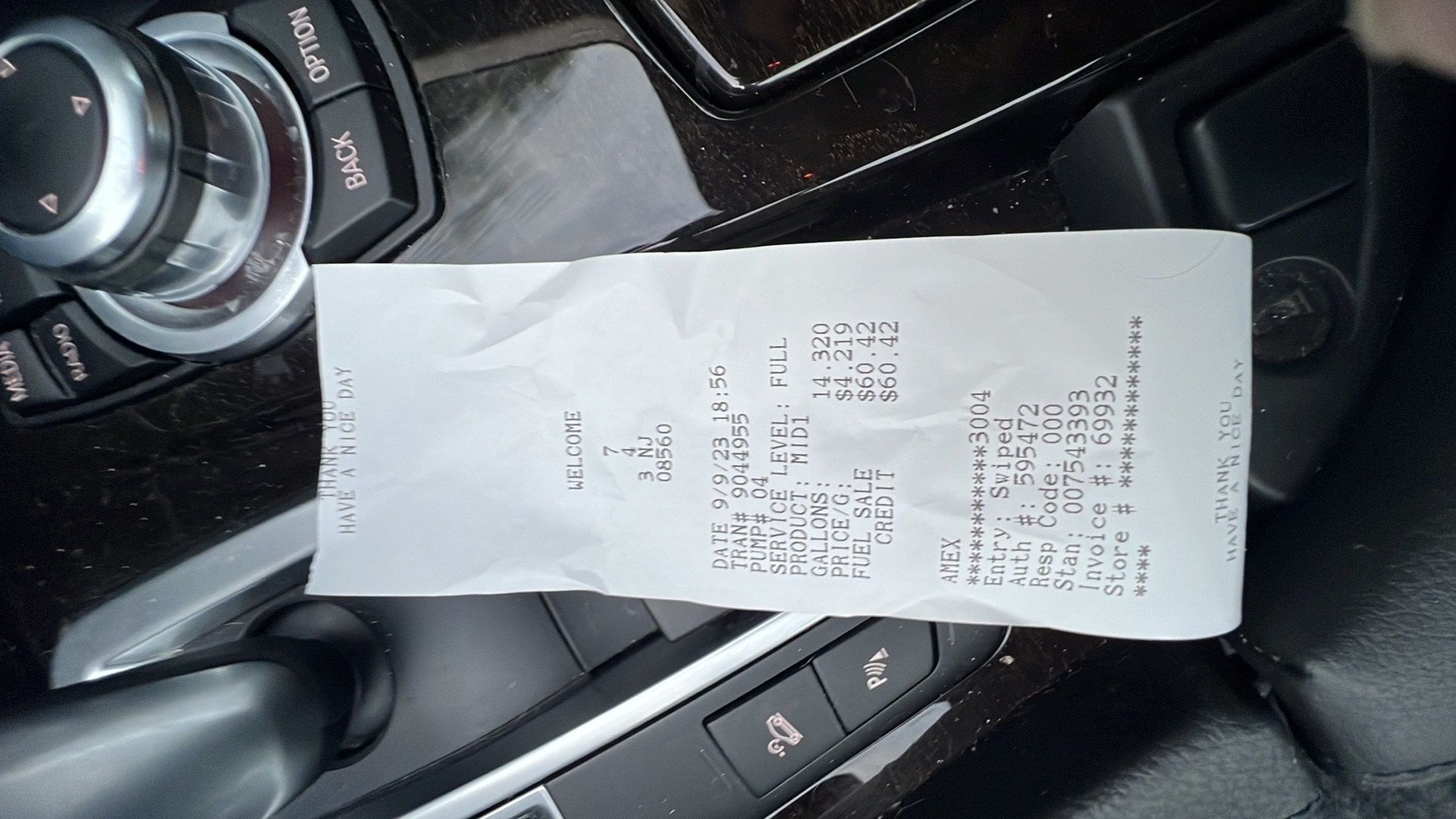
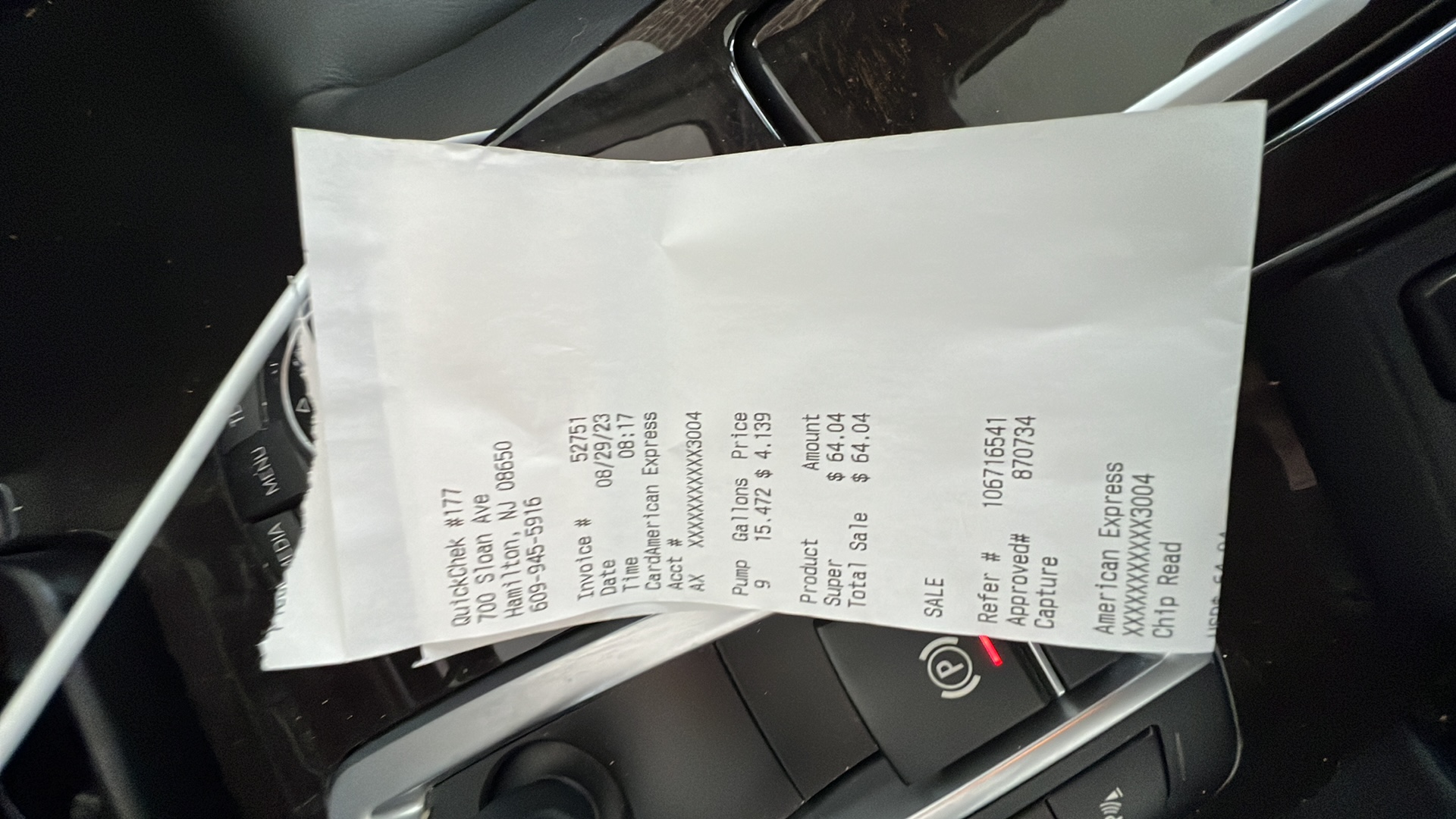
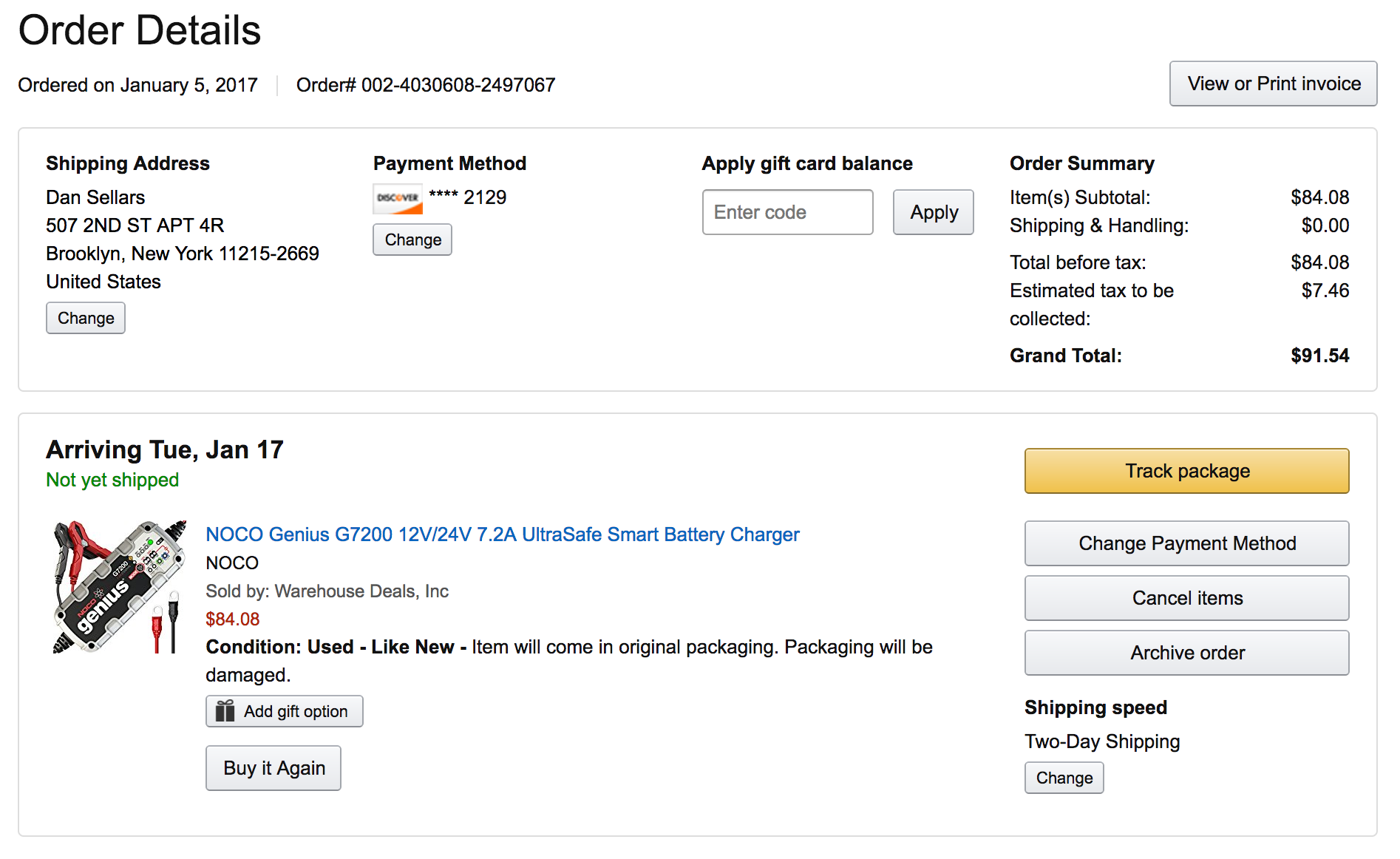
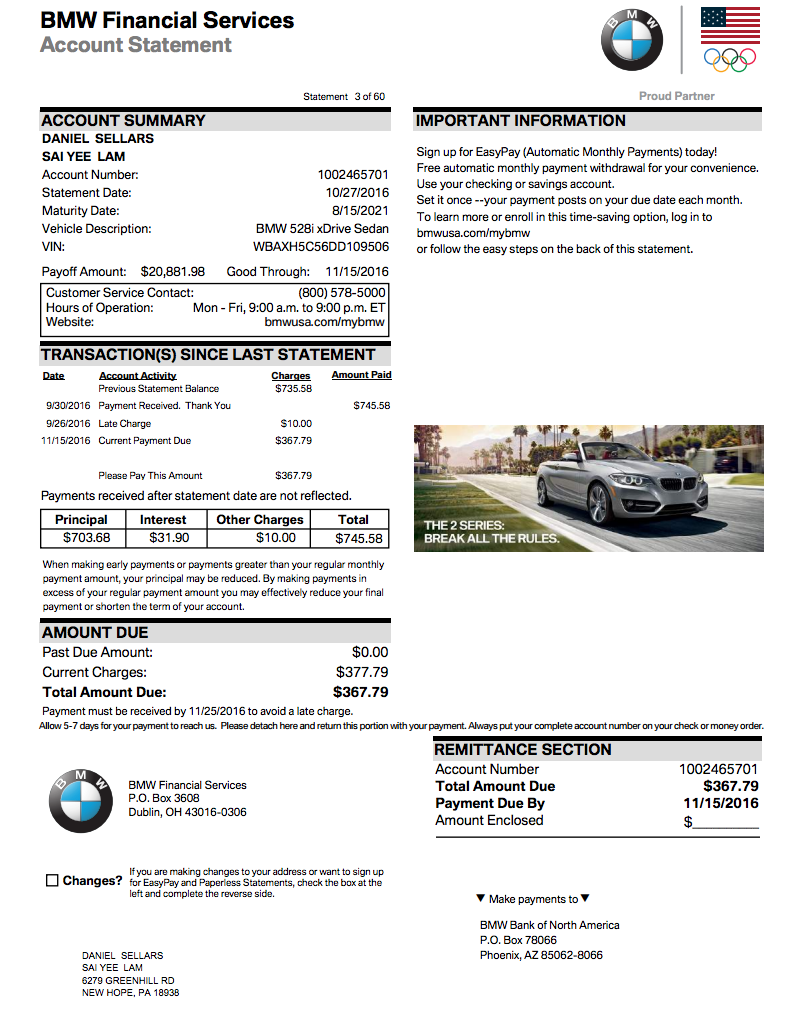
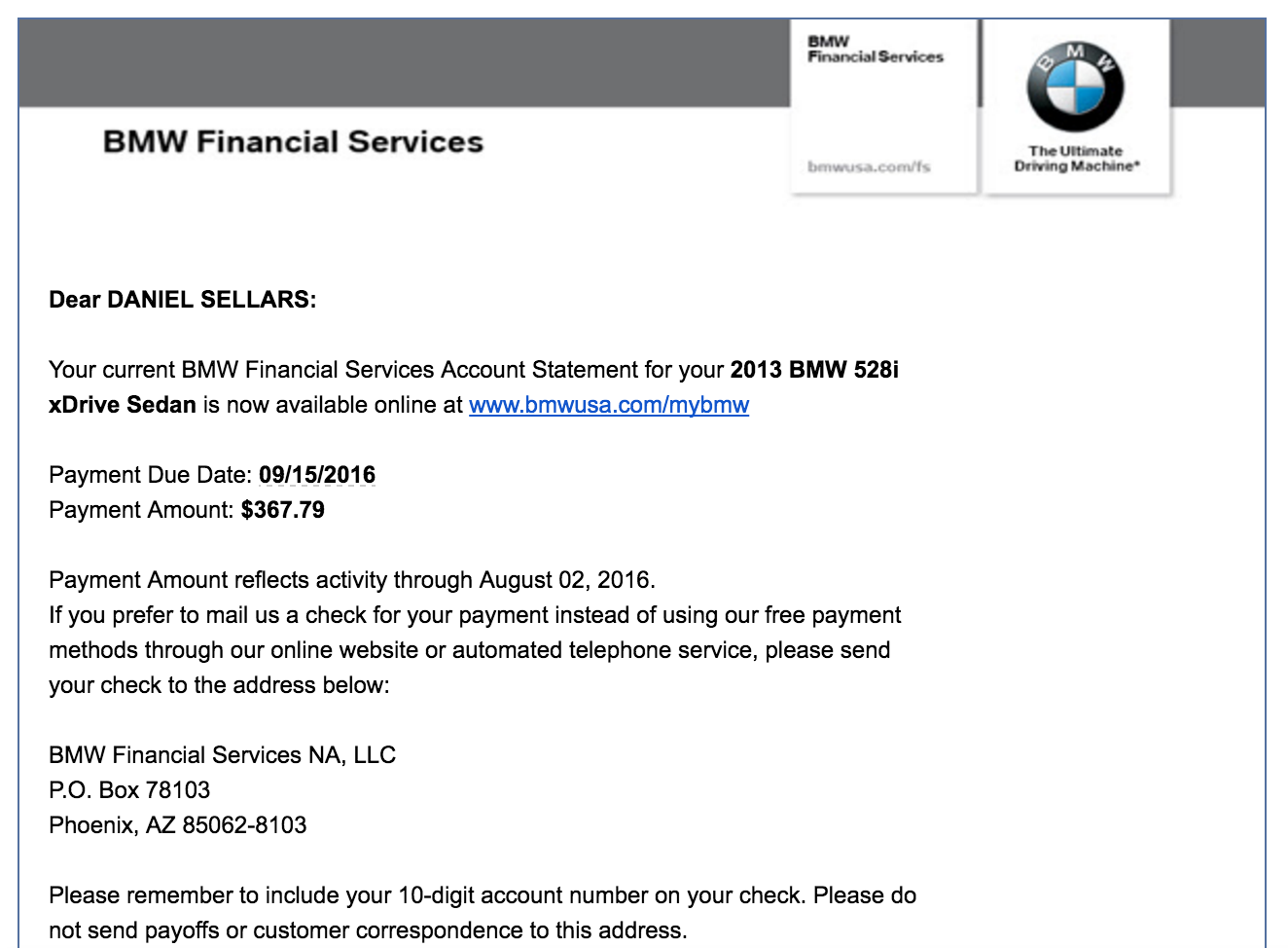
Documents
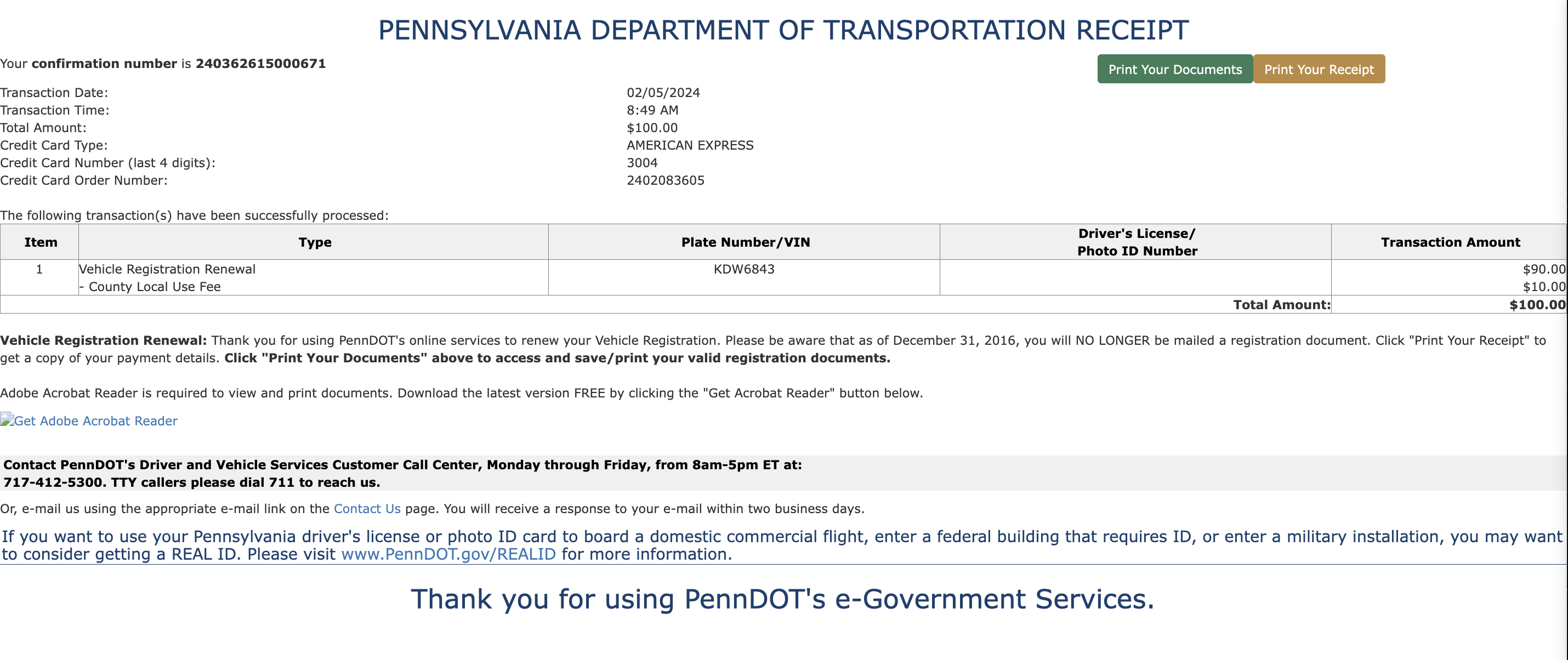
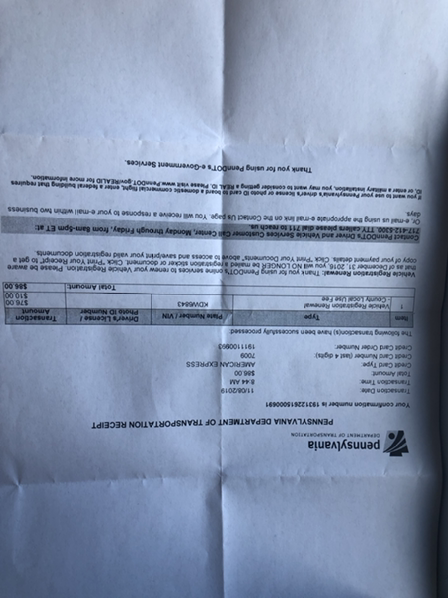
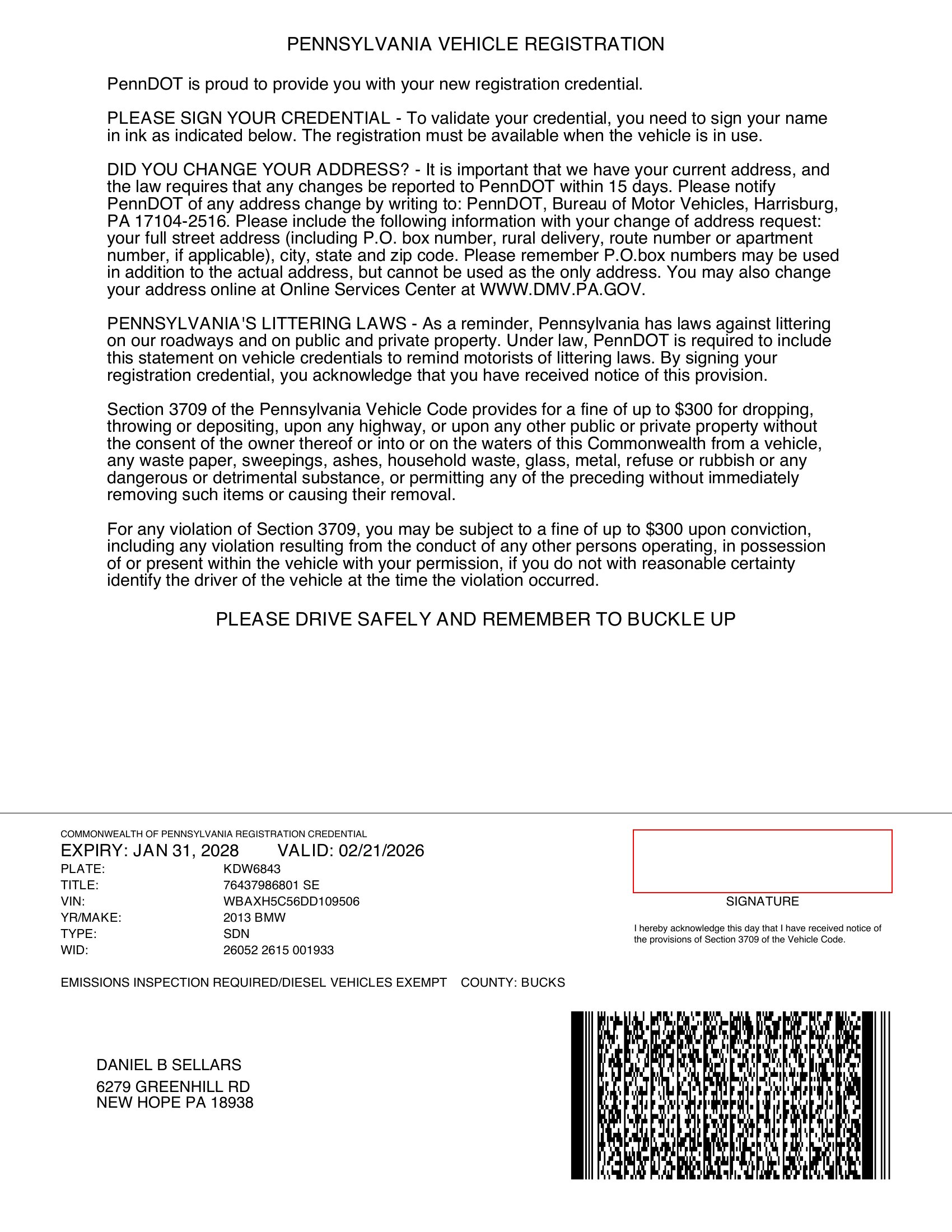
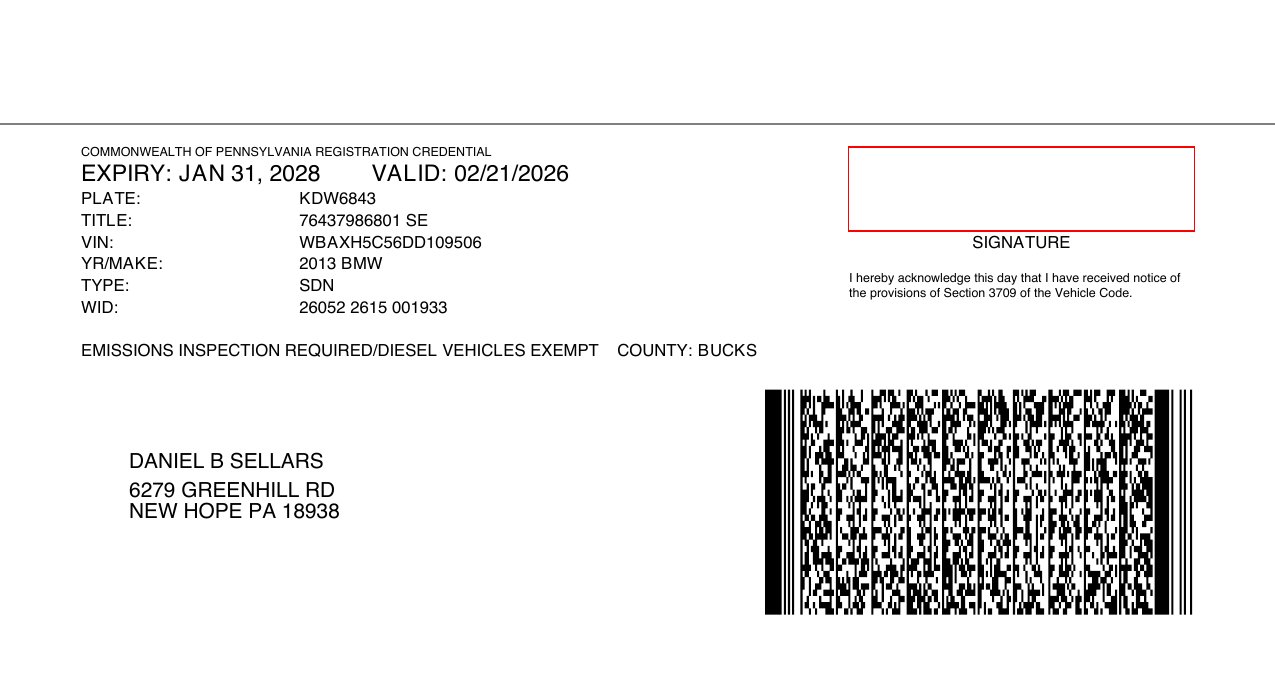
PA Vehicle Registration renewal notice (PDF, valid 21 Feb 2026 → 31 Jan 2028) · JPG preview
Goodyear brake-service invoice — 24 Jun 2023, $410.50, invoice #0000024123
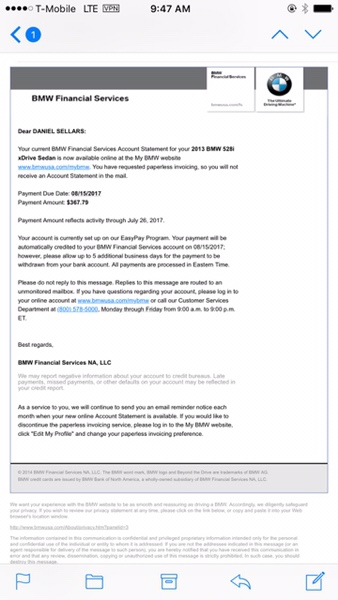
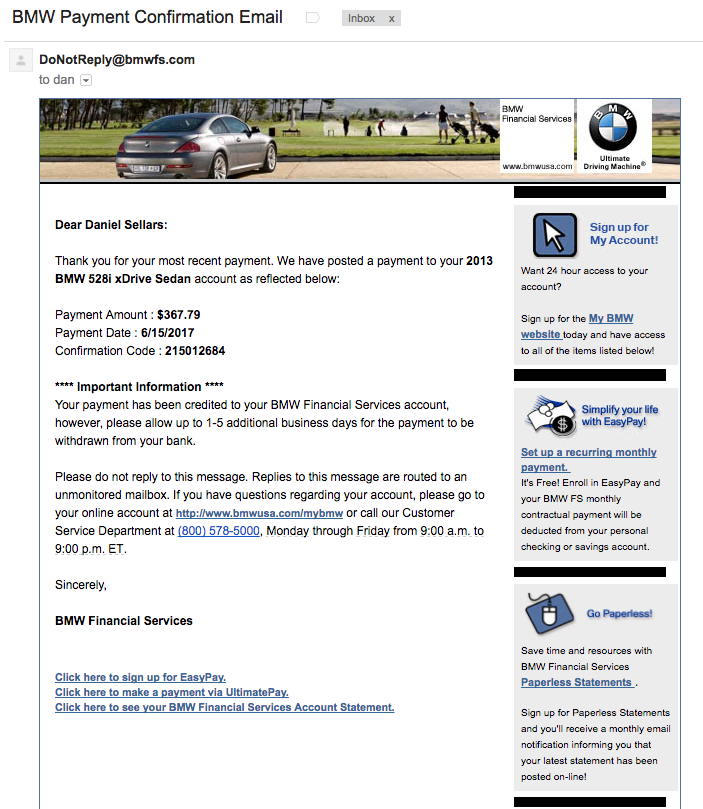
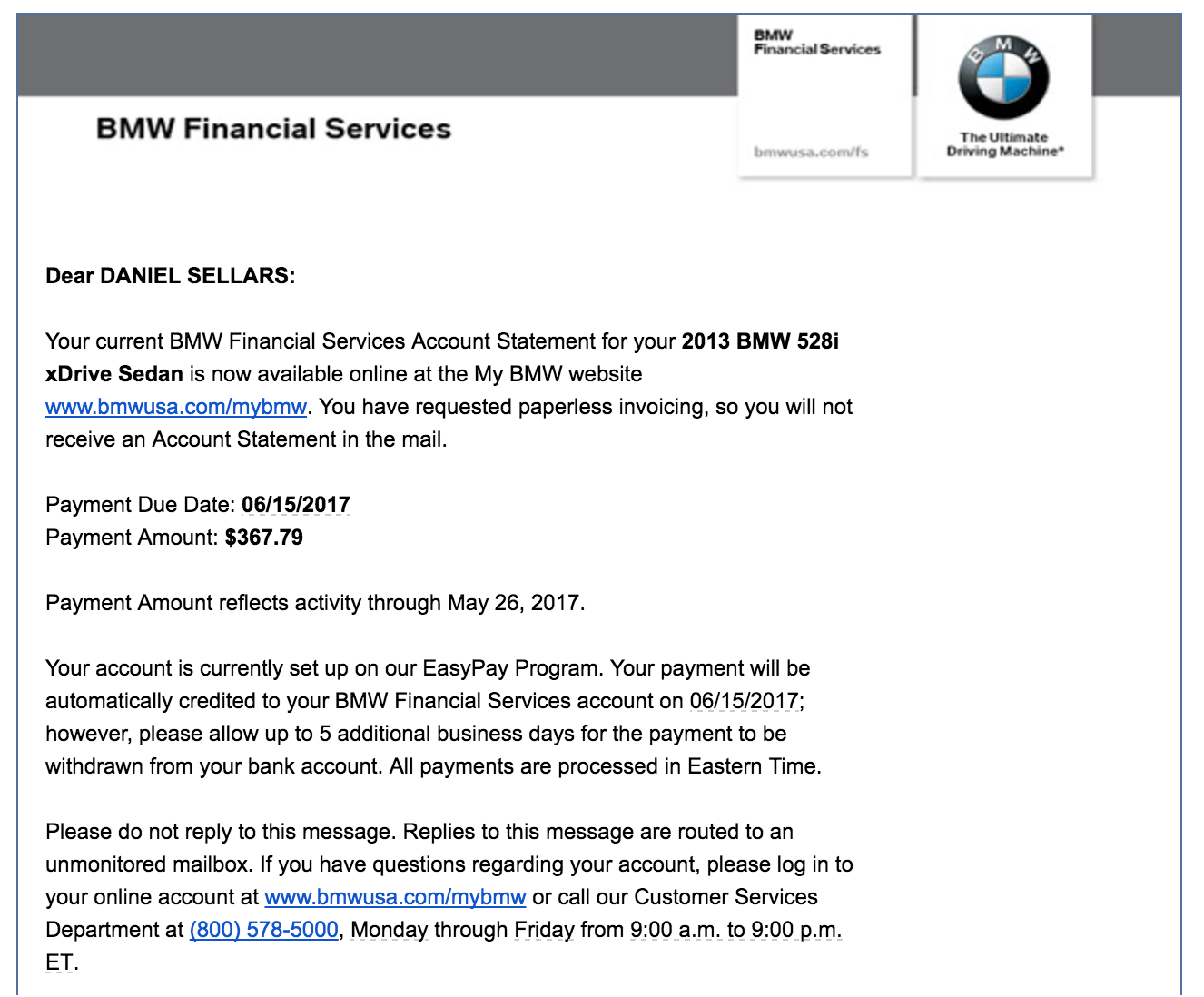
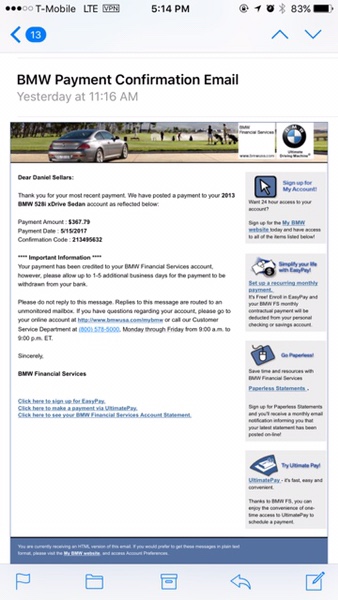
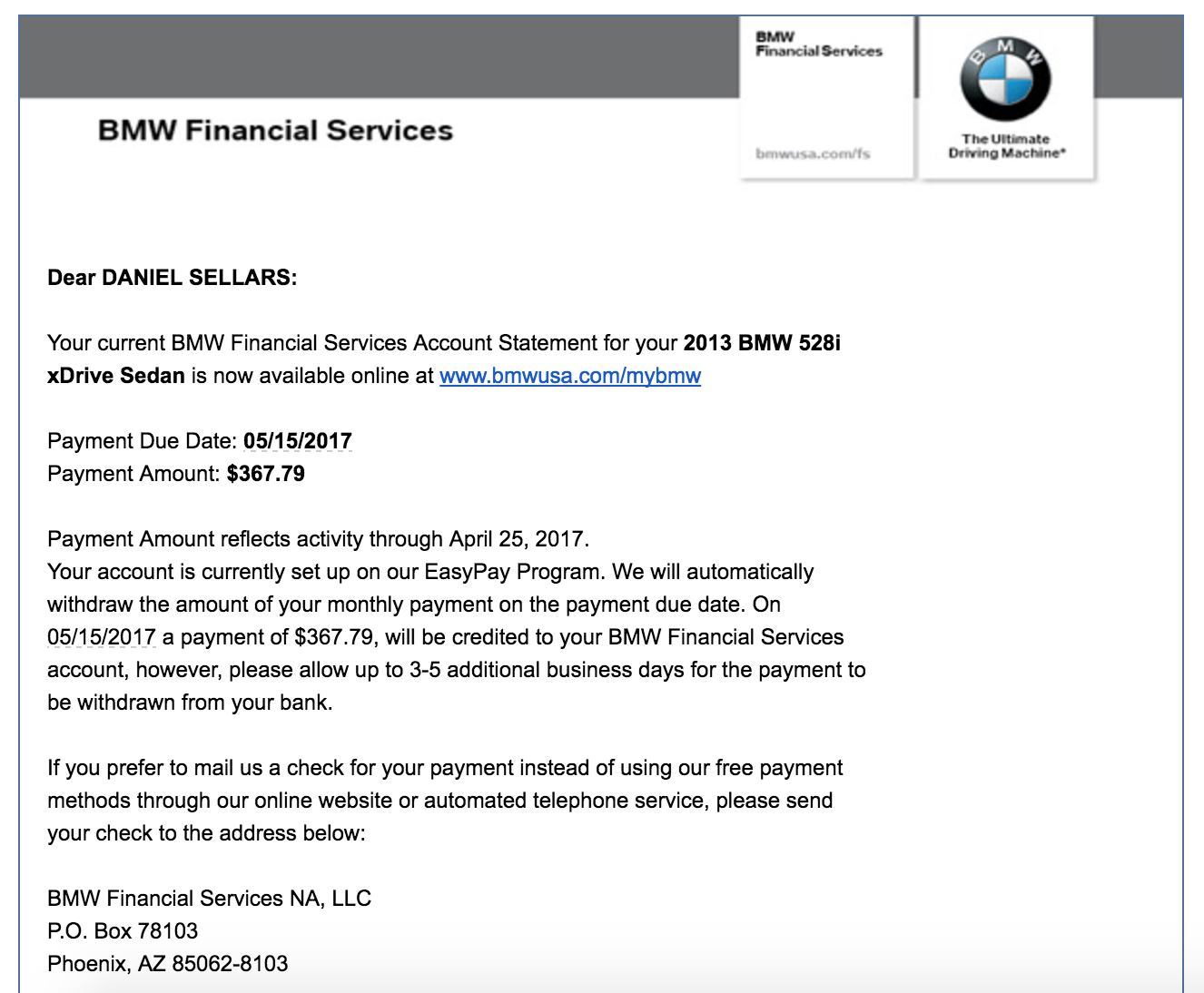
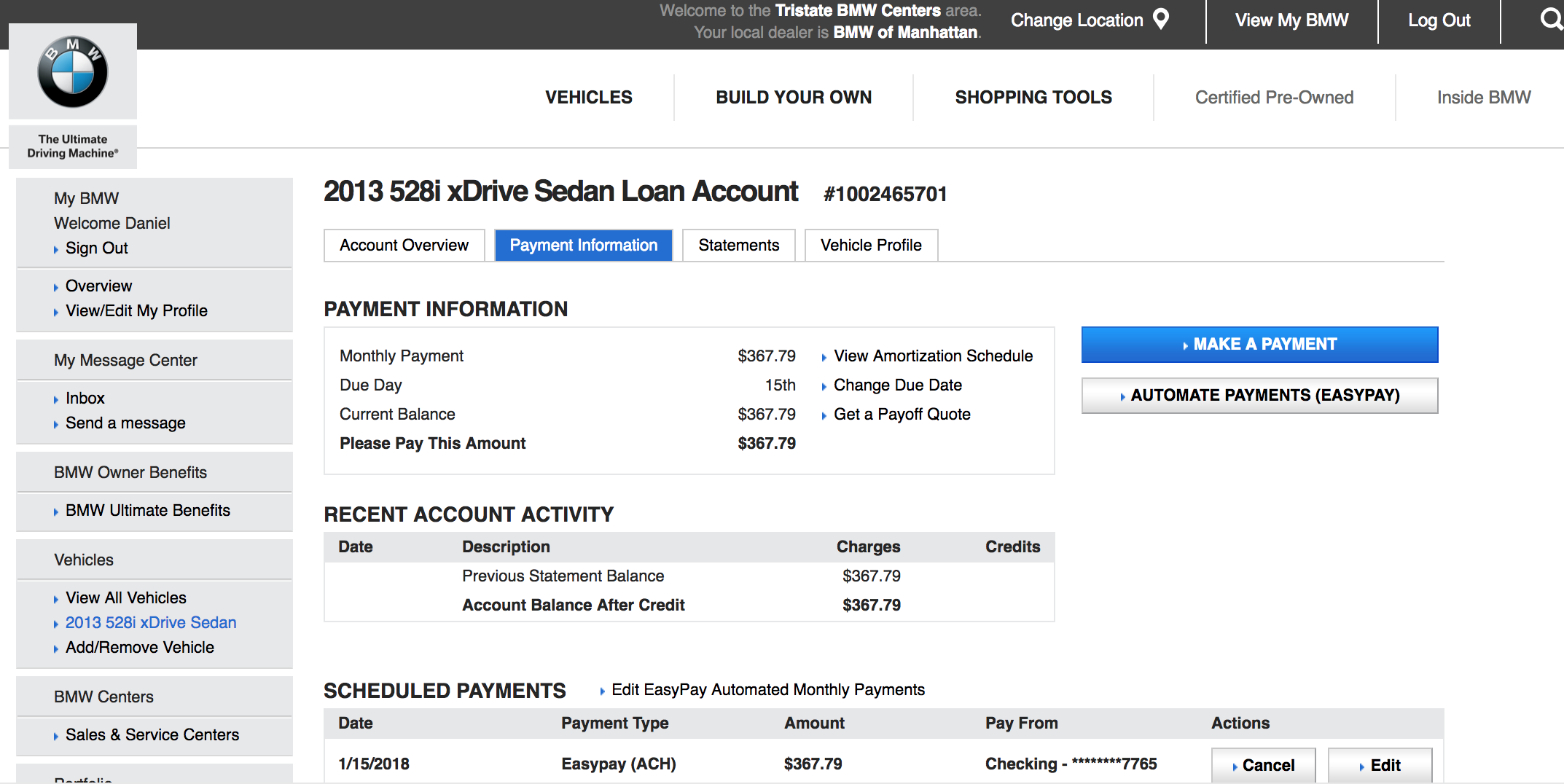
BMW Financial Services account screenshot — loan #1002465701, $367.79/mo Easypay, scheduled 15 Jan 2018
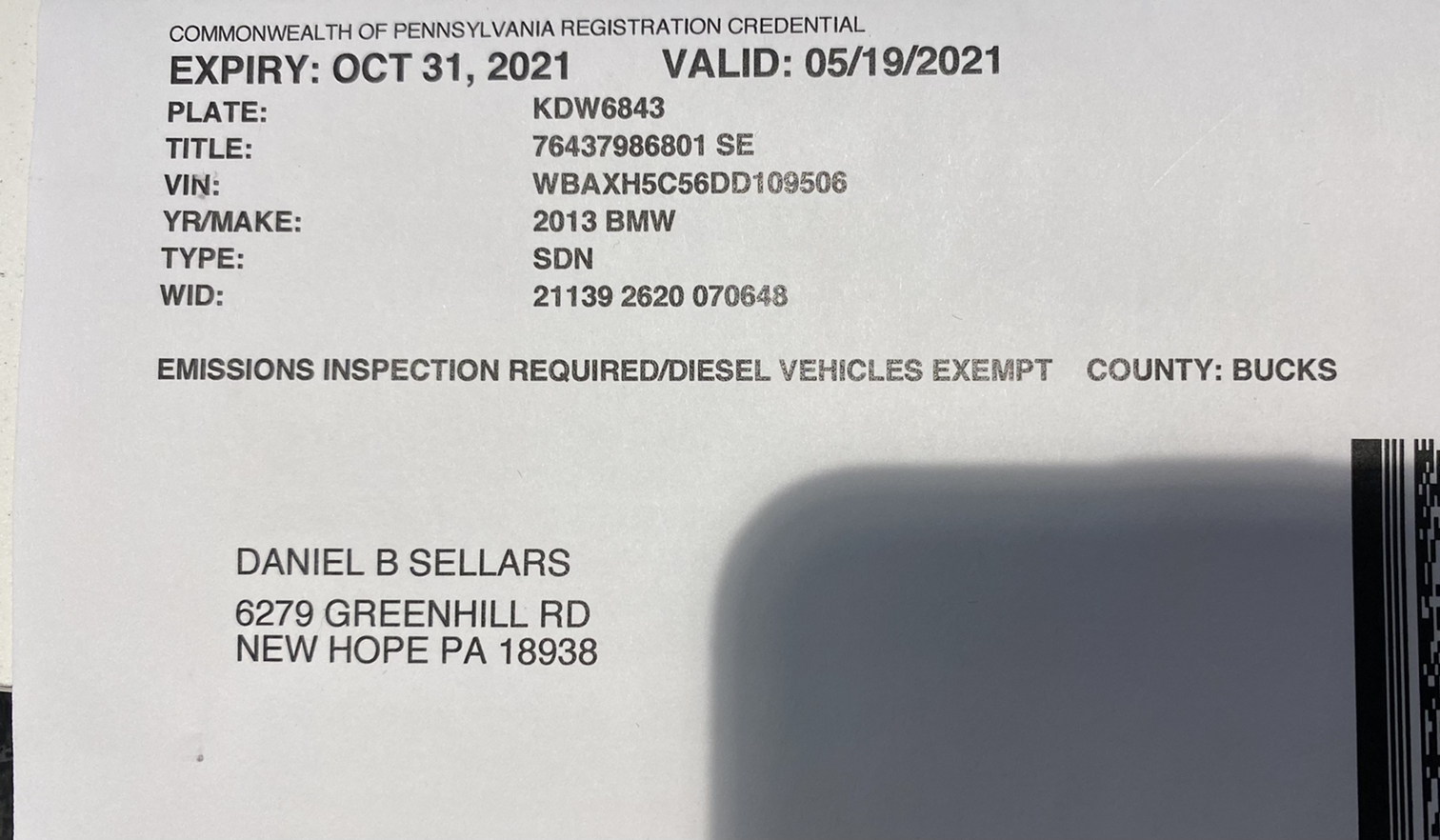
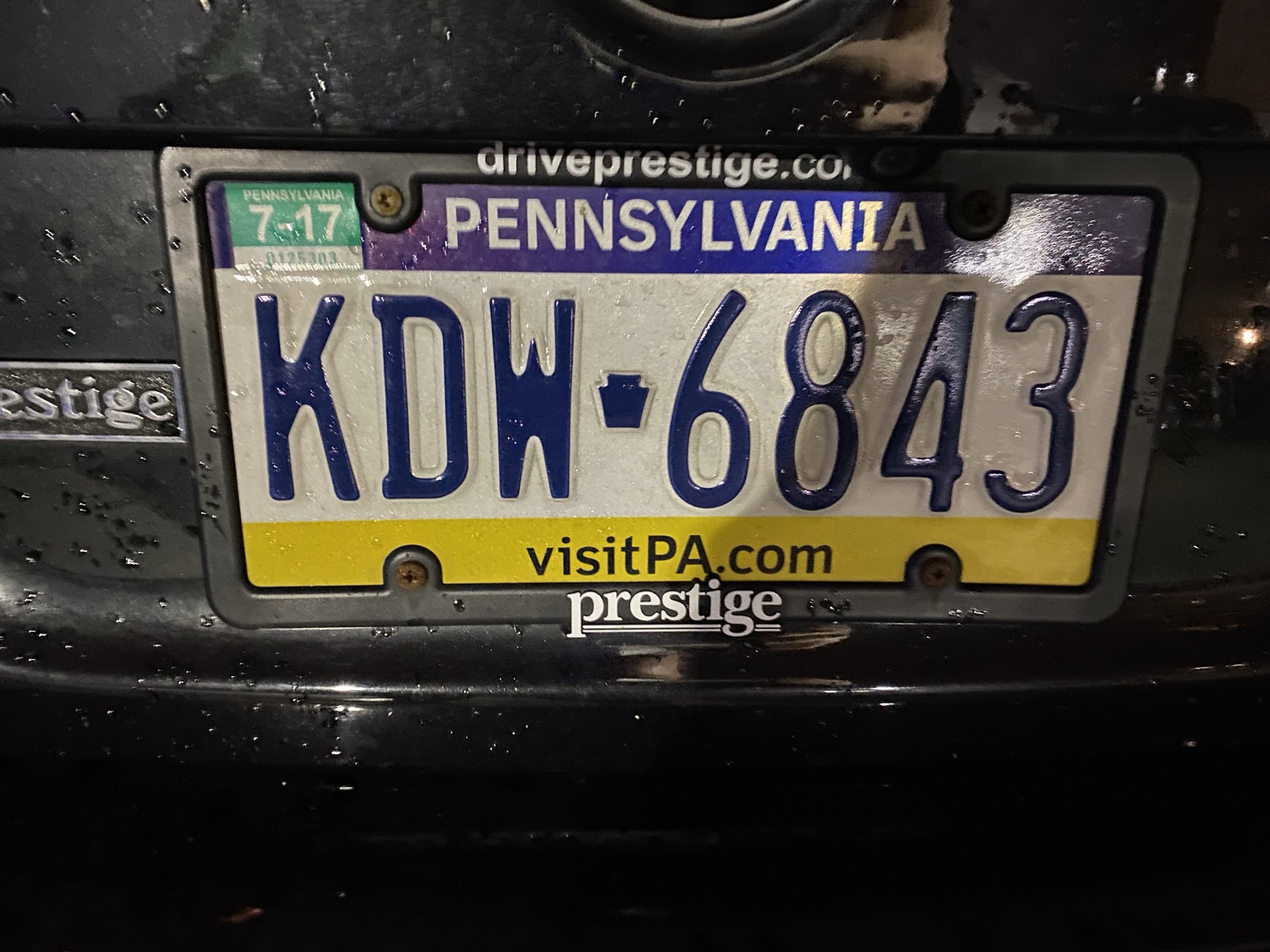
2026 plate close-up — KDW 6843 PA (Pennsylvania purple/yellow, with 7-17 expiry sticker visible)
Receipts by category
Every captured receipt for this vehicle from the New Hope expenses store · filter by category · 🧾 opens the scan.
| Date | Cost | Category | Description | Receipt |
|---|---|---|---|---|
| 2026 | ||||
| 2026-07-29 | $75.00 | Fuel | Fuel fill-up | 🧾 |
| 2026-07-02 | $44.00 | Fuel | Fuel fill-up | 🧾 |
| 2026-06-29 | $55.00 | Fuel | Fuel fill-up | 🧾 |
| 2026-06-22 | $633.00 | Garage | Brakes, rim repair & alignment (invoice #248282) | 🧾 |
| 2026-06-22 | $633.00 | Tires | Wheels brakes and alignmen | 🧾 |
| 2026-05-30 | $54.43 | Other | App unlock functionality | 🧾 |
| 2026-05-21 | $53.00 | Fuel | Fuel fill-up | 🧾 |
| 2026-05-11 | $79.00 | Fuel | Fuel fill-up | 🧾 |
| 2026-02-24 | $106.00 | Registration | Road tax 2 years until 202 | 🧾 |
| 2026-02-18 | $1,930.00 | Garage | Front axle and control arm | 🧾 |
| 2026-02-07 | $60.00 | Fuel | Fuel fill-up | 🧾 |
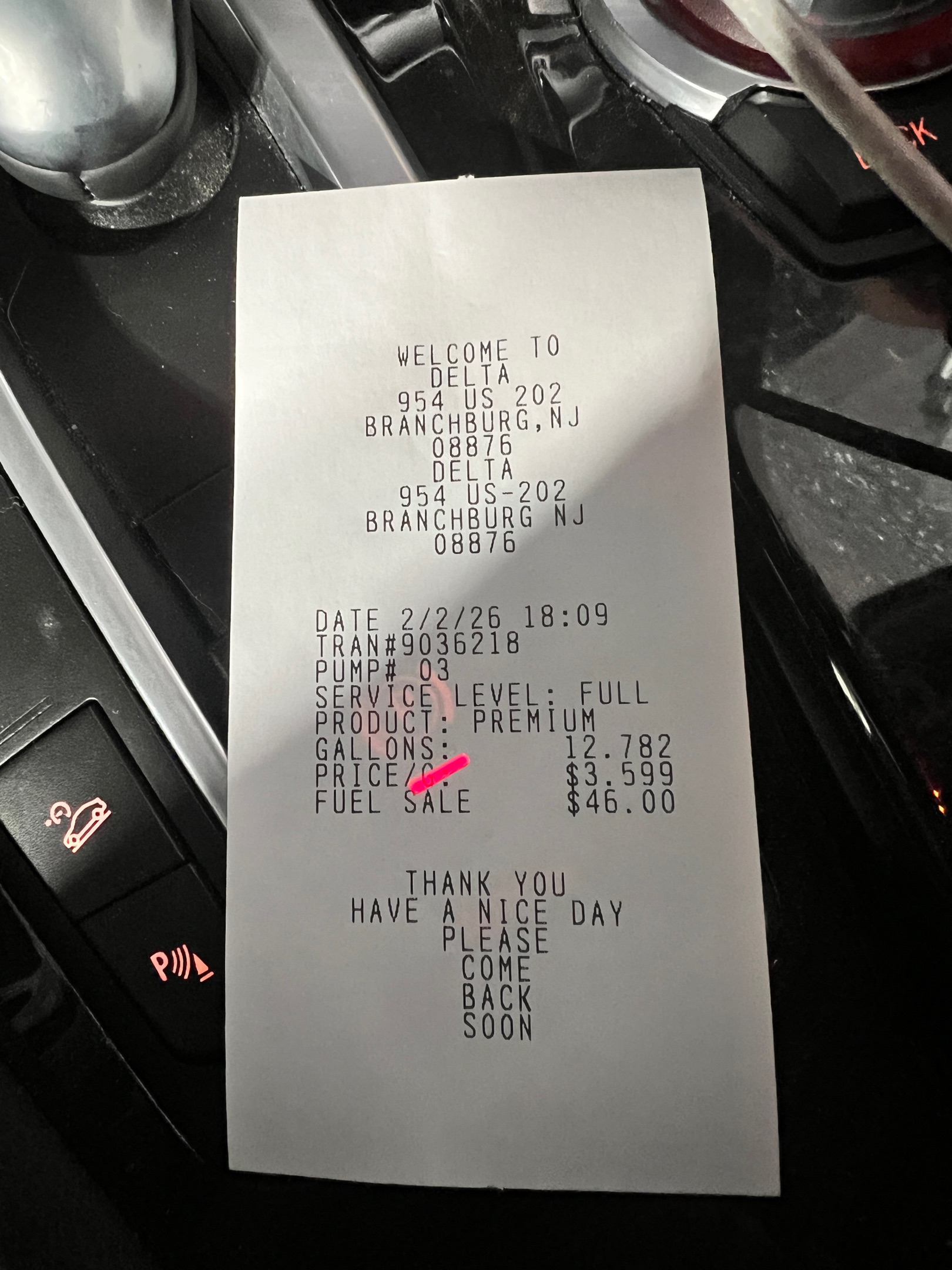
| 2026-02-02 | $46.00 | Fuel | Fuel fill-up | 🧾 |
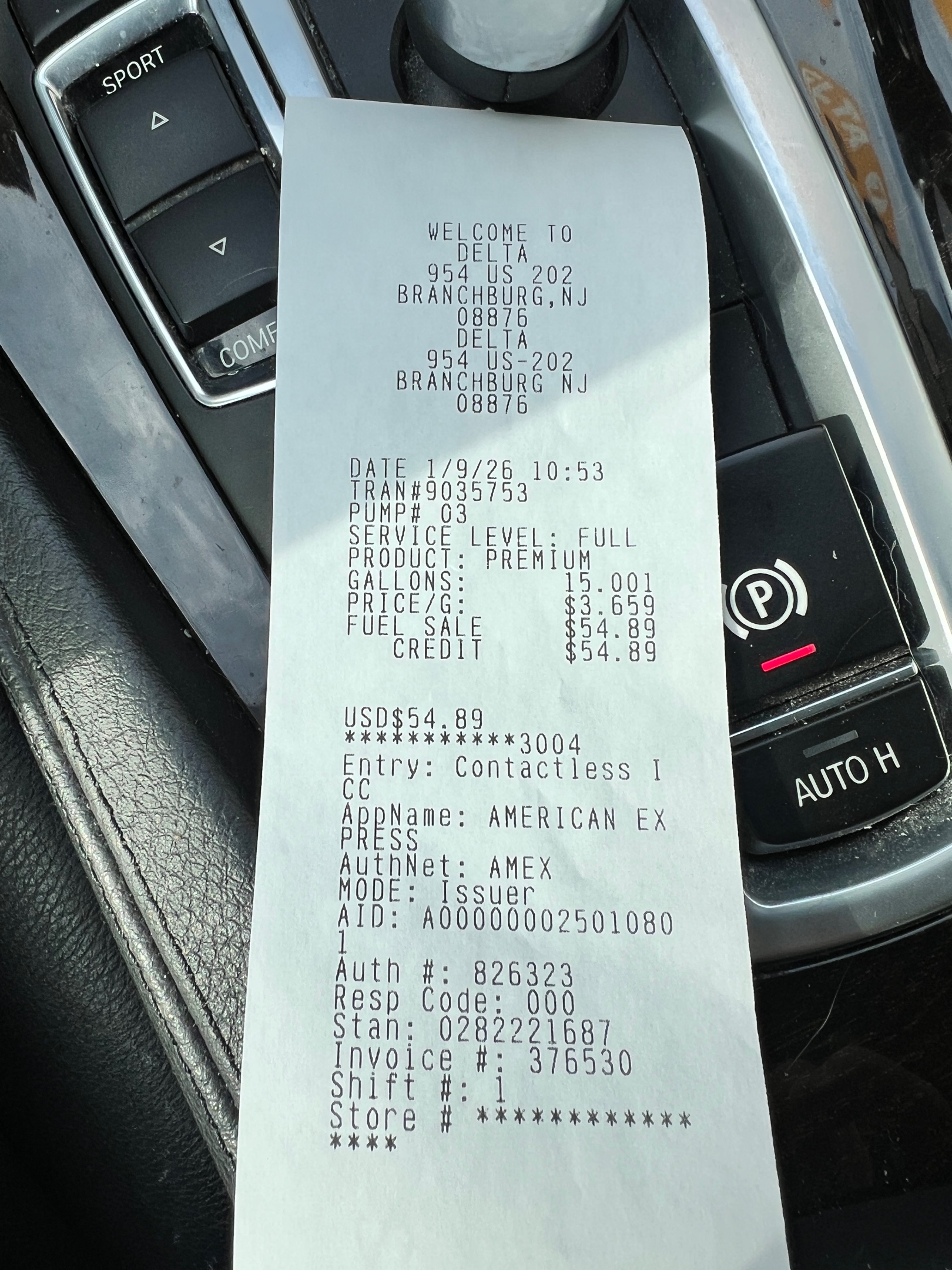
| 2026-01-09 | $55.00 | Fuel | Fuel fill-up | 🧾 |
| 2025 | ||||
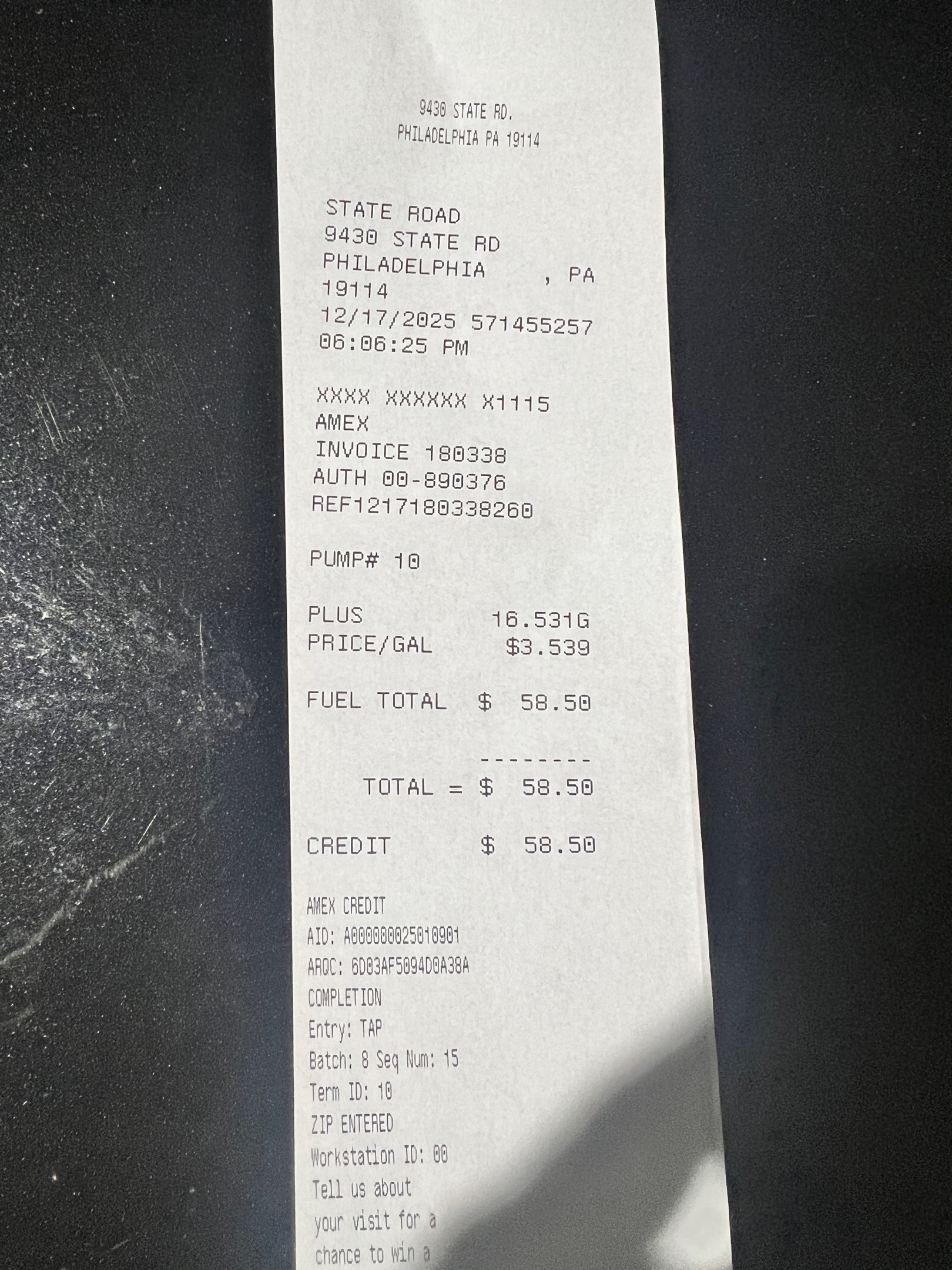
| 2025-12-17 | $58.50 | Fuel | Fuel fill-up | 🧾 |
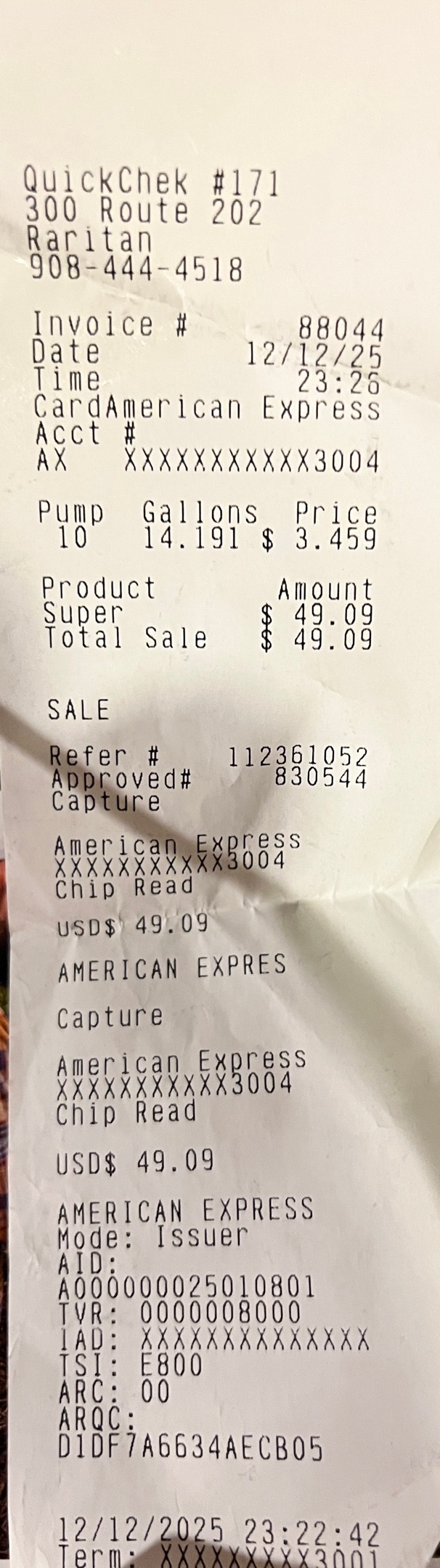
| 2025-12-16 | $49.00 | Fuel | Fuel fill-up | 🧾 |
| 2025-12-10 | $40.00 | Fuel | Fuel fill-up | 🧾 |
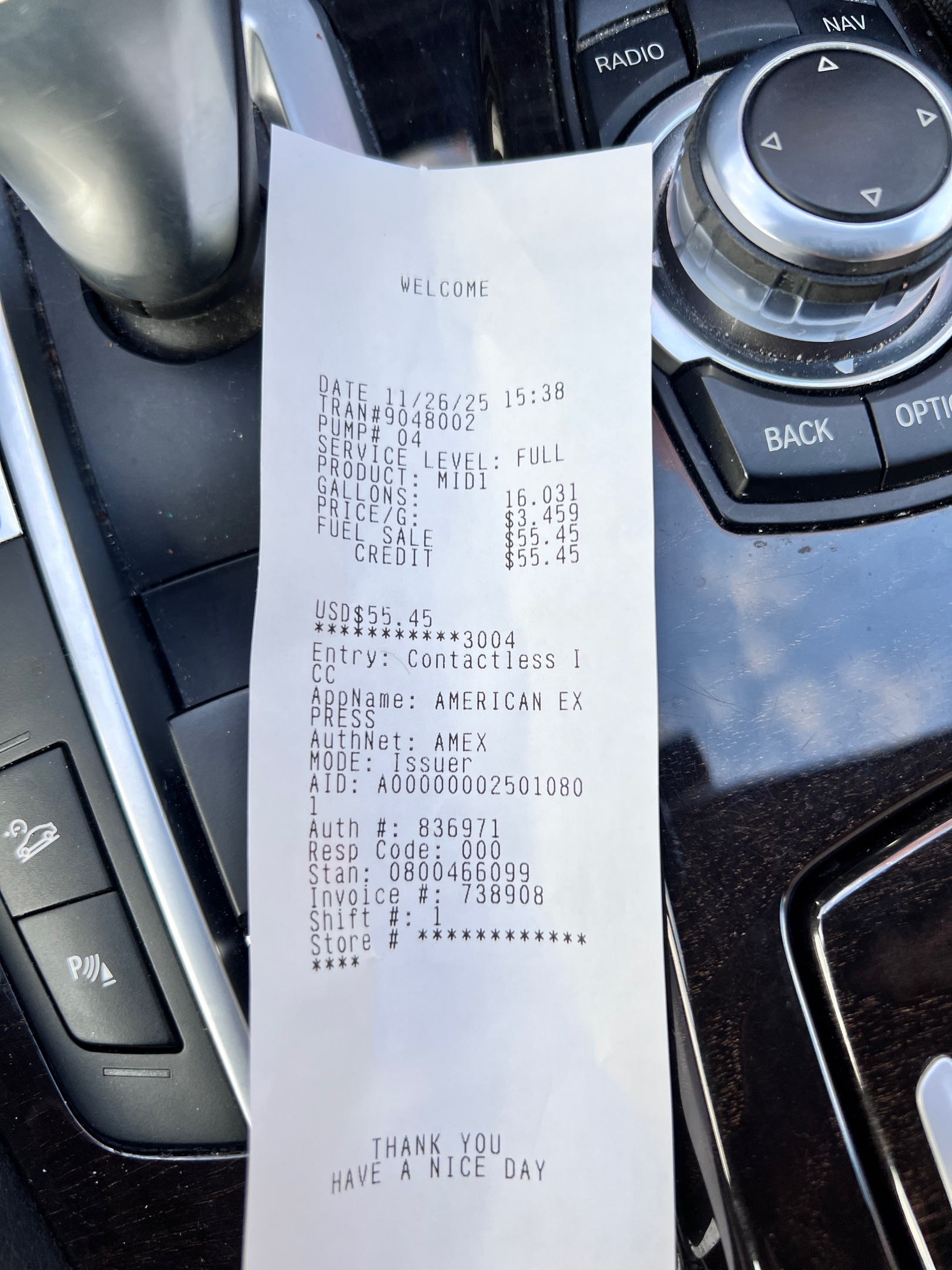
| 2025-11-26 | $55.00 | Fuel | Fuel fill-up | 🧾 |
| 2025-11-17 | $51.00 | Fuel | Fuel fill-up | 🧾 |
| 2025-11-01 | $55.00 | Fuel | Fuel fill-up | 🧾 |
| 2025-10-16 | $53.00 | Fuel | Fuel fill-up | 🧾 |
| 2025-10-11 | $50.00 | Fuel | Fuel fill-up | 🧾 |
| 2025-10-03 | $60.00 | Fuel | Fuel fill-up | 🧾 |
| 2025-10-02 | $58.00 | Parts | Part | 🧾 |
| 2025-09-09 | $59.00 | Fuel | Fuel fill-up | 🧾 |
| 2025-09-03 | $52.00 | Fuel | Fuel fill-up | 🧾 |
| 2025-08-27 | $55.00 | Fuel | Fuel fill-up | 🧾 |
| 2025-08-25 | $32.00 | Fuel | Fuel fill-up | 🧾 |
| 2025-08-24 | $57.00 | Fuel | Fuel fill-up | 🧾 |
| 2025-08-20 | $53.00 | Fuel | Fuel fill-up | 🧾 |
| 2025-08-04 | $53.00 | Fuel | Fuel fill-up | 🧾 |
| 2025-07-28 | $53.00 | Fuel | Fuel fill-up | 🧾 |
| 2025-07-23 | $49.00 | Fuel | Fuel fill-up | 🧾 |
| 2025-07-16 | $58.00 | Fuel | Fuel fill-up | 🧾 |
| 2025-07-15 | $200.00 | Finance | Card payment | 🧾 |
| 2025-07-09 | $44.00 | Fuel | Fuel fill-up | 🧾 |
| 2025-07-07 | $55.00 | Fuel | Fuel fill-up | 🧾 |
| 2025-06-20 | $56.75 | Fuel | Fuel fill-up | 🧾 |
| 2025-06-16 | $47.47 | Fuel | Fuel fill-up | 🧾 |
| 2025-06-11 | $57.00 | Fuel | Fuel fill-up | 🧾 |
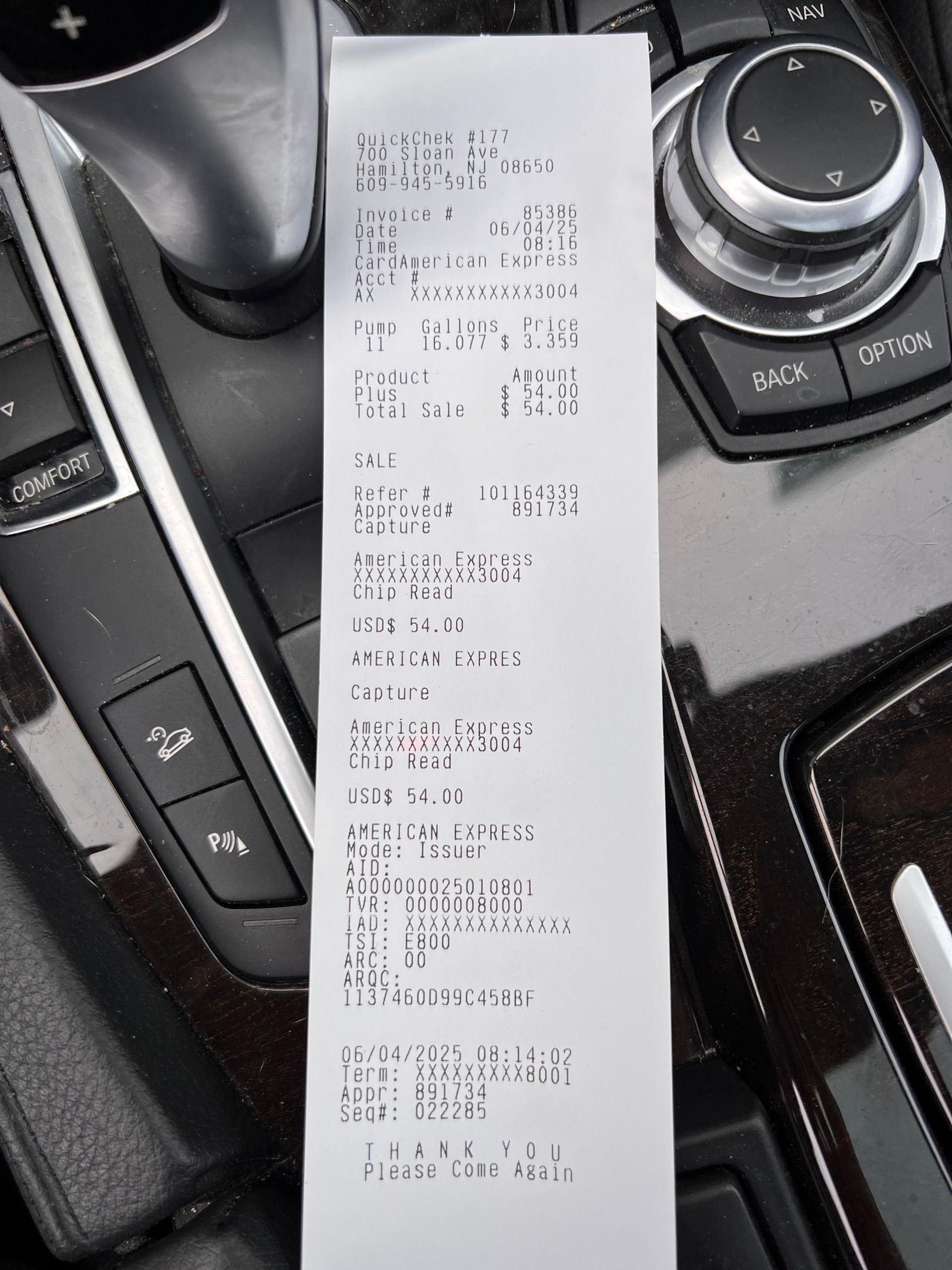
| 2025-06-04 | $54.00 | Fuel | Fuel fill-up | 🧾 |
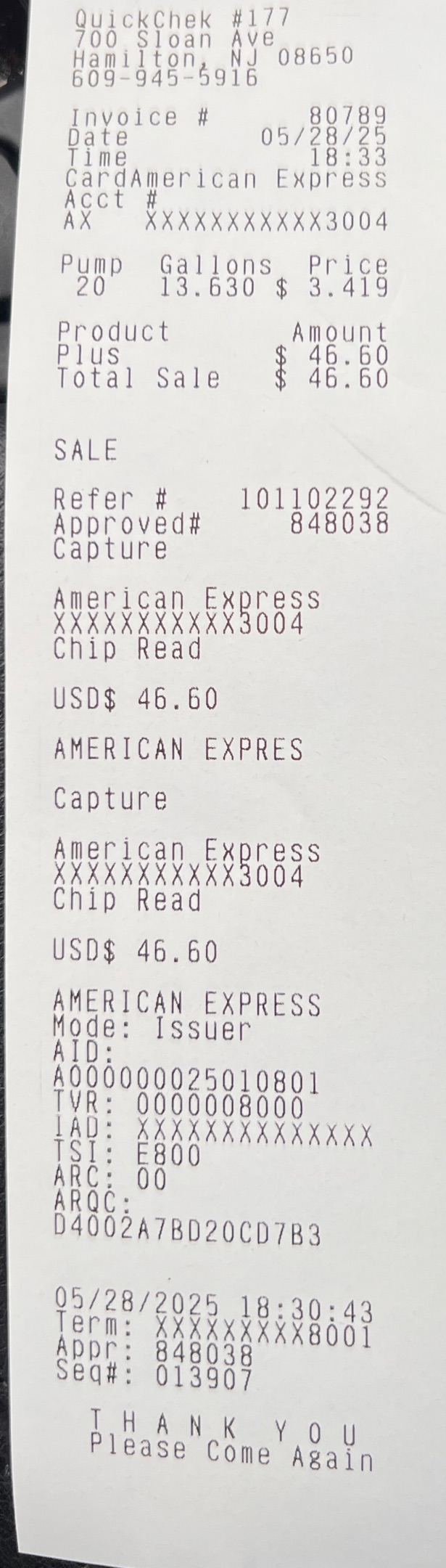
| 2025-05-28 | $46.60 | Fuel | Fuel fill-up | 🧾 |
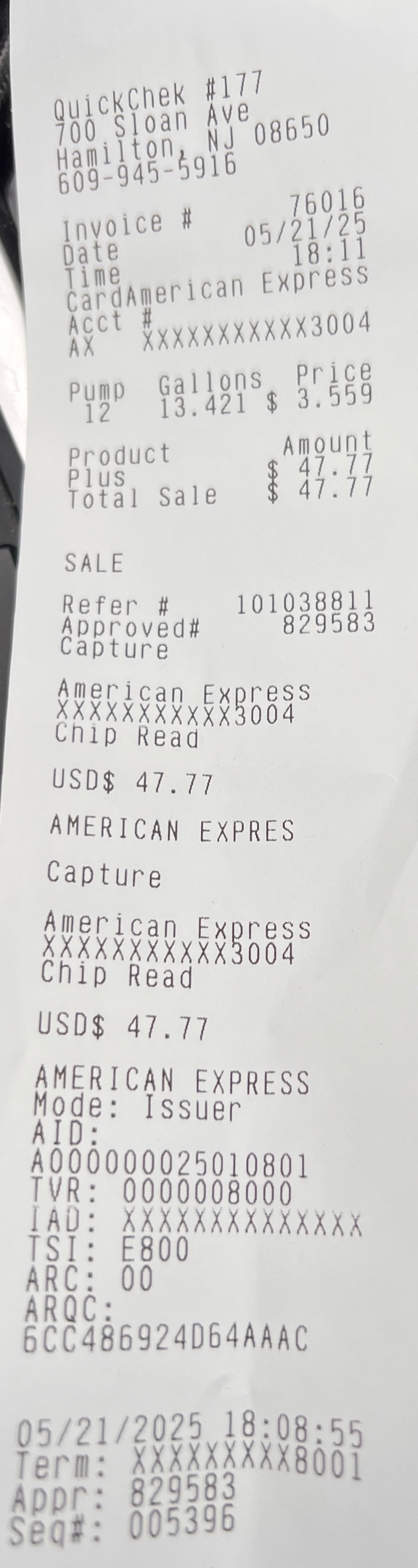
| 2025-05-21 | $47.77 | Fuel | Fuel fill-up | 🧾 |
| 2025-05-17 | $47.43 | Fuel | Fuel fill-up | 🧾 |
| 2025-05-12 | $54.00 | Fuel | Fuel fill-up | 🧾 |
| 2025-04-25 | $1,098.92 | Tires | Costco tire | 🧾 |
| 2025-04-21 | $45.00 | Fuel | Fuel fill-up | 🧾 |
| 2025-04-16 | $52.60 | Fuel | Fuel fill-up | 🧾 |
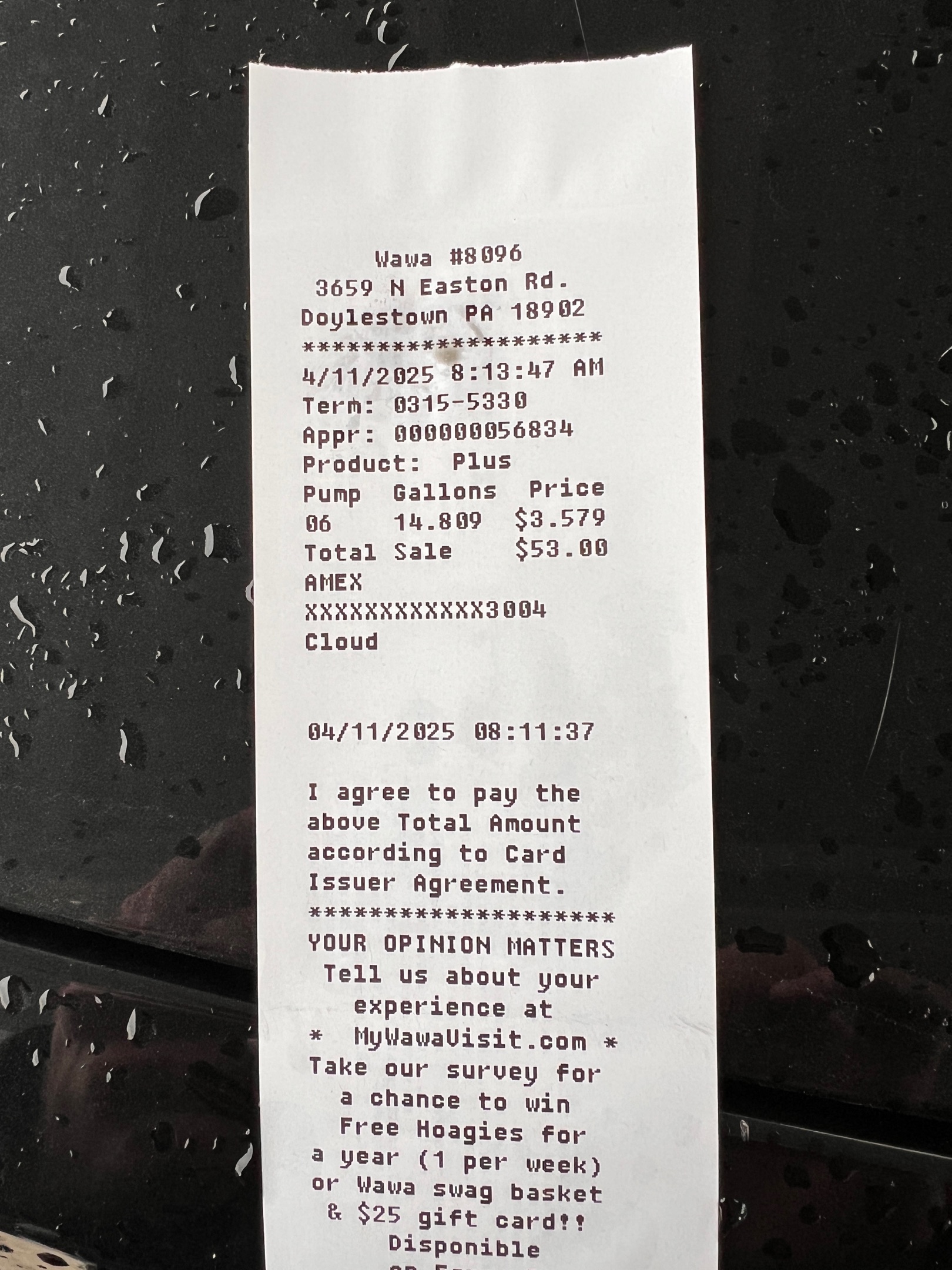
| 2025-04-11 | $53.00 | Fuel | Fuel fill-up | 🧾 |
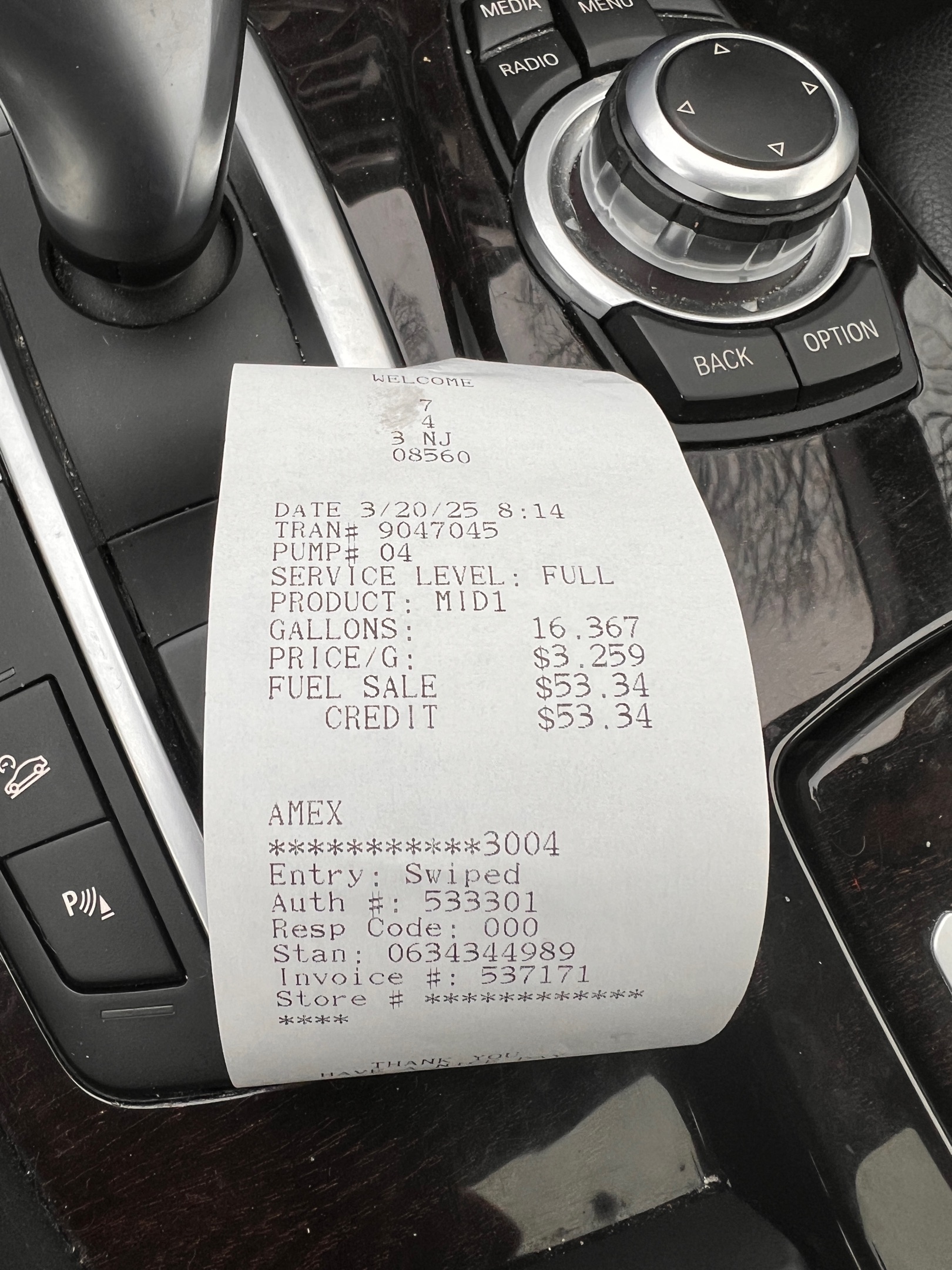
| 2025-03-20 | $53.34 | Fuel | Fuel fill-up | 🧾 |
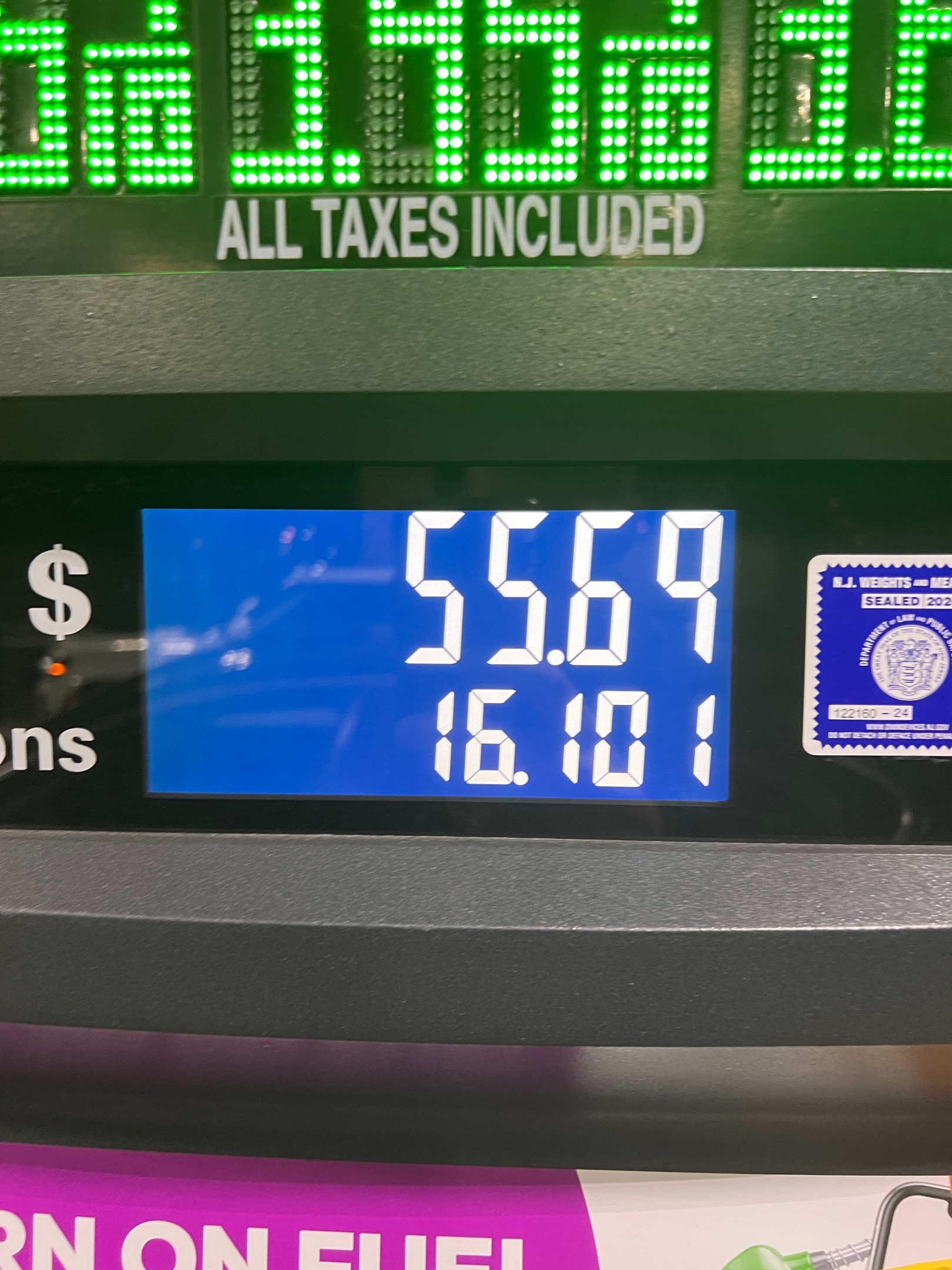
| 2025-03-04 | $55.69 | Fuel | Fuel fill-up | 🧾 |
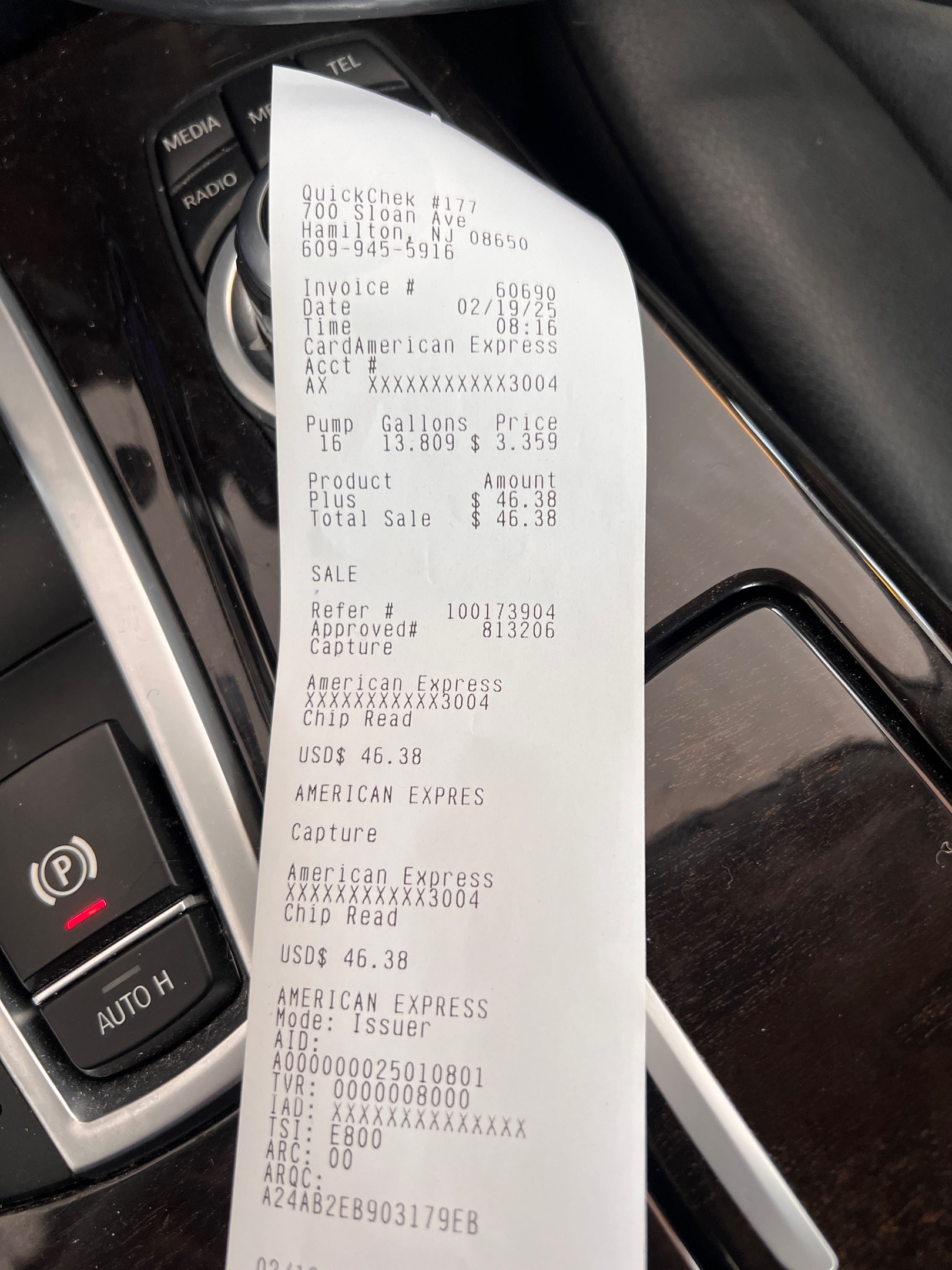
| 2025-02-19 | $46.38 | Fuel | Fuel fill-up | 🧾 |
| 2025-02-13 | $49.00 | Fuel | Fuel fill-up | 🧾 |
| 2025-02-03 | $33.00 | Fuel | Fuel fill-up | 🧾 |
| 2025-01-31 | $39.00 | Fuel | Fuel fill-up | 🧾 |
| 2025-01-29 | $30.00 | Fuel | Fuel fill-up | 🧾 |
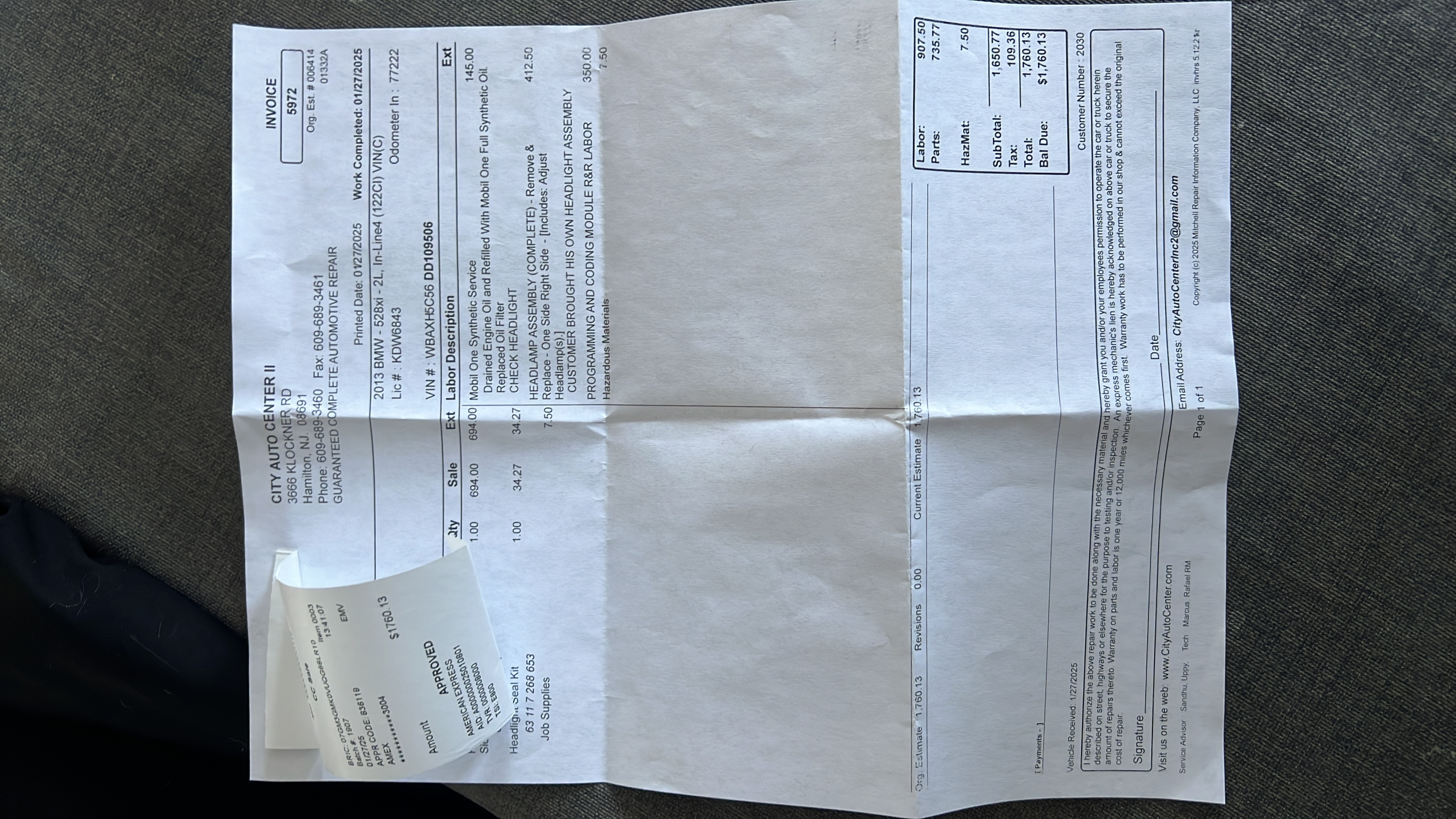
| 2025-01-27 | $1,760.00 | Garage | Lights | 🧾 |
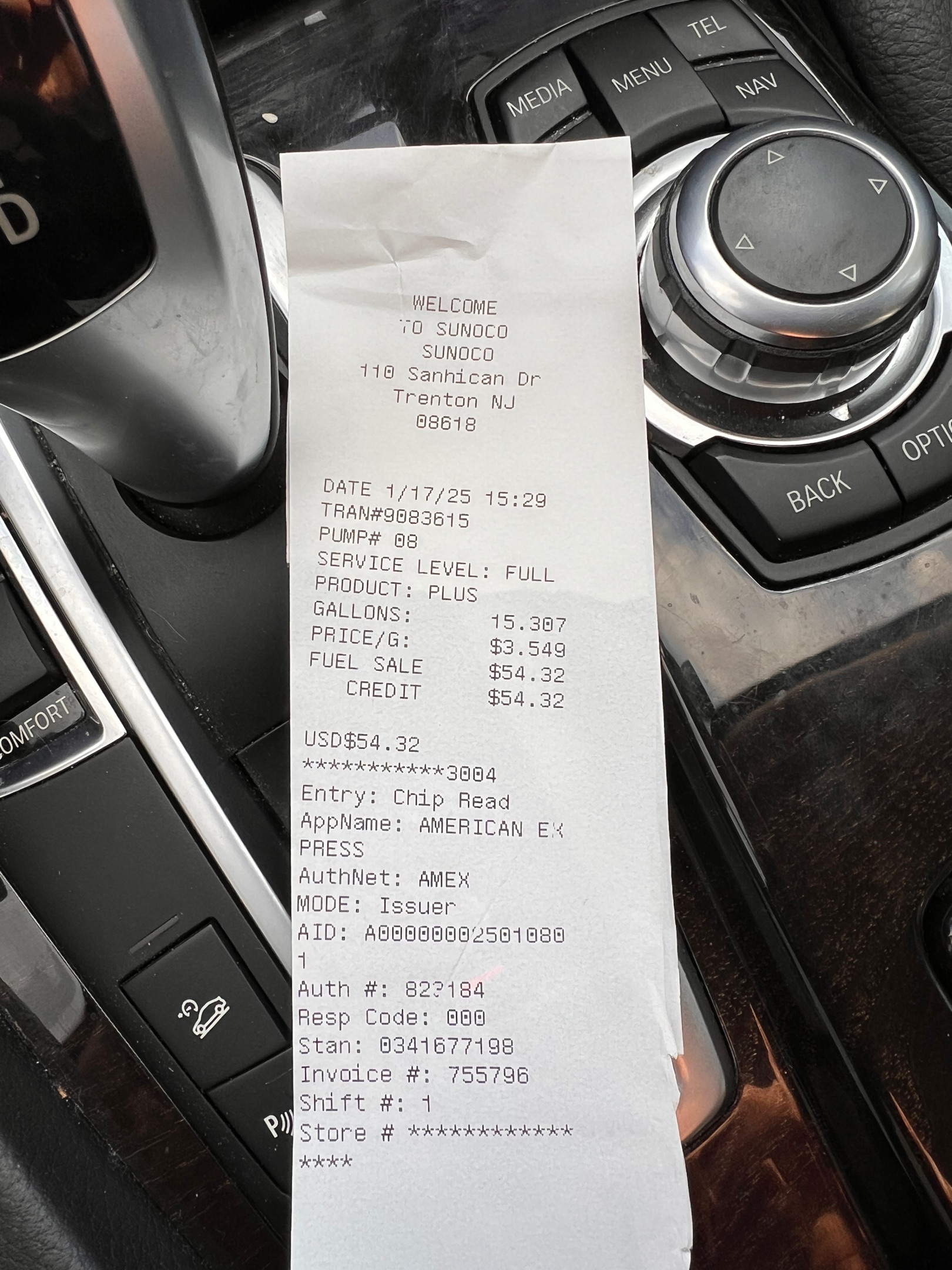
| 2025-01-17 | $54.32 | Fuel | Fuel fill-up | 🧾 |
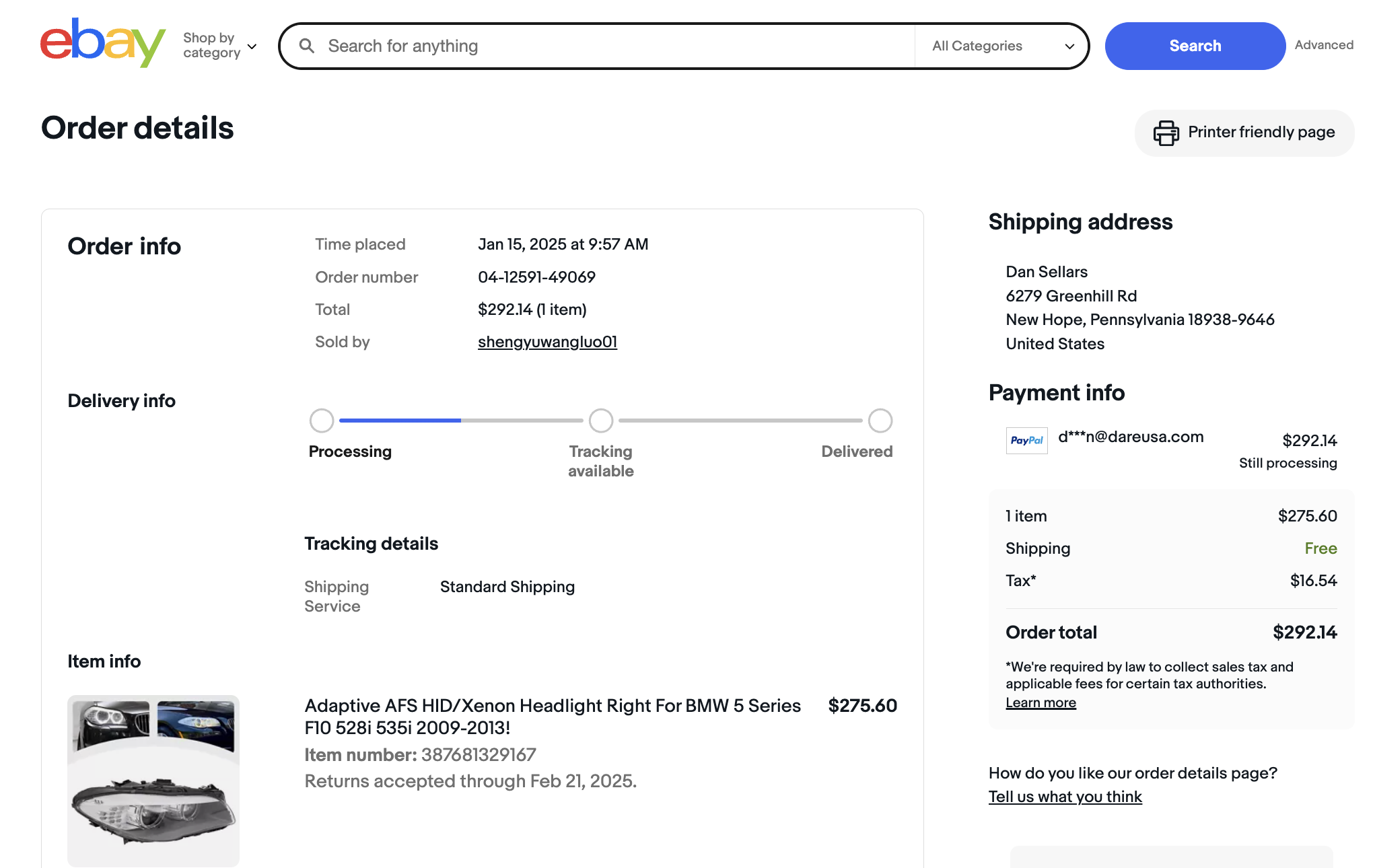
| 2025-01-15 | $292.14 | Garage | Front light replacement vi | 🧾 |
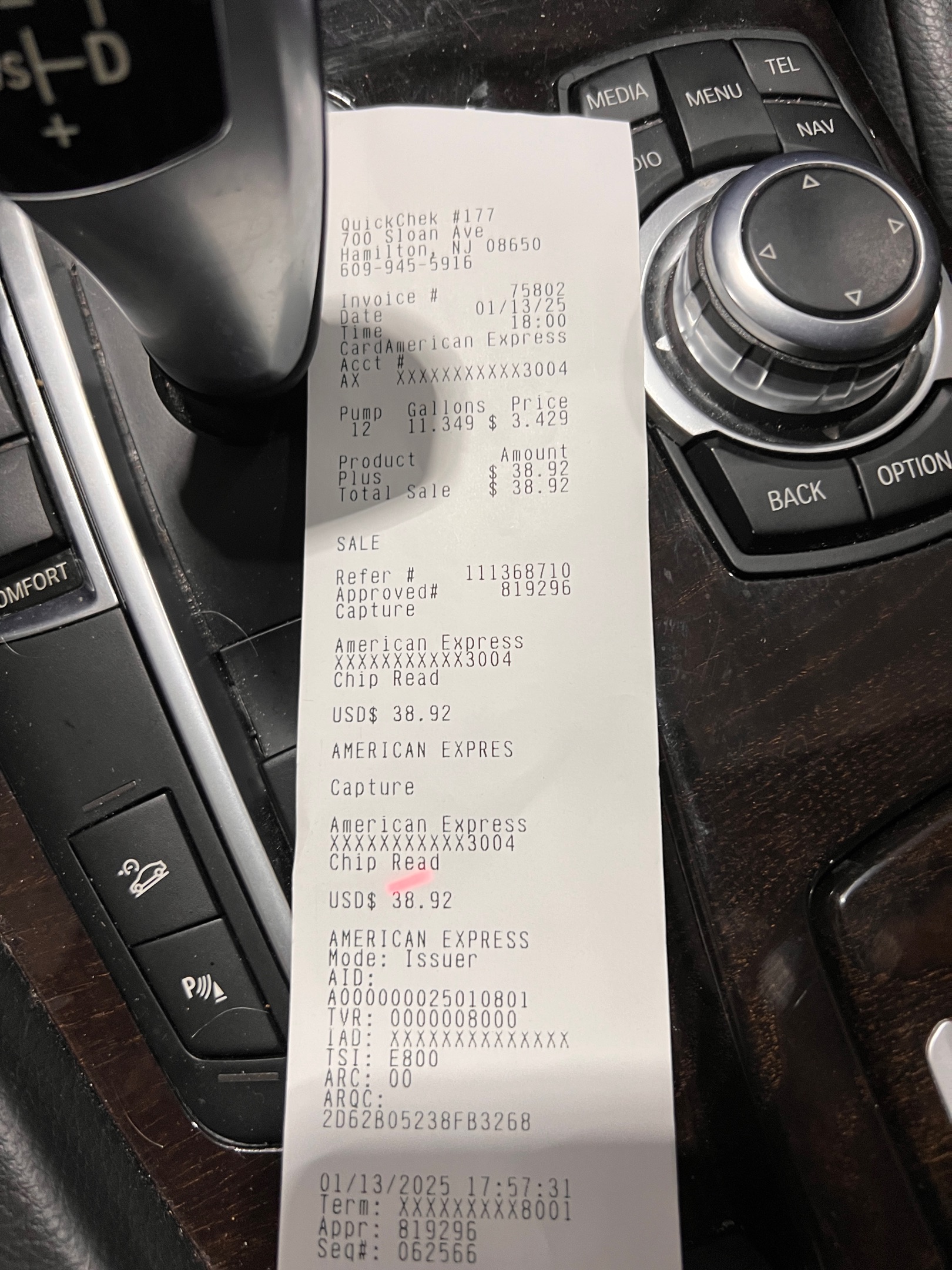
| 2025-01-13 | $39.00 | Fuel | Fuel fill-up | 🧾 |
| 2025-01-09 | $58.00 | Fuel | Fuel fill-up | 🧾 |
| 2024 | ||||
| 2024-12-30 | $47.00 | Fuel | Fuel fill-up | 🧾 |
| 2024-12-18 | $38.55 | Fuel | Fuel fill-up | 🧾 |
| 2024-12-09 | $50.11 | Fuel | Fuel fill-up | 🧾 |
| 2024-12-03 | $53.00 | Fuel | Fuel fill-up | 🧾 |
| 2024-11-30 | $47.30 | Fuel | Fuel fill-up | 🧾 |
| 2024-11-20 | $48.00 | Fuel | Fuel fill-up | 🧾 |
| 2024-11-03 | $50.00 | Fuel | Fuel fill-up | 🧾 |
| 2024-10-25 | $42.00 | Fuel | Fuel fill-up | 🧾 |
| 2024-10-18 | $20.00 | Fuel | Fuel fill-up | 🧾 |
| 2024-10-08 | $47.00 | Fuel | Fuel fill-up | 🧾 |
| 2024-09-29 | $62.71 | Fuel | Fuel fill-up | 🧾 |
| 2024-09-19 | $48.00 | Fuel | Fuel fill-up | 🧾 |
| 2024-09-10 | $55.33 | Fuel | Fuel fill-up | 🧾 |
| 2024-08-27 | $56.87 | Fuel | Fuel fill-up | 🧾 |
| 2024-07-26 | $46.52 | Fuel | Fuel fill-up | 🧾 |
| 2024-07-11 | $66.67 | Fuel | Fuel fill-up | 🧾 |
| 2024-07-09 | $1,531.91 | Garage | City auto center ac air fi | 🧾 |
| 2024-06-24 | $58.00 | Fuel | Fuel fill-up | 🧾 |
| 2024-05-27 | $28.12 | Fuel | Fuel fill-up | 🧾 |
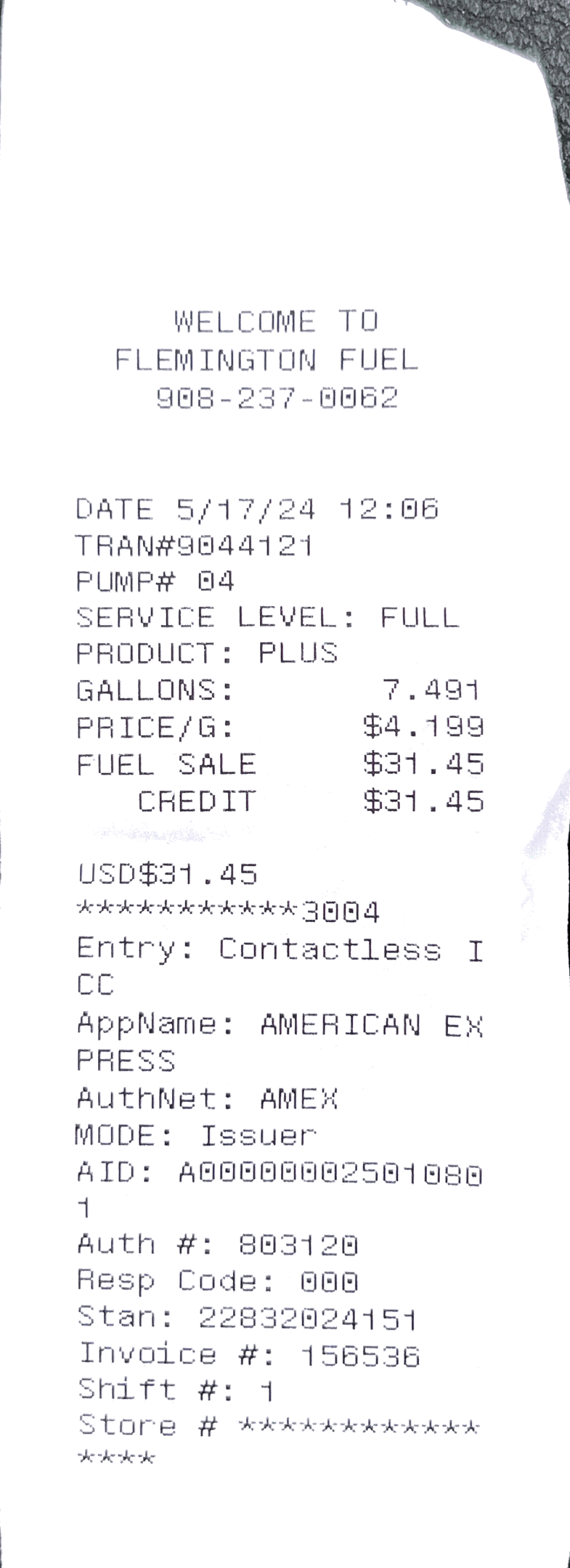
| 2024-05-17 | $31.45 | Fuel | Fuel fill-up | 🧾 |
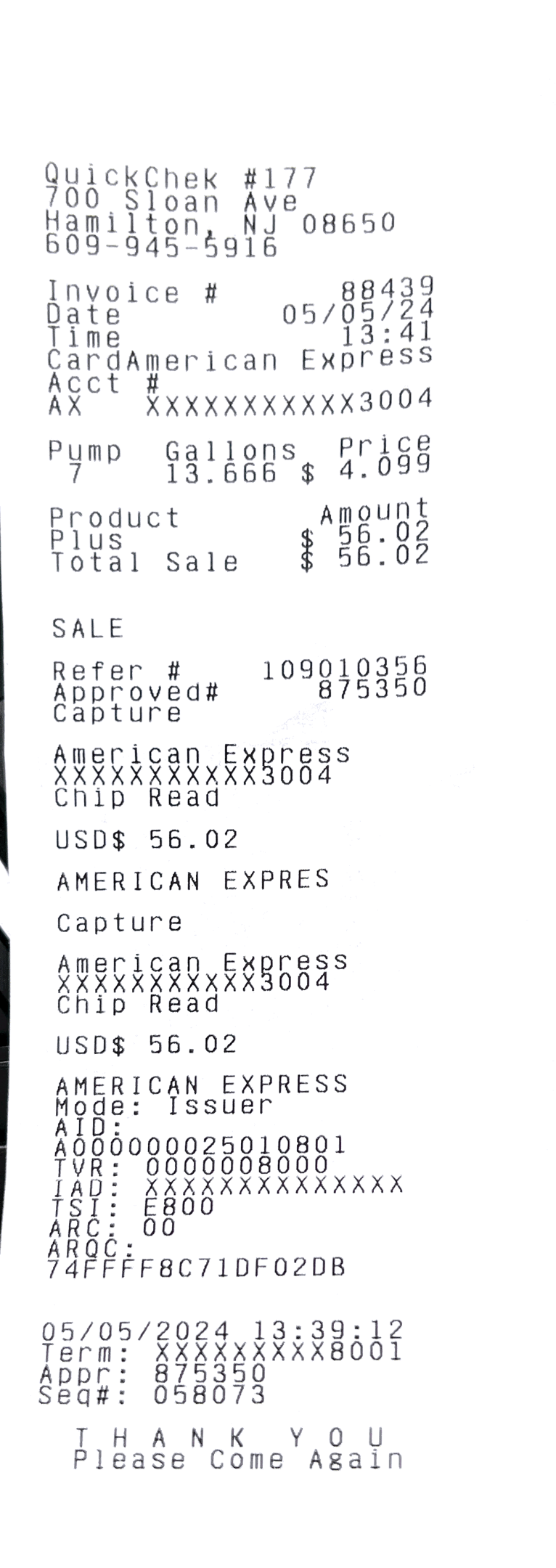
| 2024-05-05 | $56.02 | Fuel | Fuel fill-up | 🧾 |
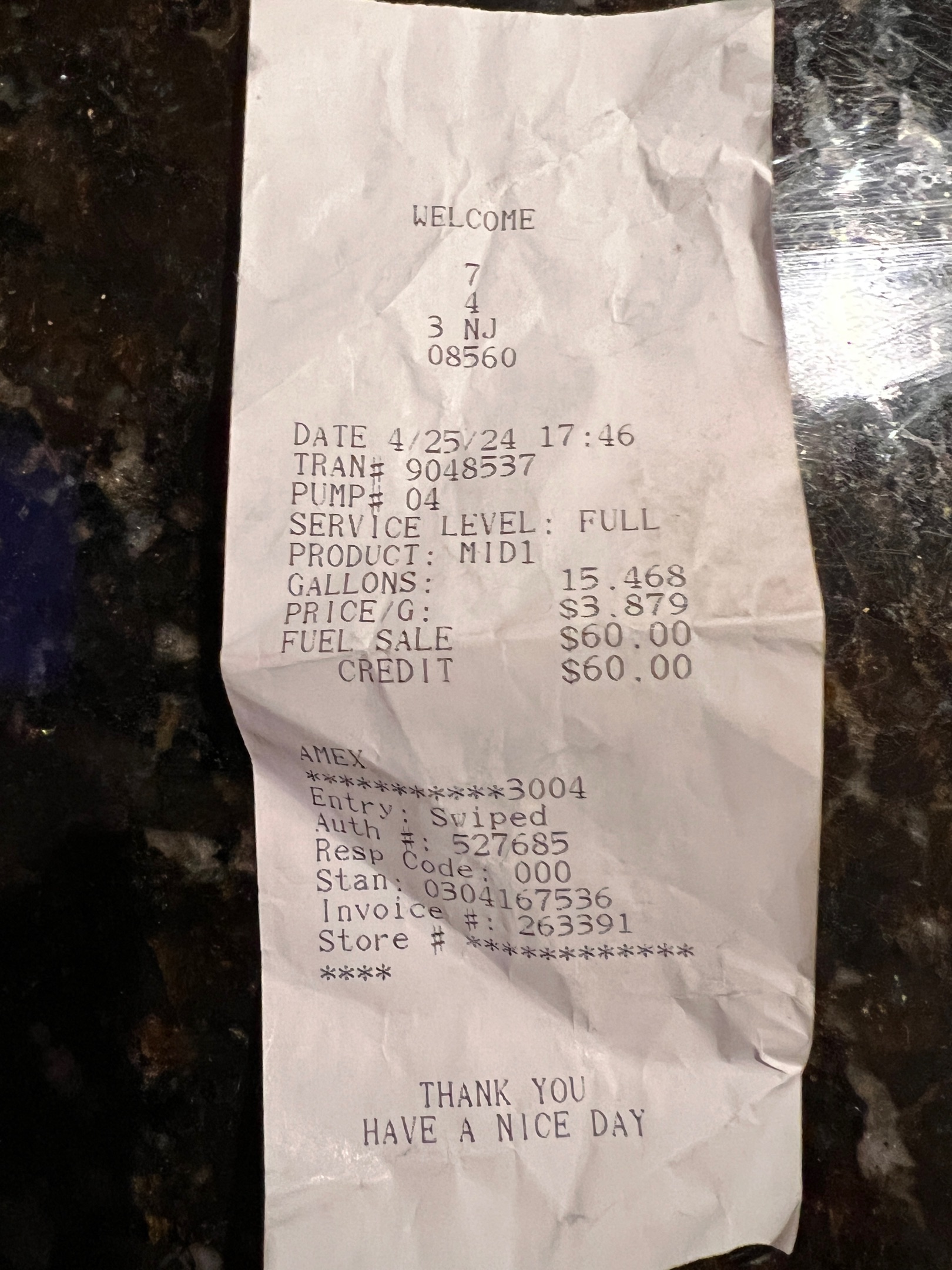
| 2024-04-25 | $60.00 | Fuel | Fuel fill-up | 🧾 |
| 2024-04-17 | $395.00 | Registration | Service emissions diagnost | 🧾 |
| 2024-04-06 | $62.63 | Fuel | Fuel fill-up | 🧾 |
| 2024-03-11 | $55.00 | Fuel | Fuel fill-up | 🧾 |
| 2024-02-16 | $66.73 | Fuel | Fuel fill-up | 🧾 |
| 2024-02-06 | $1,184.00 | Garage | Service | 🧾 |
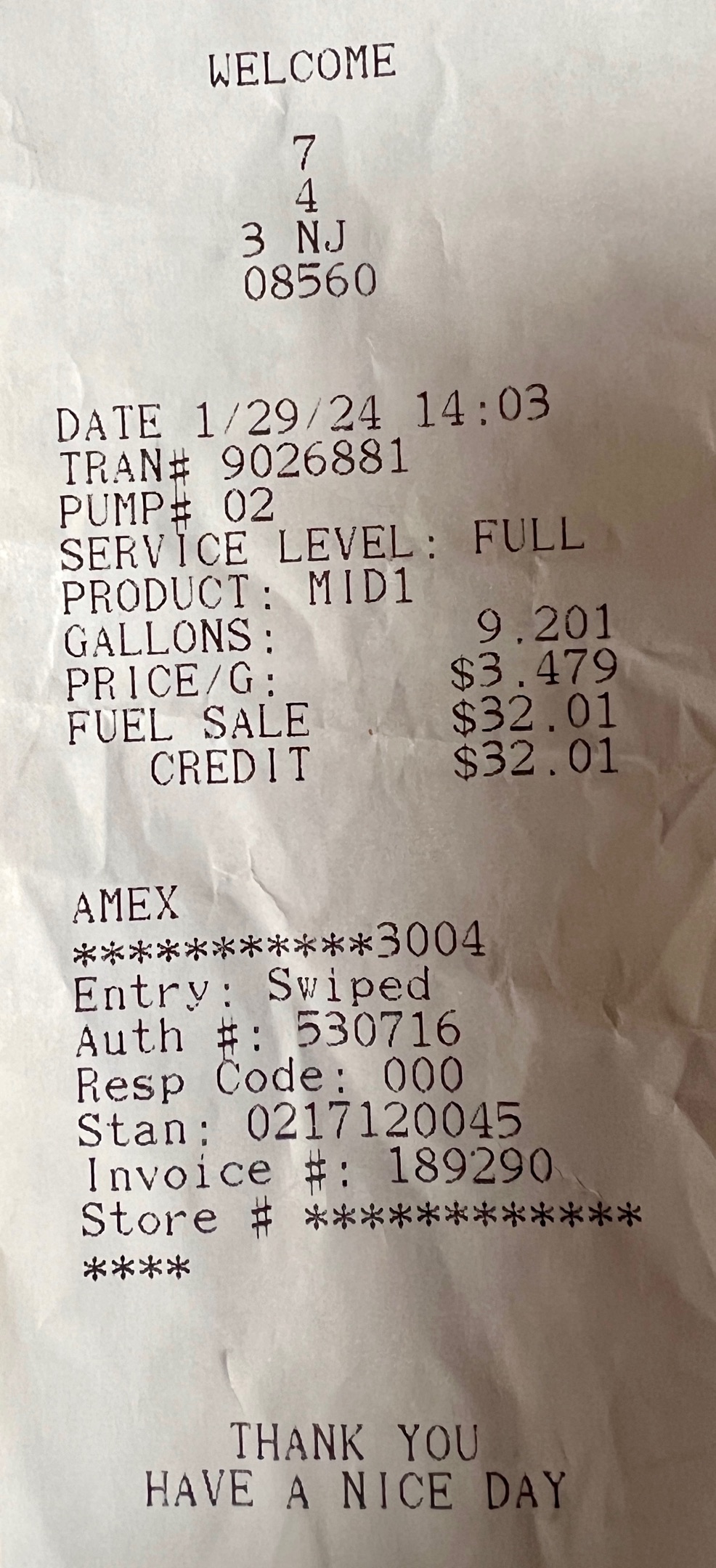
| 2024-01-29 | $32.00 | Fuel | Fuel fill-up | 🧾 |
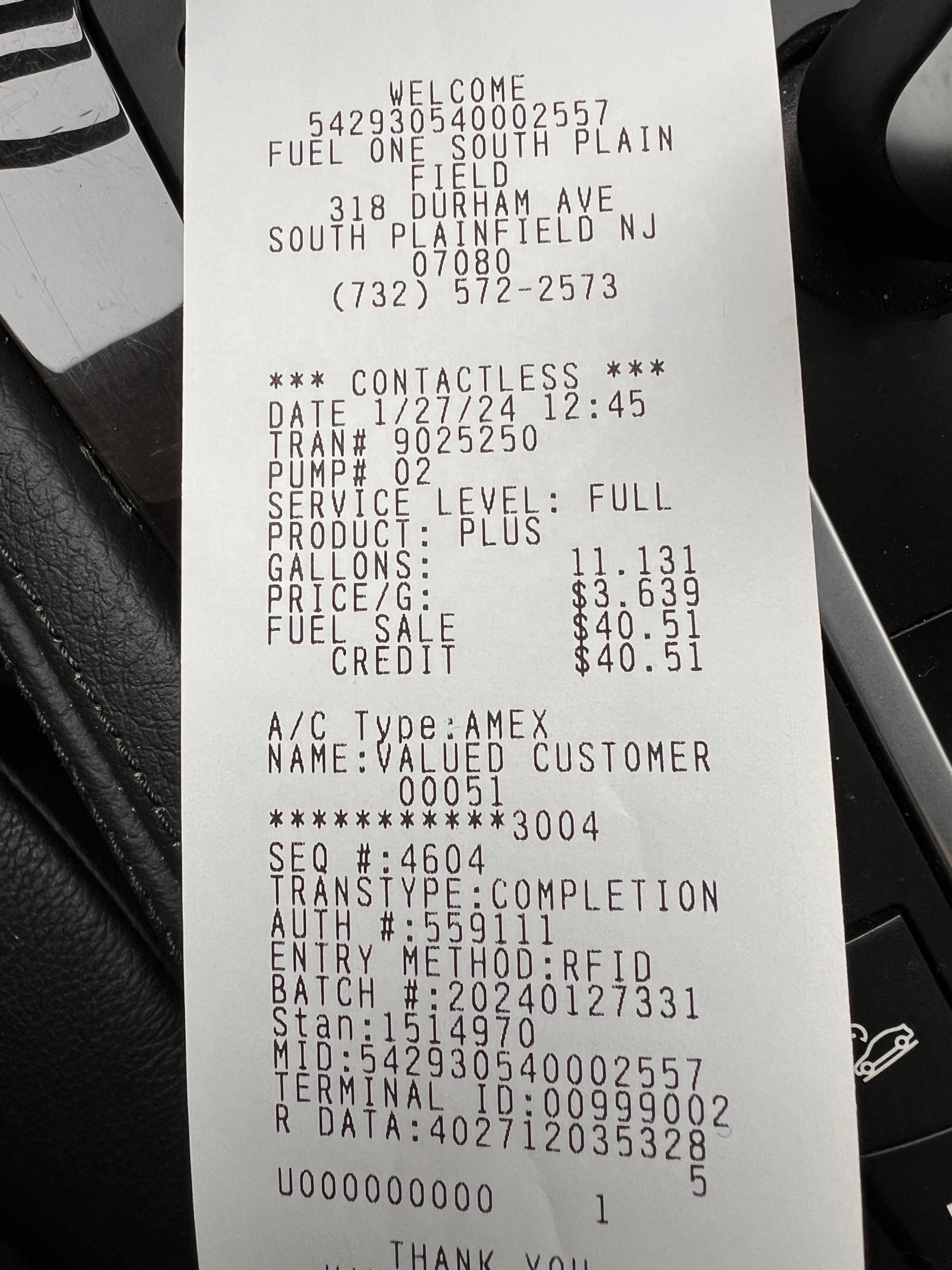
| 2024-01-27 | $40.51 | Fuel | Fuel fill-up | 🧾 |
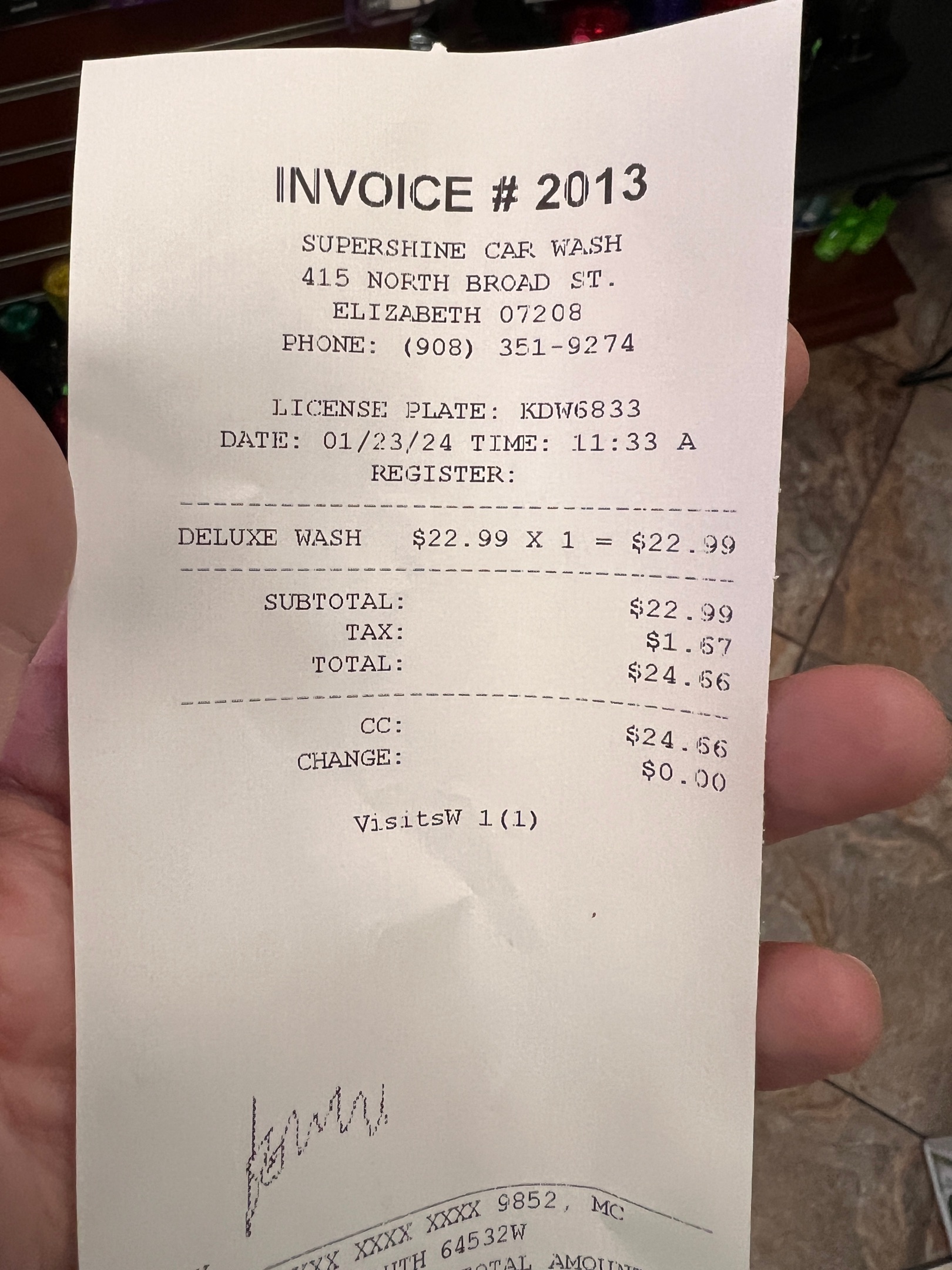
| 2024-01-23 | $25.00 | Wash | Car wash in union nj | 🧾 |
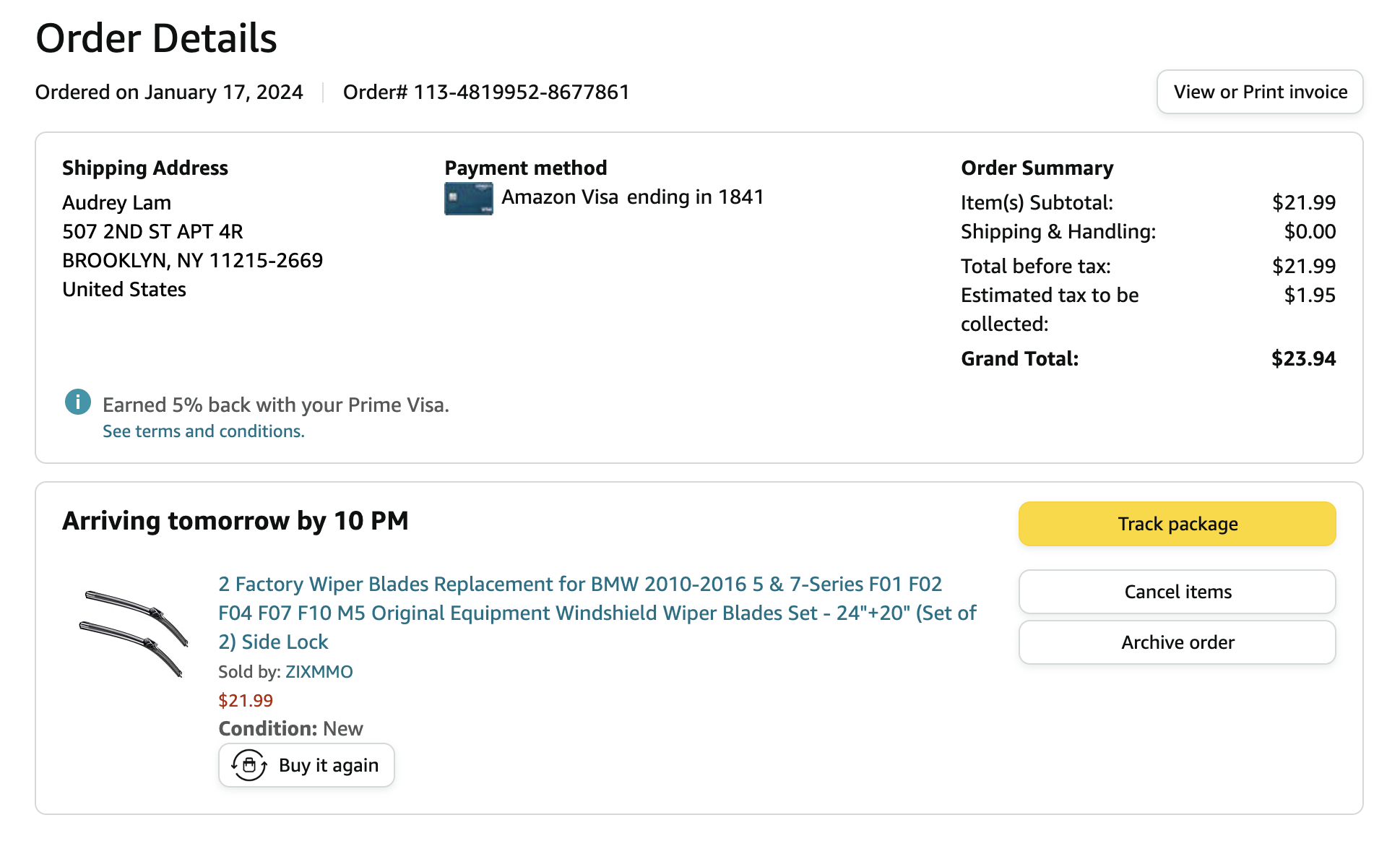
| 2024-01-17 | $23.94 | Parts | Wiper blades x 26 18 set | 🧾 |
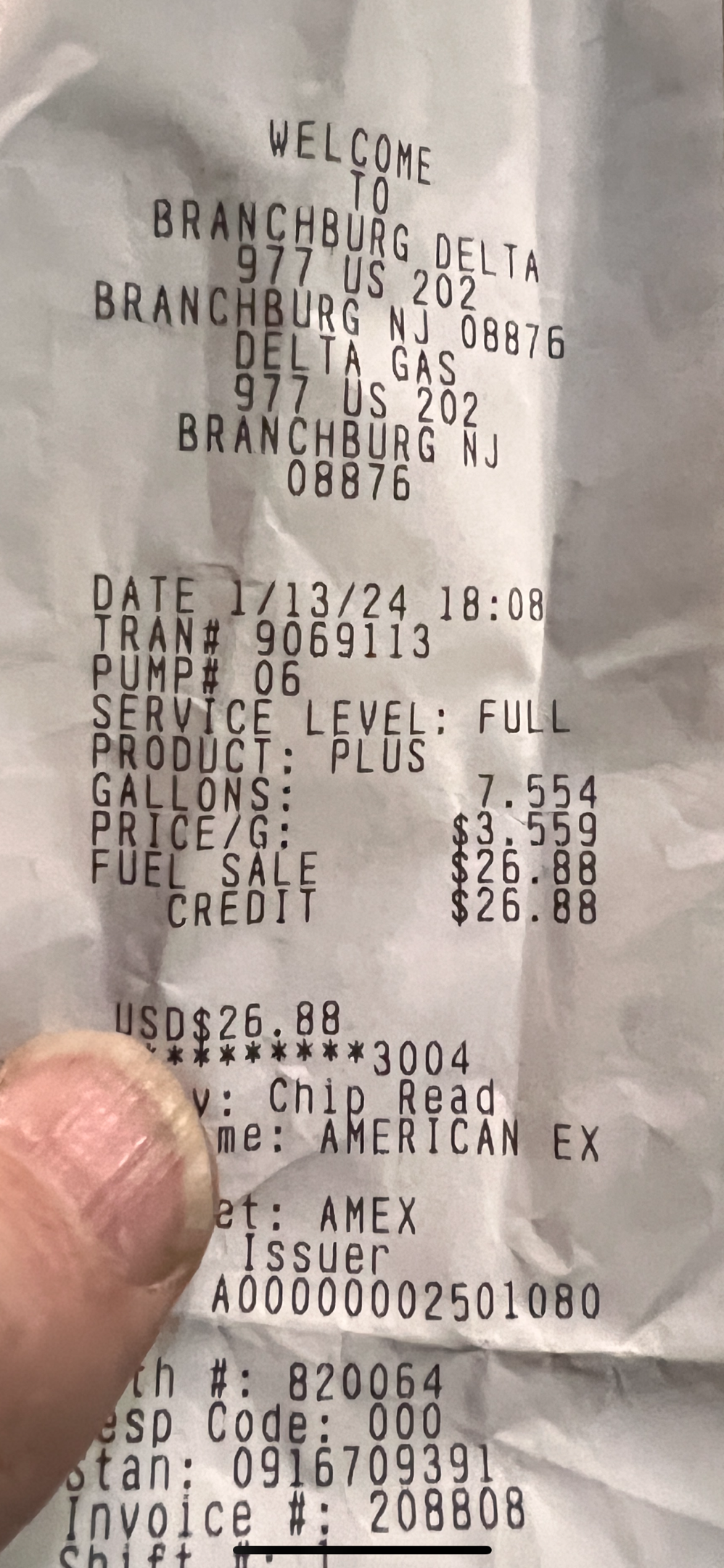
| 2024-01-13 | $26.66 | Fuel | Fuel fill-up | 🧾 |
| 2023 | ||||
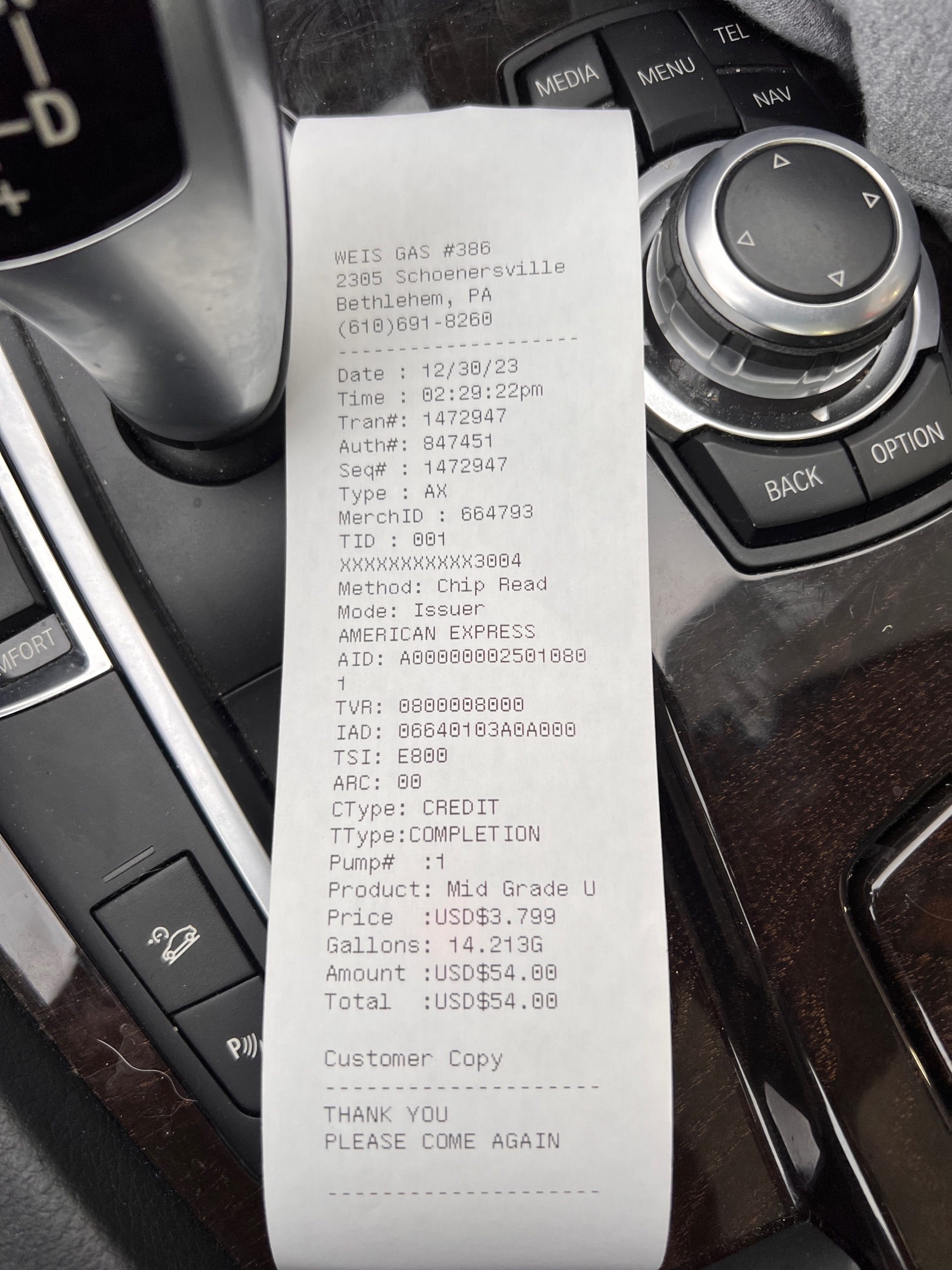
| 2023-12-30 | $54.00 | Fuel | Fuel fill-up | 🧾 |
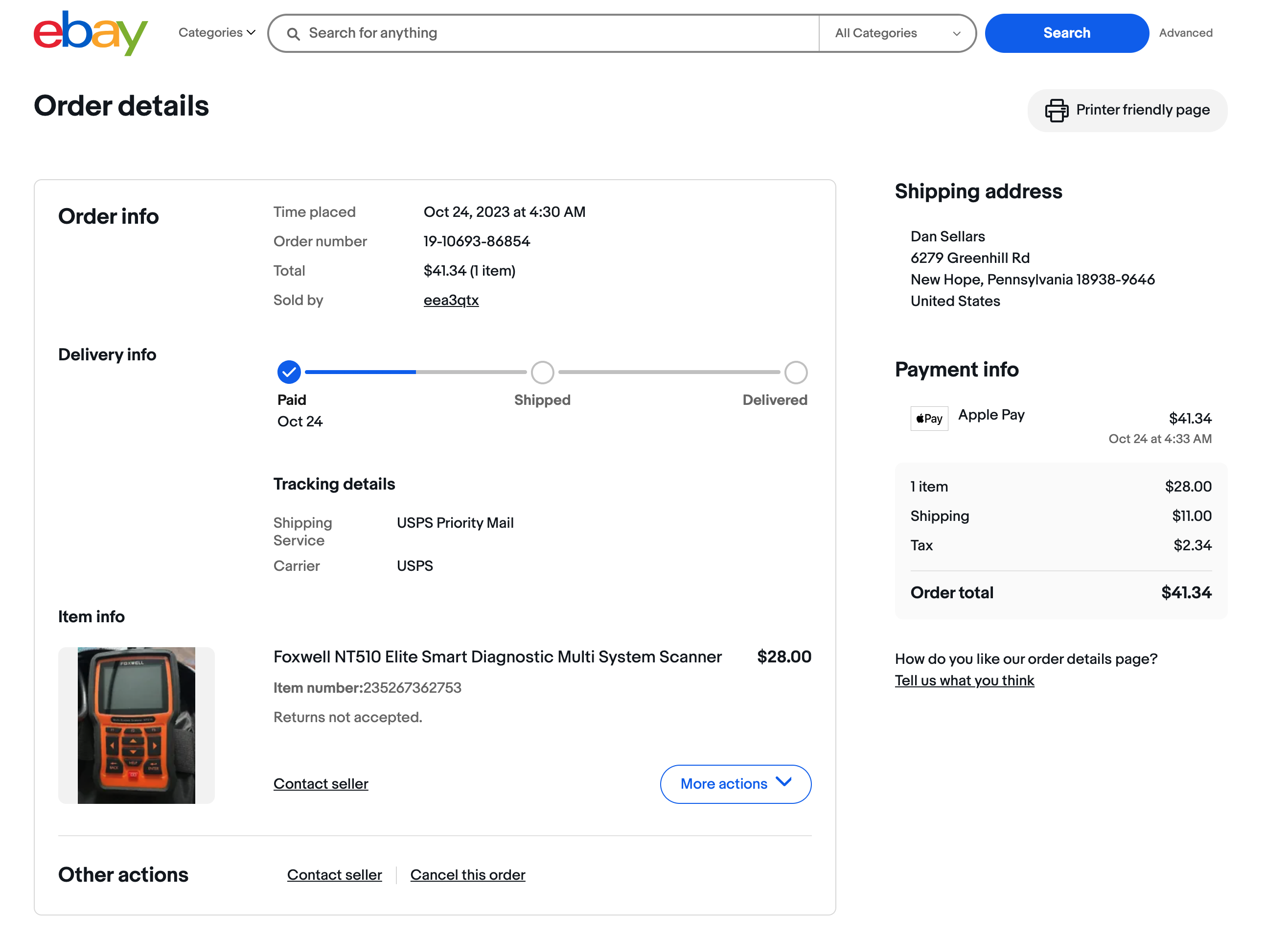
| 2023-10-24 | $41.34 | Garage | Smart diagnostic multi sys | 🧾 |
| 2023-10-02 | $55.50 | Fuel | Fuel fill-up | 🧾 |
| 2023-09-17 | $59.00 | Fuel | Fuel fill-up | 🧾 |
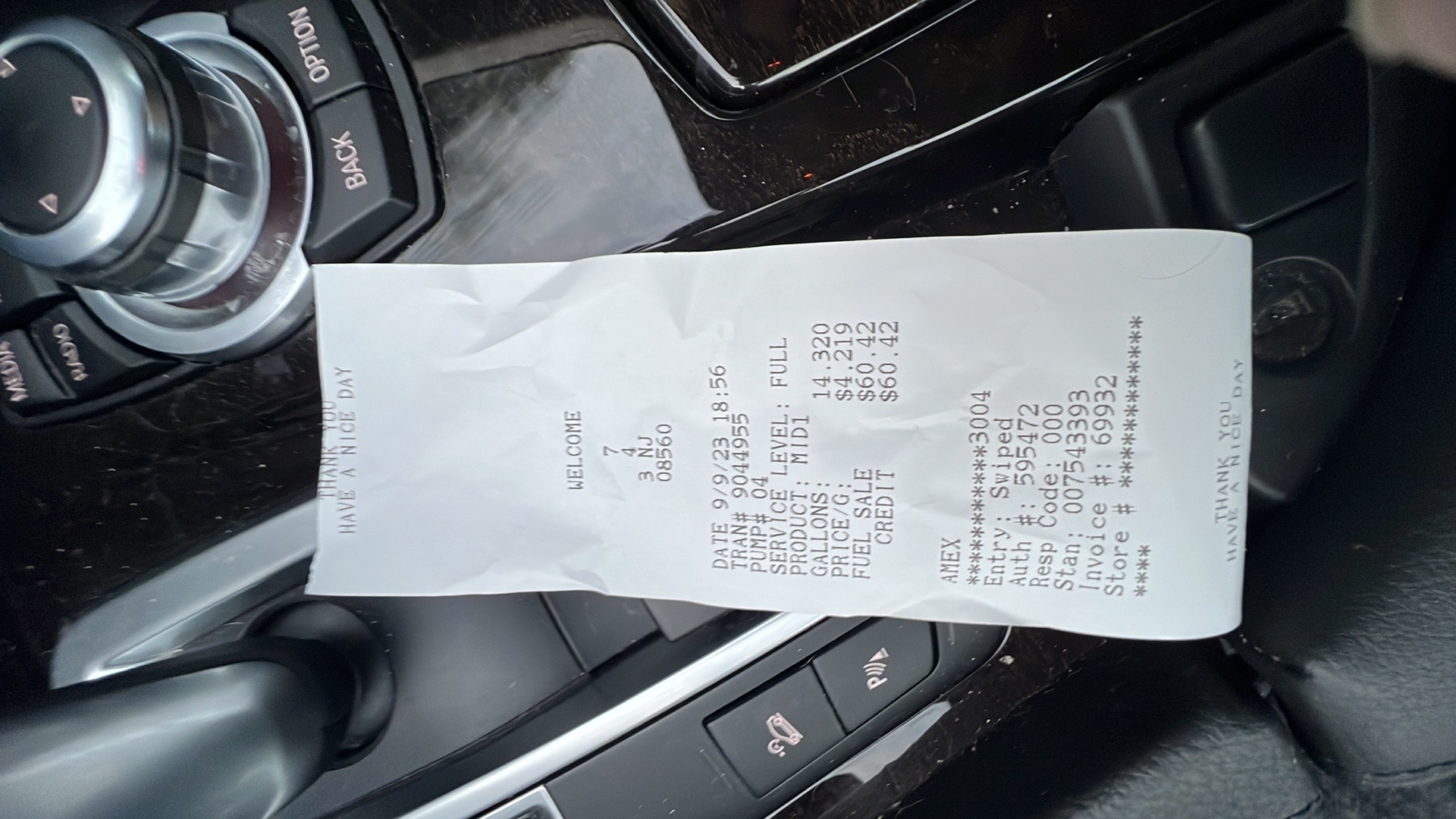
| 2023-09-10 | $60.42 | Fuel | Fuel fill-up | 🧾 |
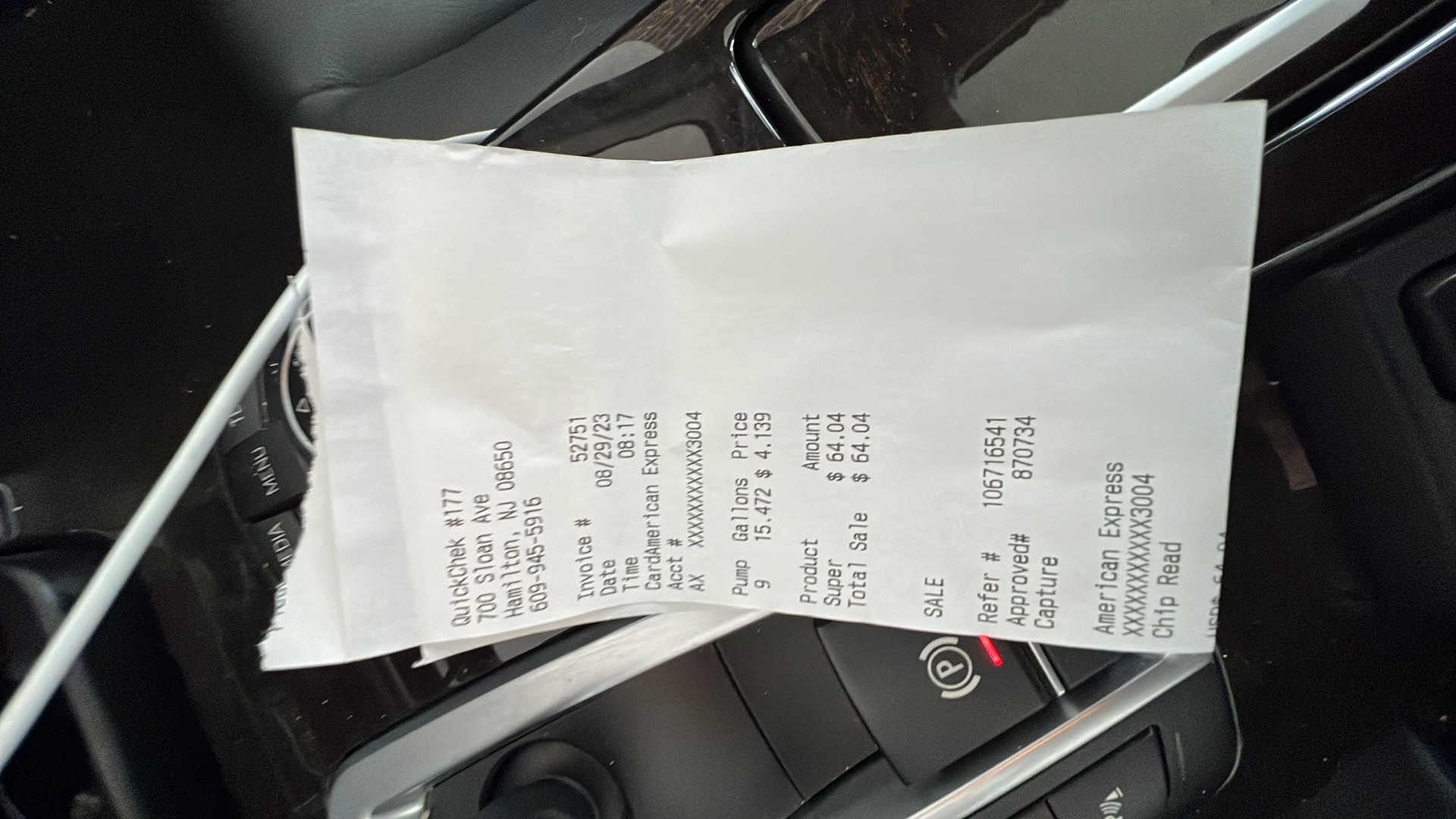
| 2023-08-29 | $64.00 | Fuel | Fuel fill-up | 🧾 |
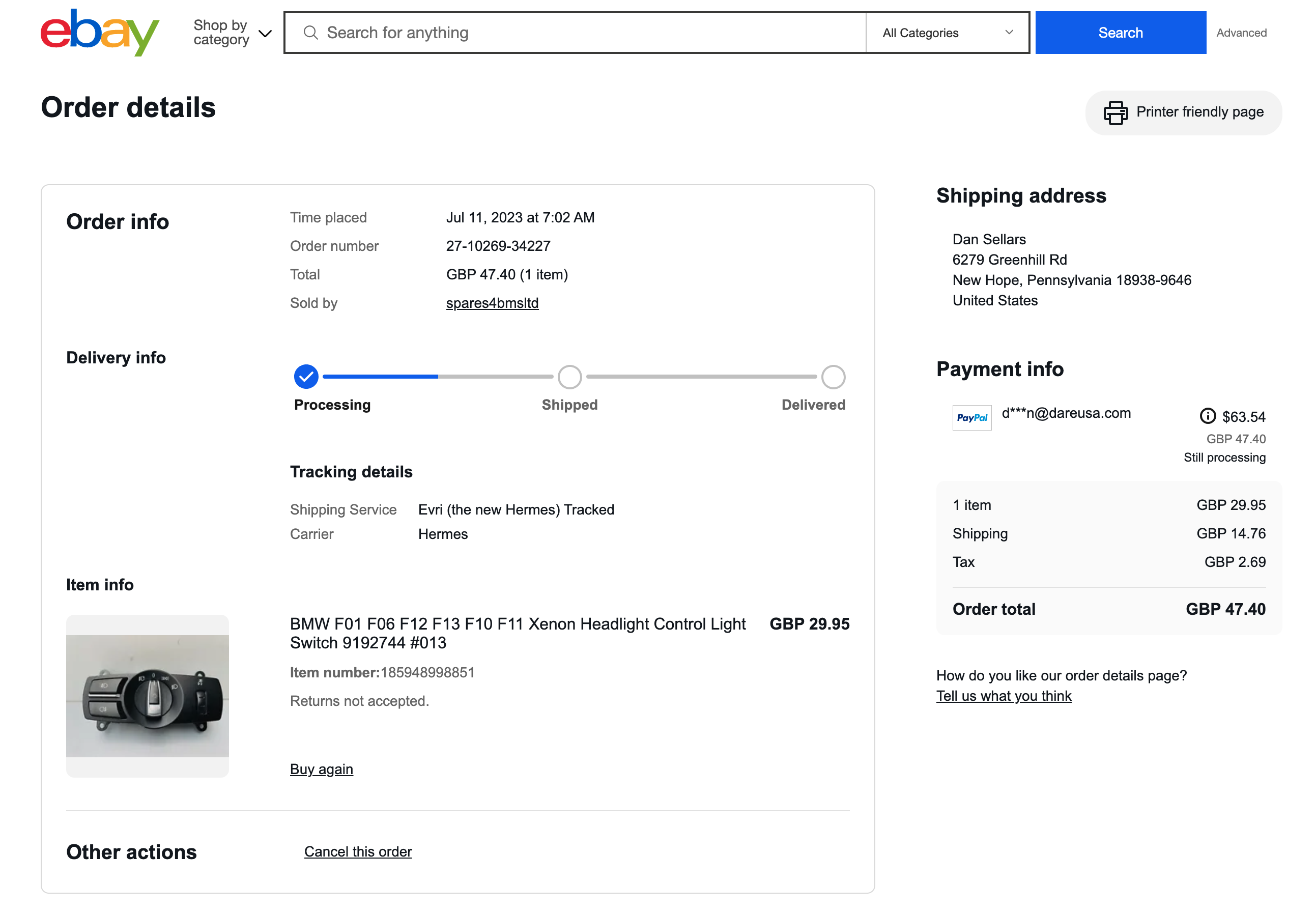
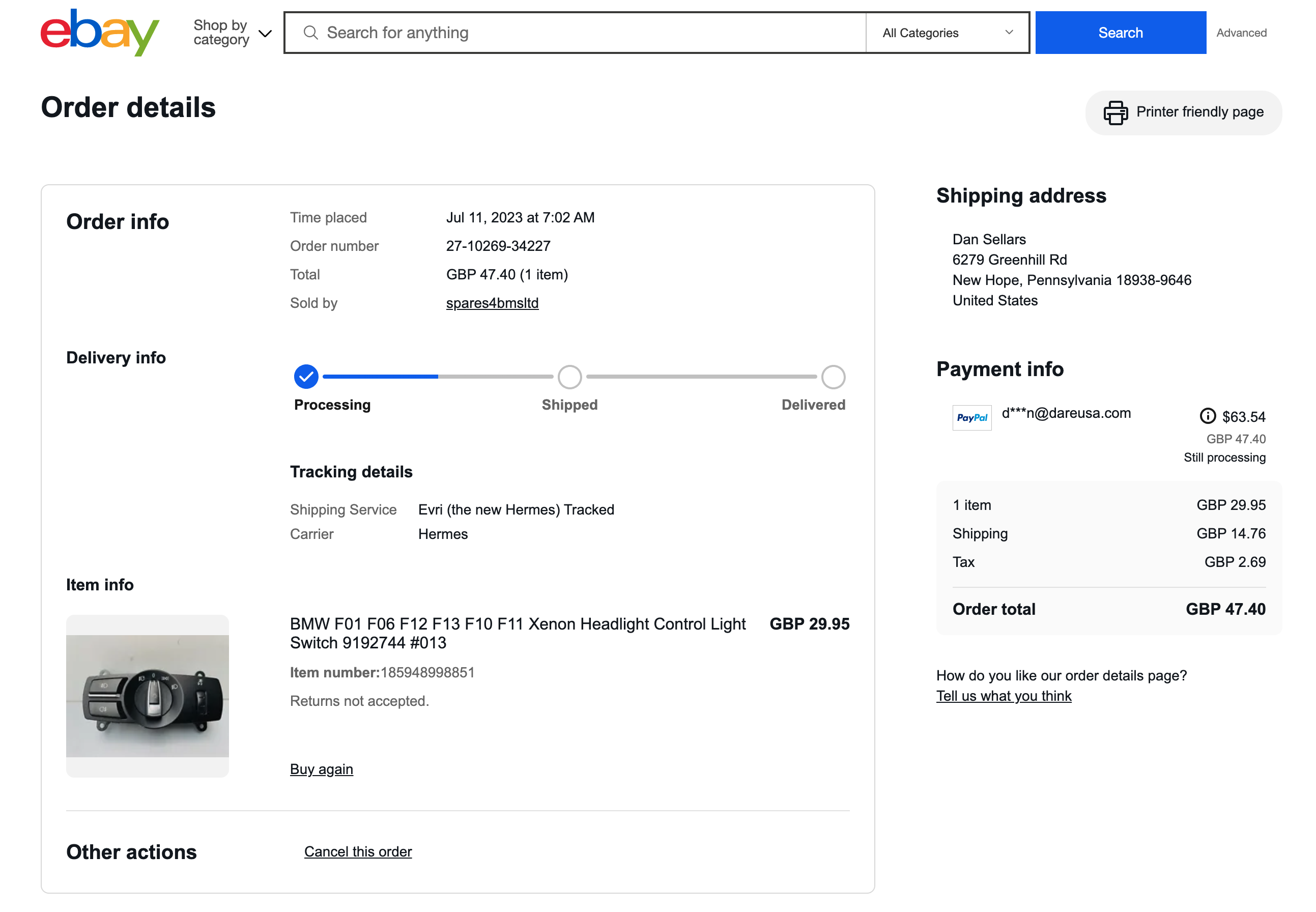
| 2023-07-11 | $64.00 | Parts | Replacement fog light pane | 🧾 |
| 2023-06-24 | $410.50 | Garage | Goodyear brakes | 🧾 |
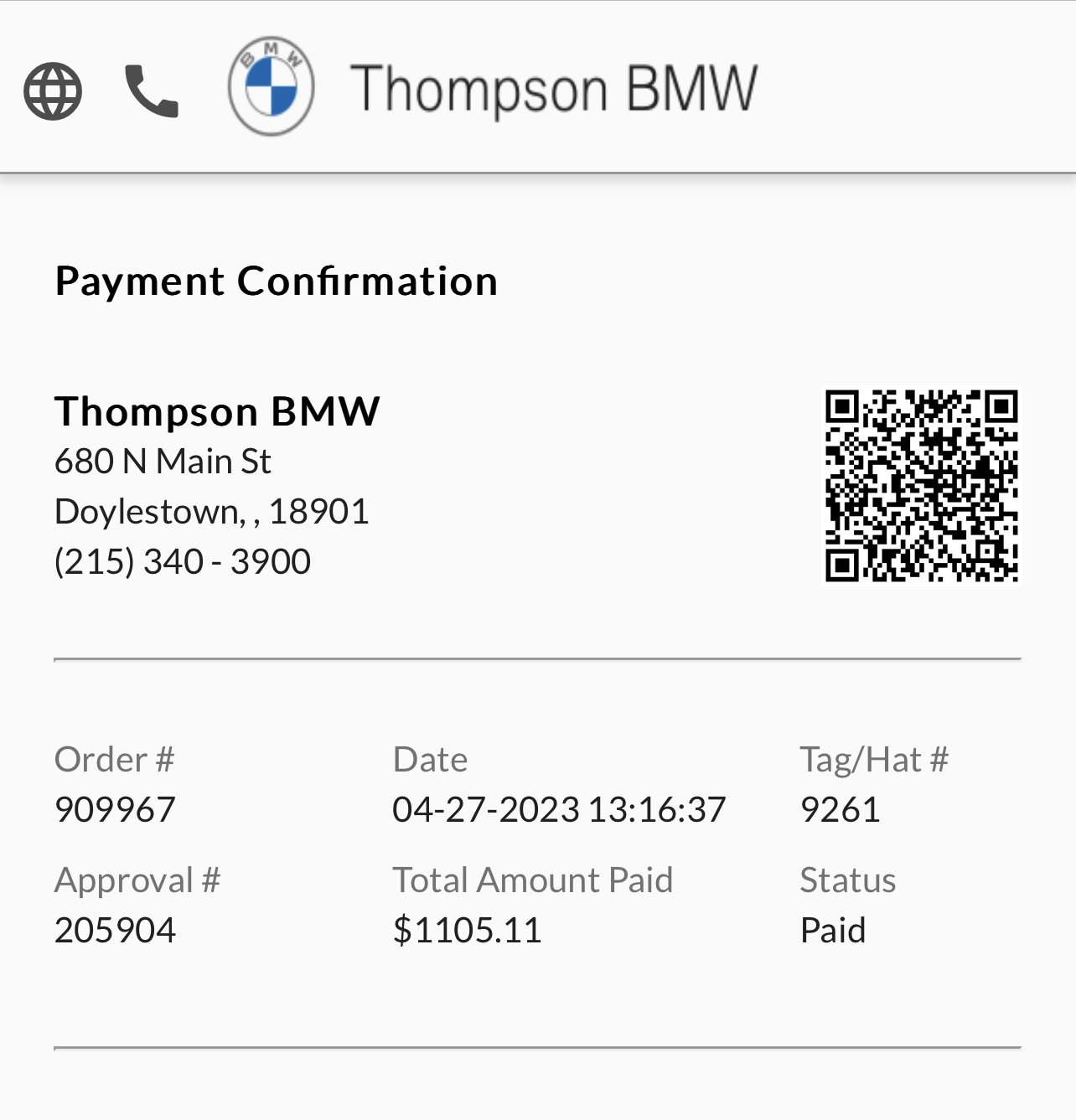
| 2023-04-27 | $1,105.00 | Tires | Service rebalance tires oi | 🧾 |
| 2022 | ||||
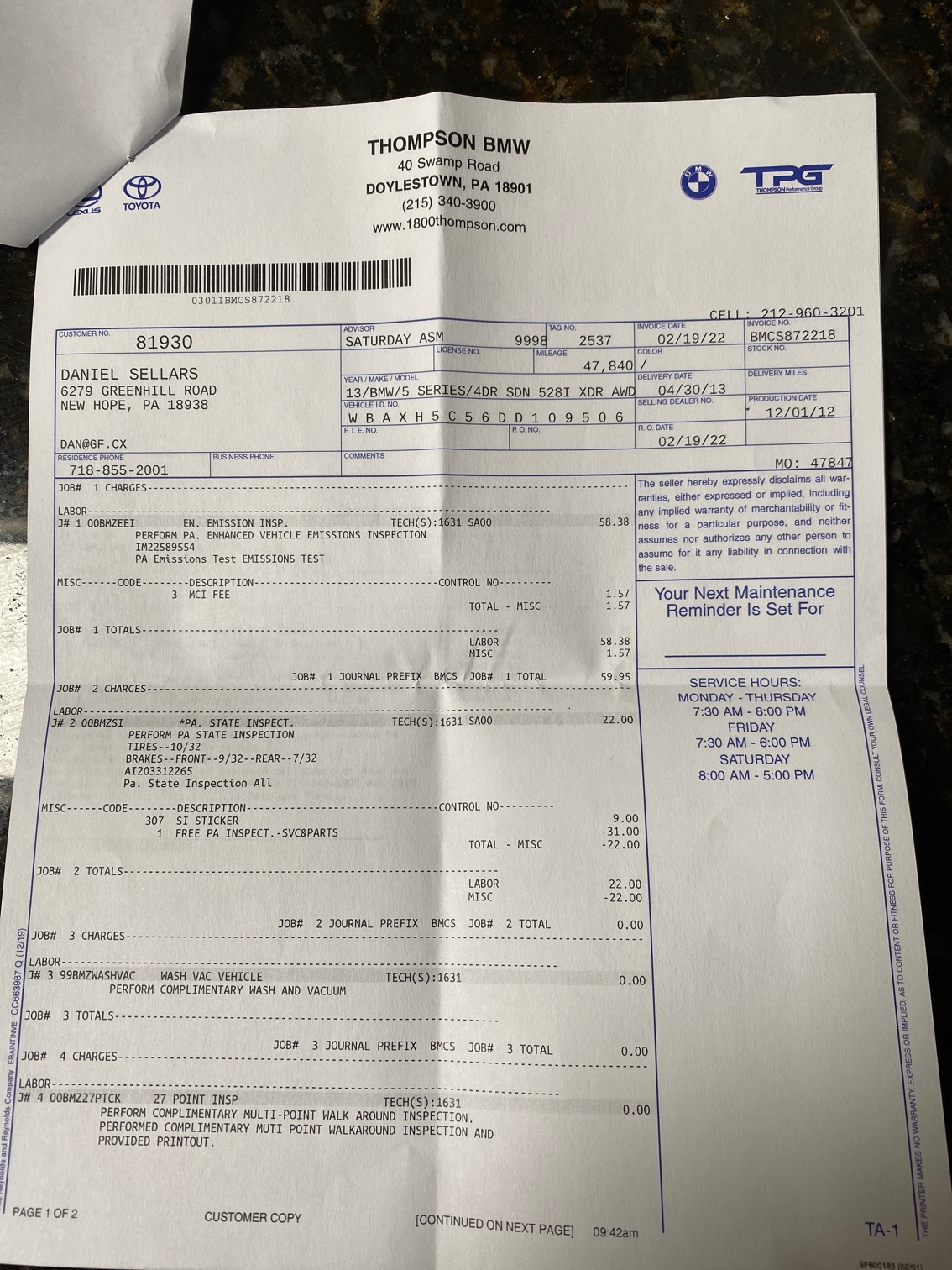
| 2022-02-19 | $65.55 | Registration | Thomson annual emissions | 🧾 |
| 2022-02-19 | $88.00 | Registration | 2 year license for pa | 🧾 |
| 2021 | ||||
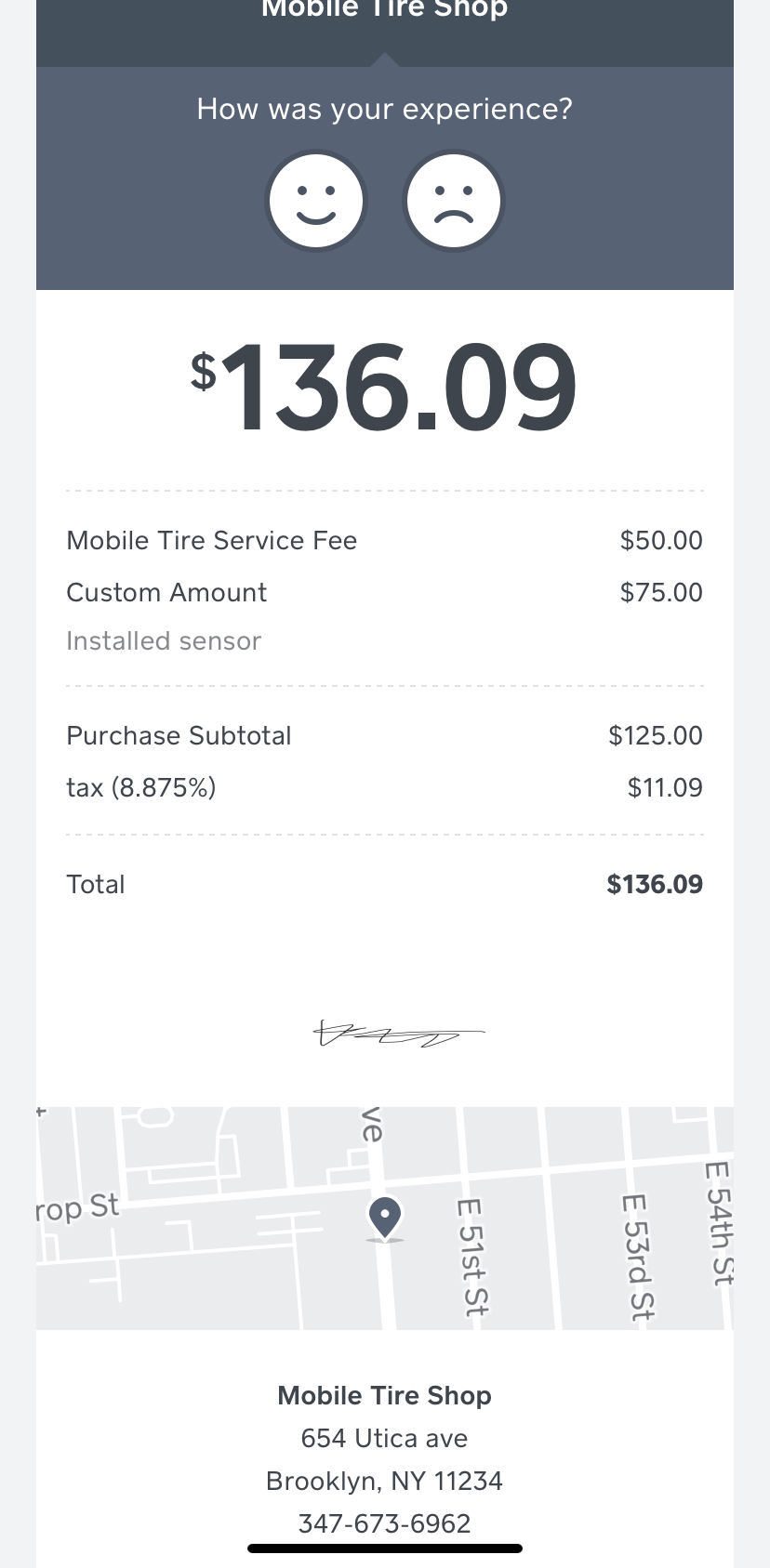
| 2021-12-05 | $136.09 | Tires | Sensor install and balance | 🧾 |
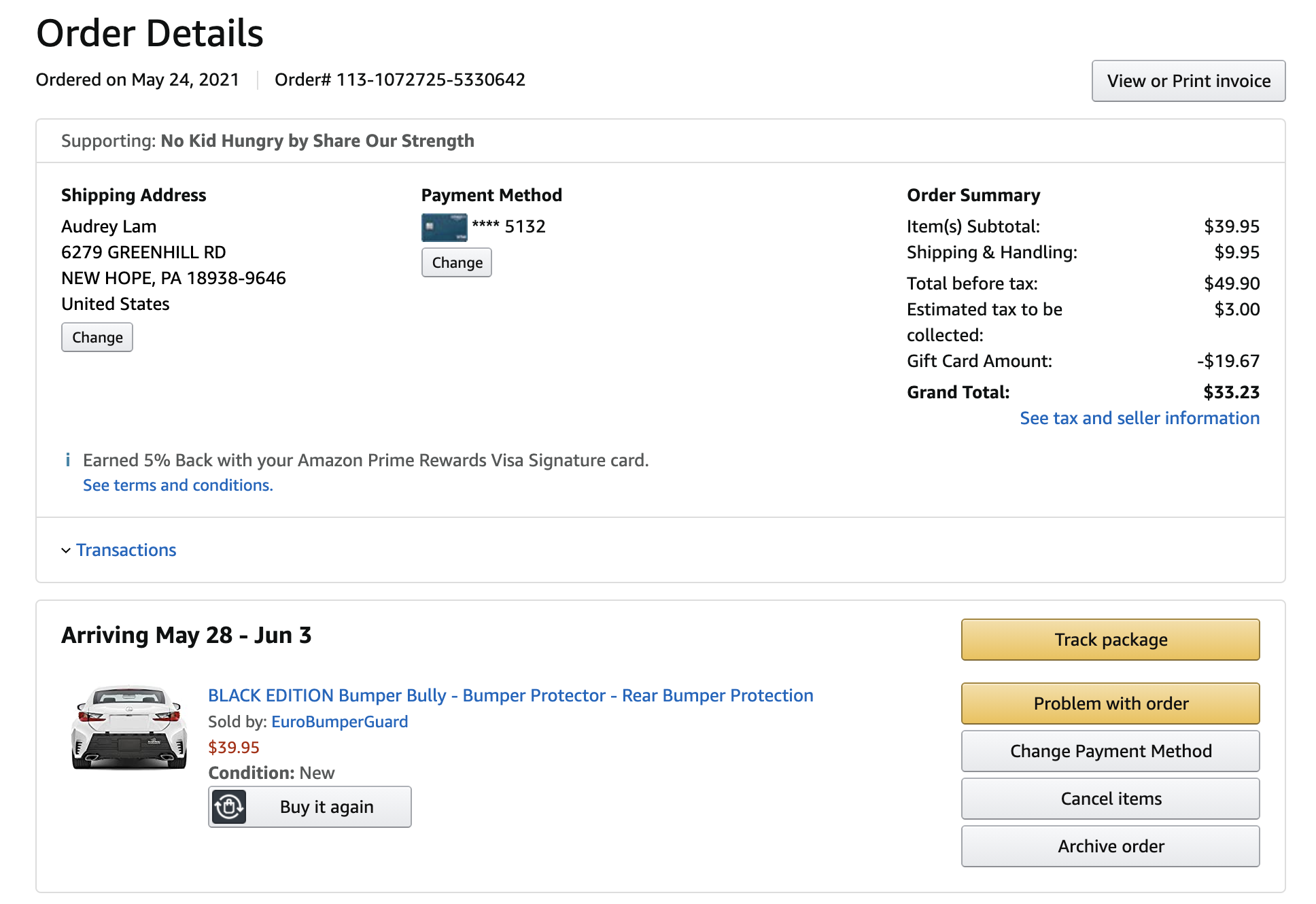
| 2021-05-24 | $49.90 | Parts | Bumper cover for via amazo | 🧾 |
| 2019 | ||||
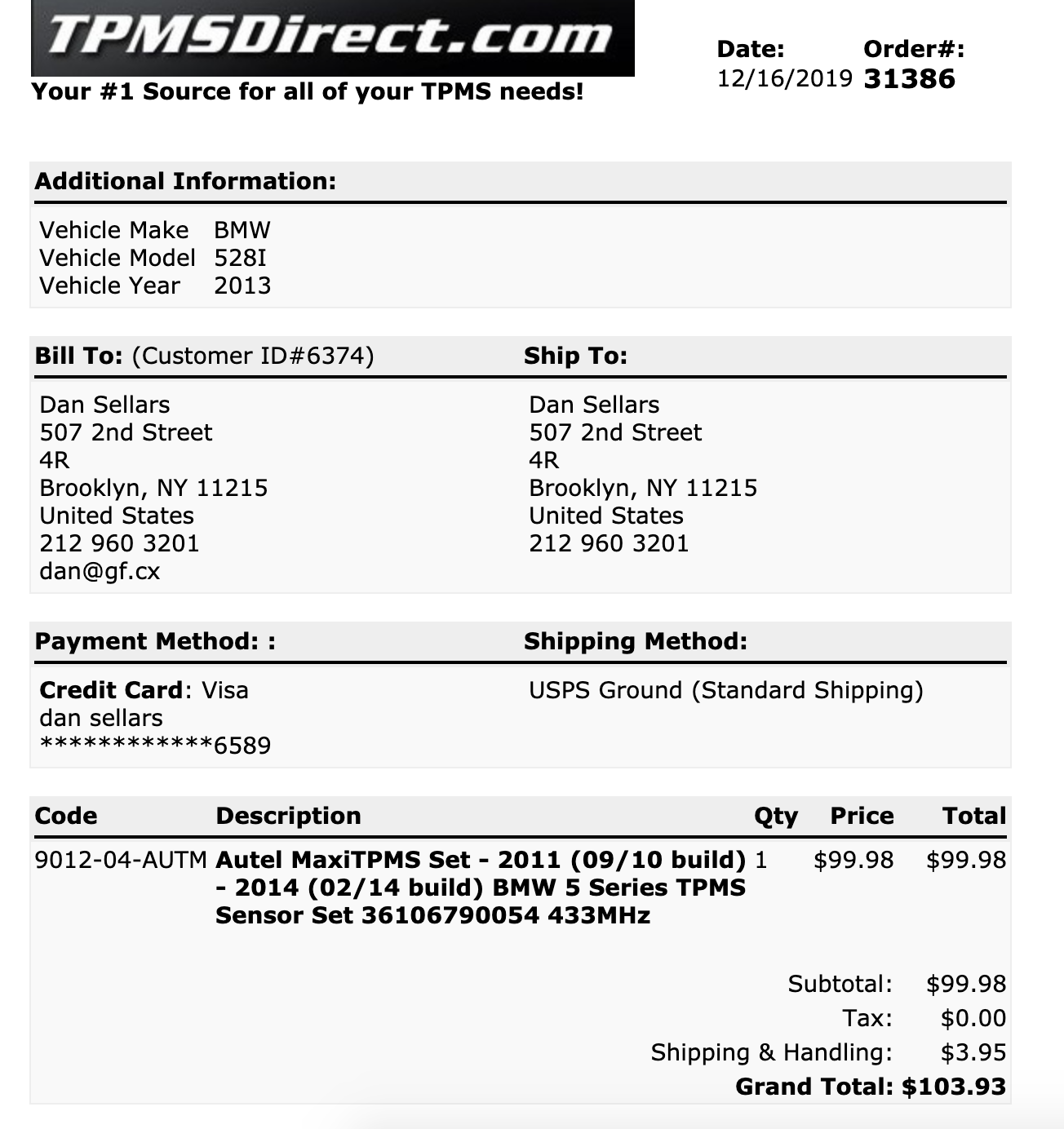
| 2019-12-16 | $103.93 | Tires | Tpms for 2013 for winter t | 🧾 |
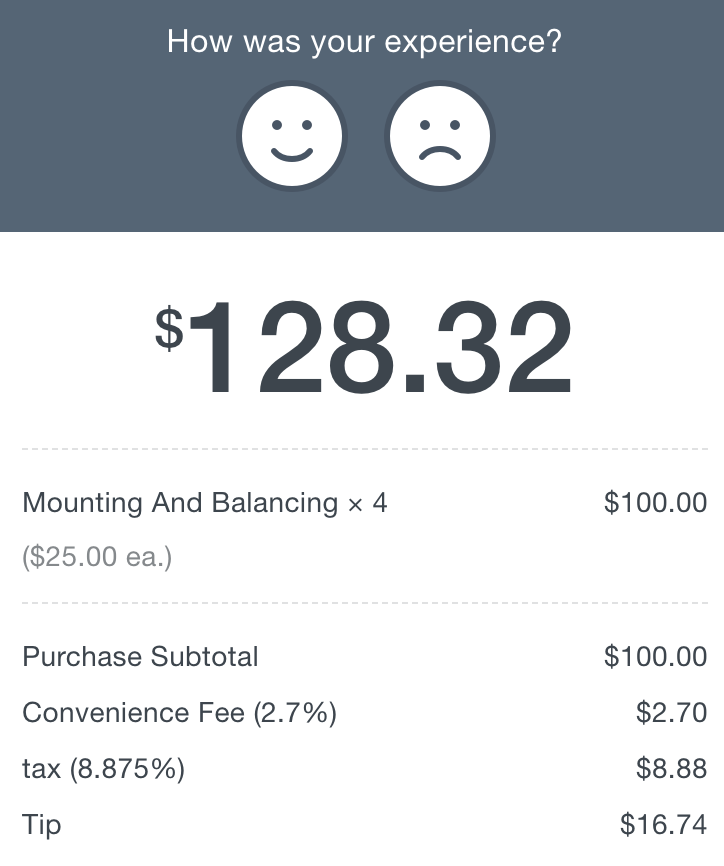
| 2019-12-09 | $128.32 | Tires | Winter tires swap | 🧾 |
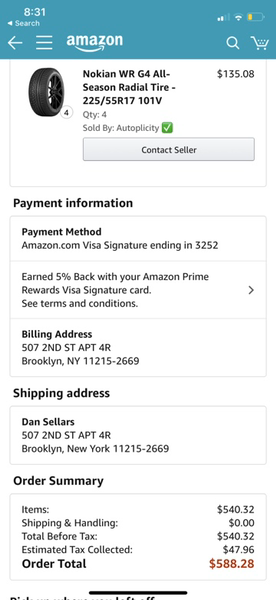
| 2019-11-23 | $588.28 | Tires | 4 x nokia now winter tires | 🧾 |
| 2019-11-08 | $86.00 | Registration | 2 year registration | 🧾 |
| 2017 | ||||
| 2017-07-27 | $367.79 | Finance | August 2017 | 🧾 |
| 2017-06-16 | $367.79 | Finance | Payment june | 🧾 |
| 2017-05-28 | $367.79 | Finance | Repayment june 2017 | 🧾 |
| 2017-05-15 | $367.79 | Finance | Repayment may | 🧾 |
| 2017-04-27 | $367.95 | Finance | Repayment may 2017 | 🧾 |
| 2017-01-05 | $91.54 | Parts | Advanced charger for lr4 c | 🧾 |
| 2016 | ||||
| 2016-11-15 | $367.79 | Finance | Monthly repayment | 🧾 |
| 2016-09-15 | $367.79 | Finance | Car repayment monthly | 🧾 |
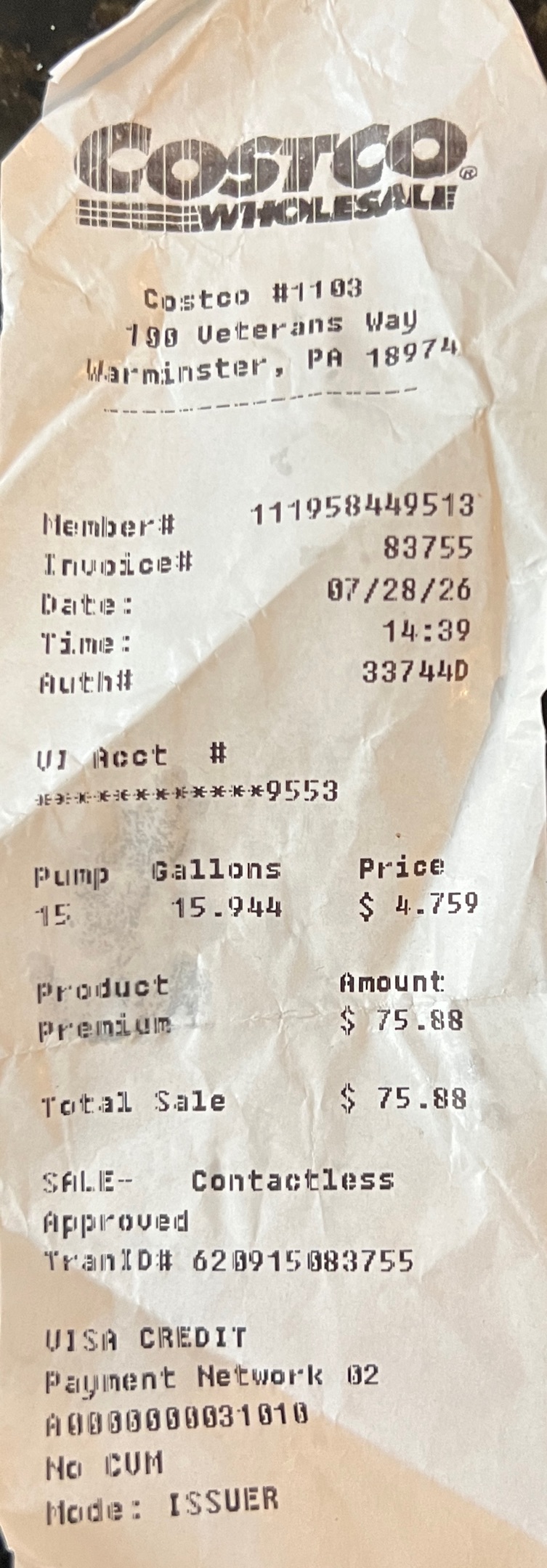 $75.00Fuel fill-up
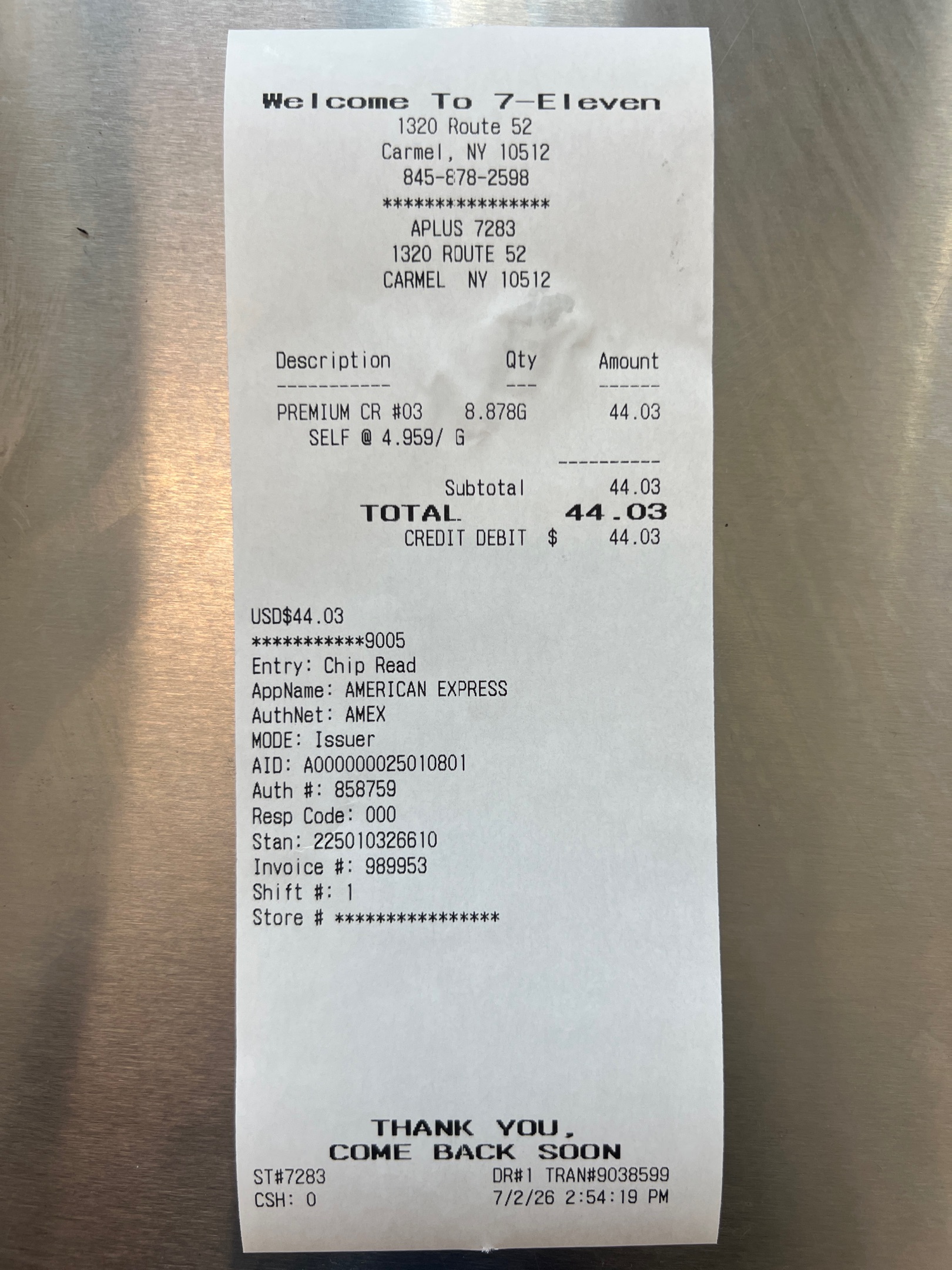 $44.00Fuel fill-up
 $55.00Fuel fill-up
 $633.00Brakes, rim repair & alignment (invoice #248282)
 $633.00Wheels brakes and alignmen
 $54.43App unlock functionality
 $53.00Fuel fill-up
 $79.00Fuel fill-up
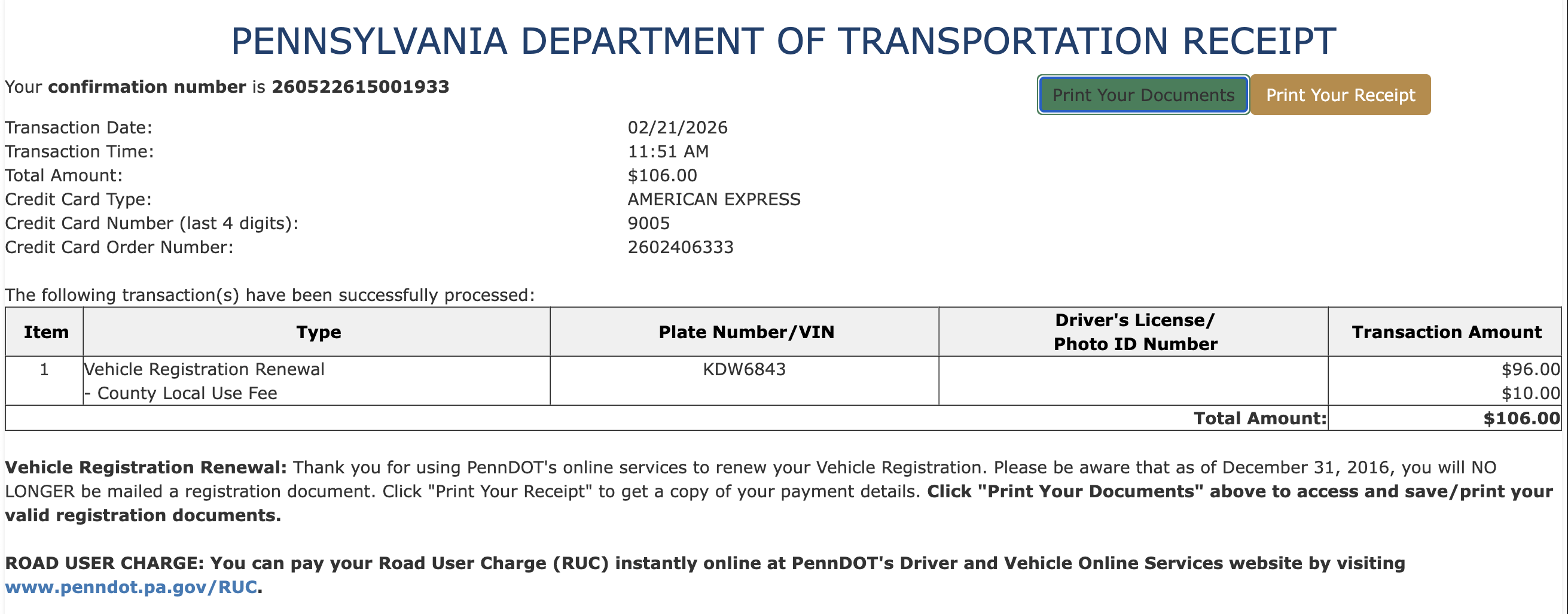 $106.00Road tax 2 years until 202
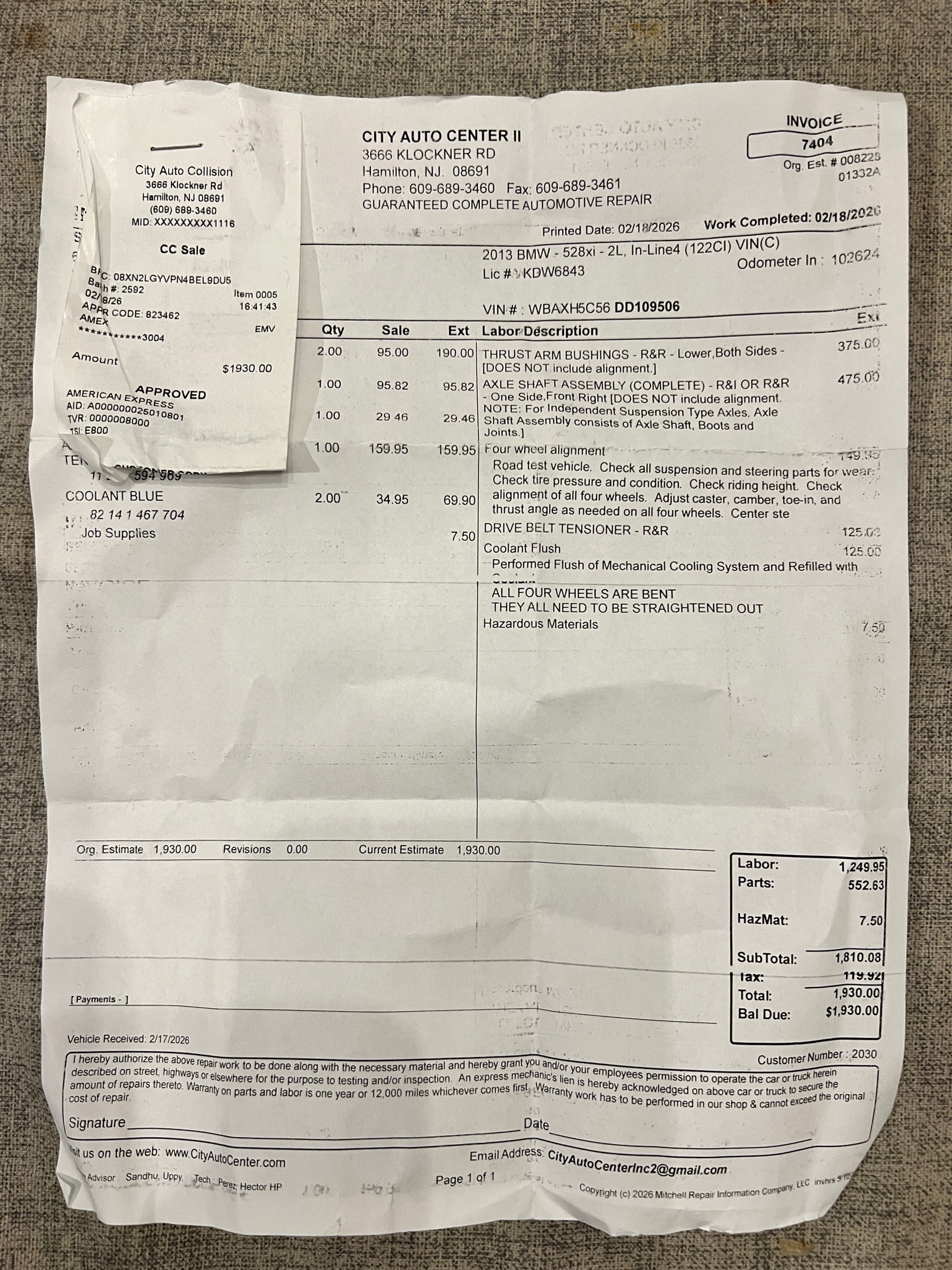 $1,930.00Front axle and control arm
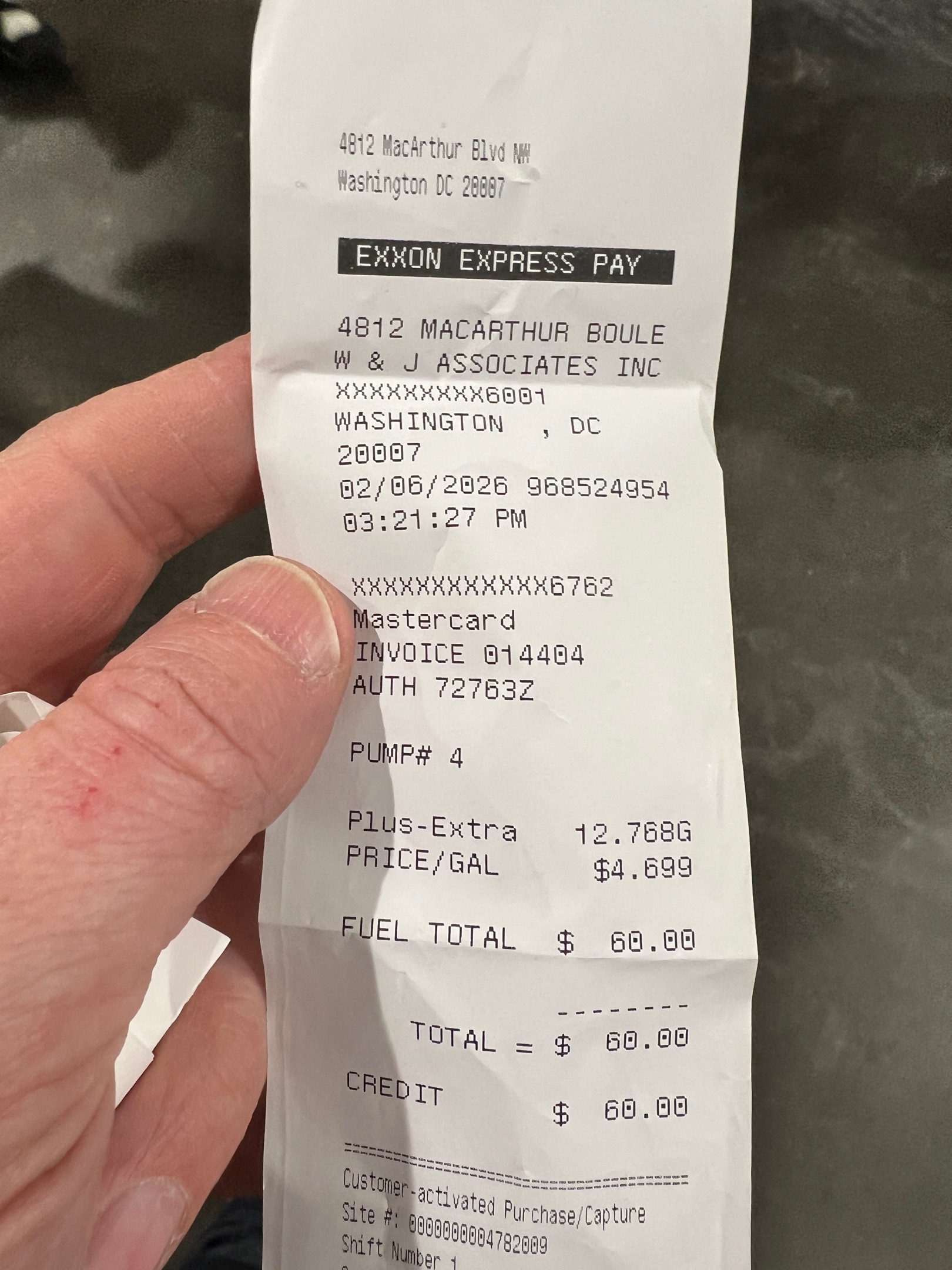 $60.00Fuel fill-up
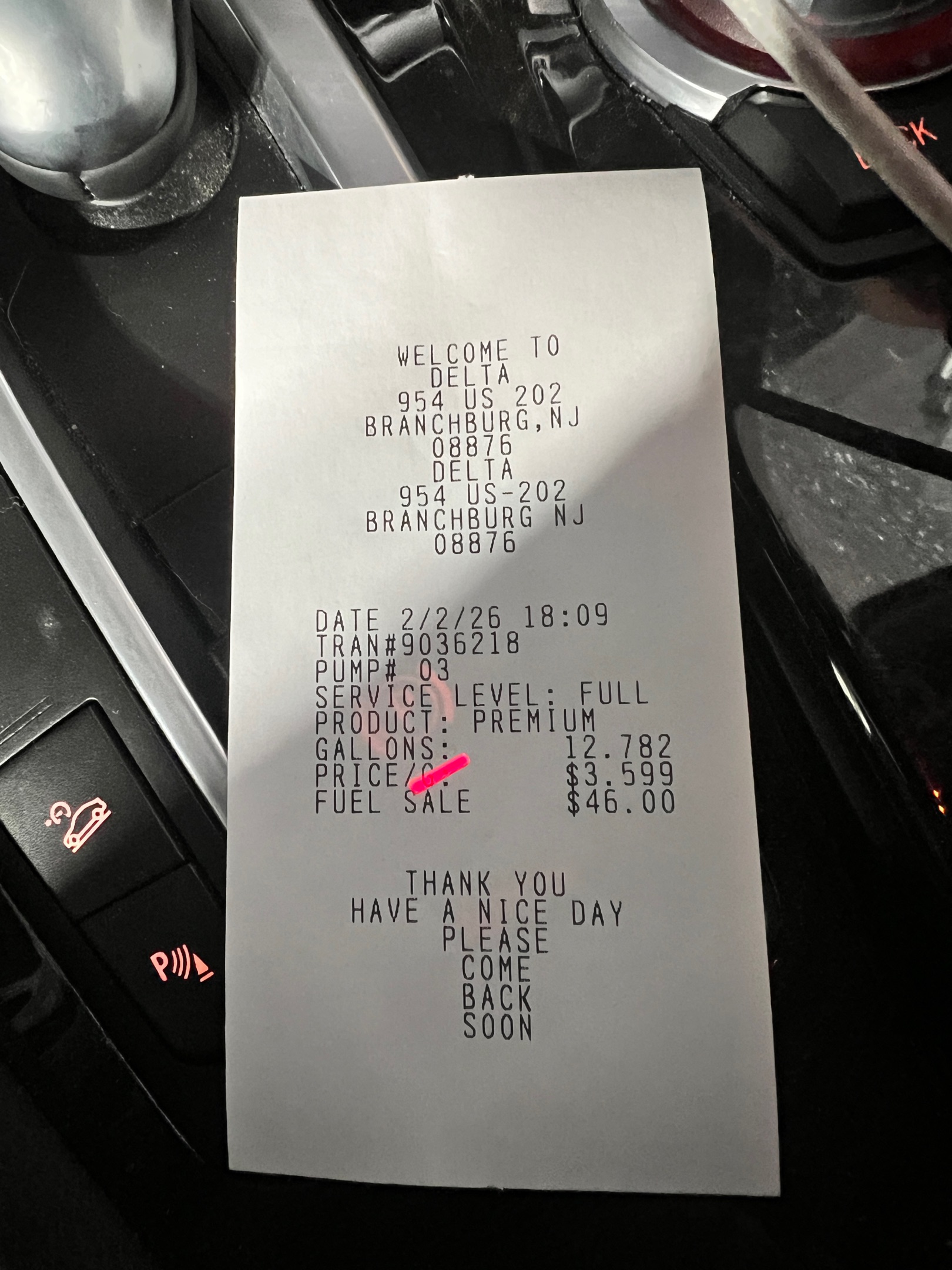 $46.00Fuel fill-up
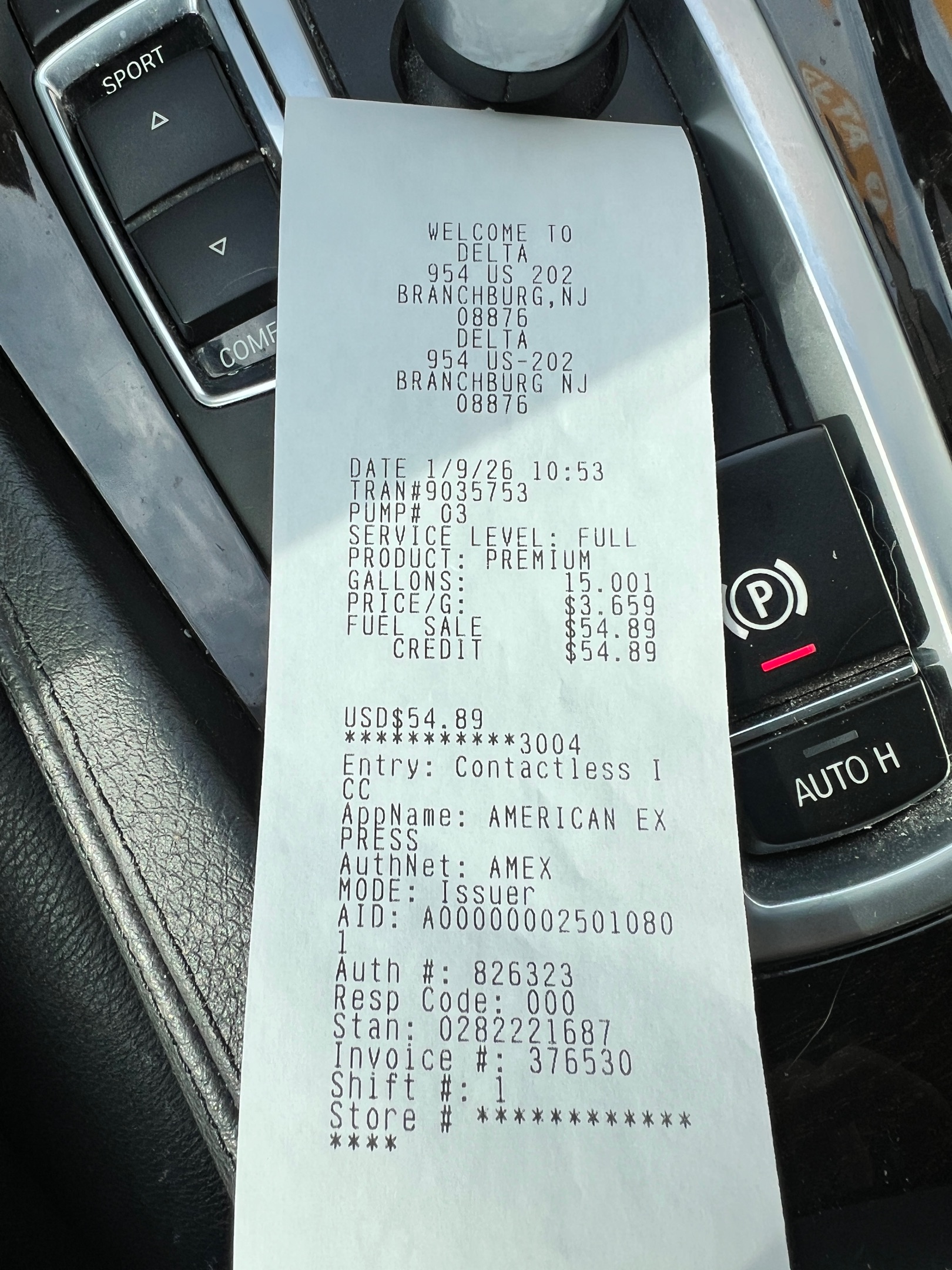 $55.00Fuel fill-up
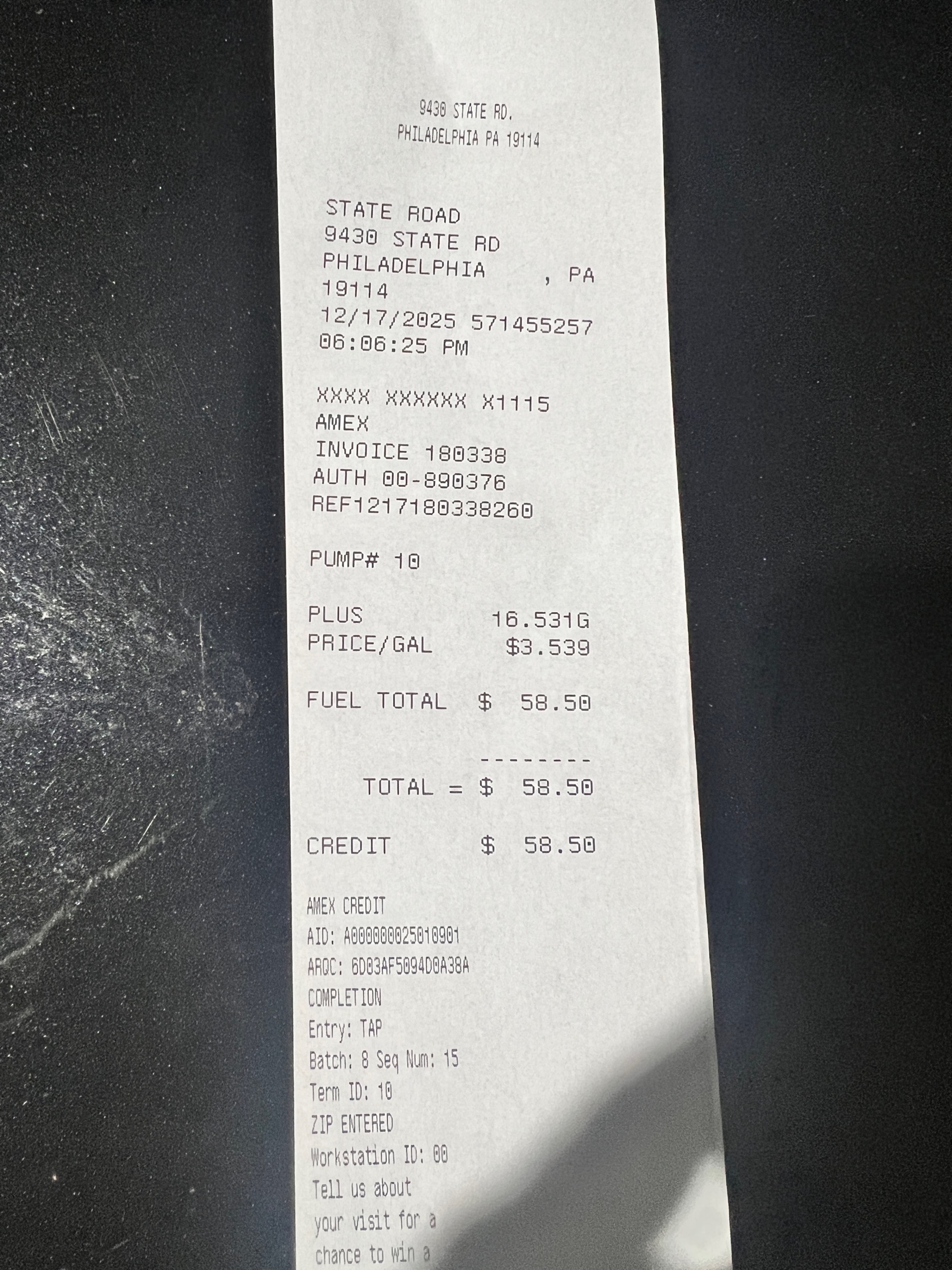 $58.50Fuel fill-up
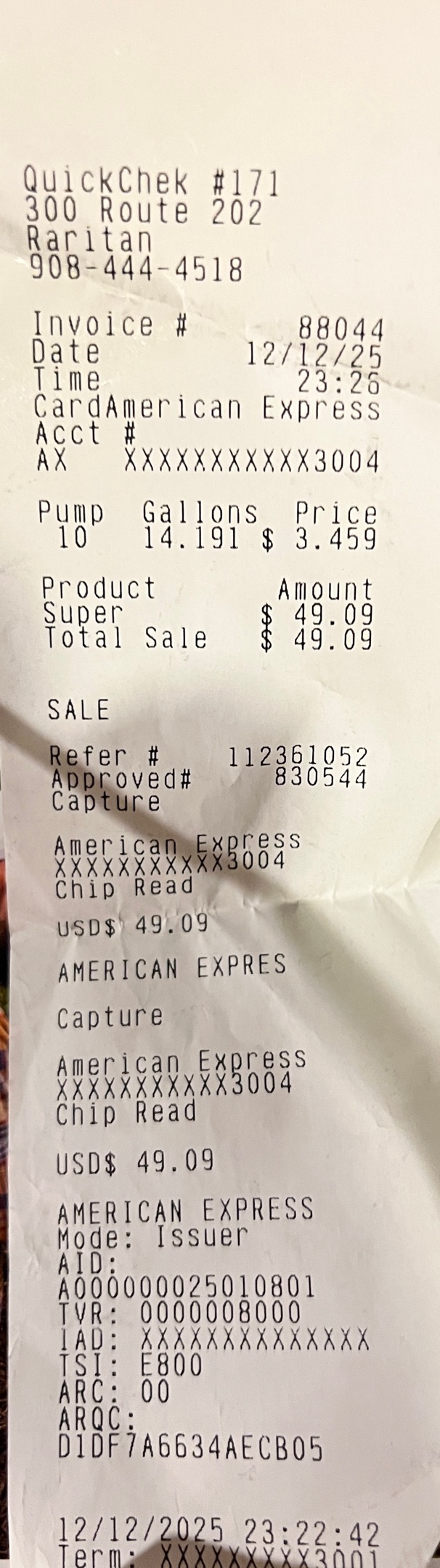 $49.00Fuel fill-up
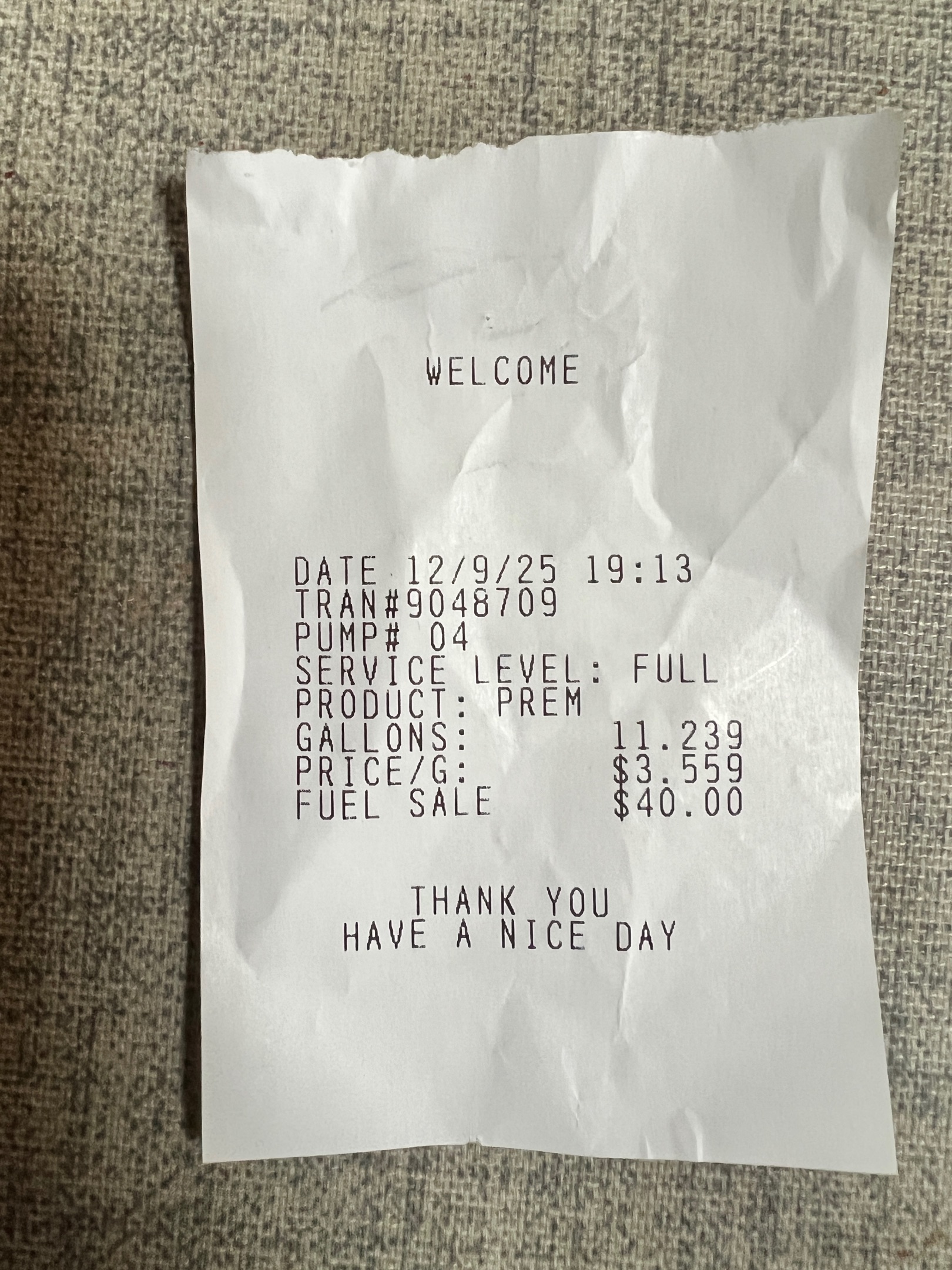 $40.00Fuel fill-up
 $55.00Fuel fill-up
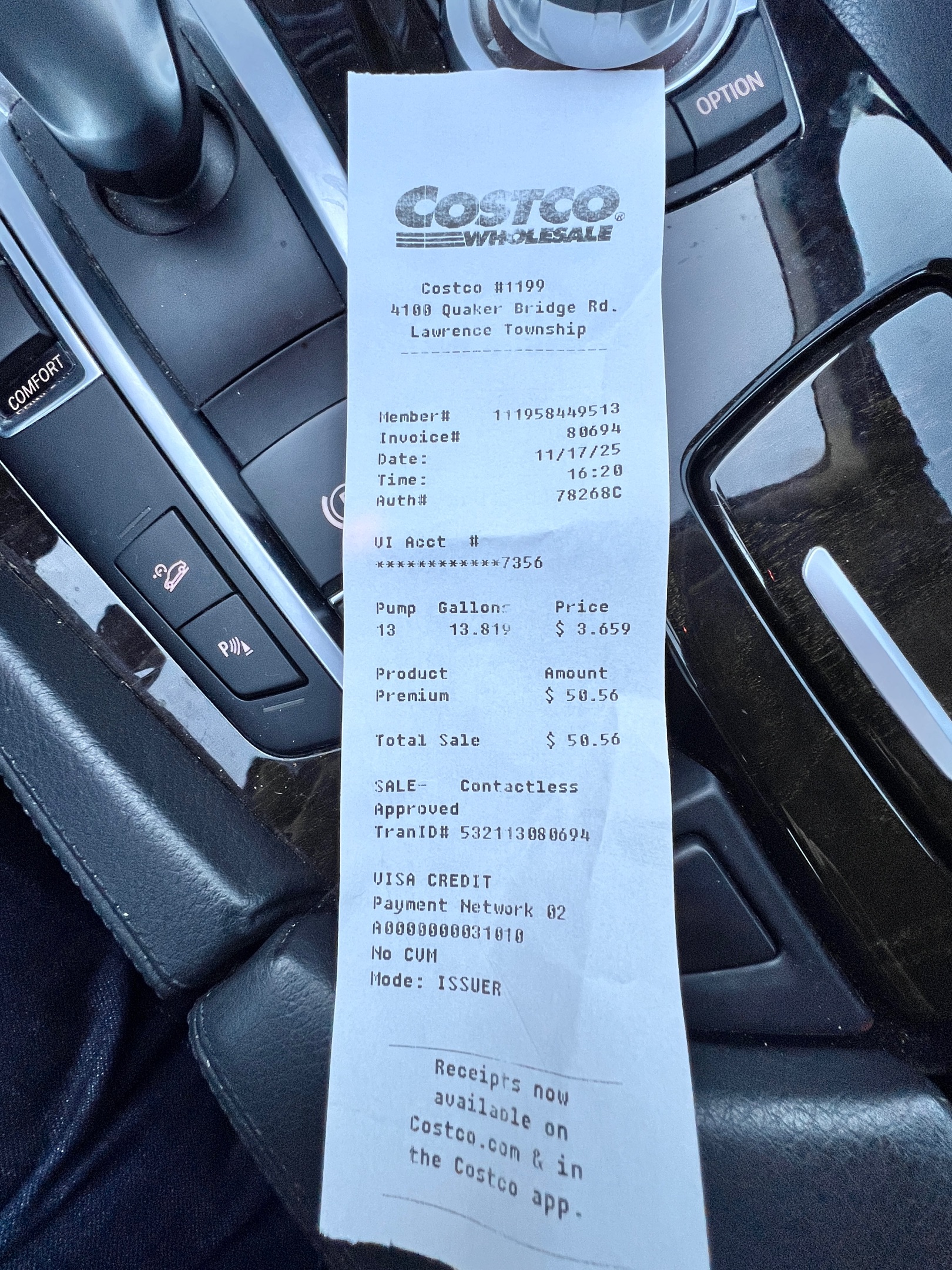 $51.00Fuel fill-up
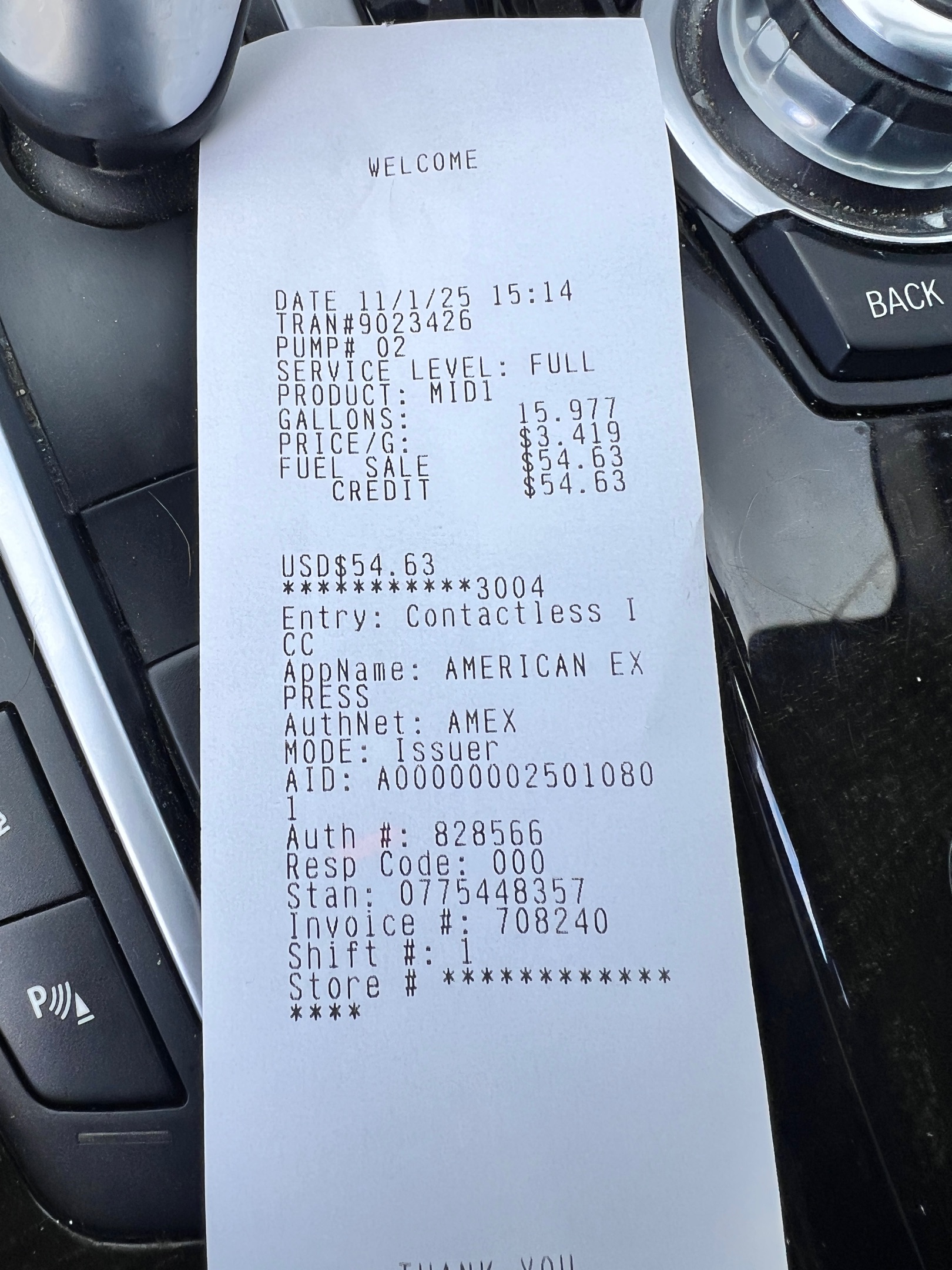 $55.00Fuel fill-up
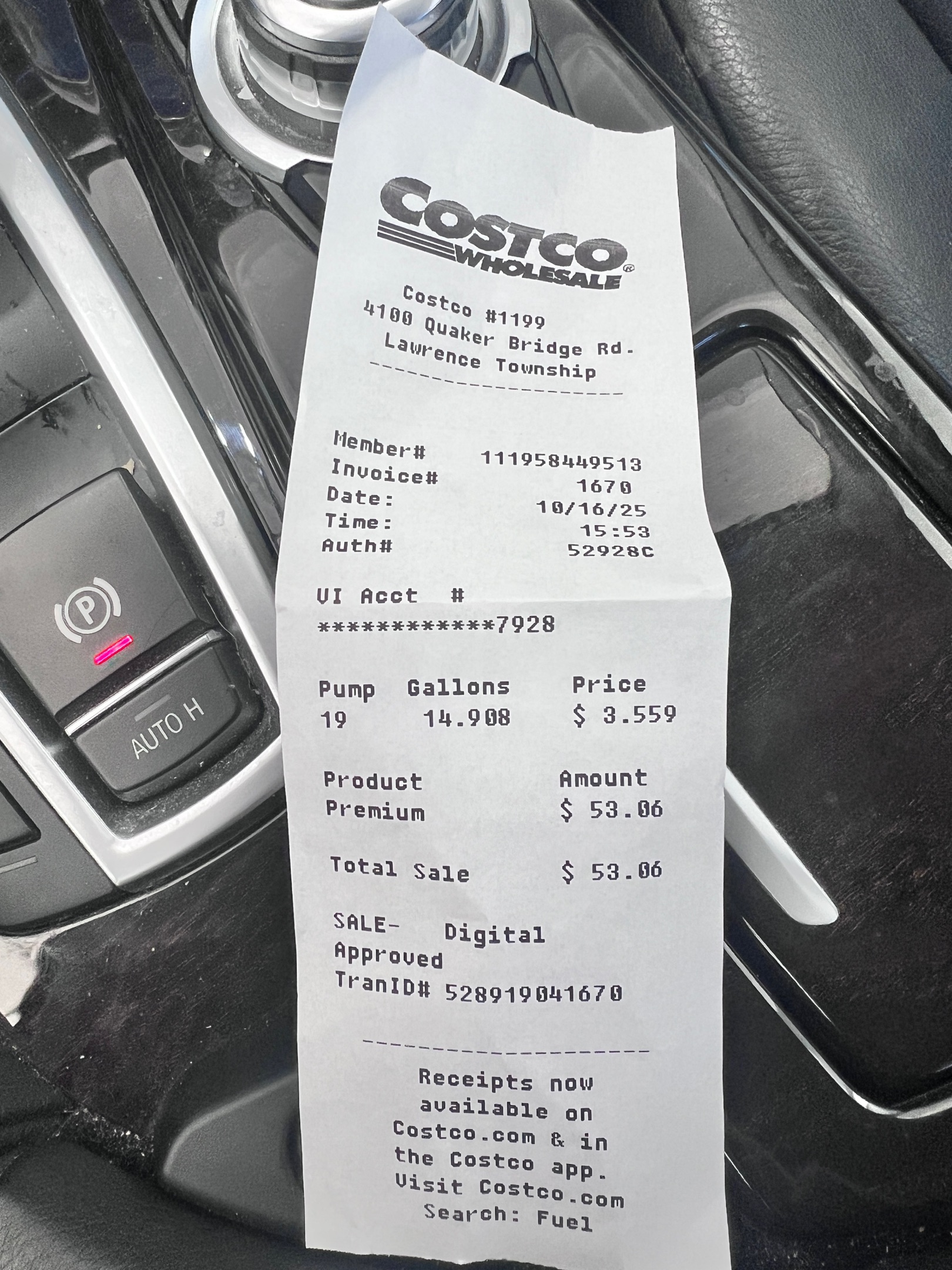 $53.00Fuel fill-up
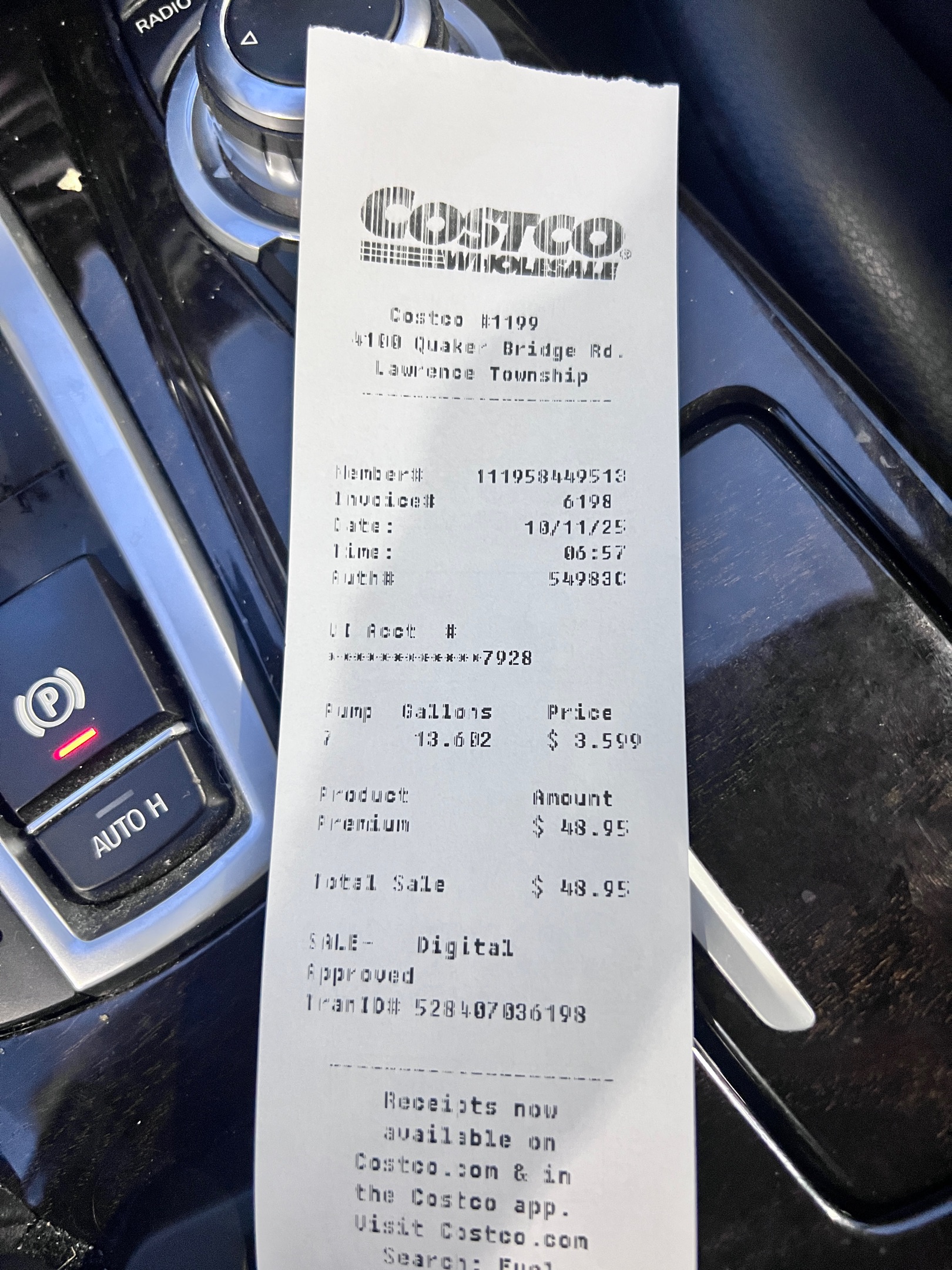 $50.00Fuel fill-up
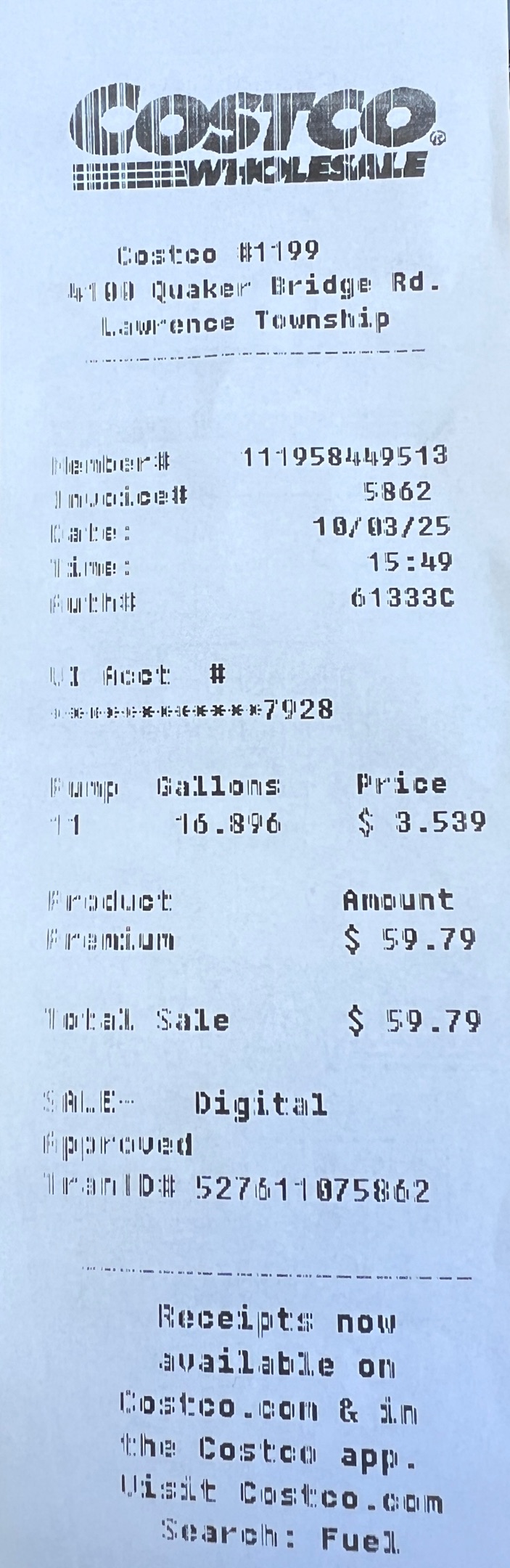 $60.00Fuel fill-up
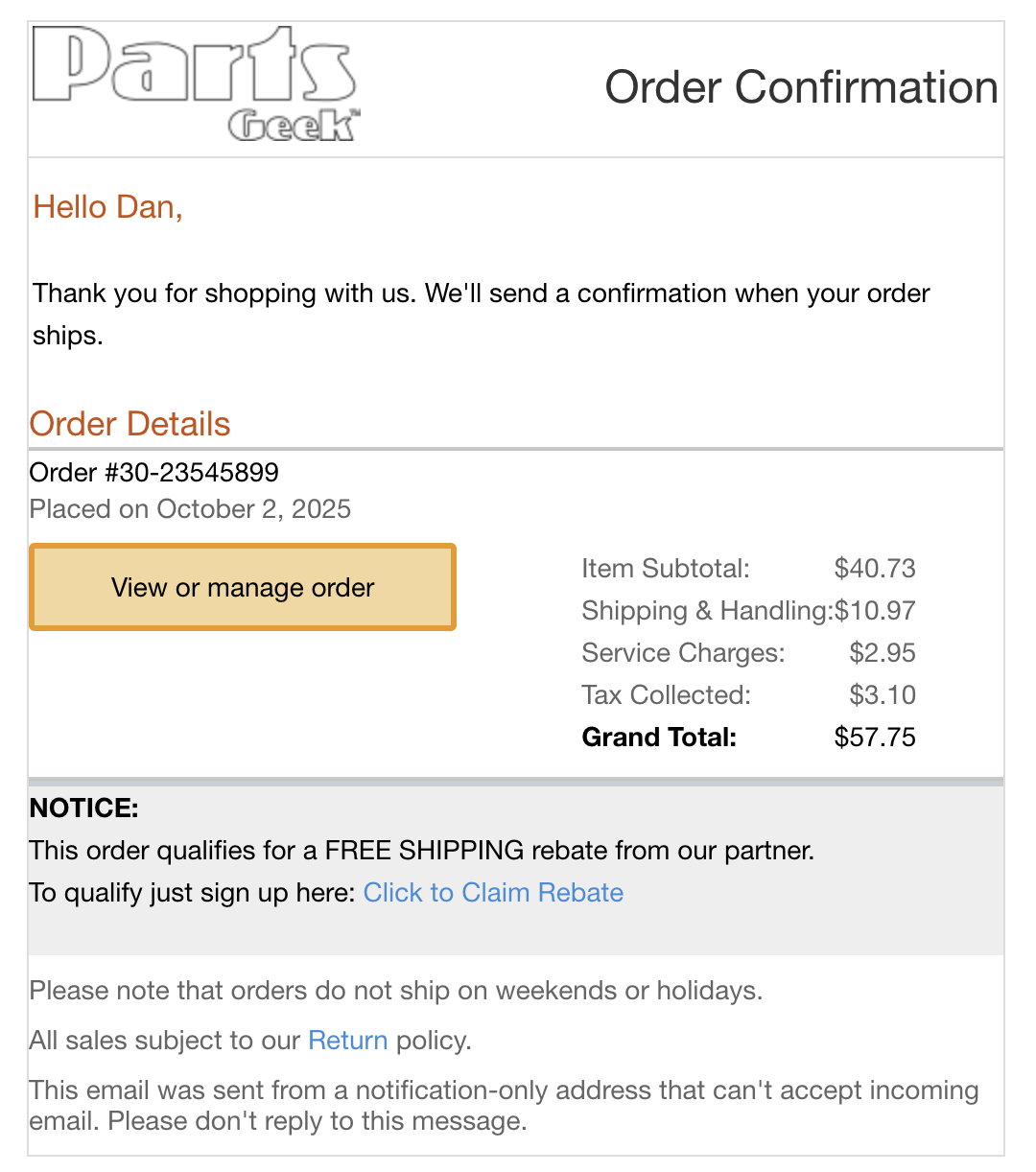 $58.00Part
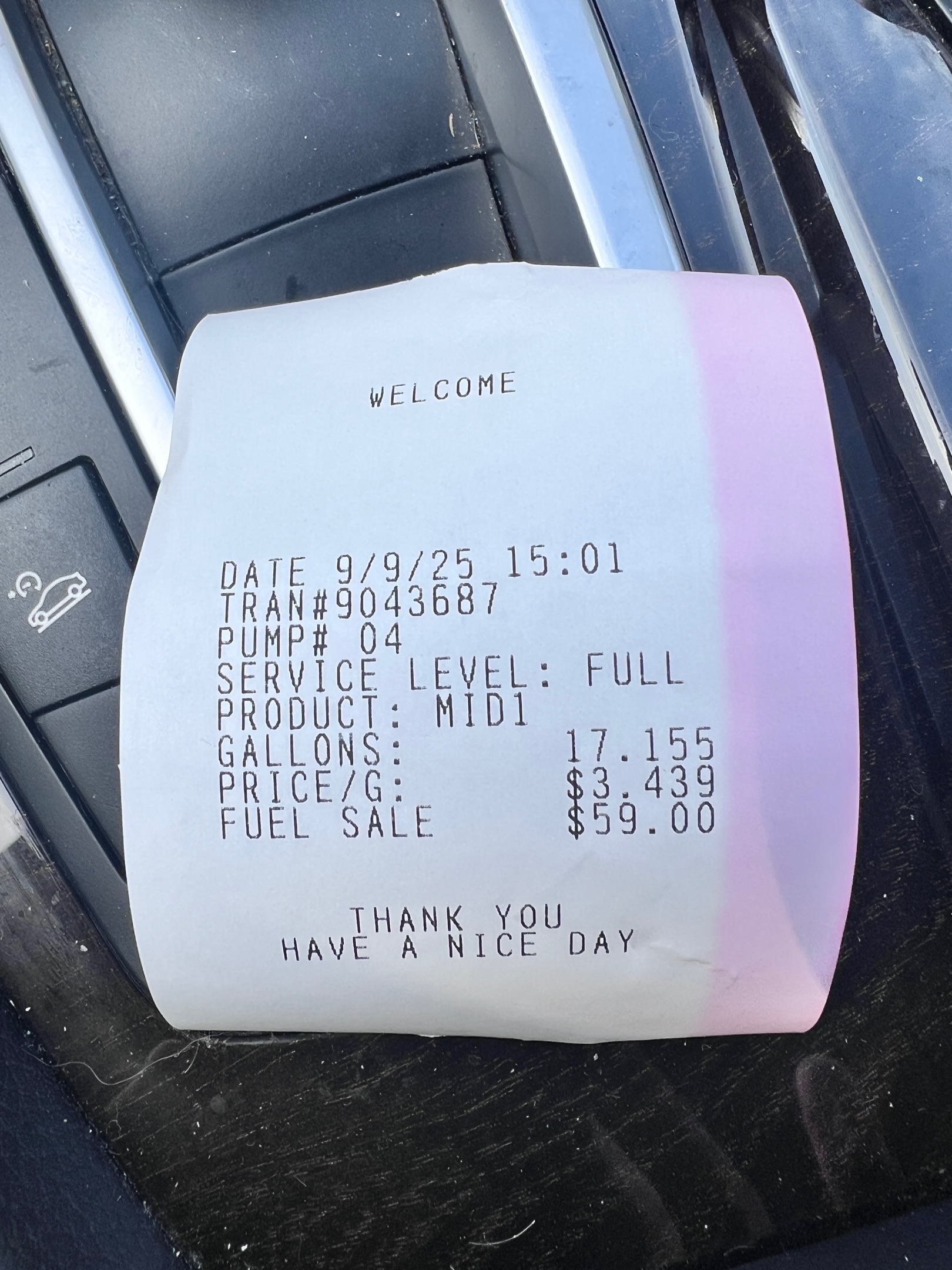 $59.00Fuel fill-up
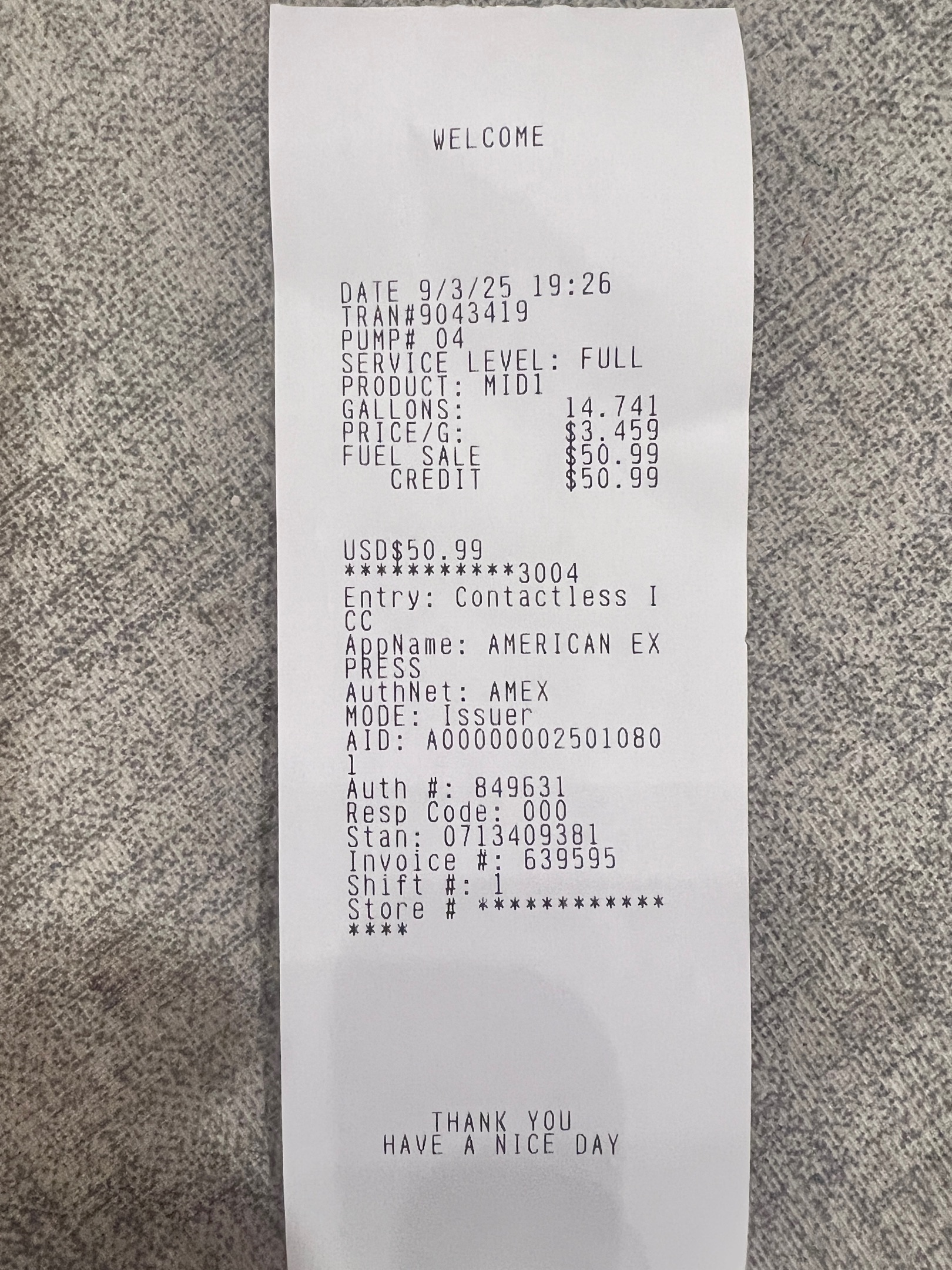 $52.00Fuel fill-up
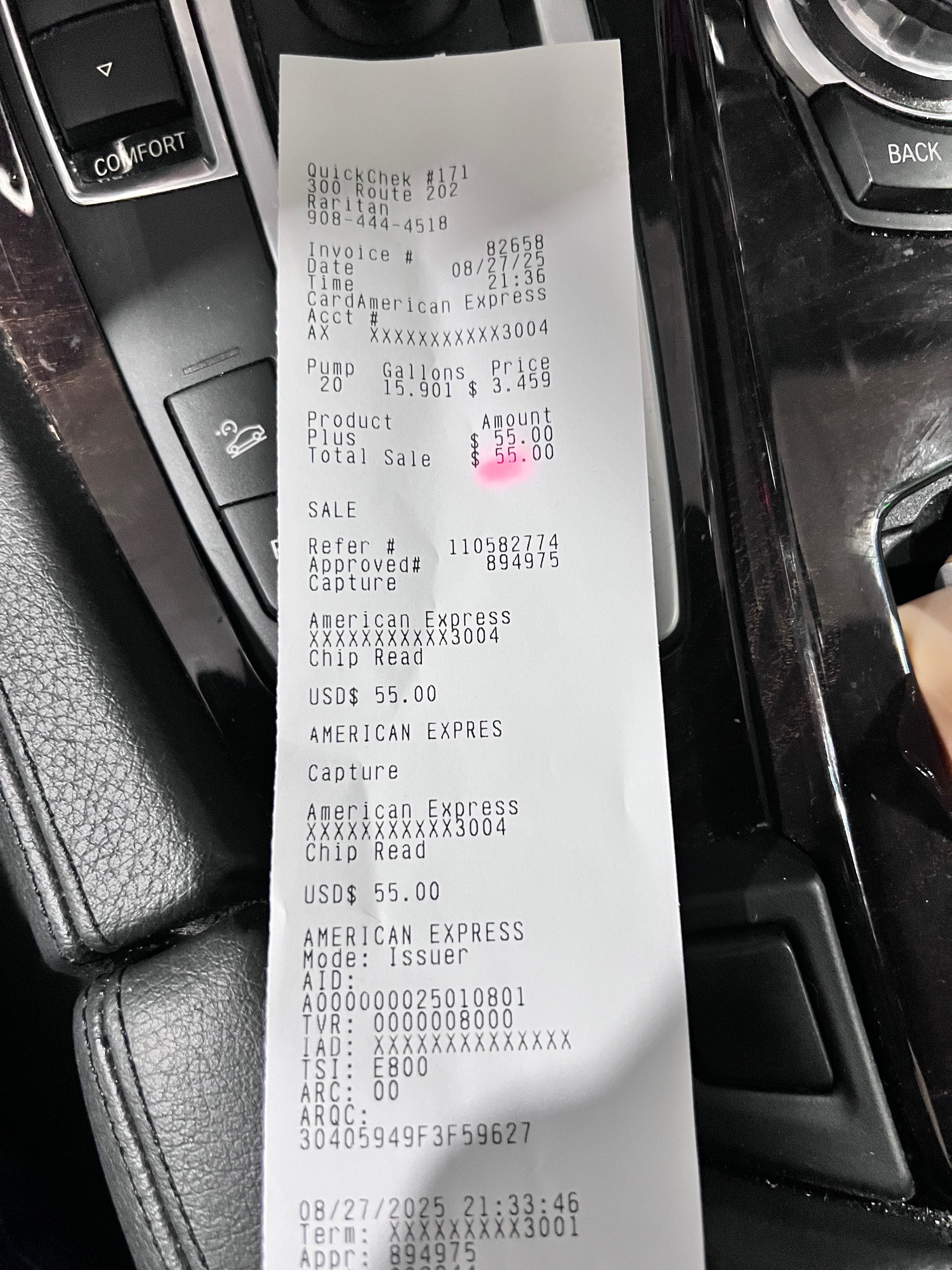 $55.00Fuel fill-up
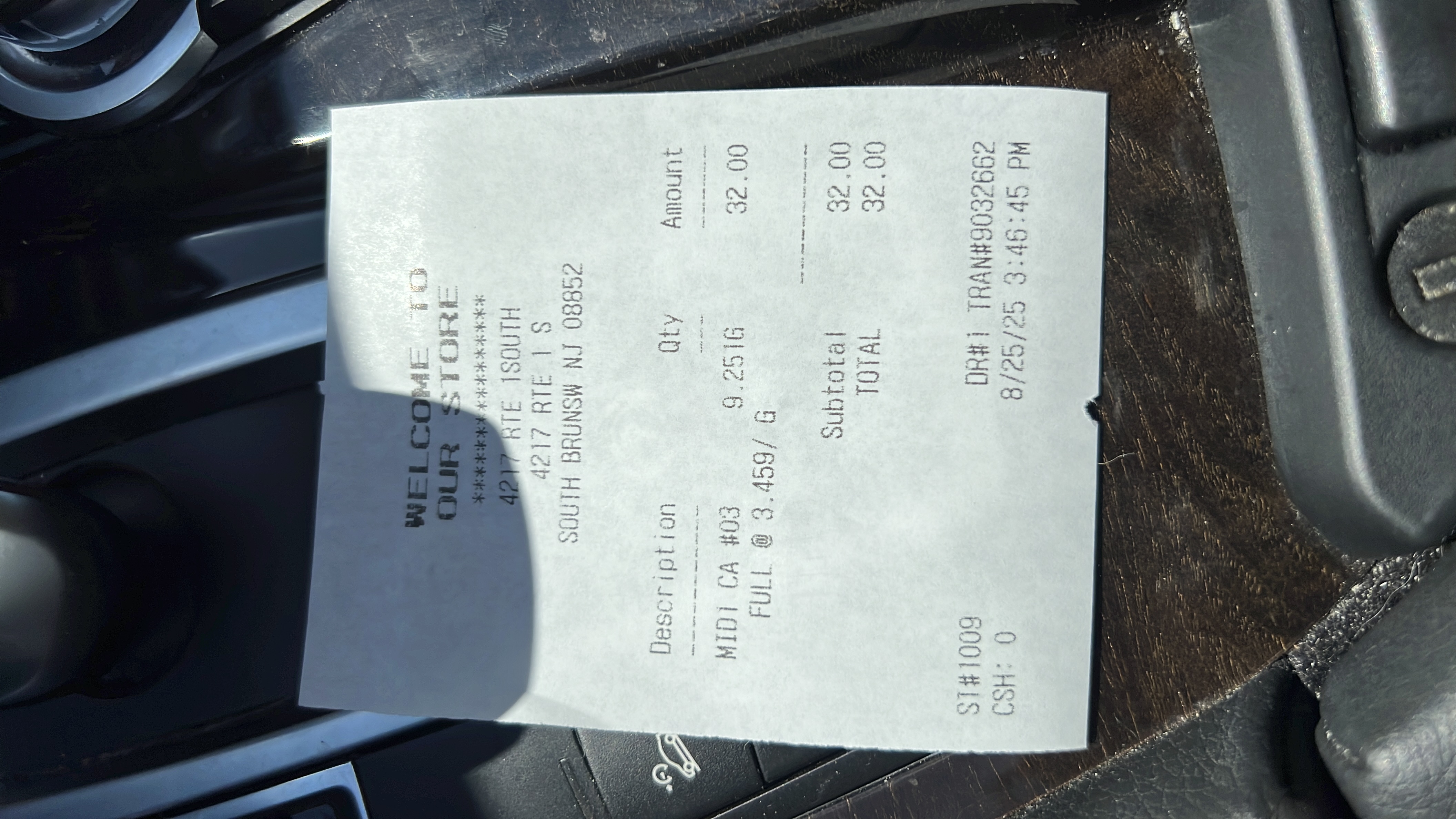 $32.00Fuel fill-up
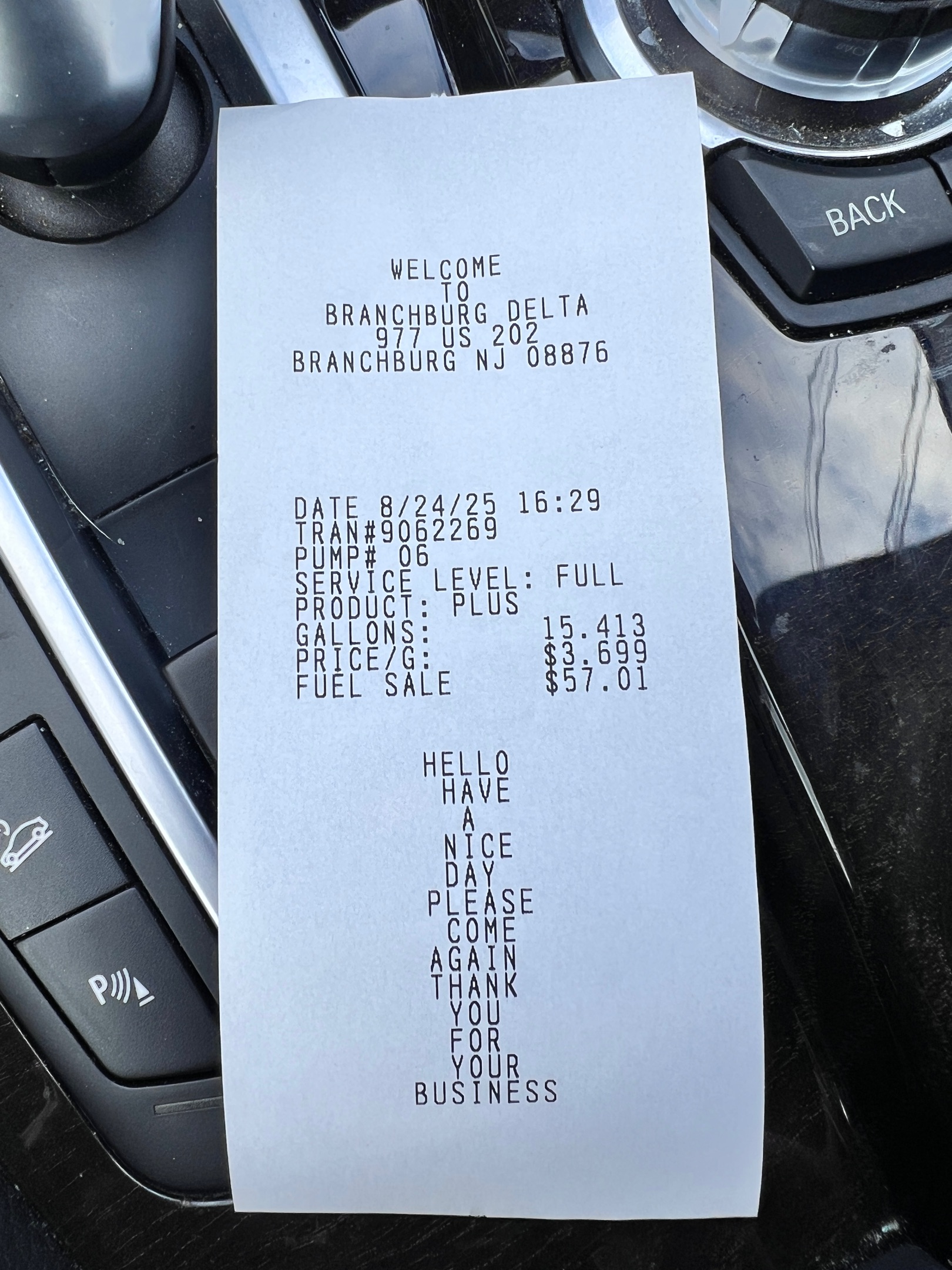 $57.00Fuel fill-up
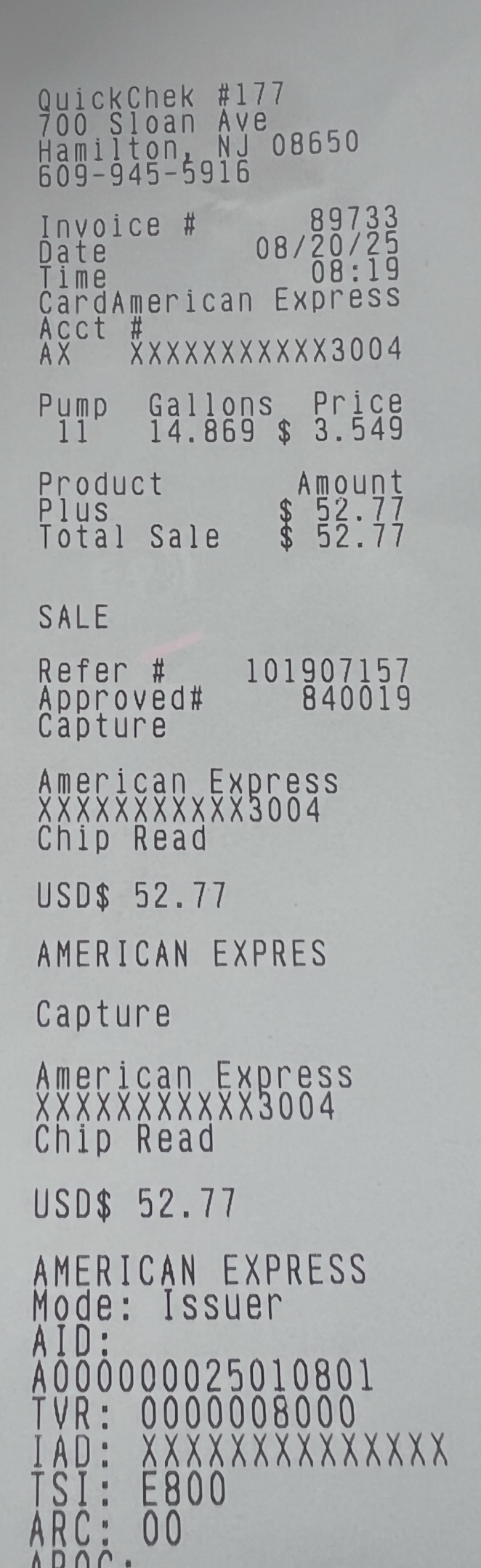 $53.00Fuel fill-up
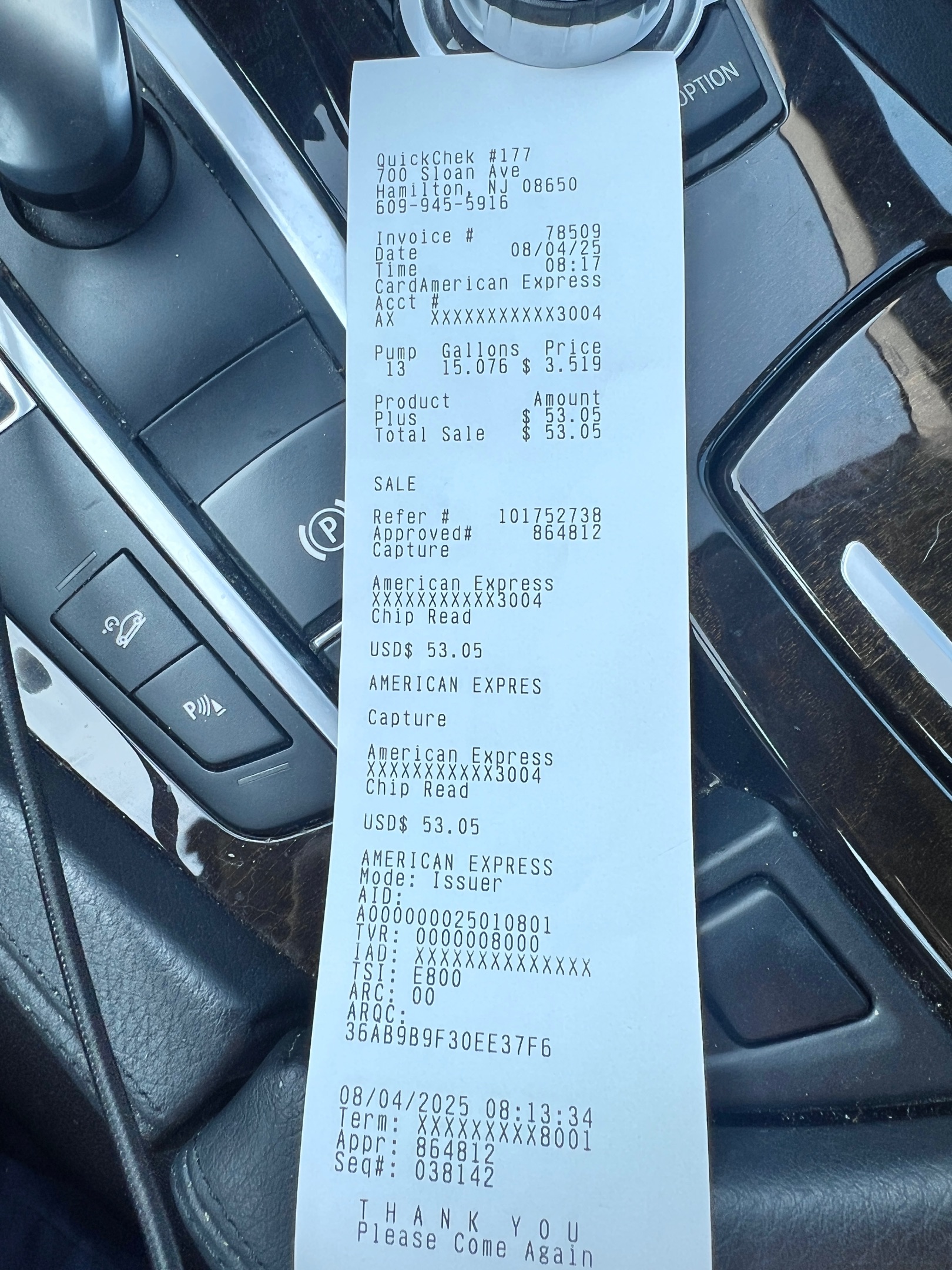 $53.00Fuel fill-up
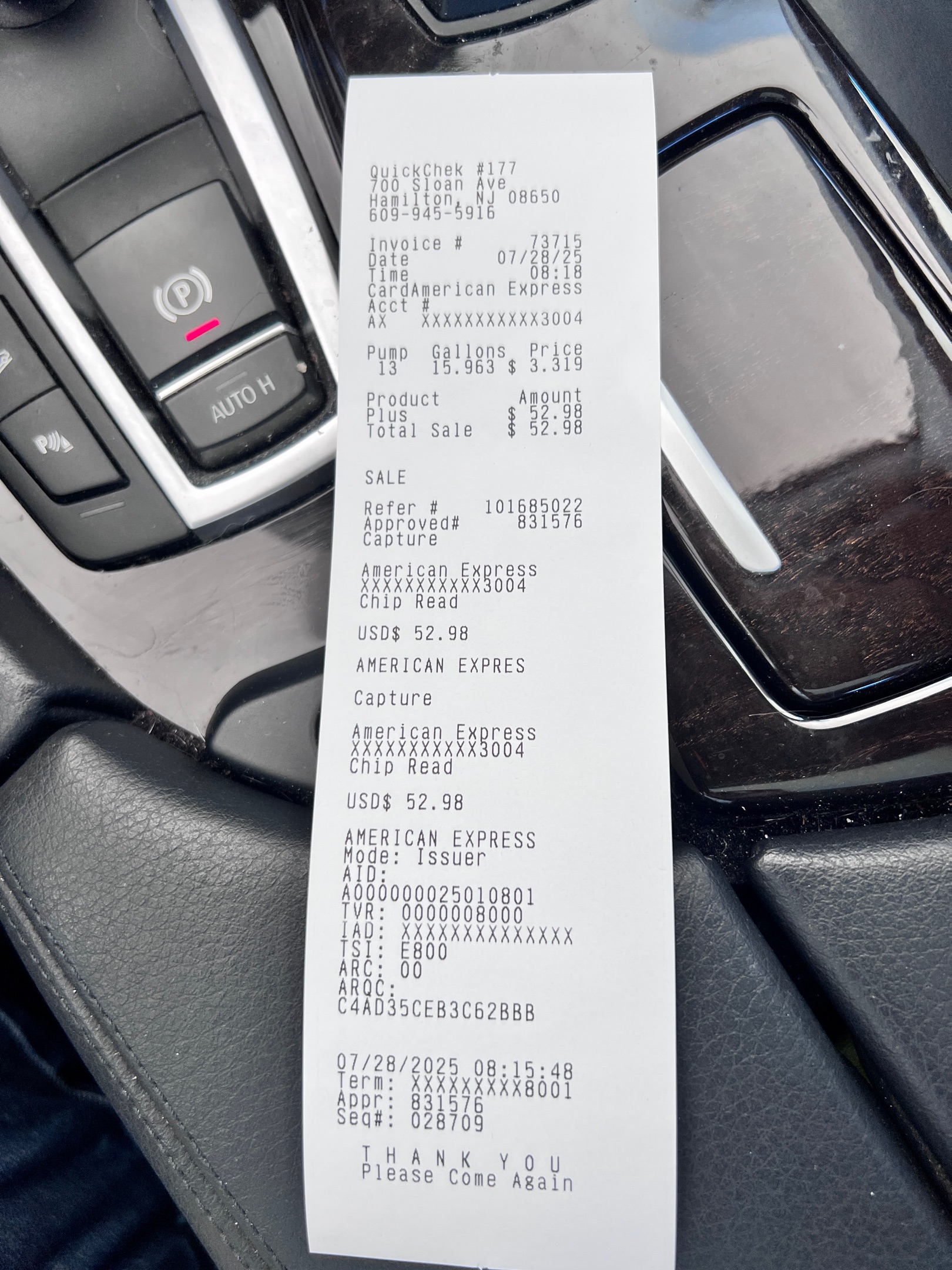 $53.00Fuel fill-up
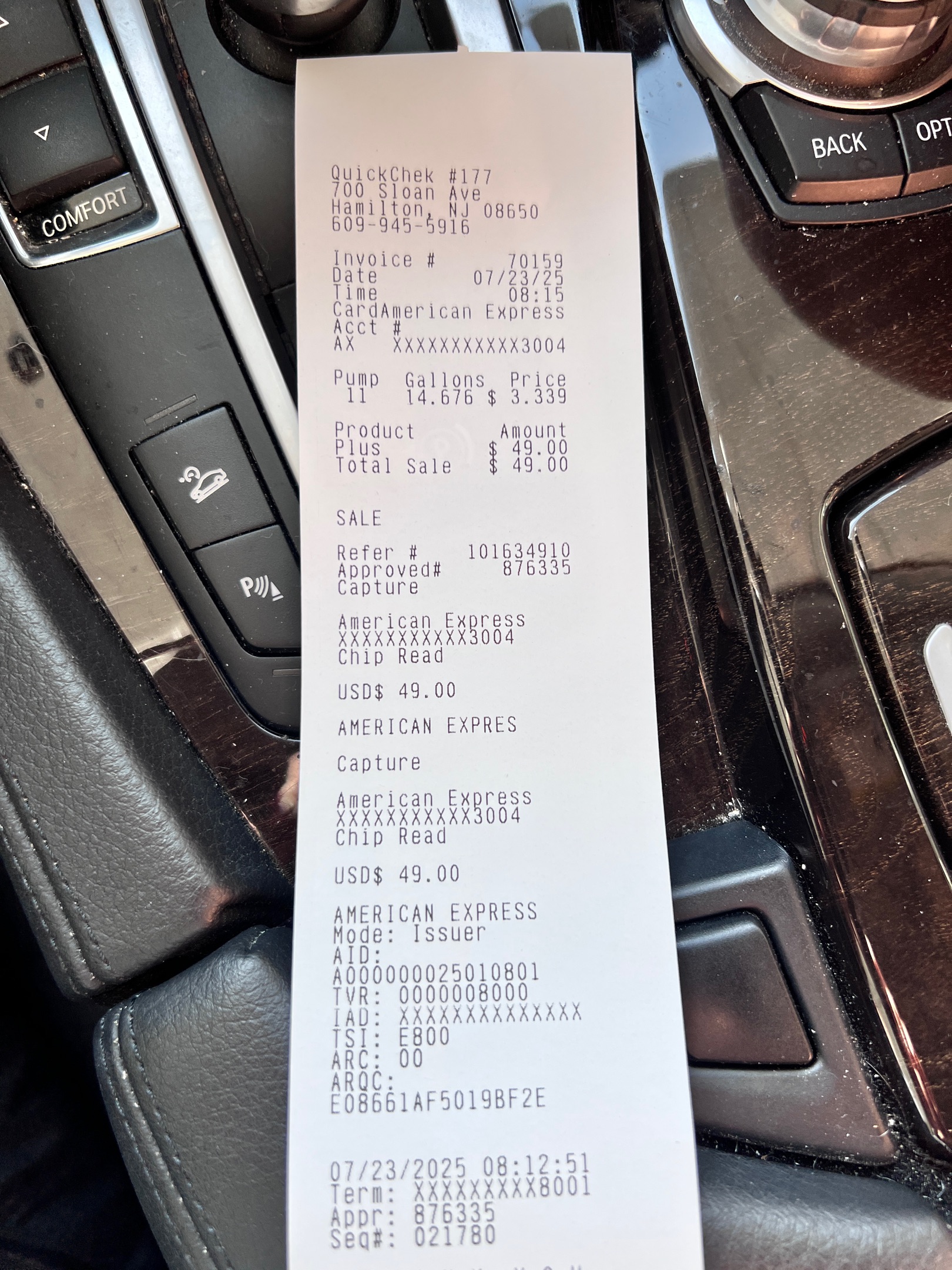 $49.00Fuel fill-up
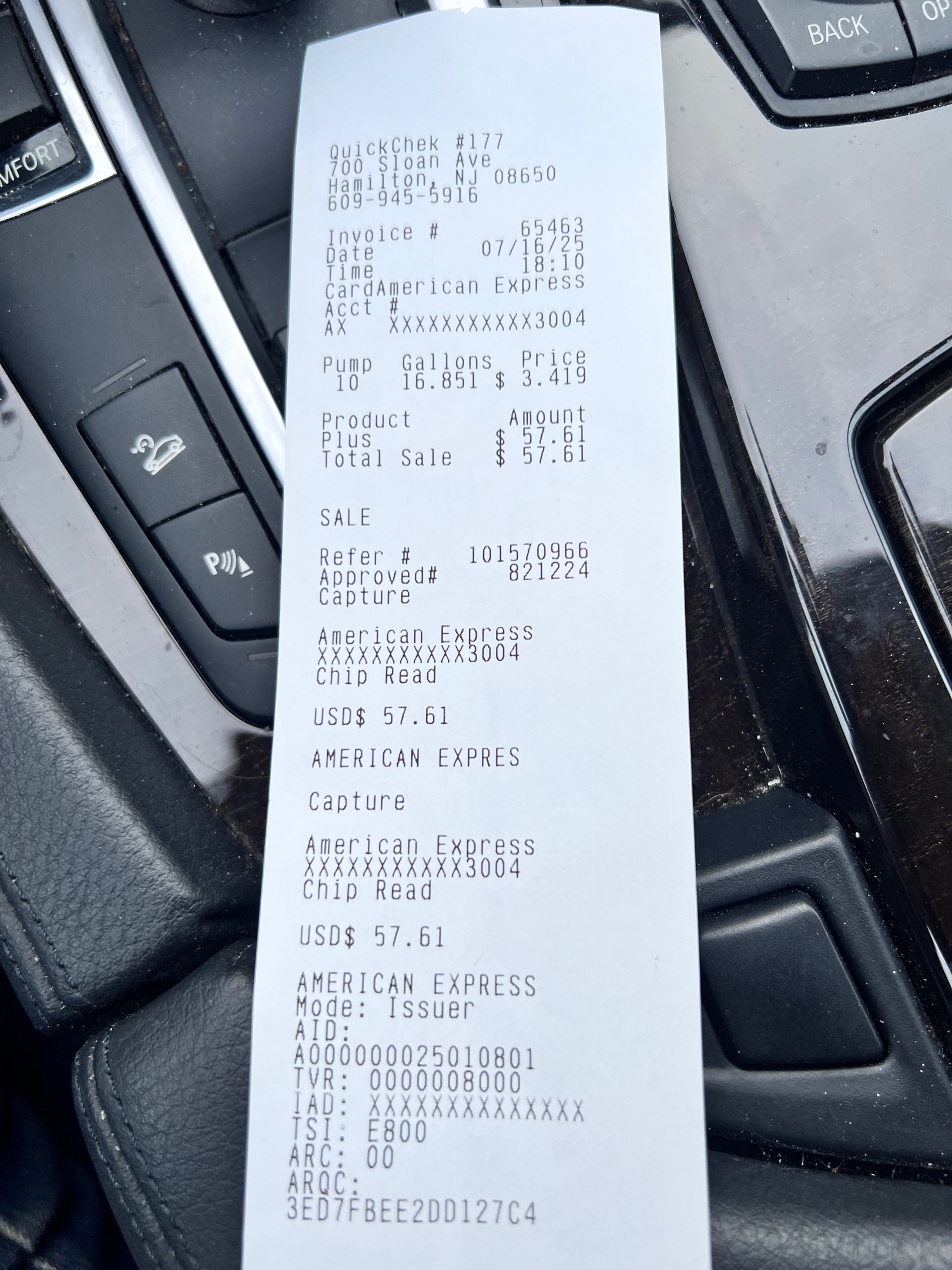 $58.00Fuel fill-up
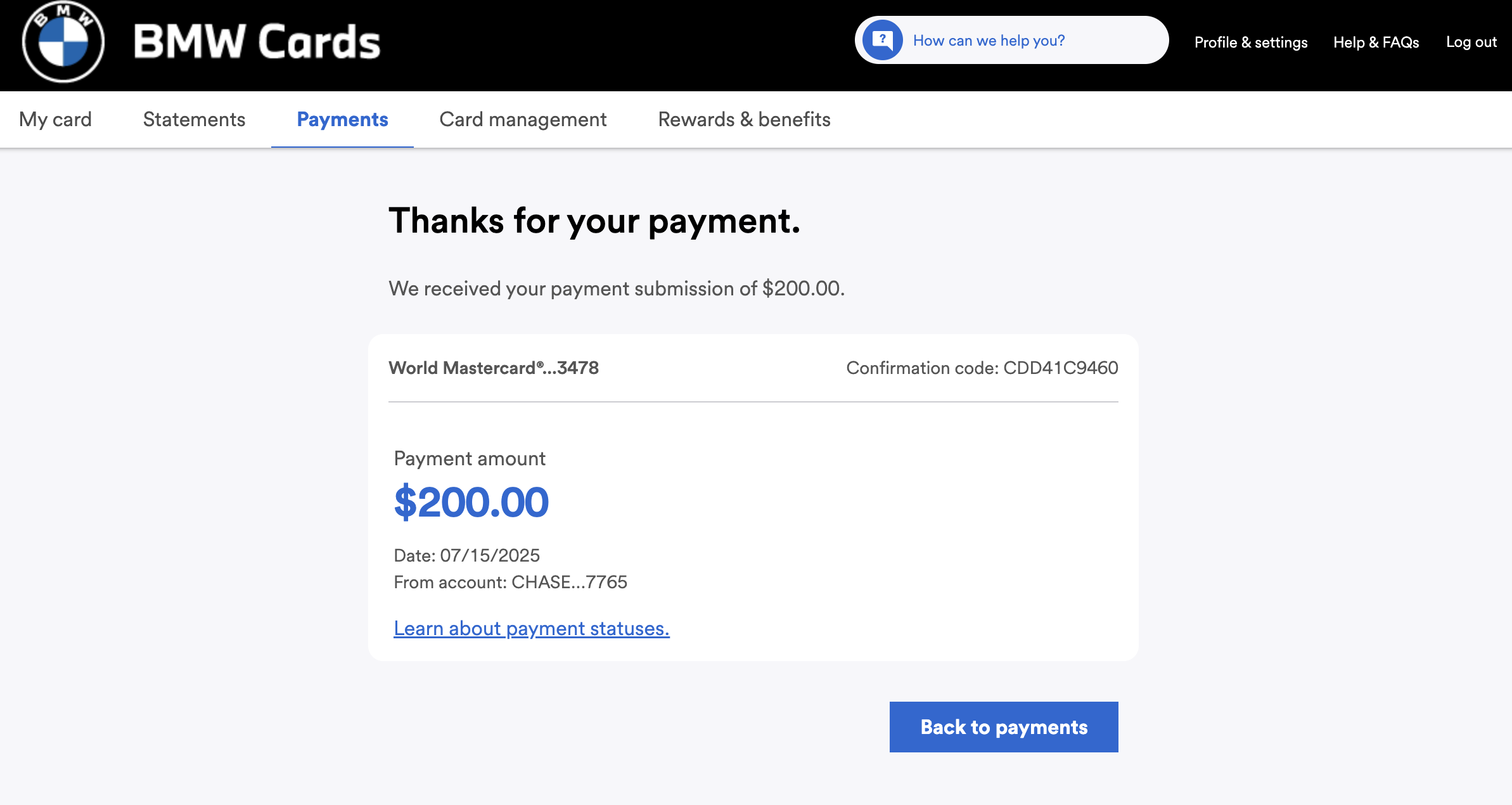 $200.00Card payment
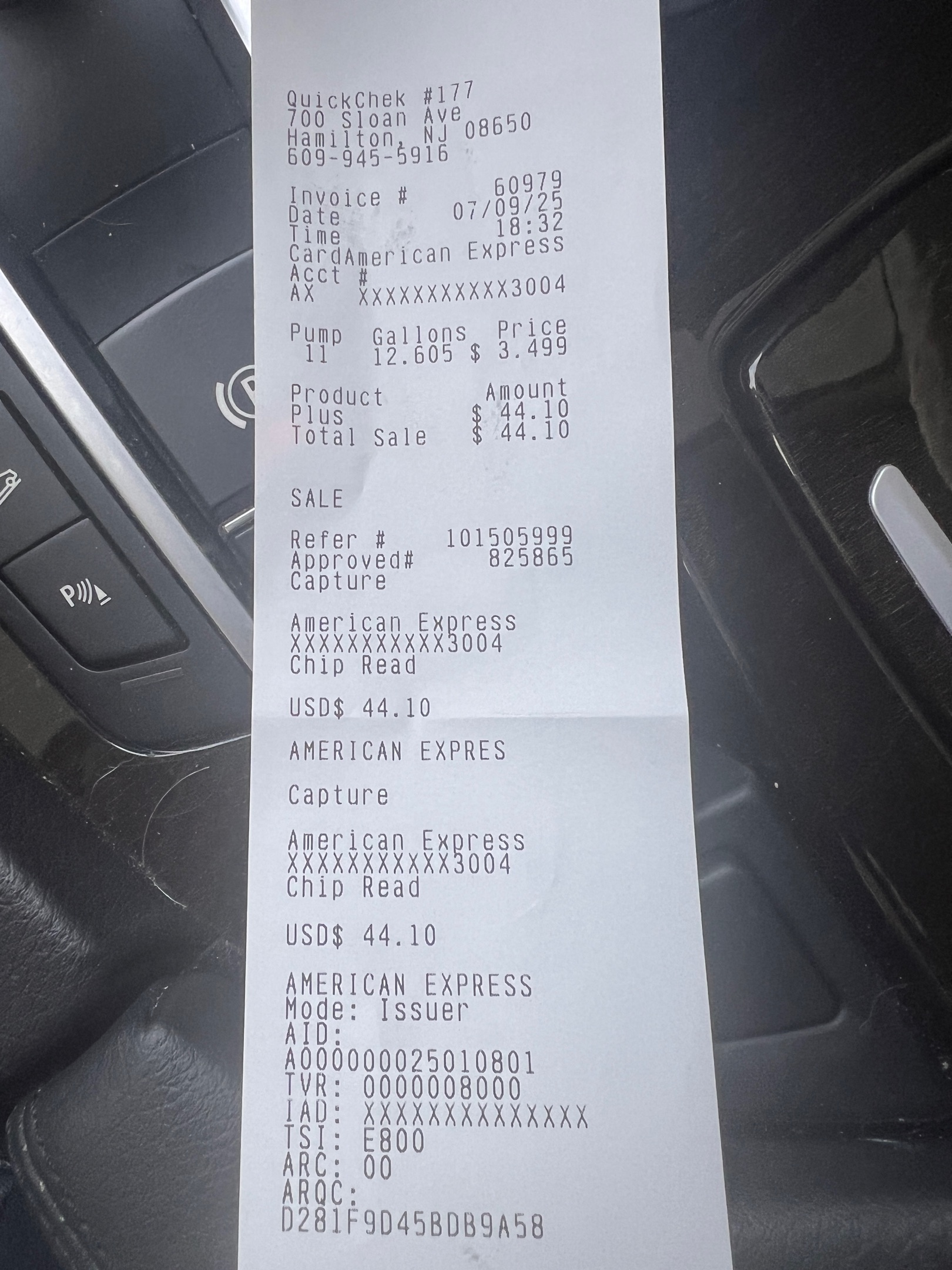 $44.00Fuel fill-up
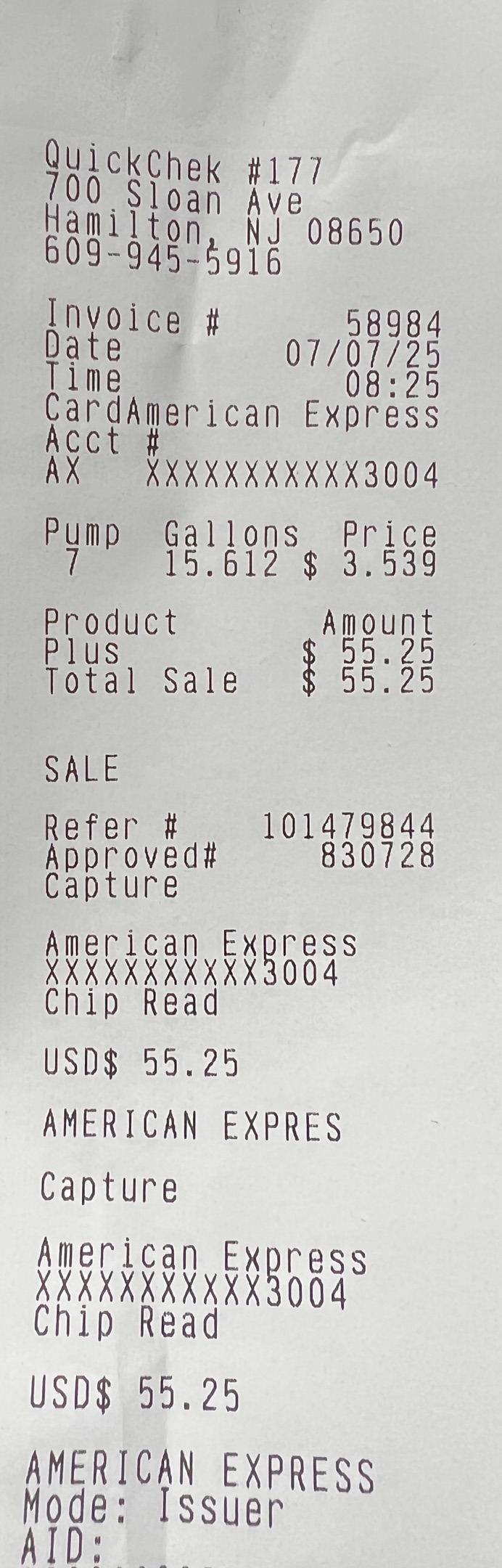 $55.00Fuel fill-up
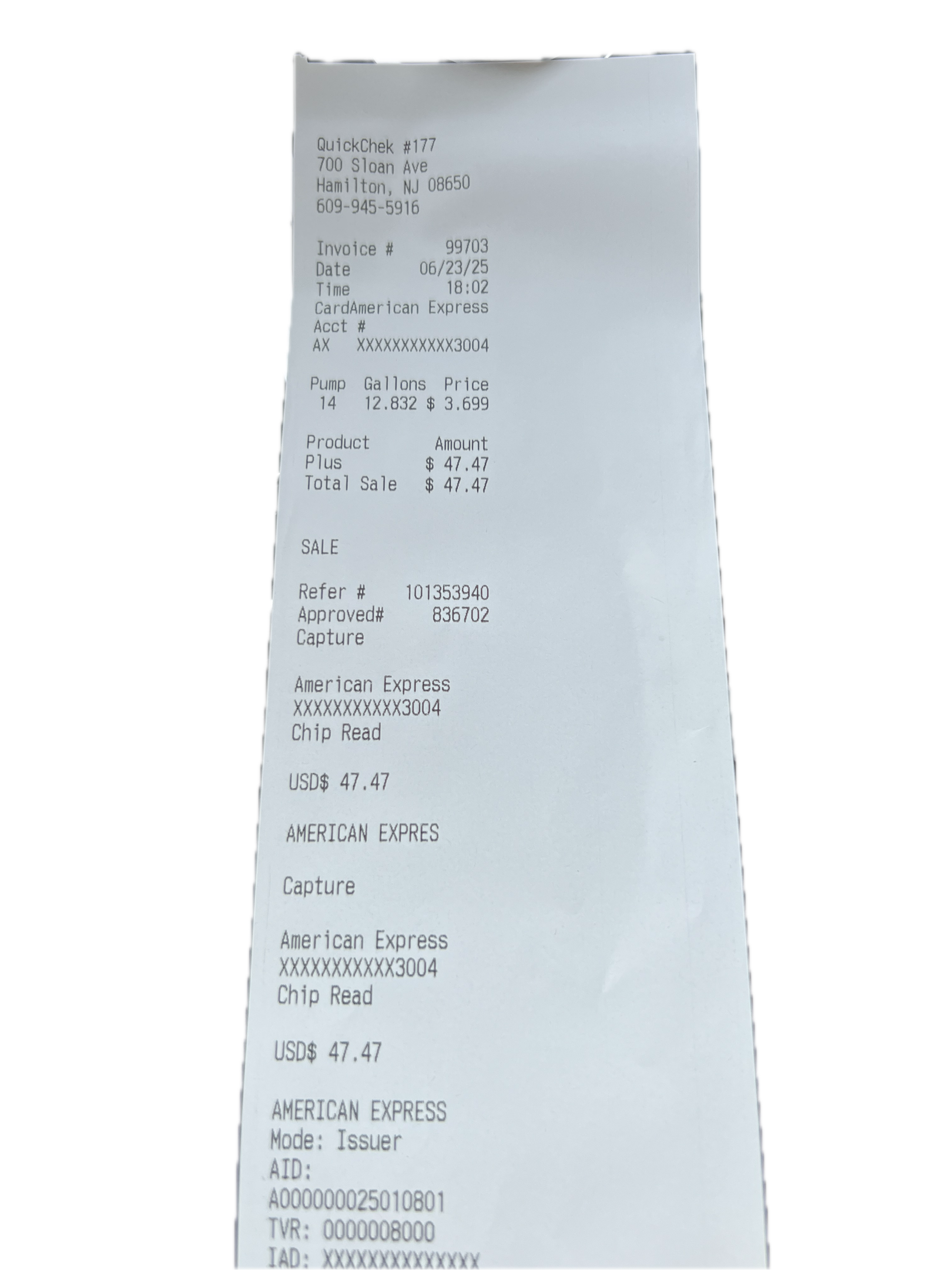 $56.75Fuel fill-up
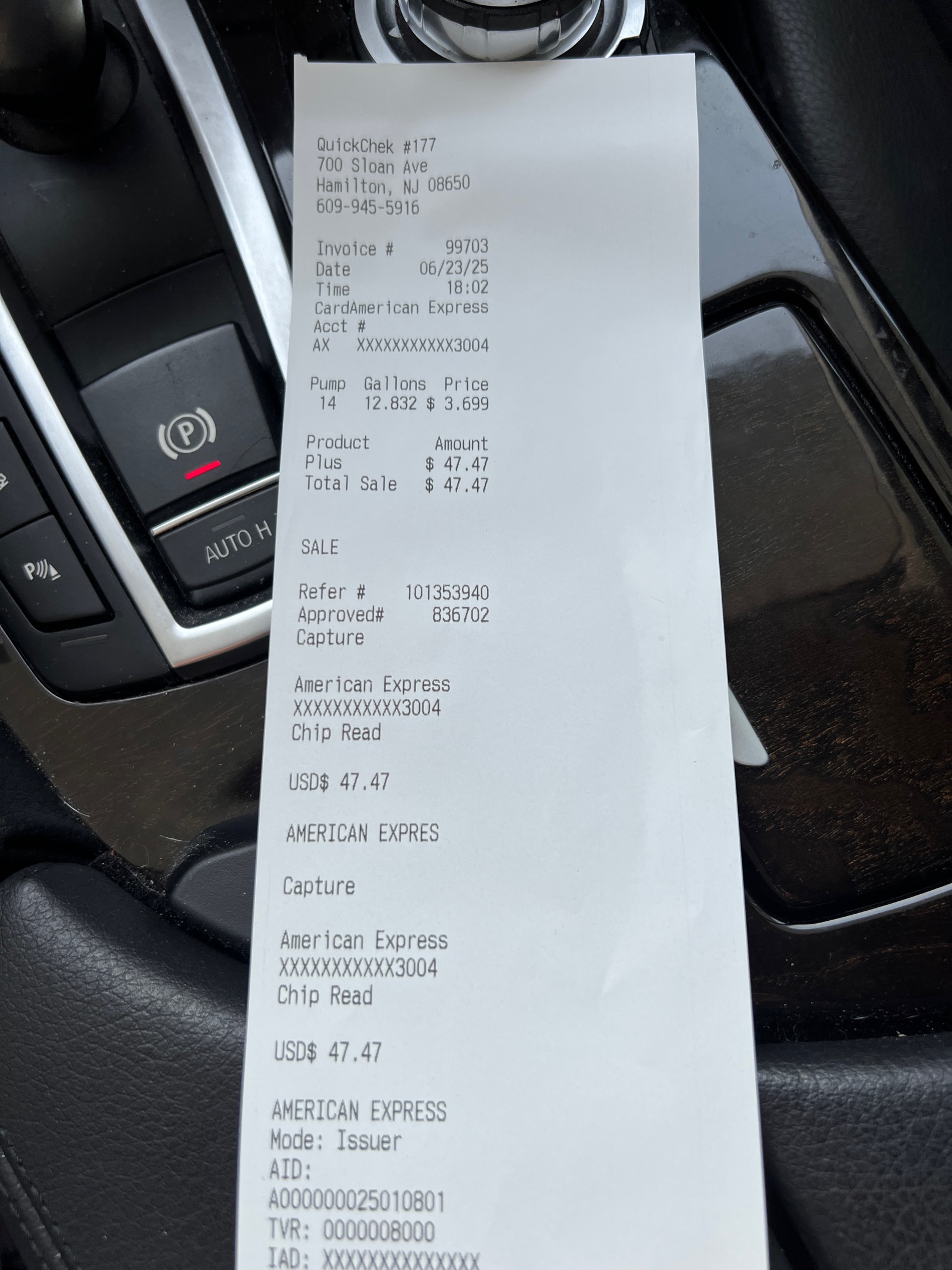 $47.47Fuel fill-up
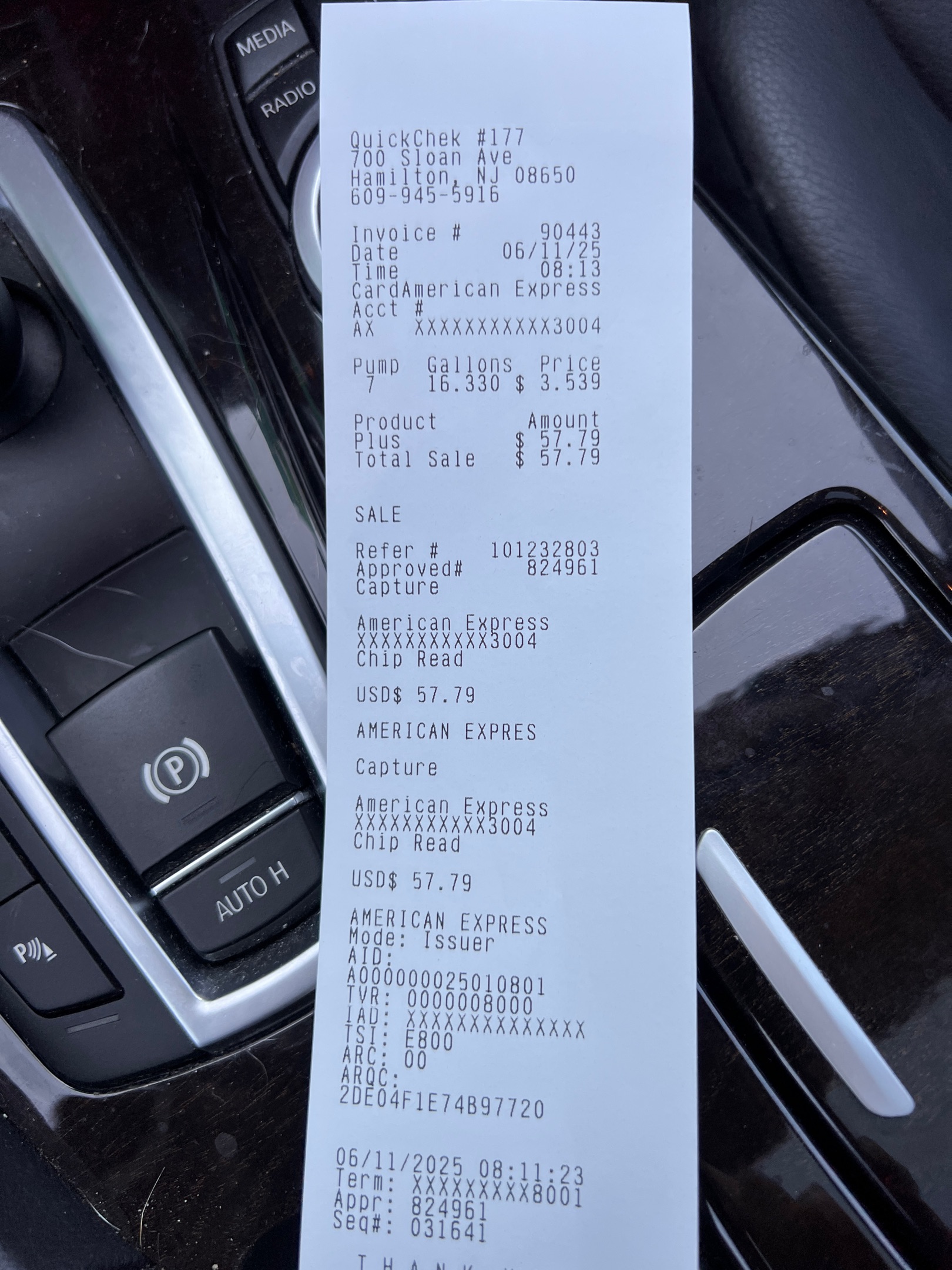 $57.00Fuel fill-up
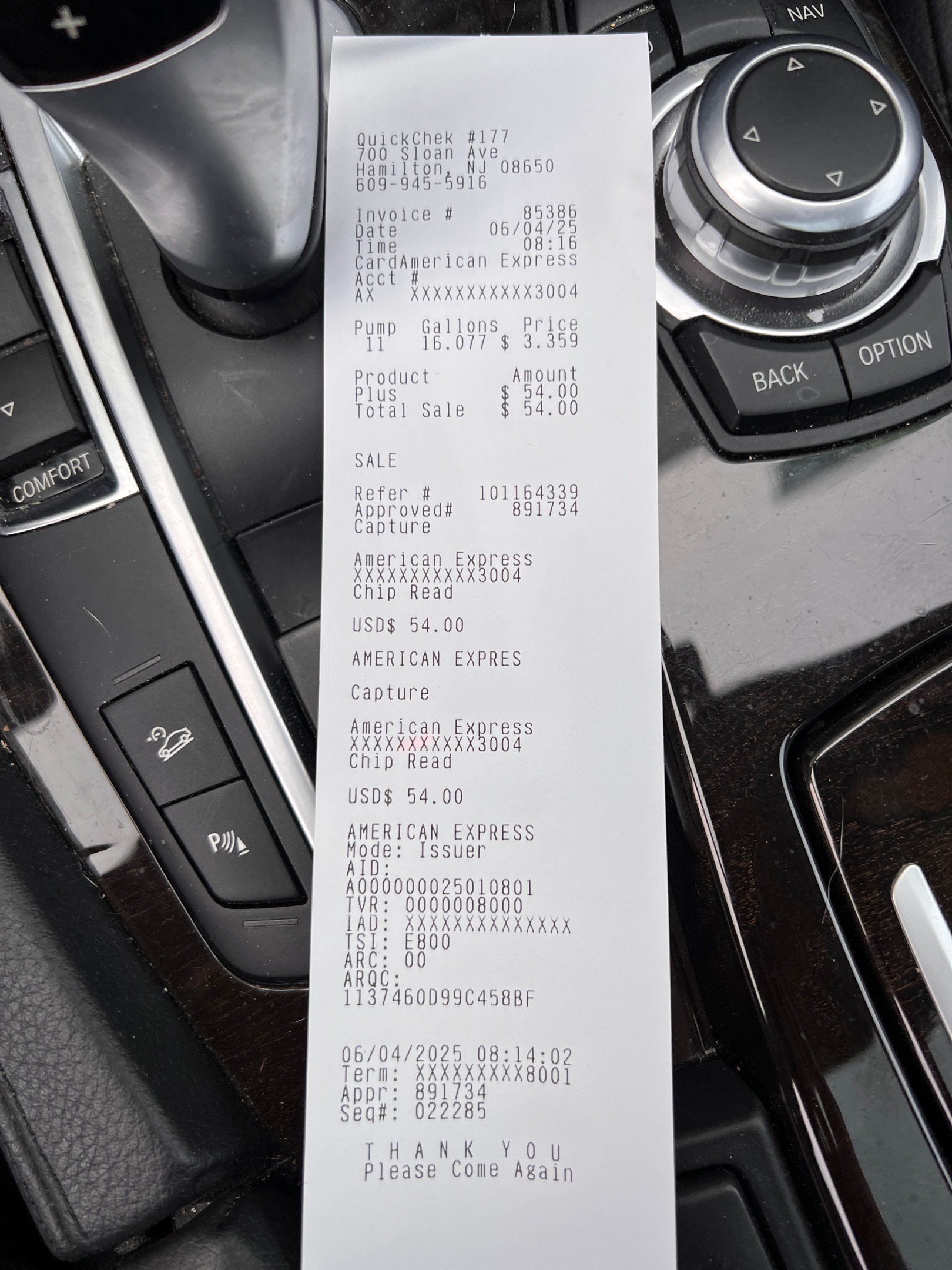 $54.00Fuel fill-up
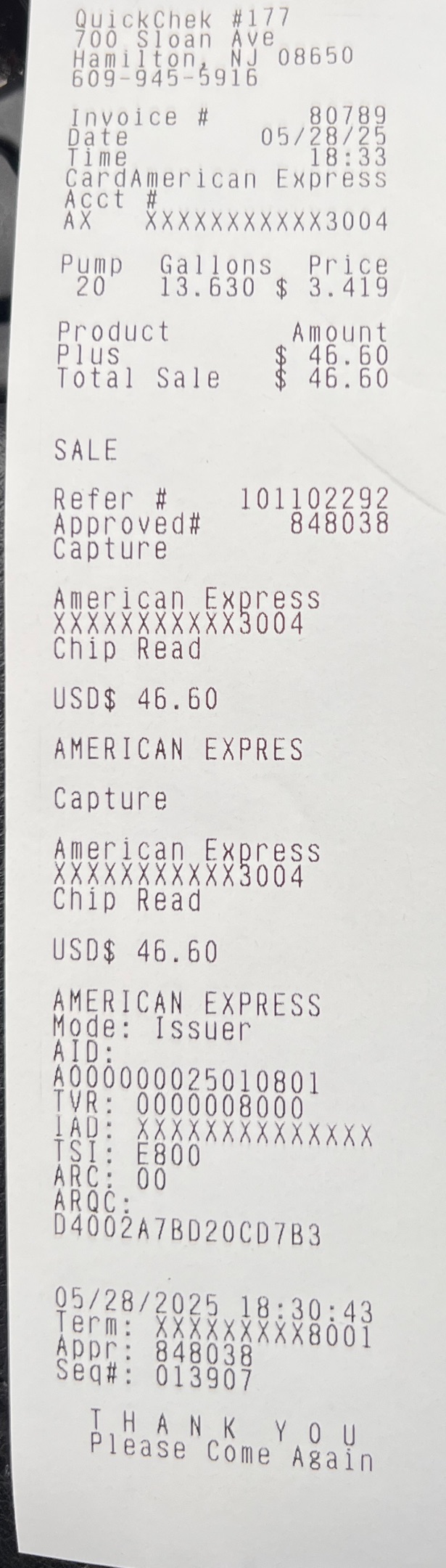 $46.60Fuel fill-up
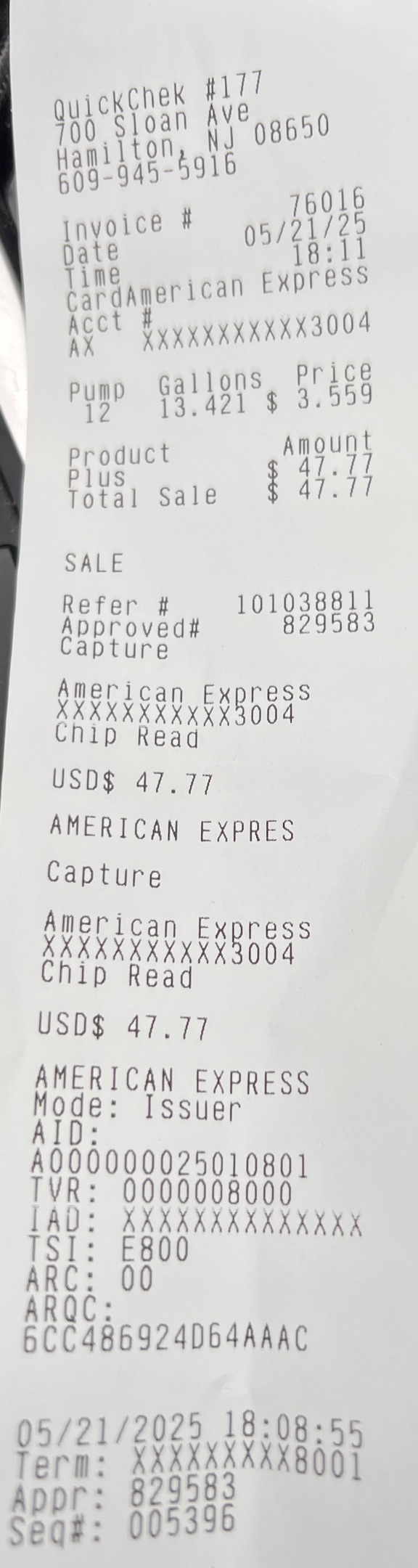 $47.77Fuel fill-up
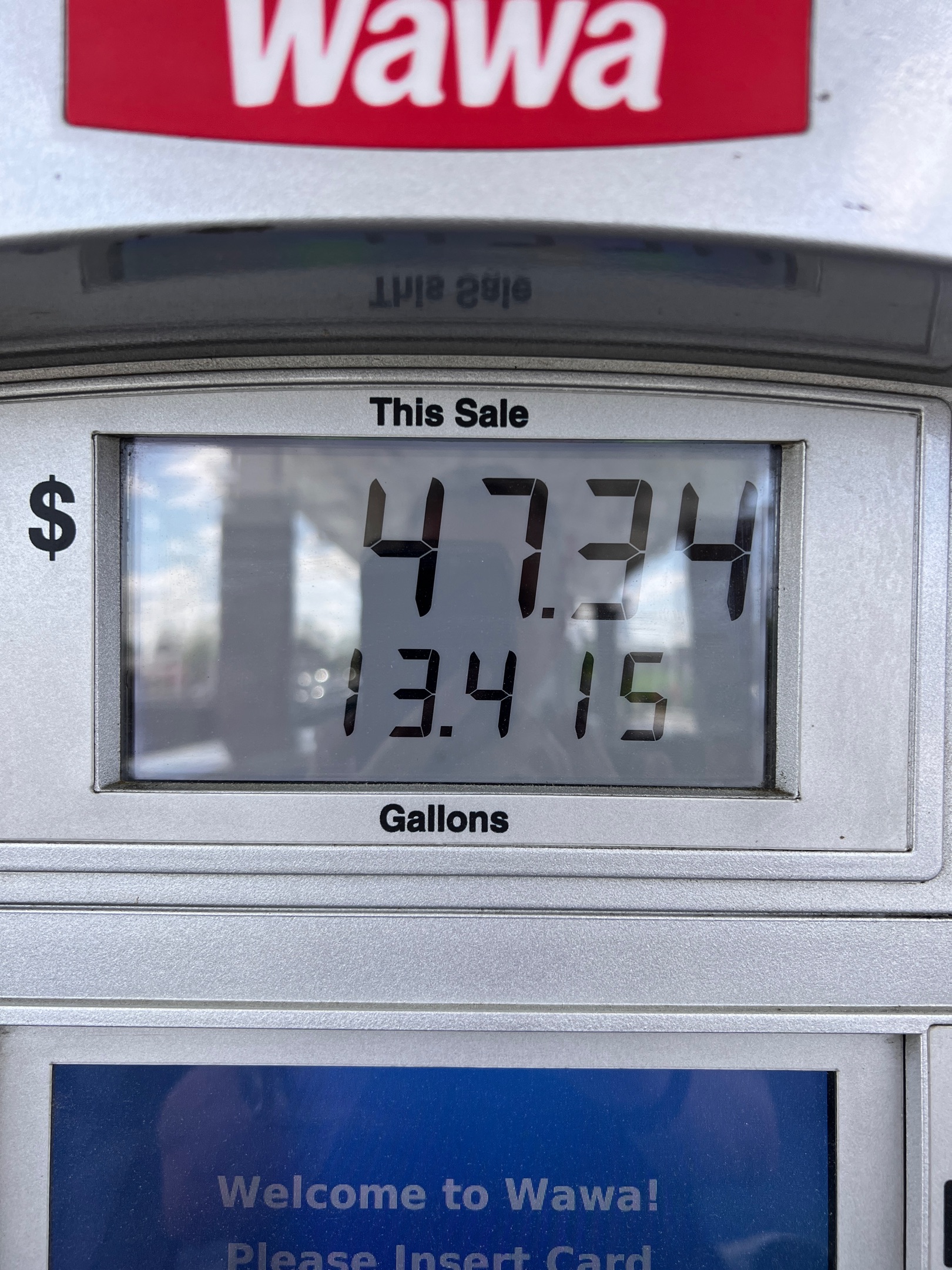 $47.43Fuel fill-up
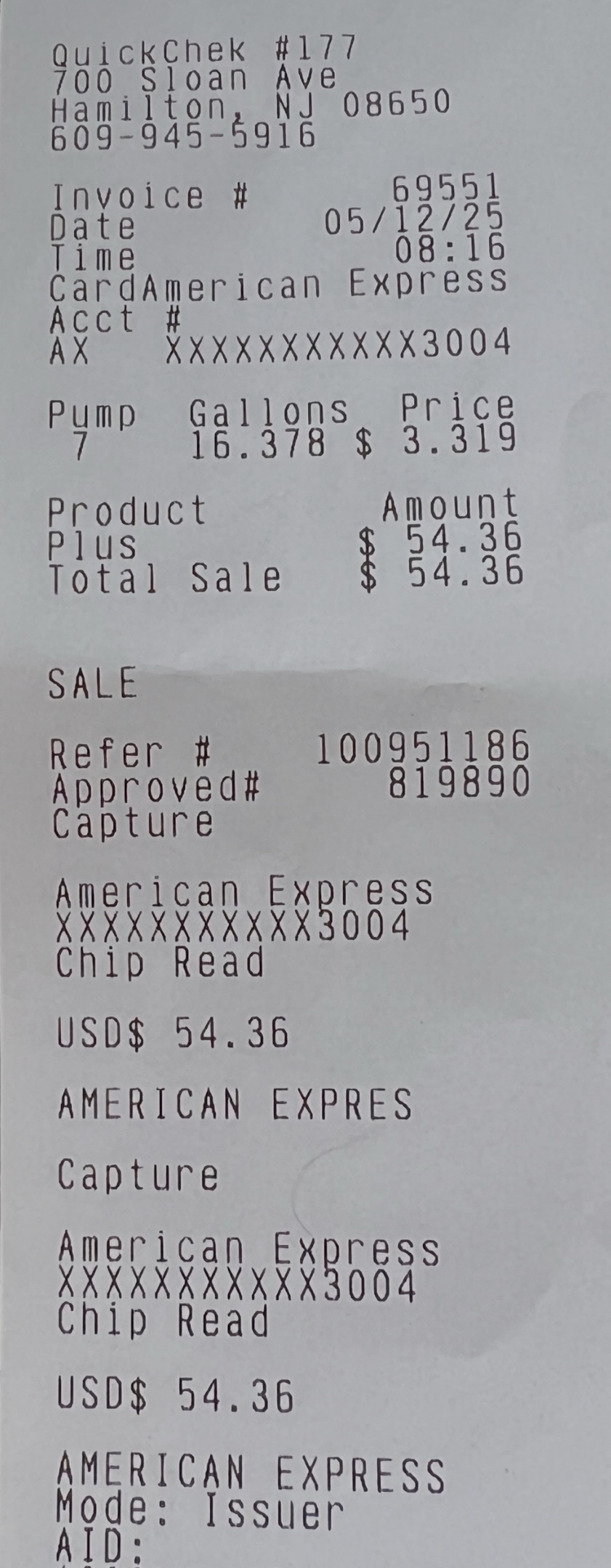 $54.00Fuel fill-up
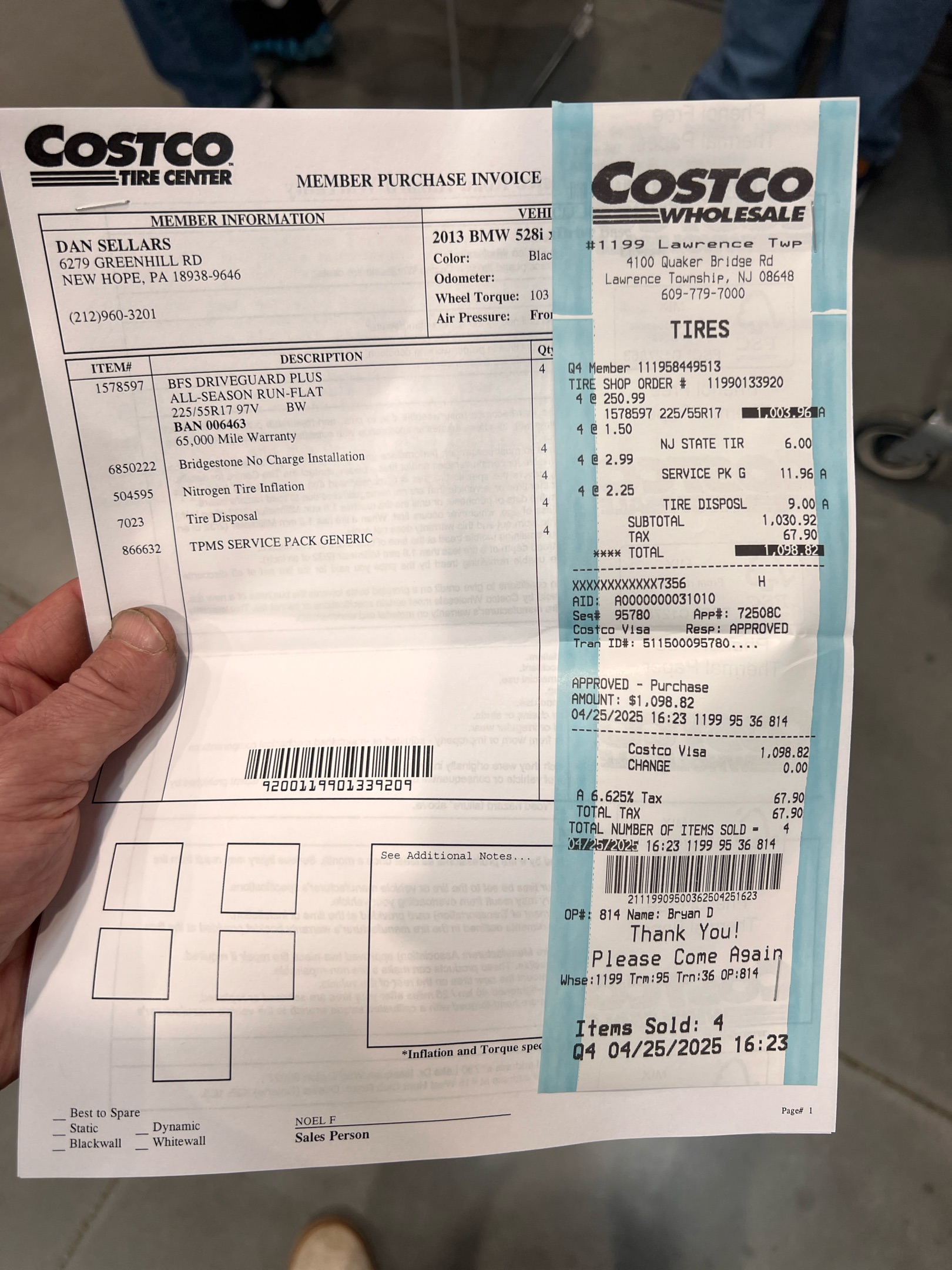 $1,098.92Costco tire
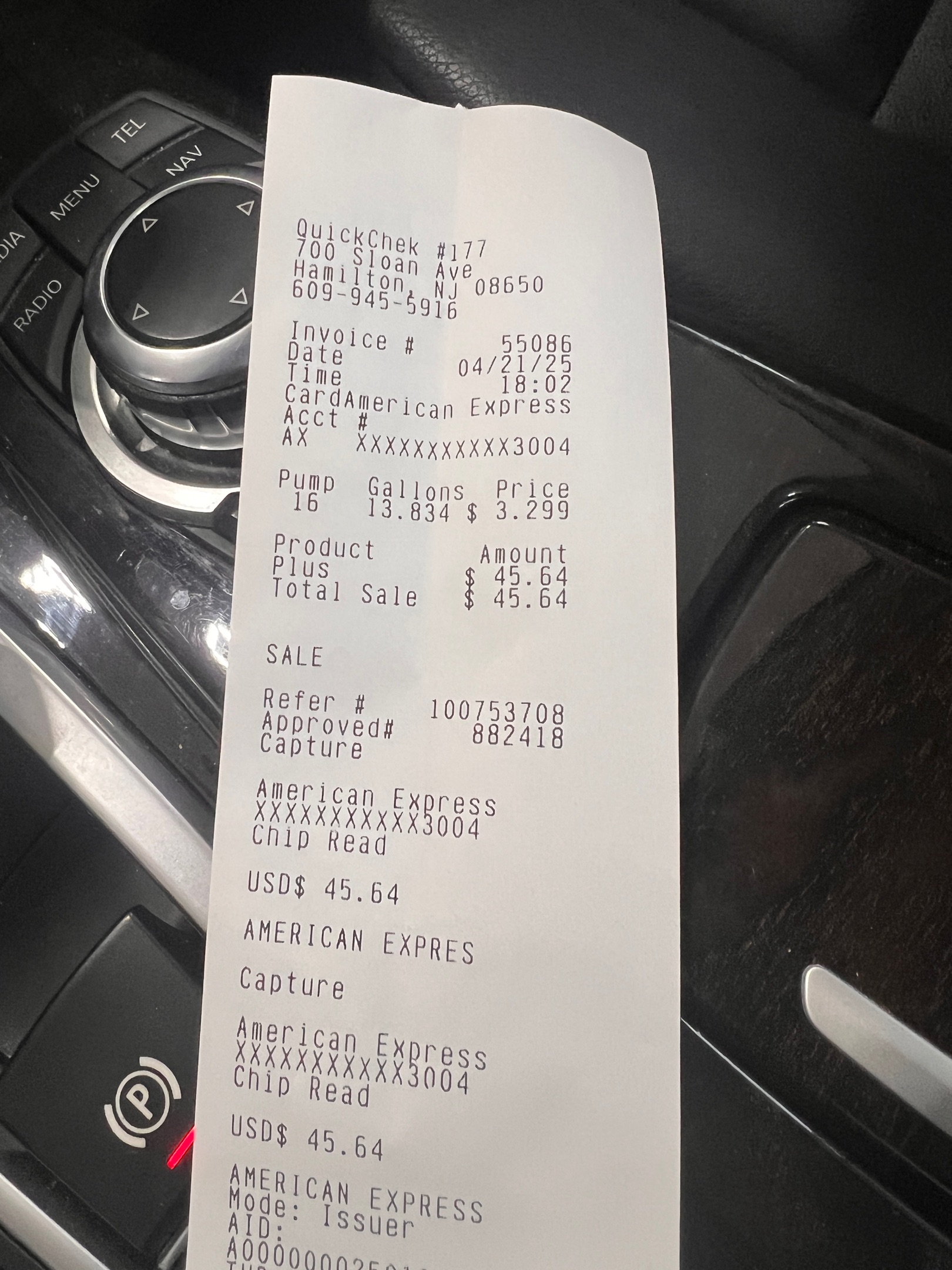 $45.00Fuel fill-up
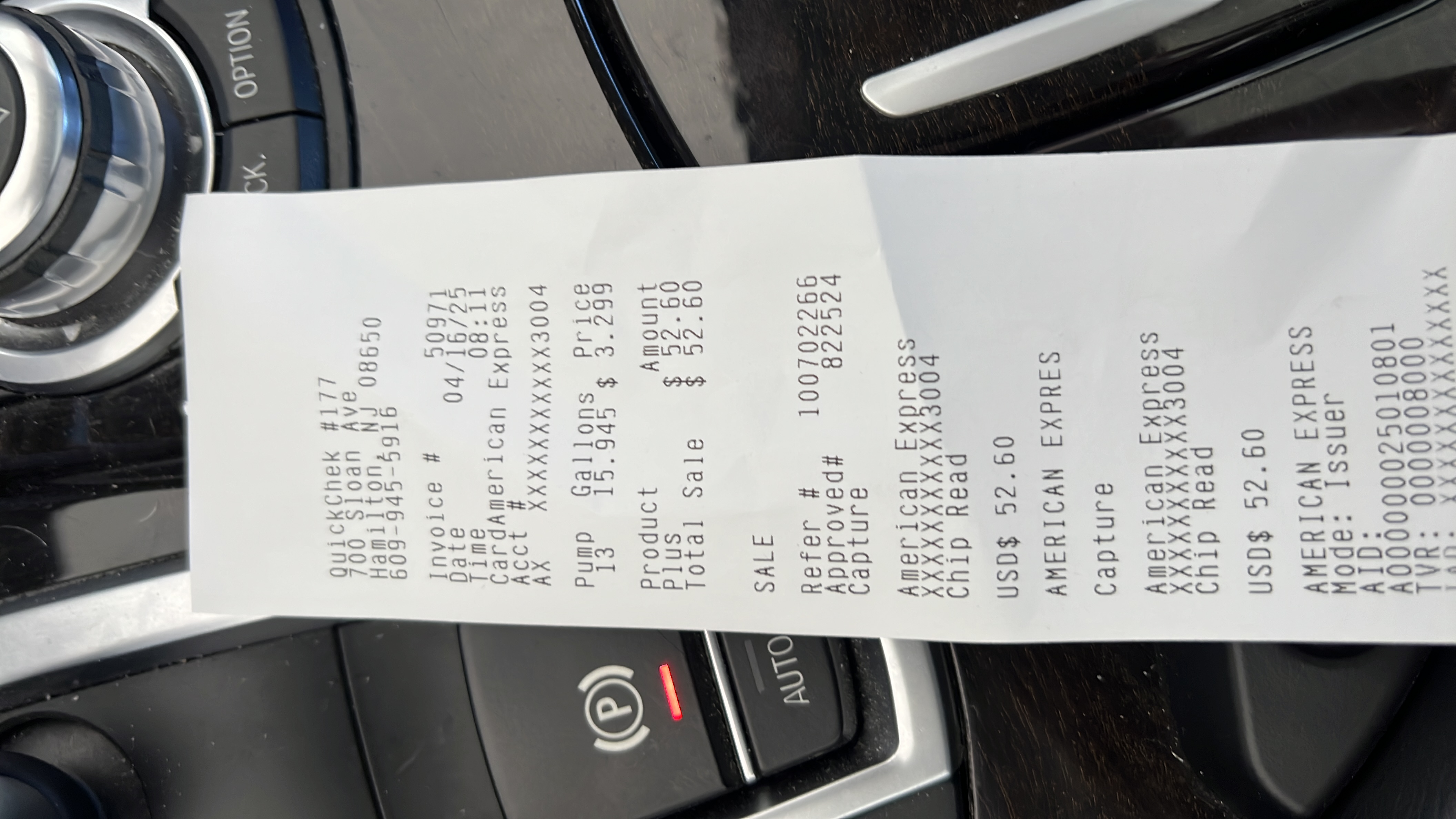 $52.60Fuel fill-up
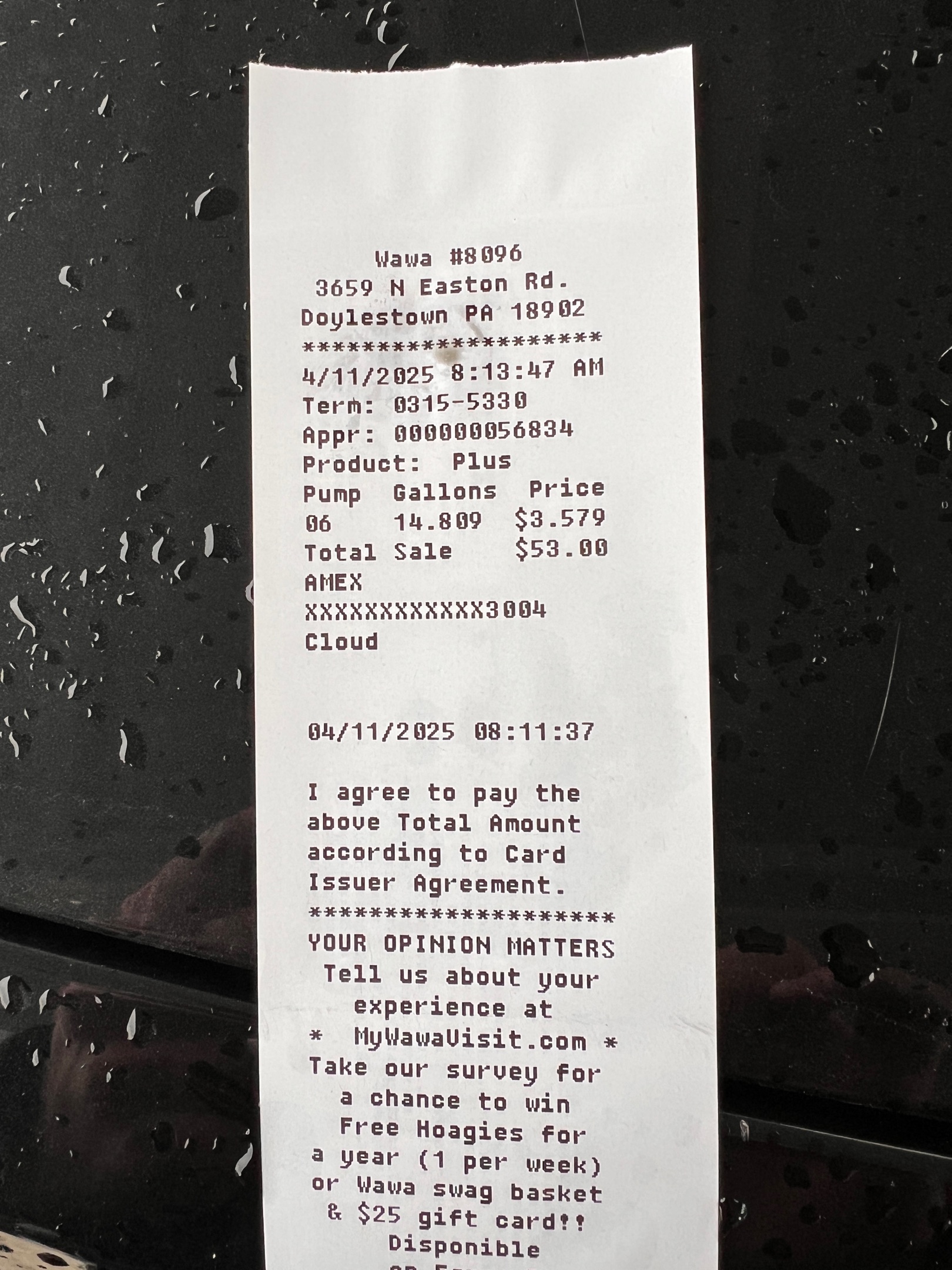 $53.00Fuel fill-up
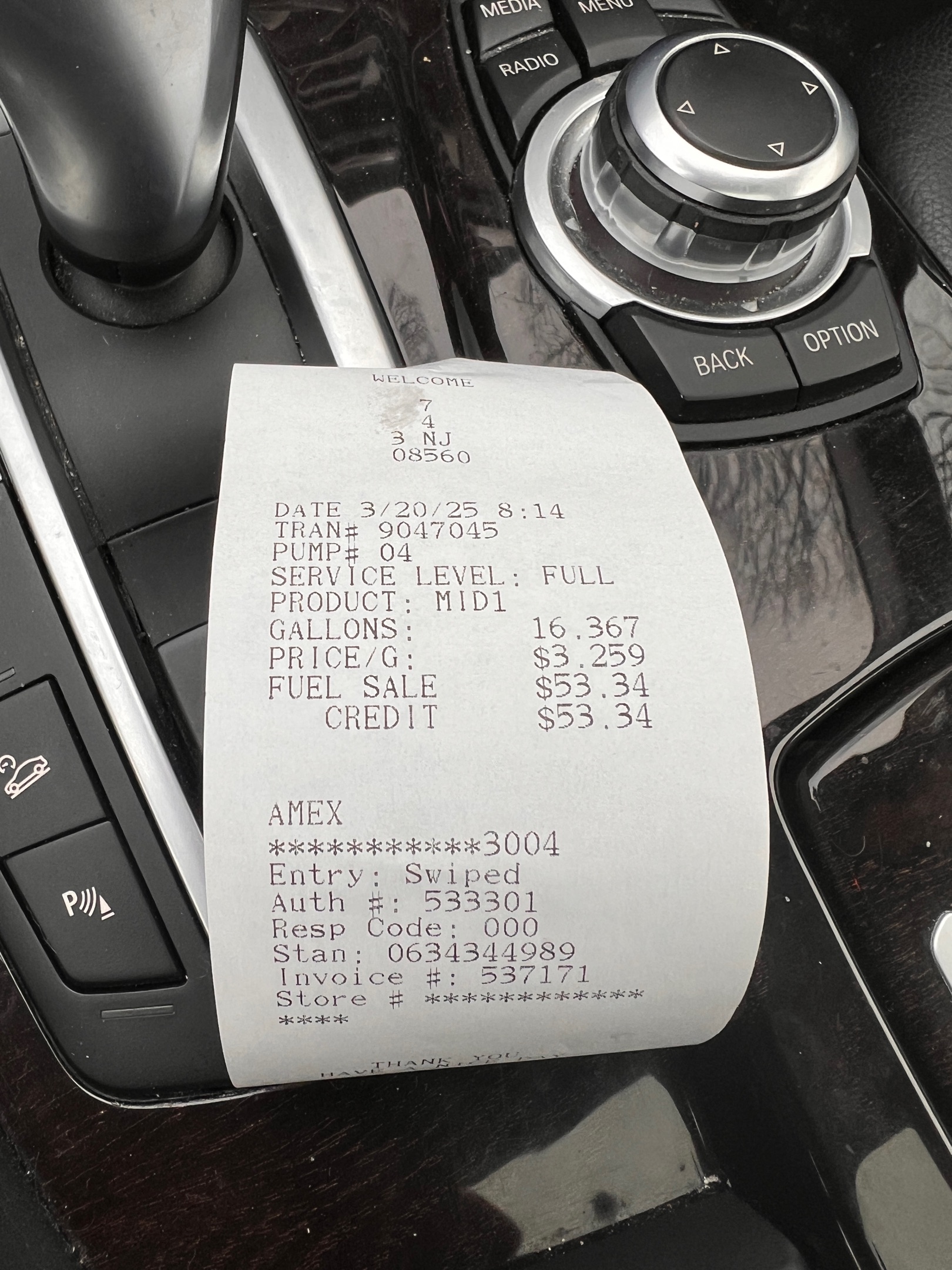 $53.34Fuel fill-up
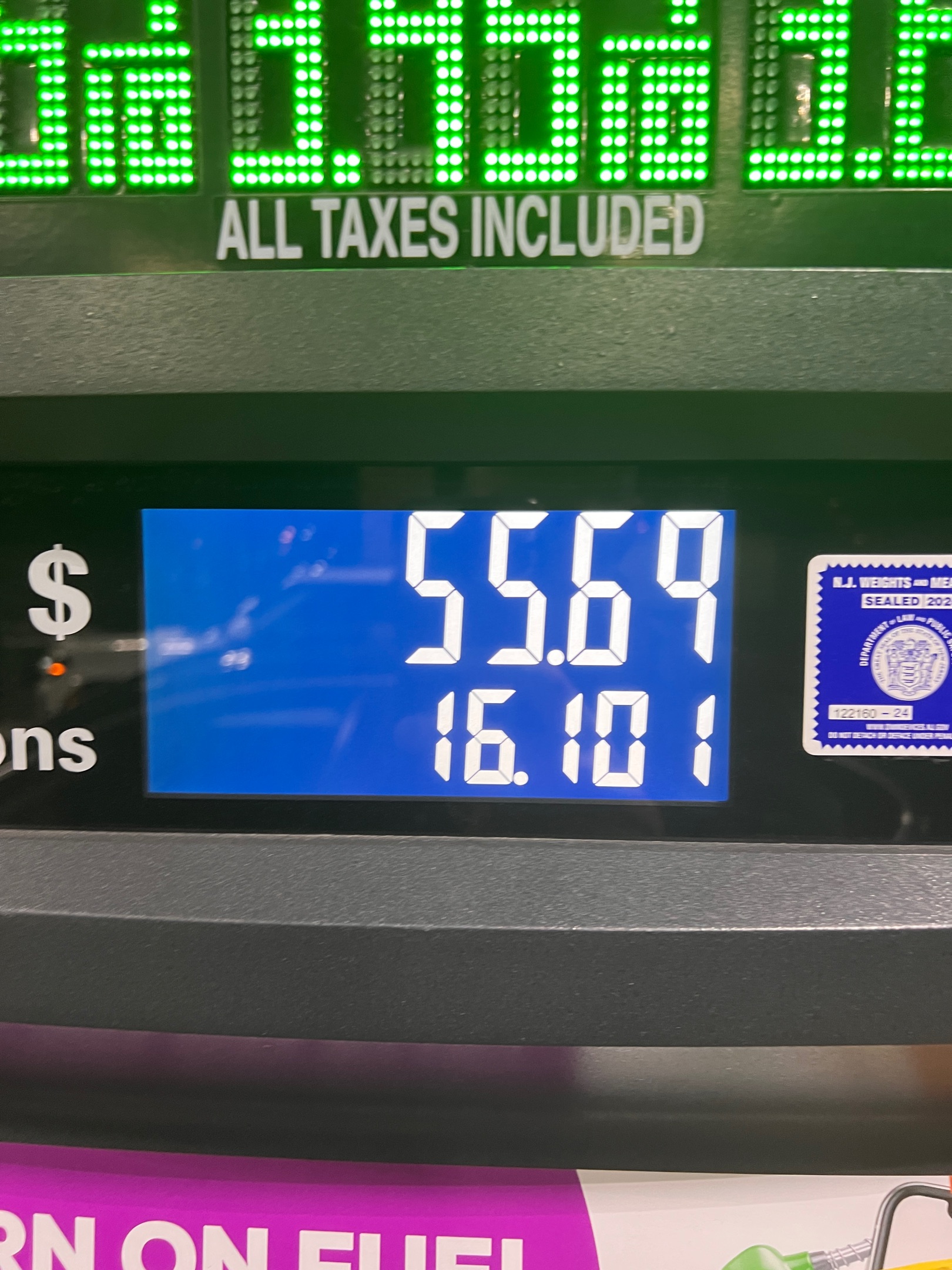 $55.69Fuel fill-up
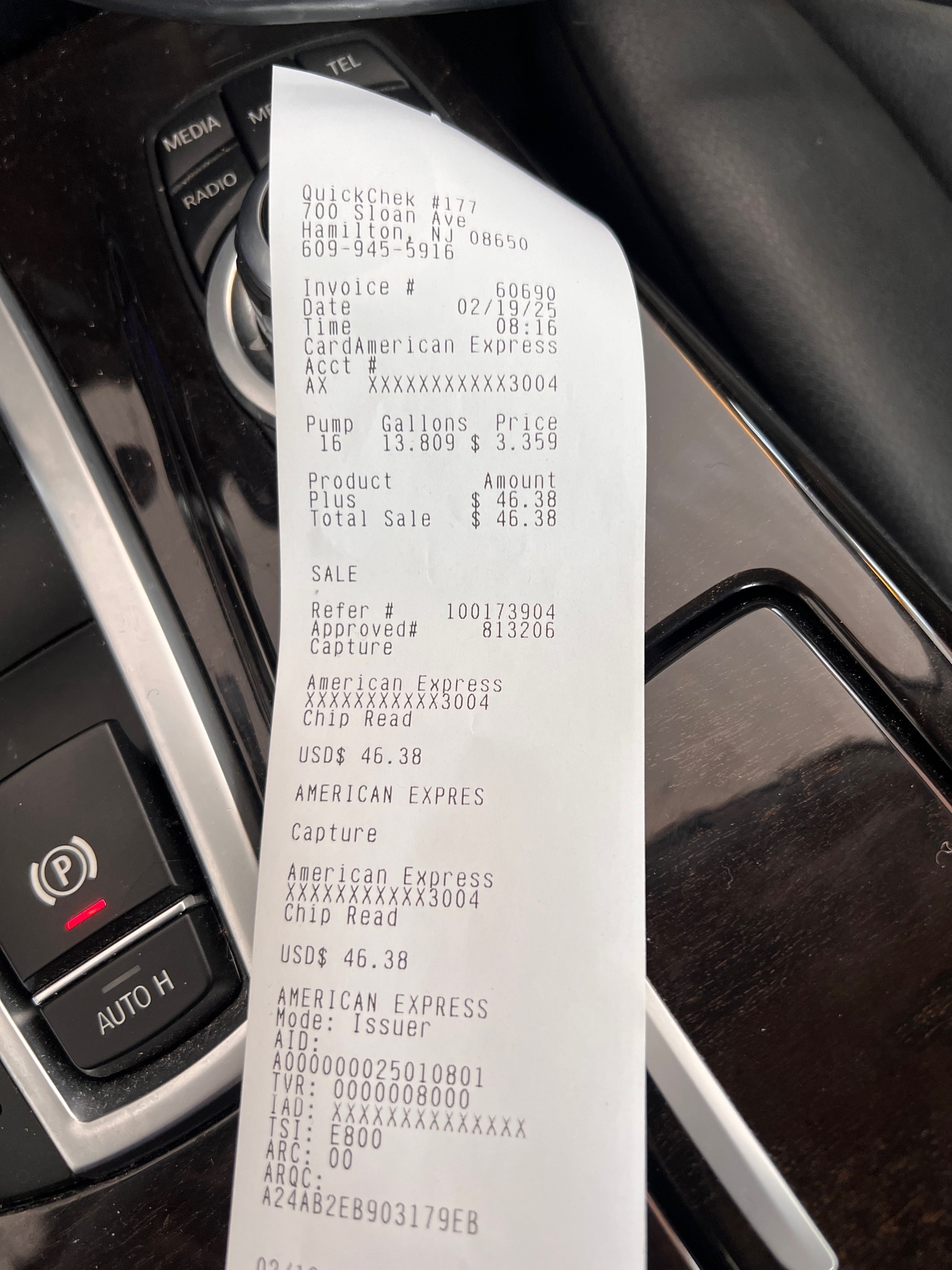 $46.38Fuel fill-up
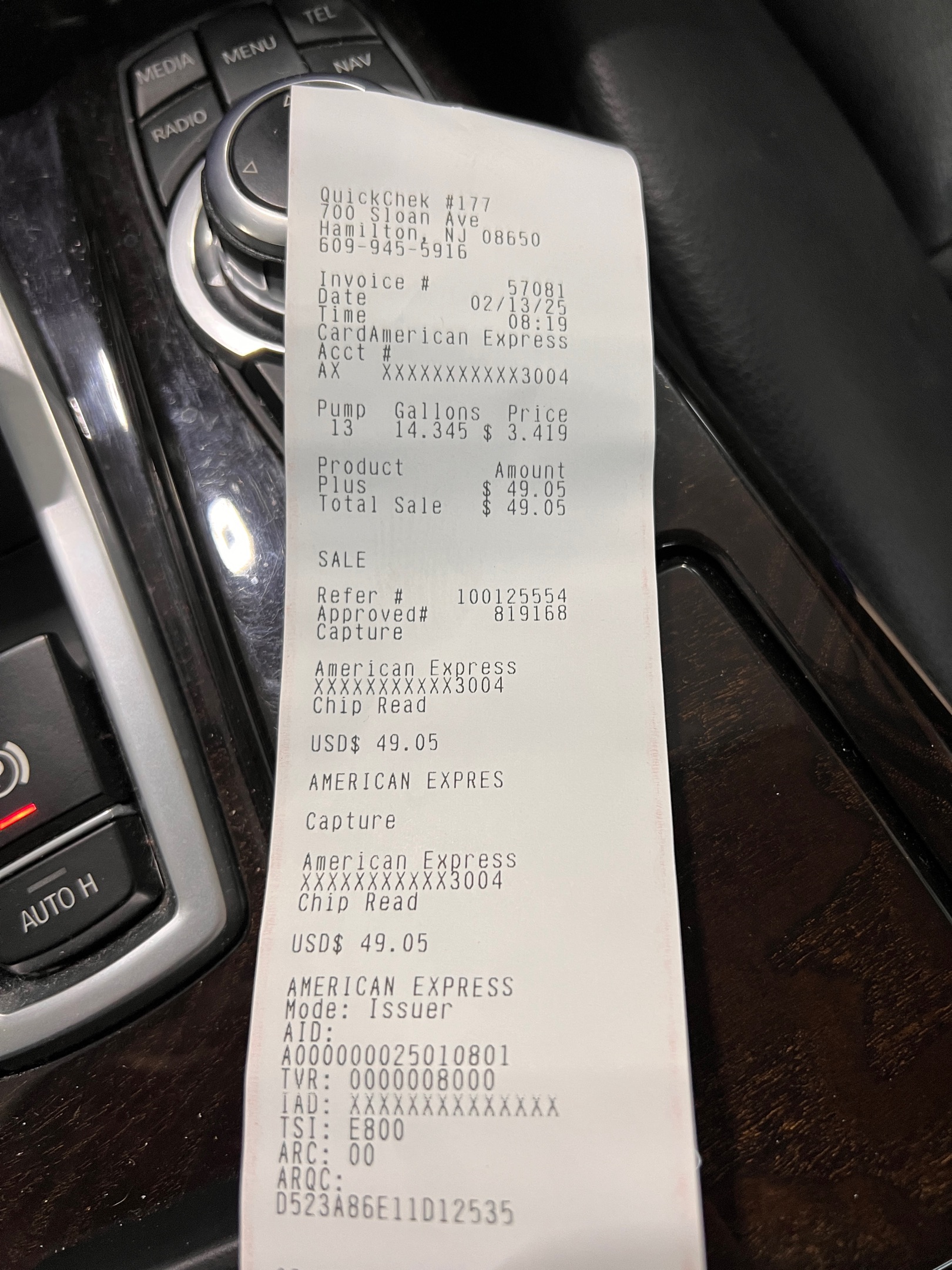 $49.00Fuel fill-up
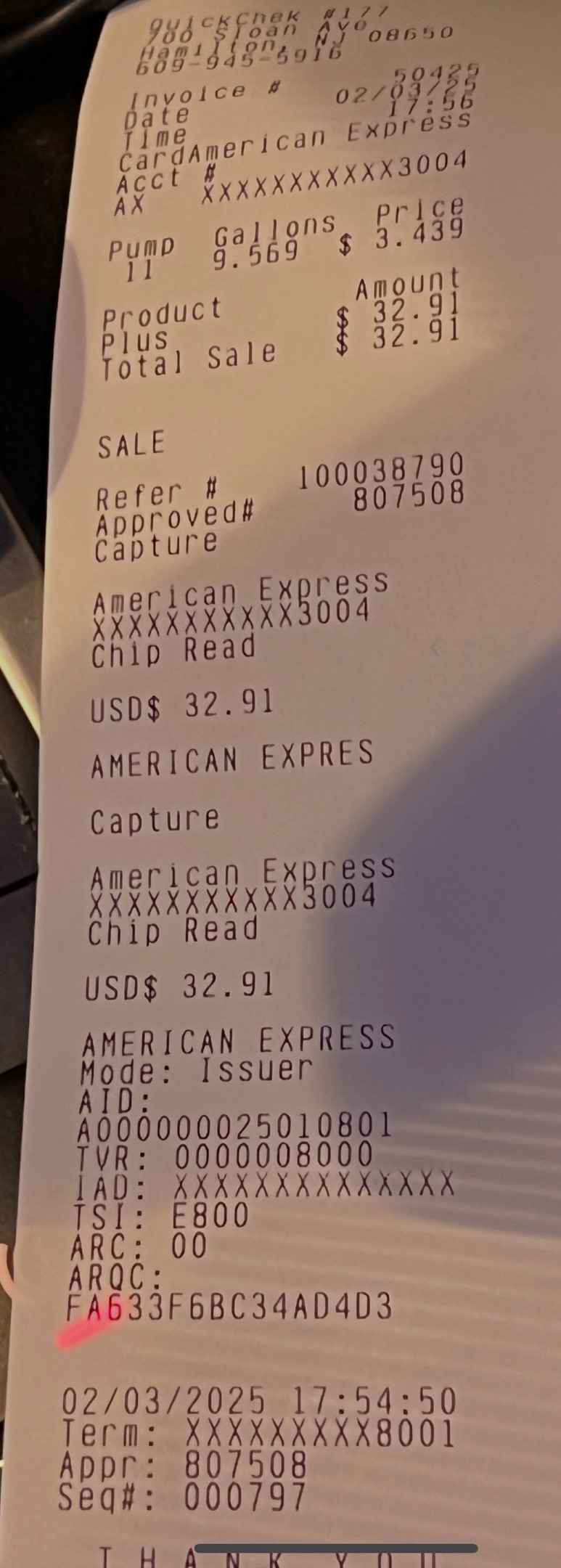 $33.00Fuel fill-up
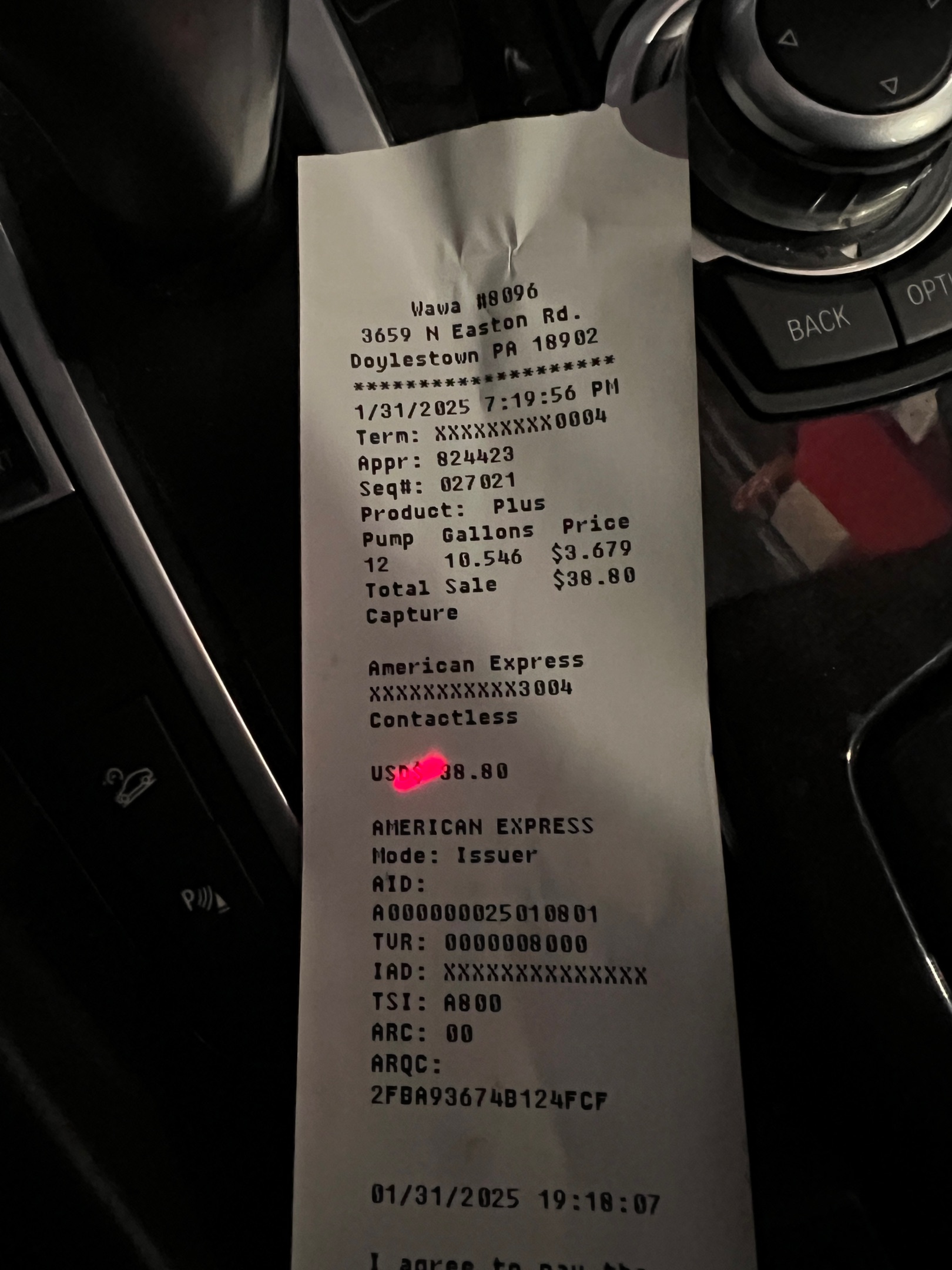 $39.00Fuel fill-up
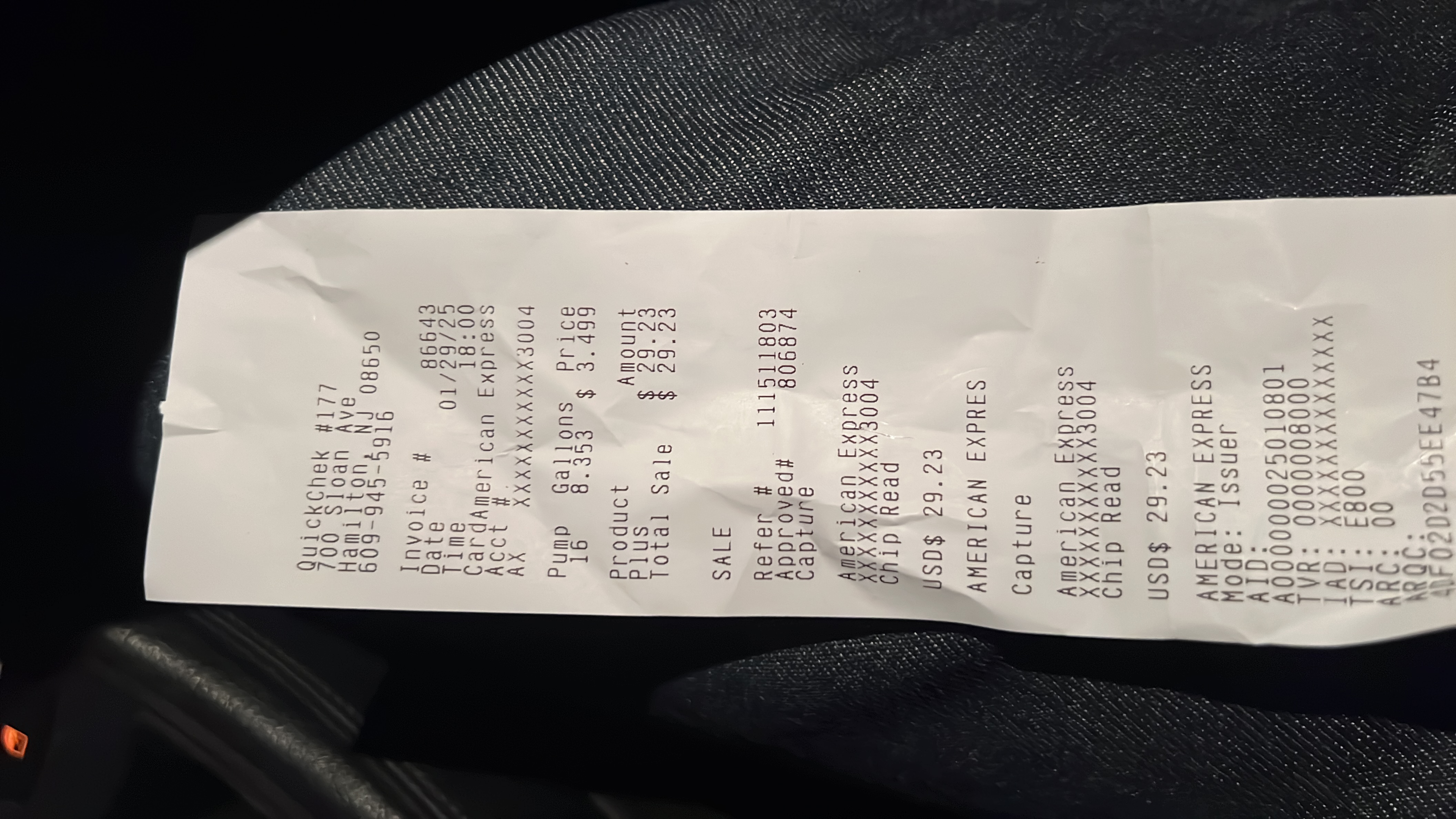 $30.00Fuel fill-up
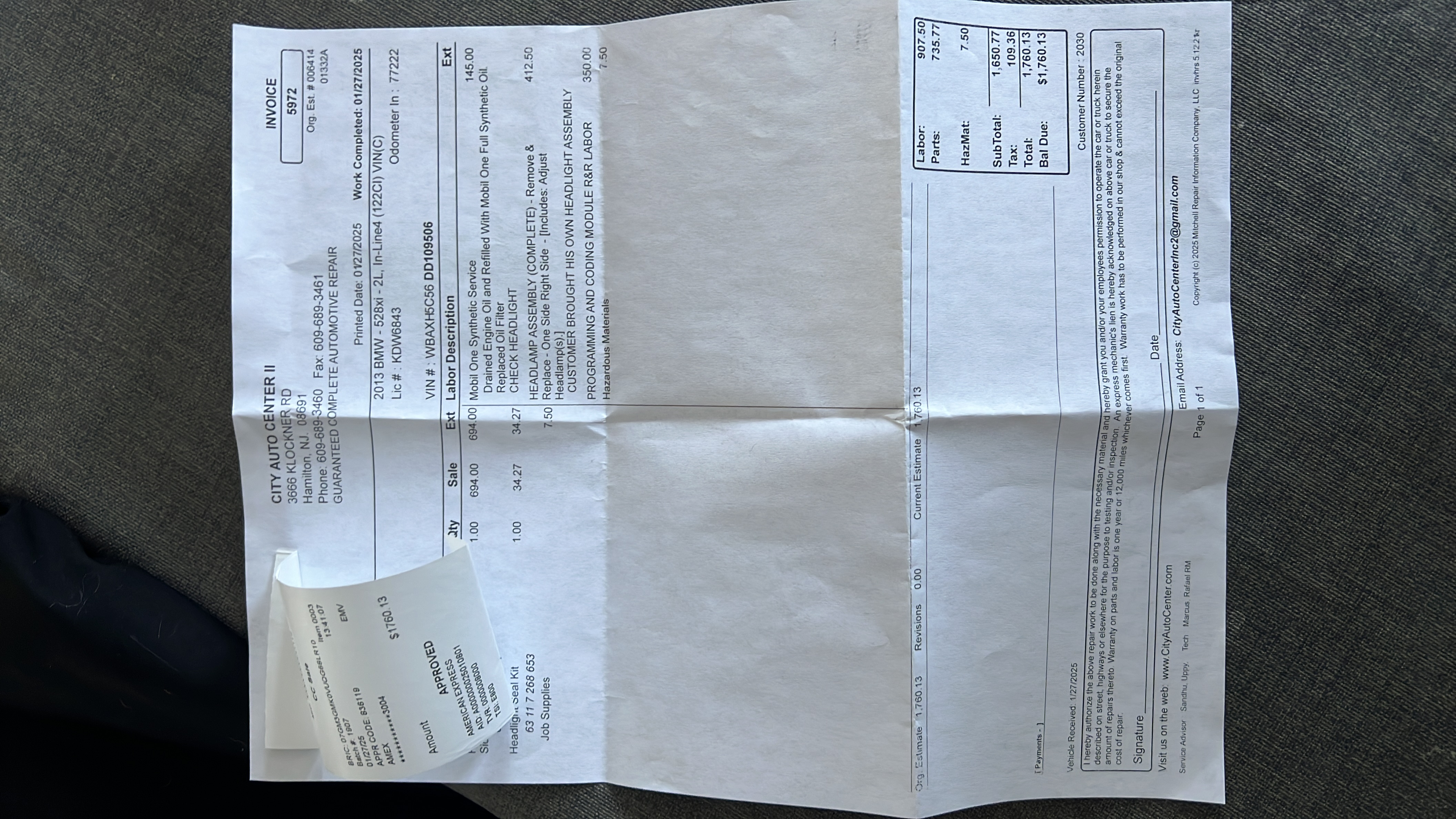 $1,760.00Lights
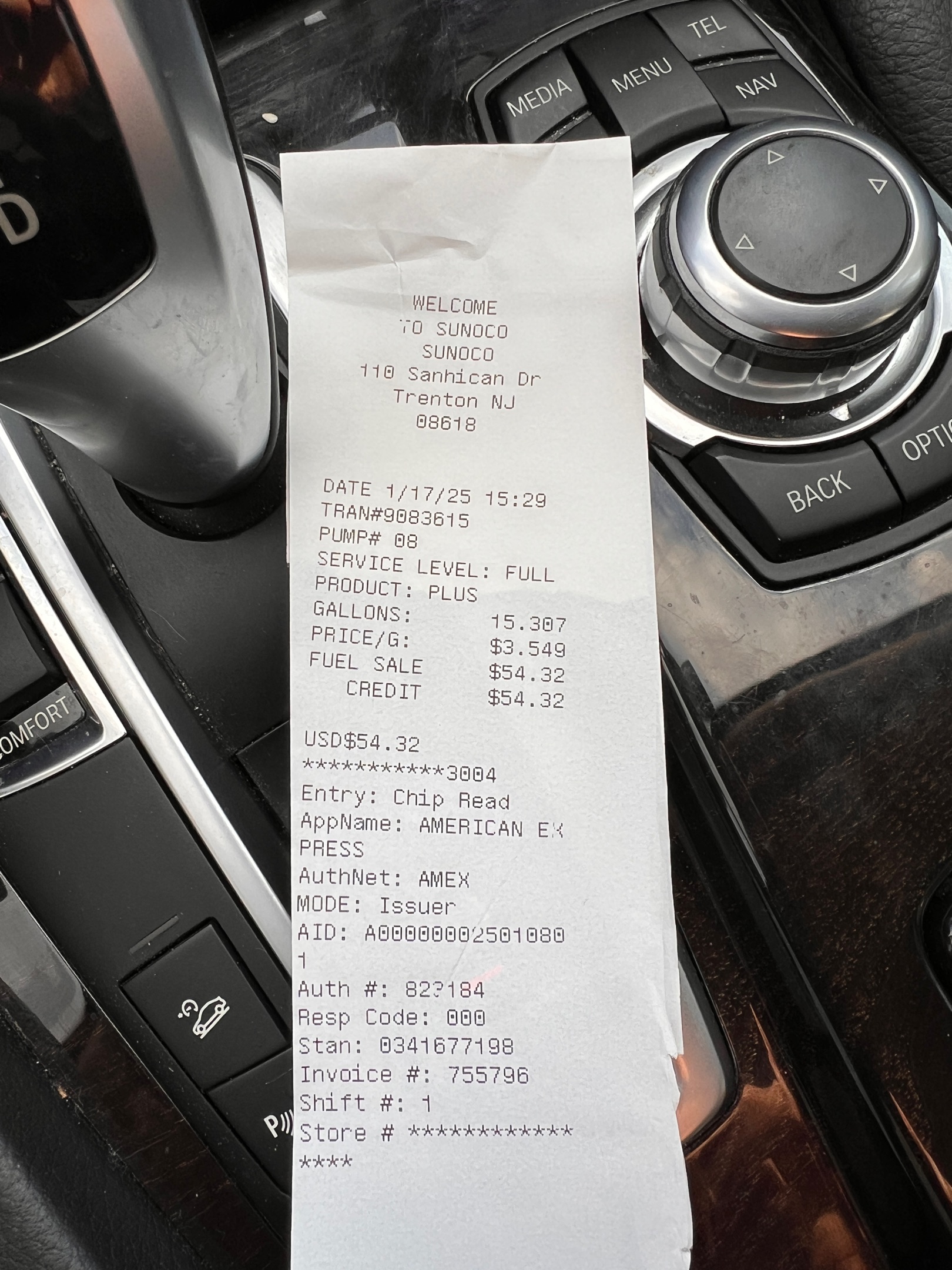 $54.32Fuel fill-up
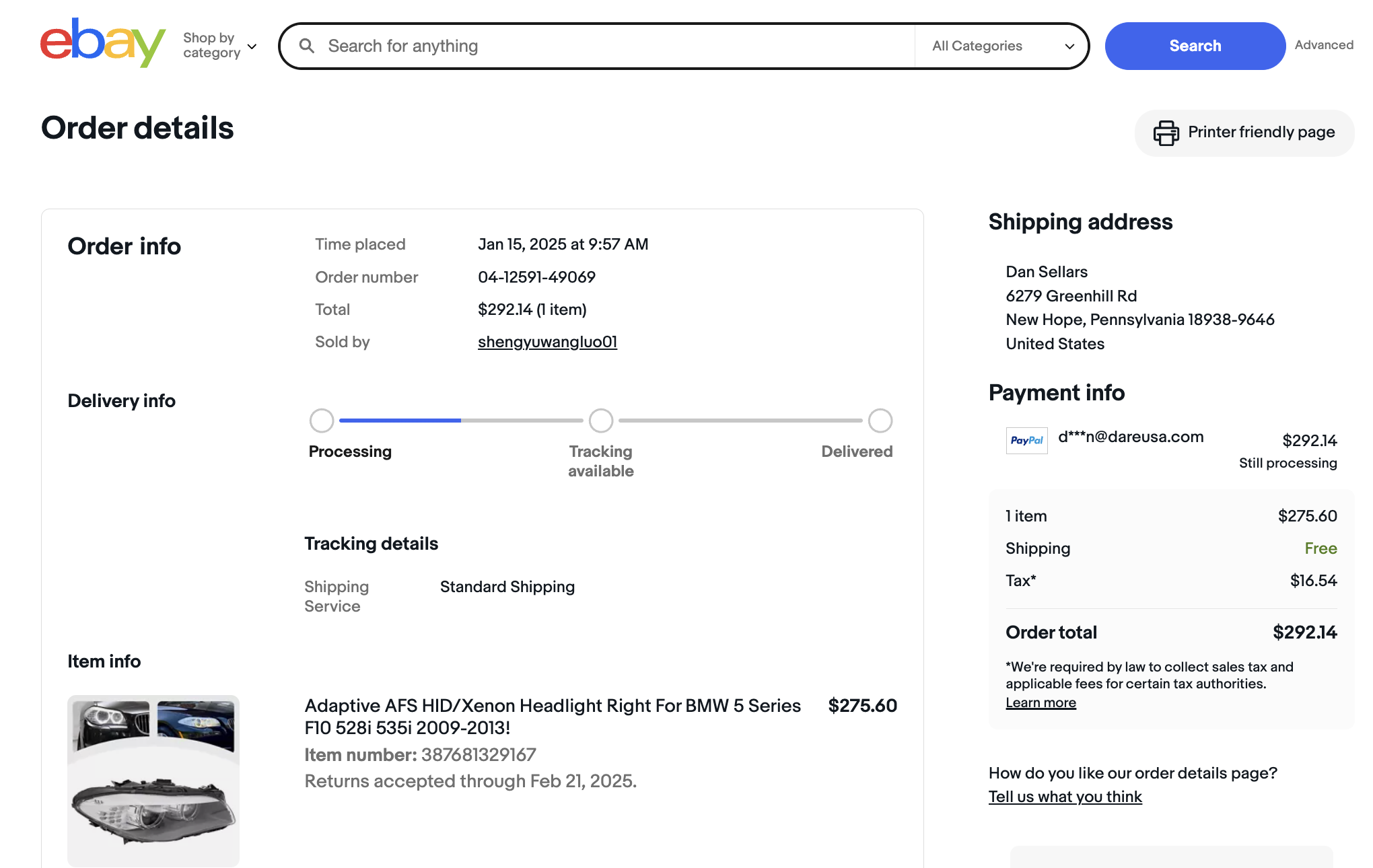 $292.14Front light replacement vi
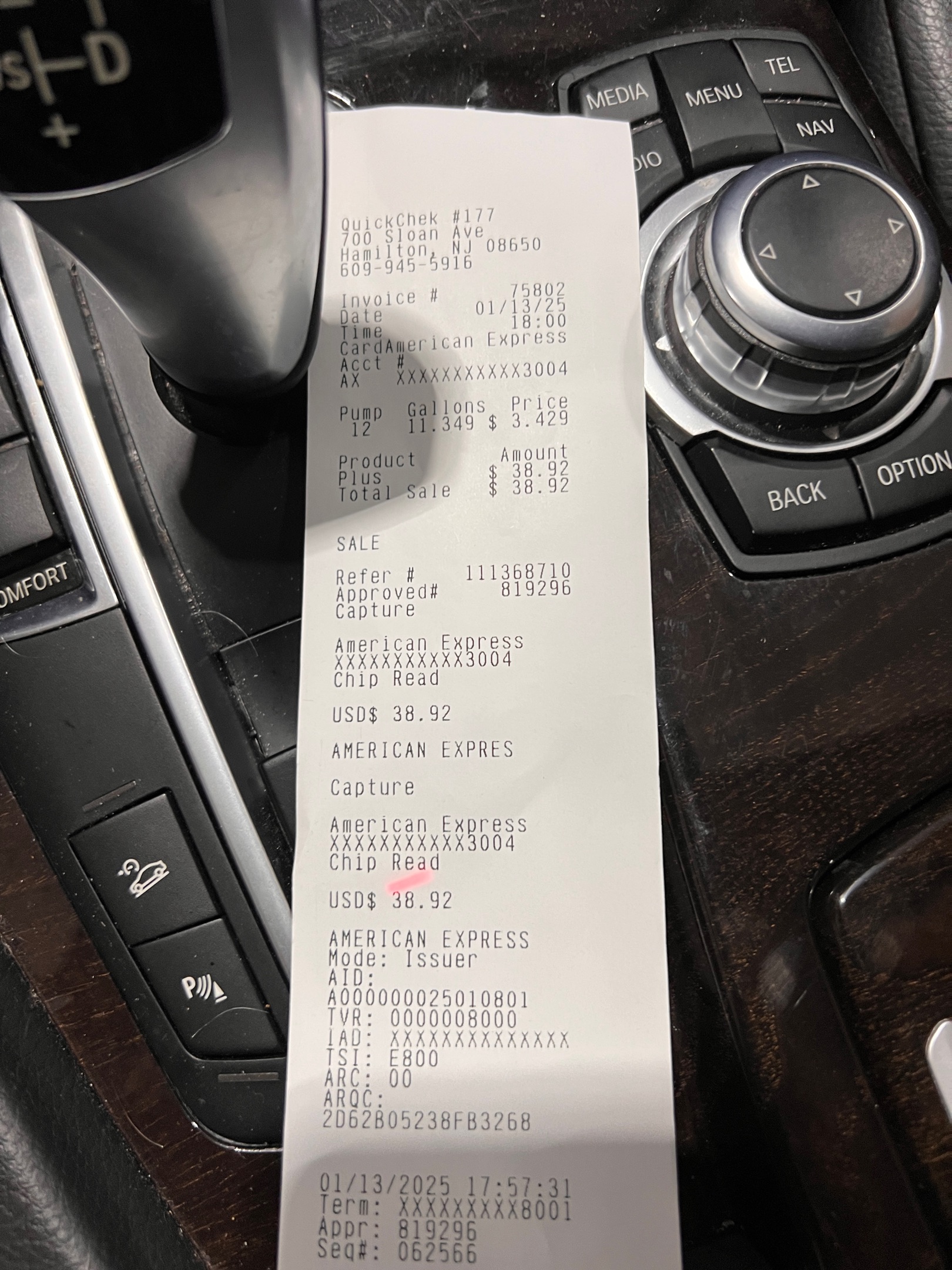 $39.00Fuel fill-up
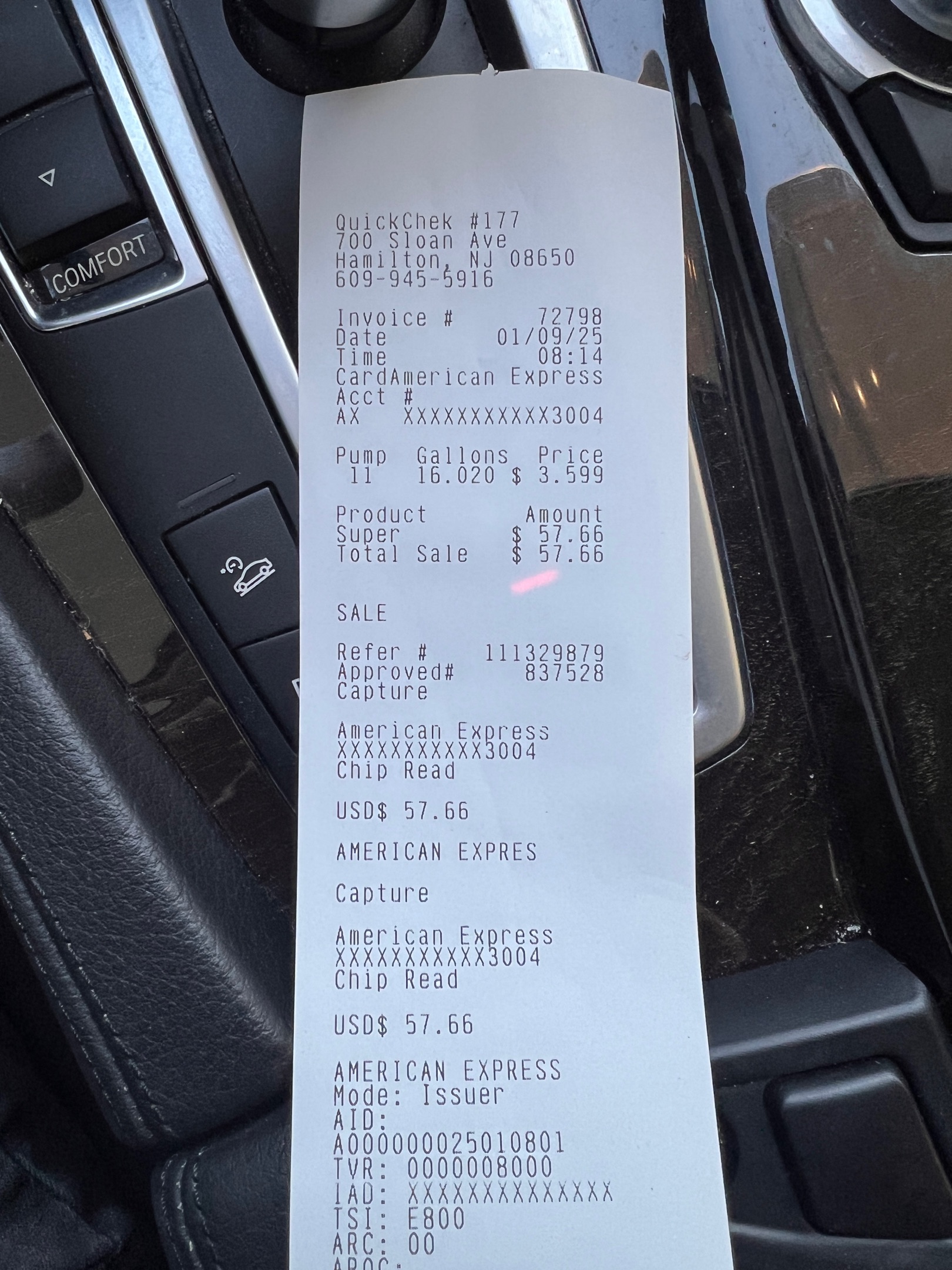 $58.00Fuel fill-up
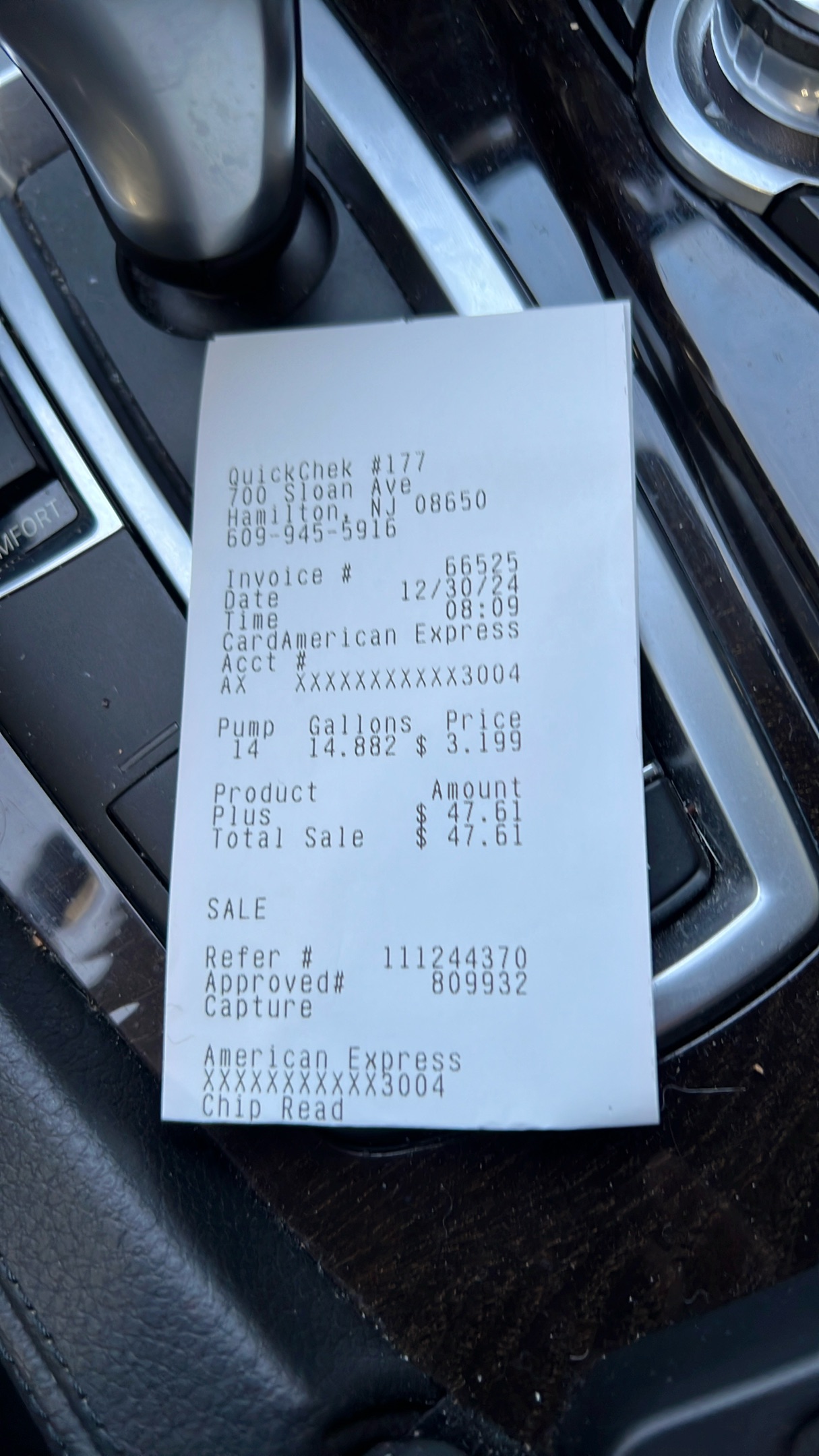 $47.00Fuel fill-up
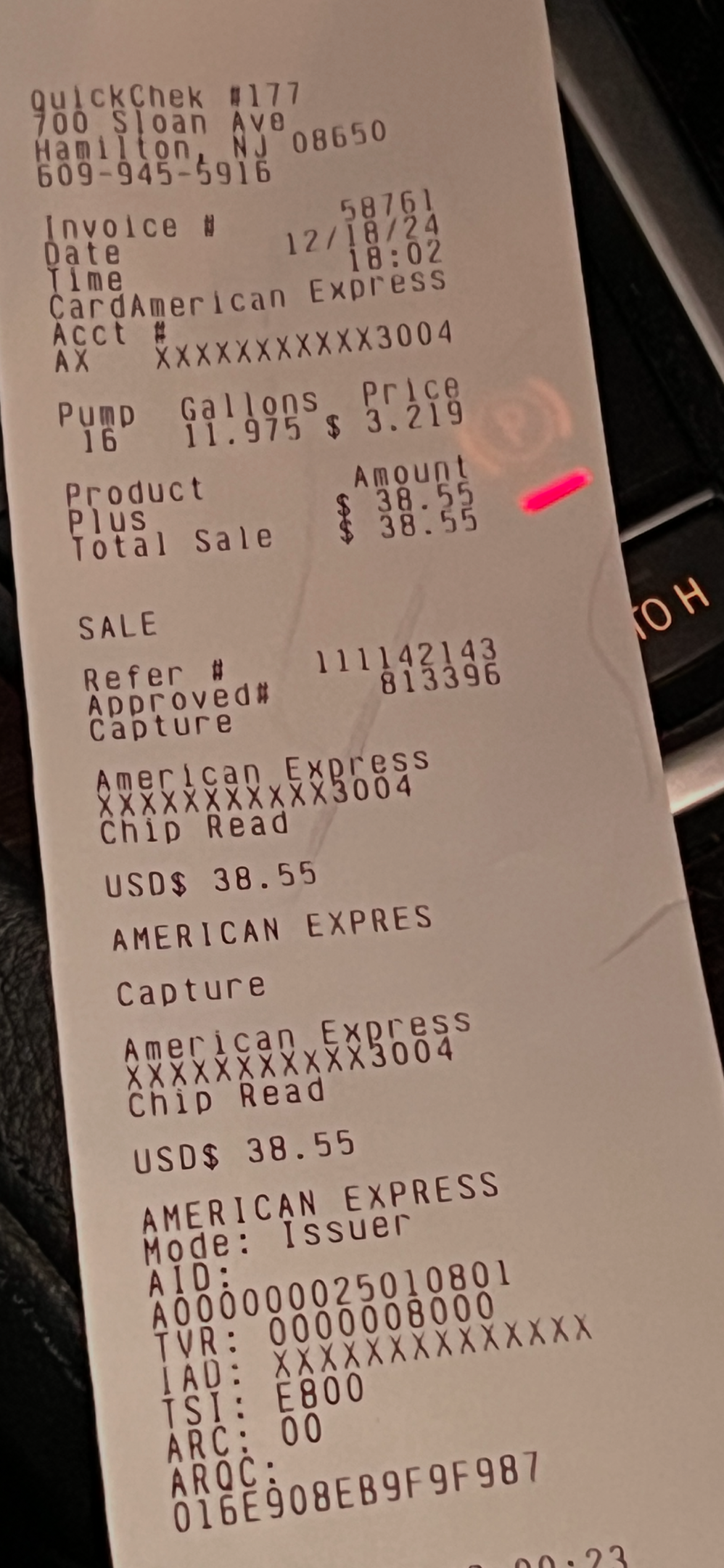 $38.55Fuel fill-up
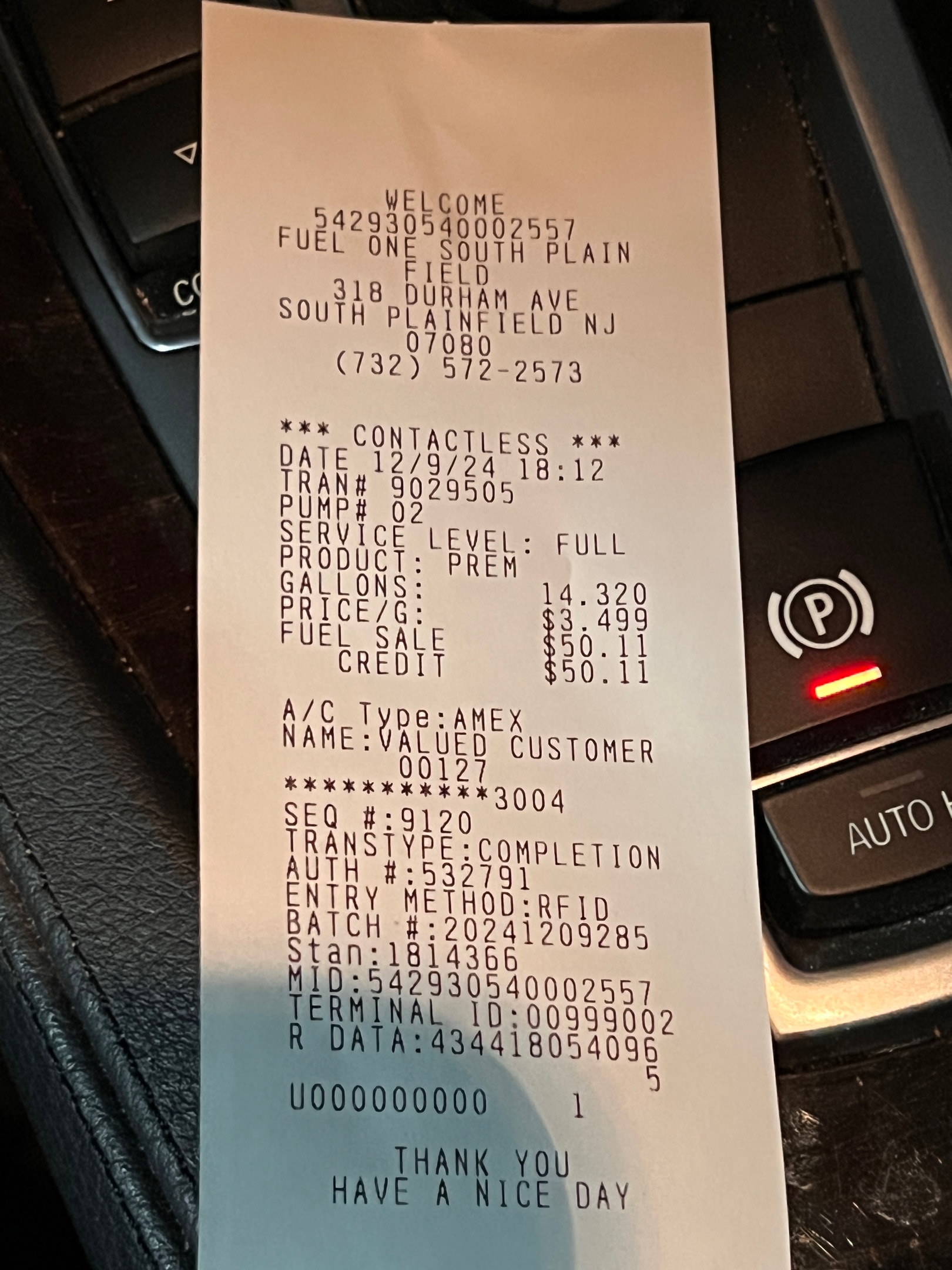 $50.11Fuel fill-up
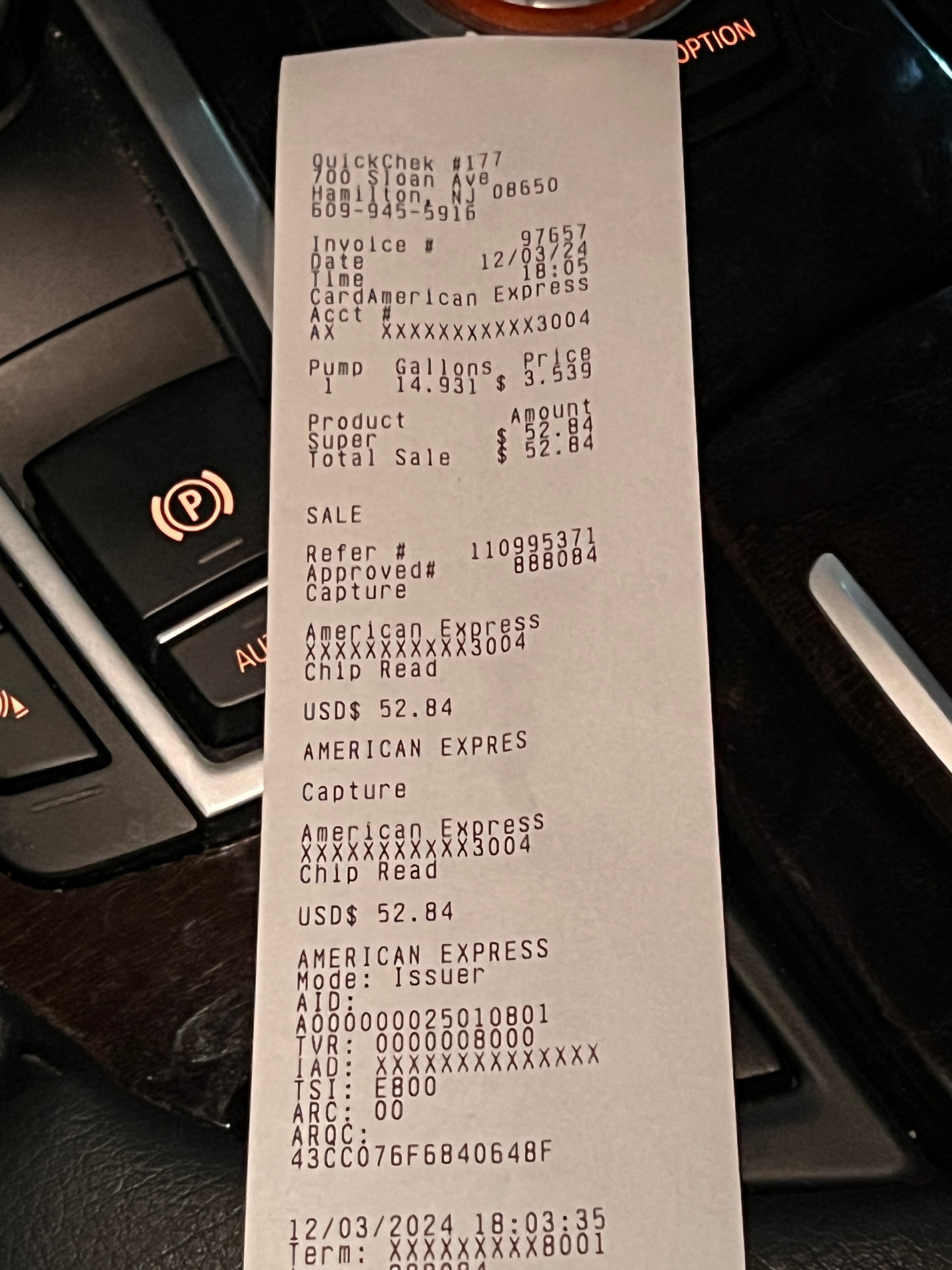 $53.00Fuel fill-up
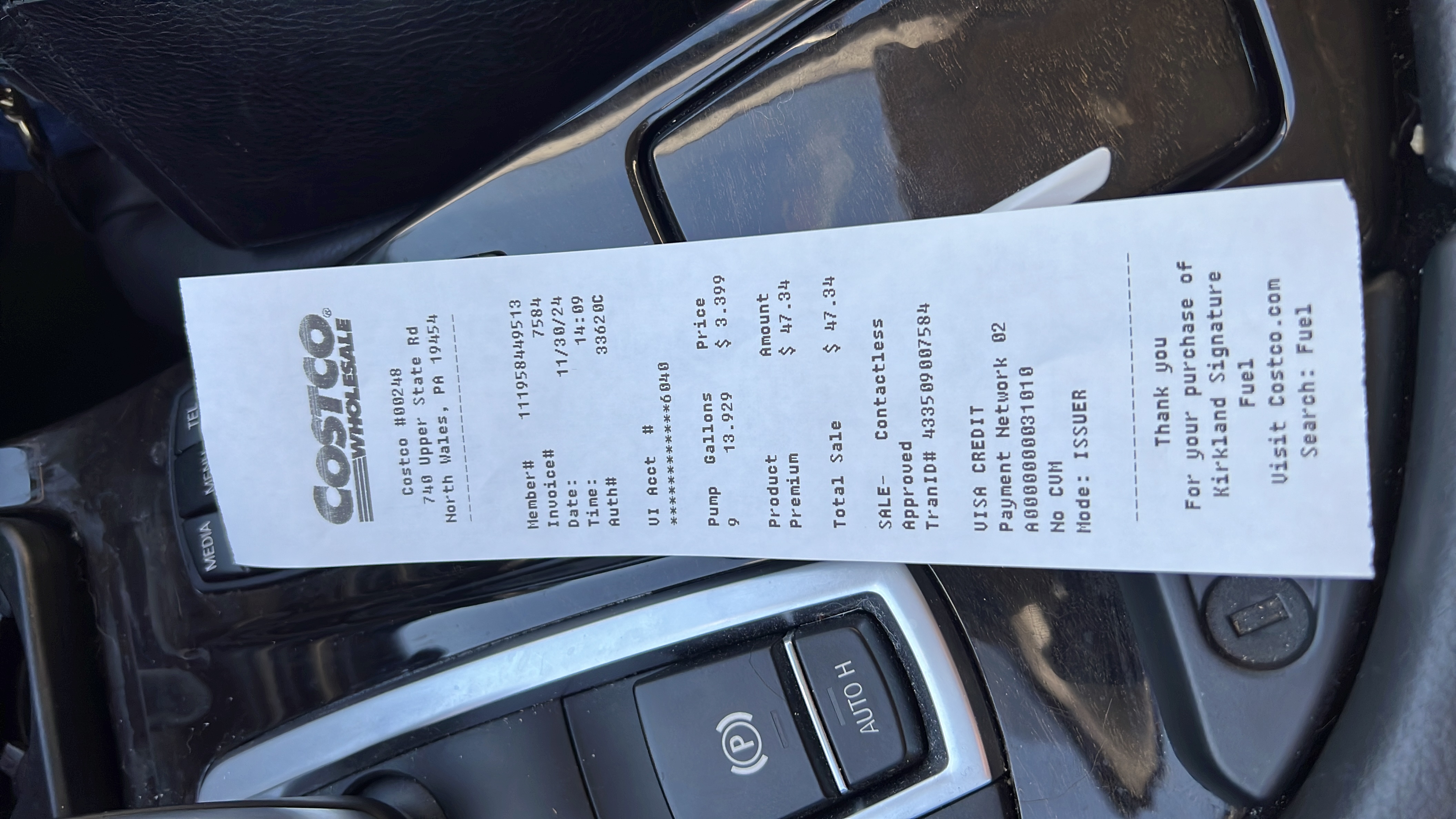 $47.30Fuel fill-up
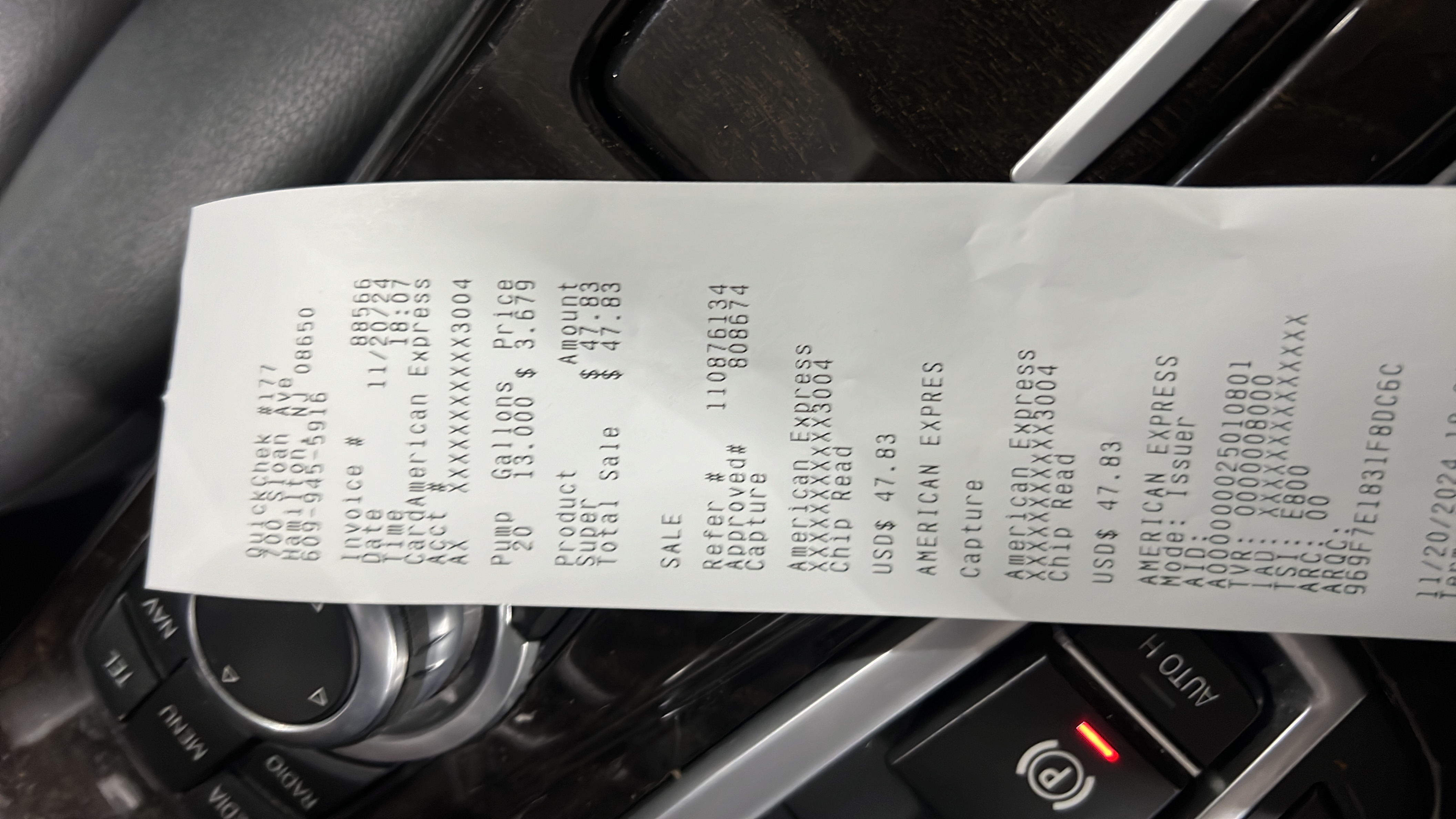 $48.00Fuel fill-up
 $50.00Fuel fill-up
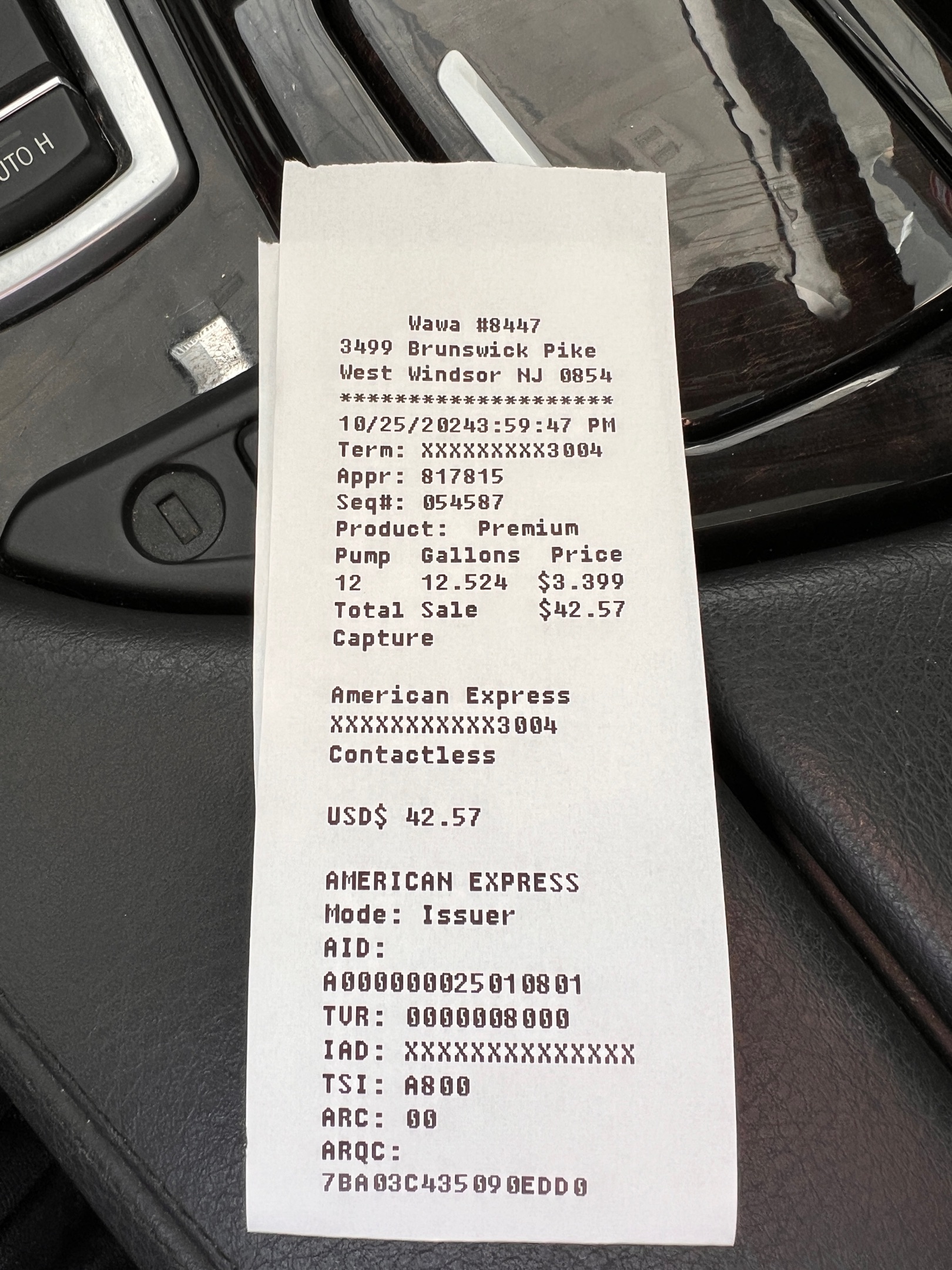 $42.00Fuel fill-up
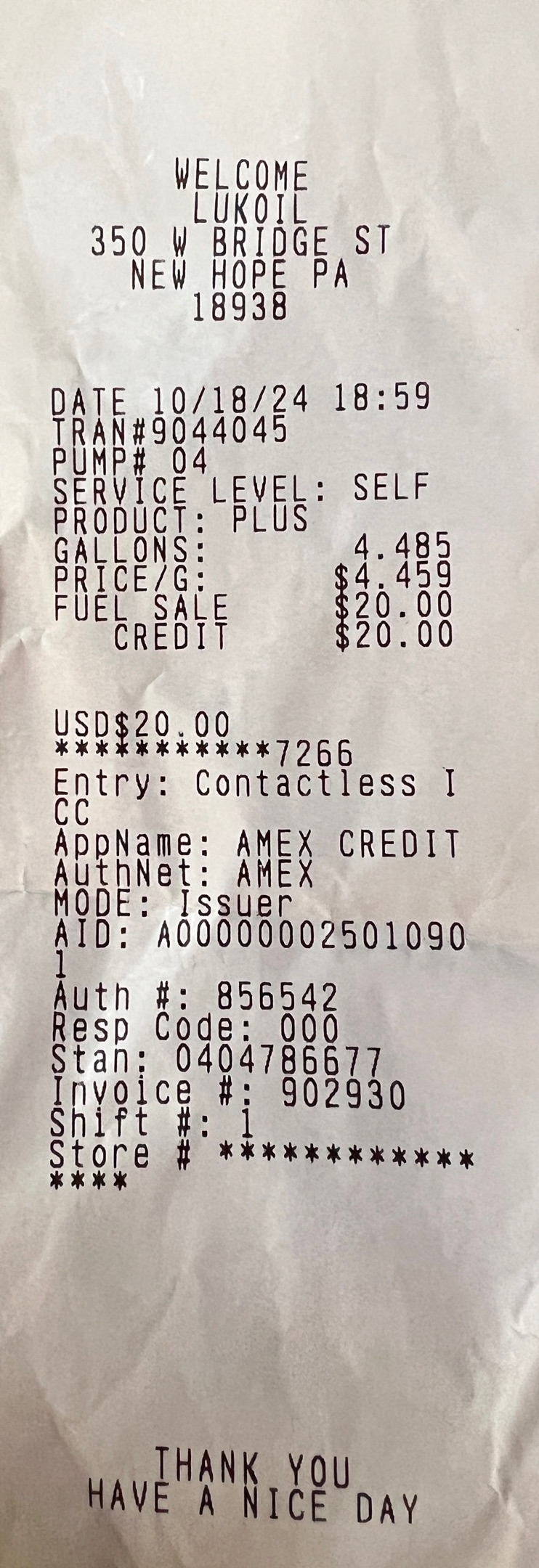 $20.00Fuel fill-up
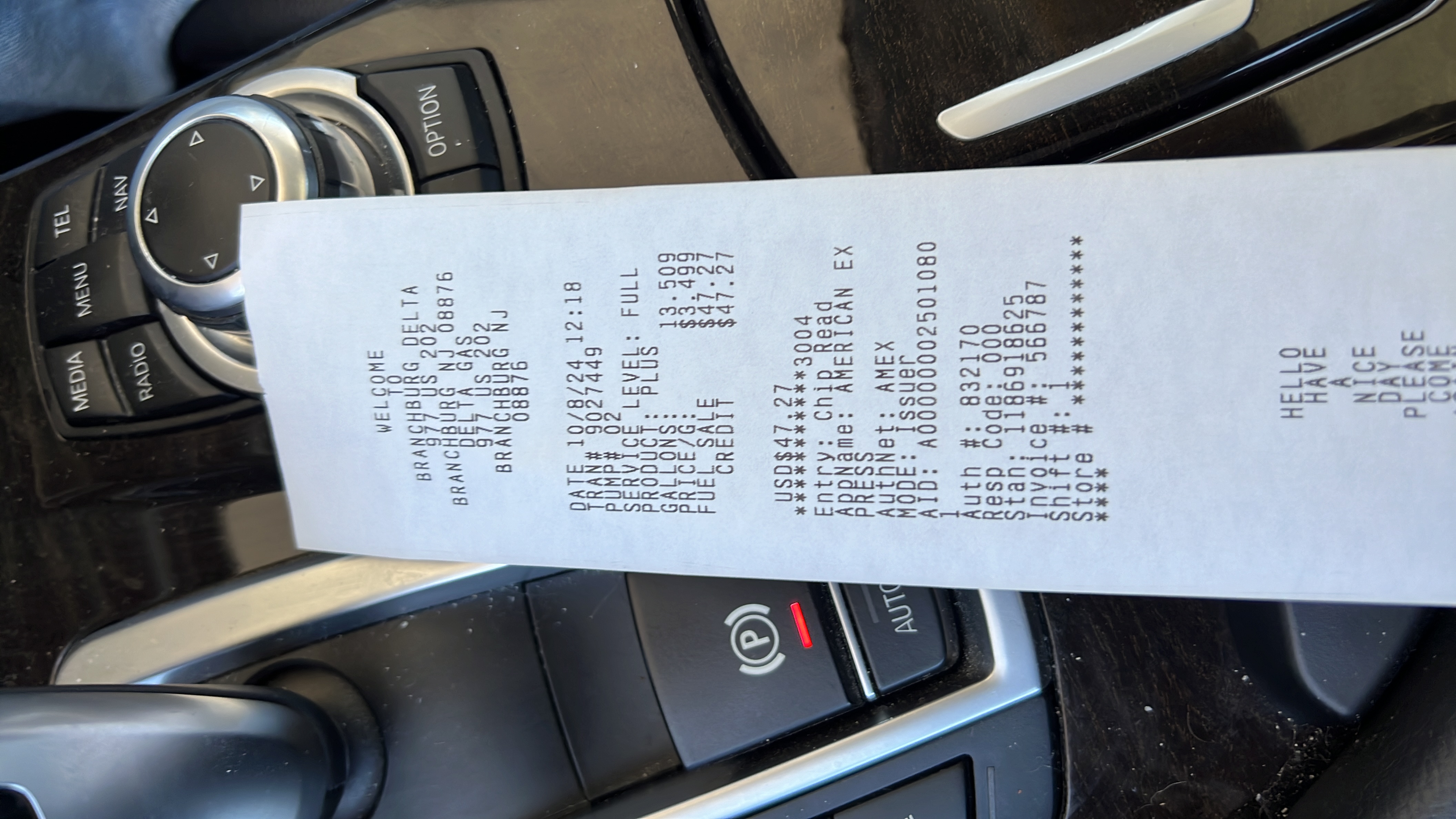 $47.00Fuel fill-up
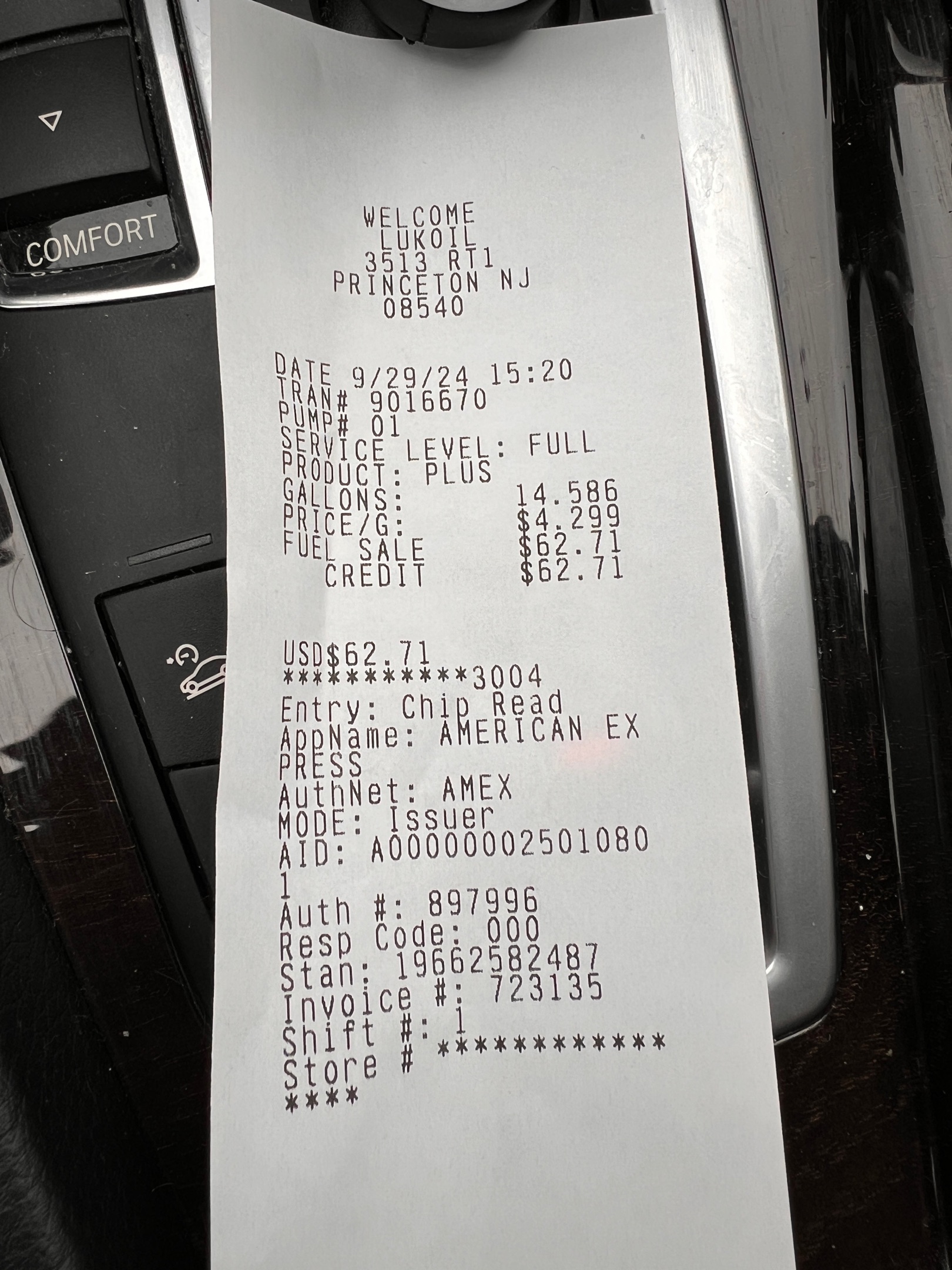 $62.71Fuel fill-up
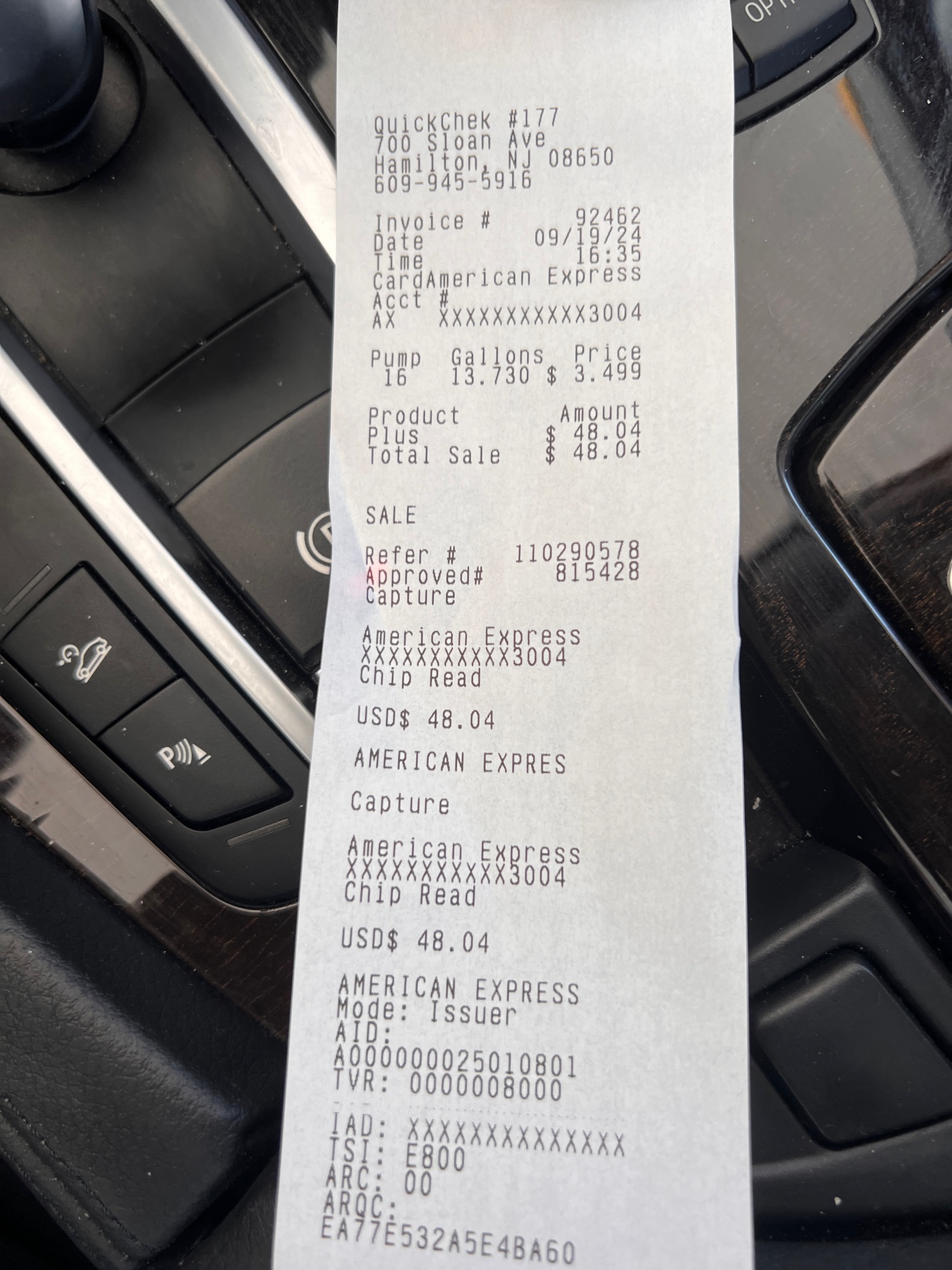 $48.00Fuel fill-up
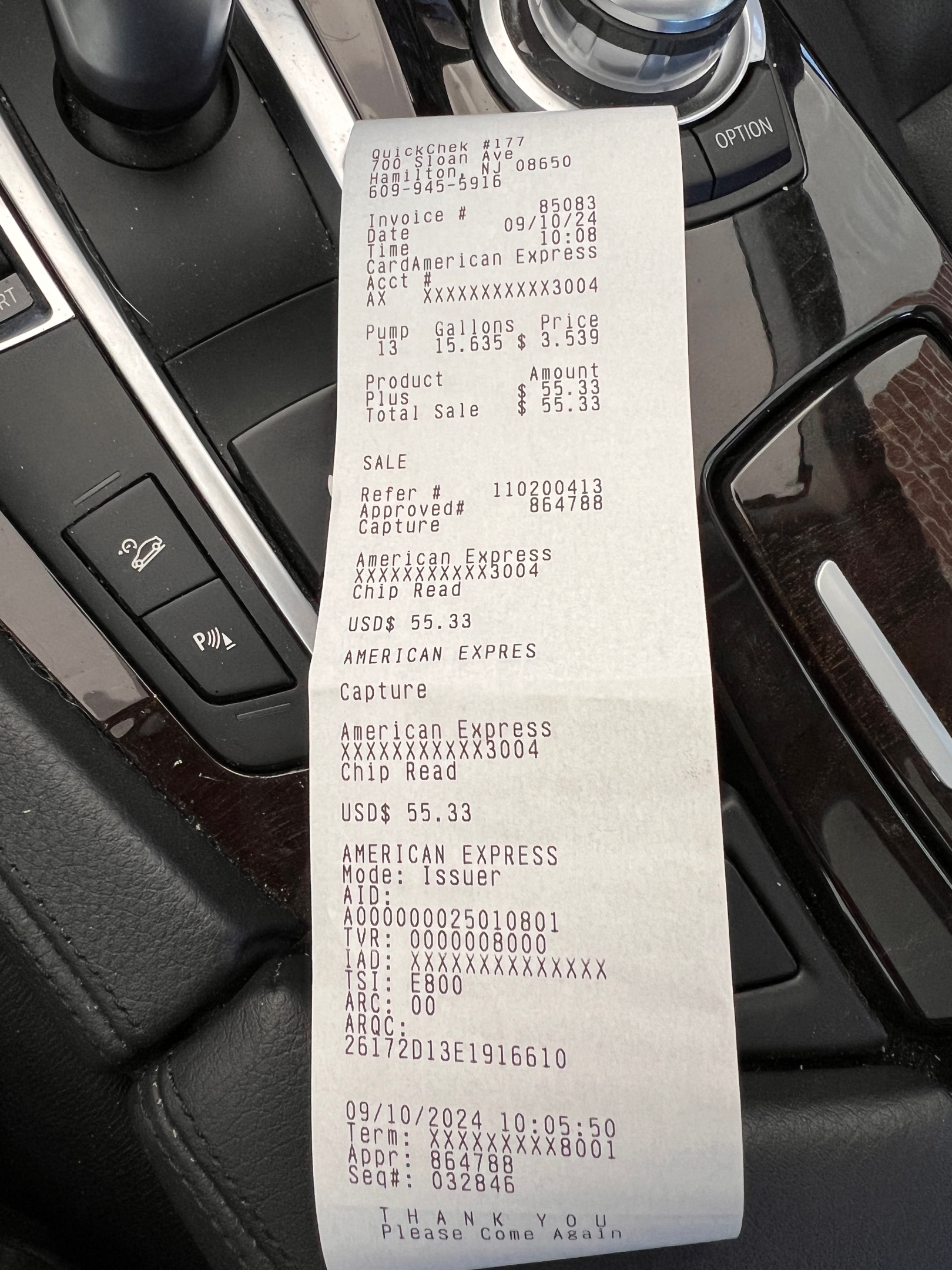 $55.33Fuel fill-up
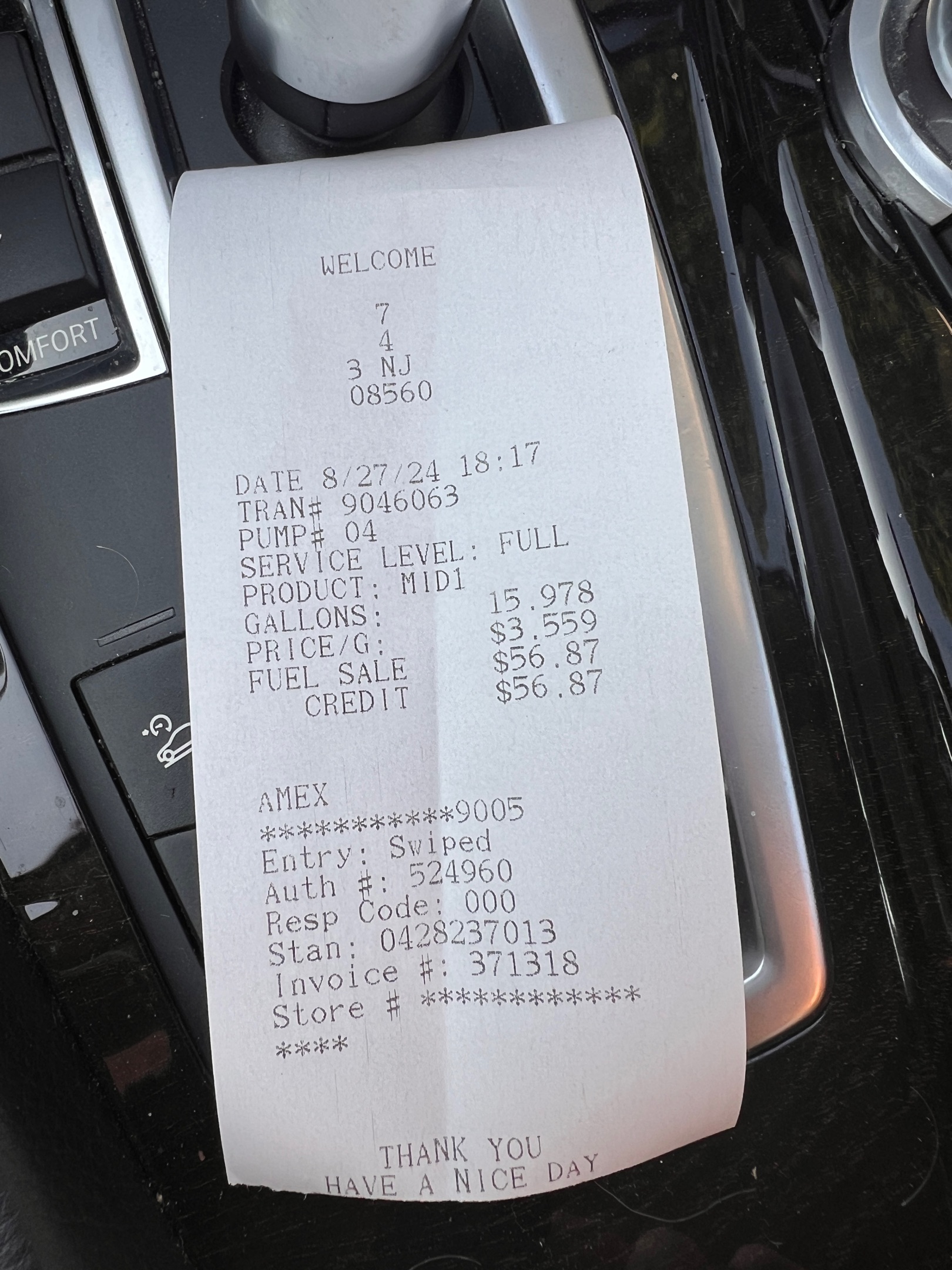 $56.87Fuel fill-up
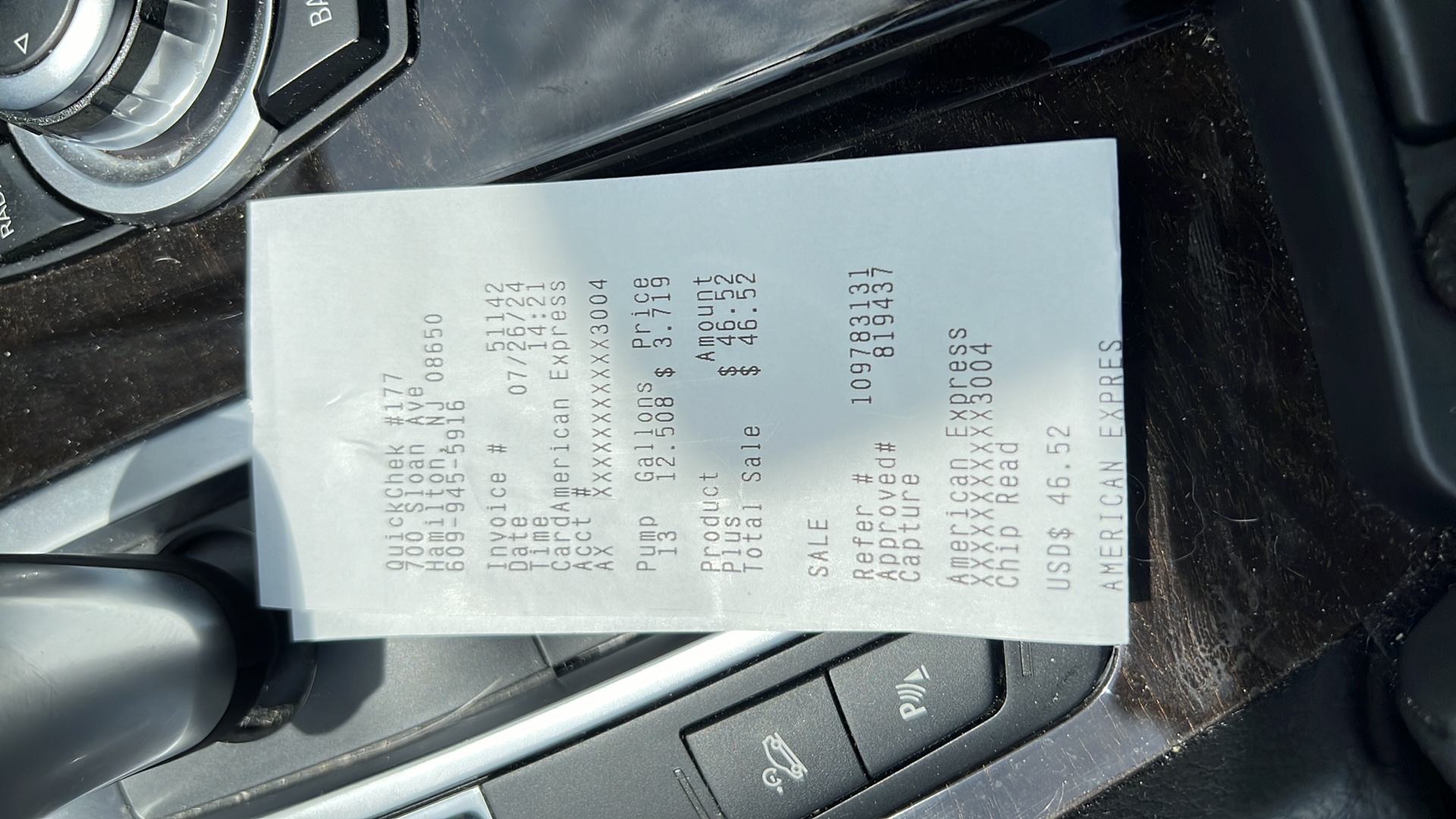 $46.52Fuel fill-up
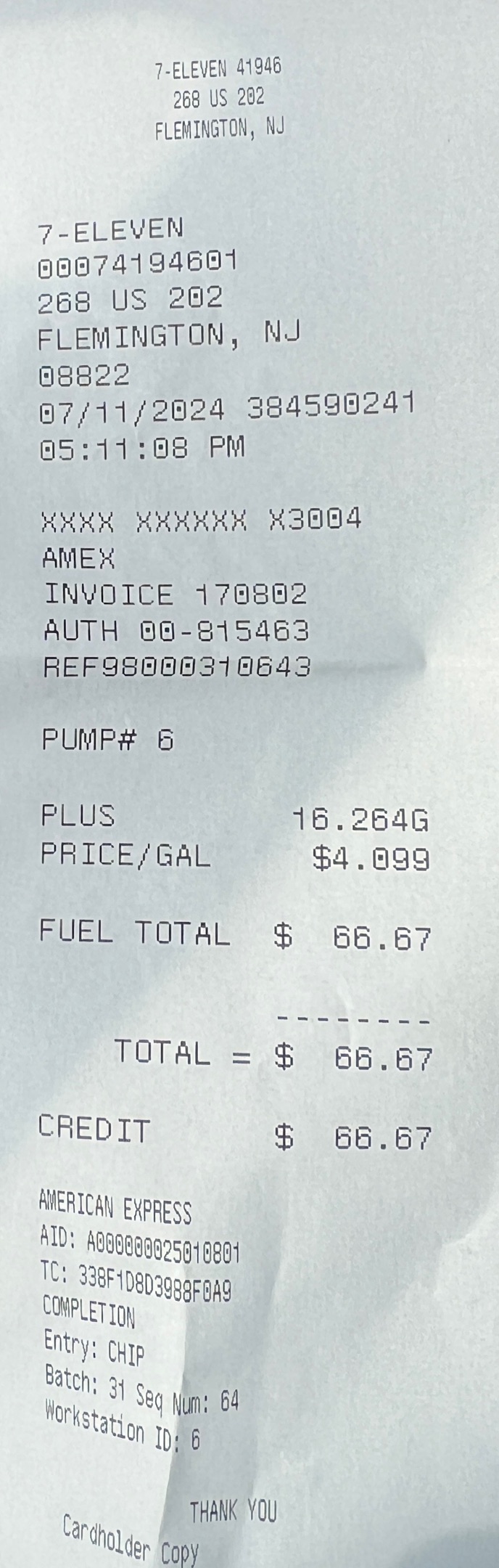 $66.67Fuel fill-up
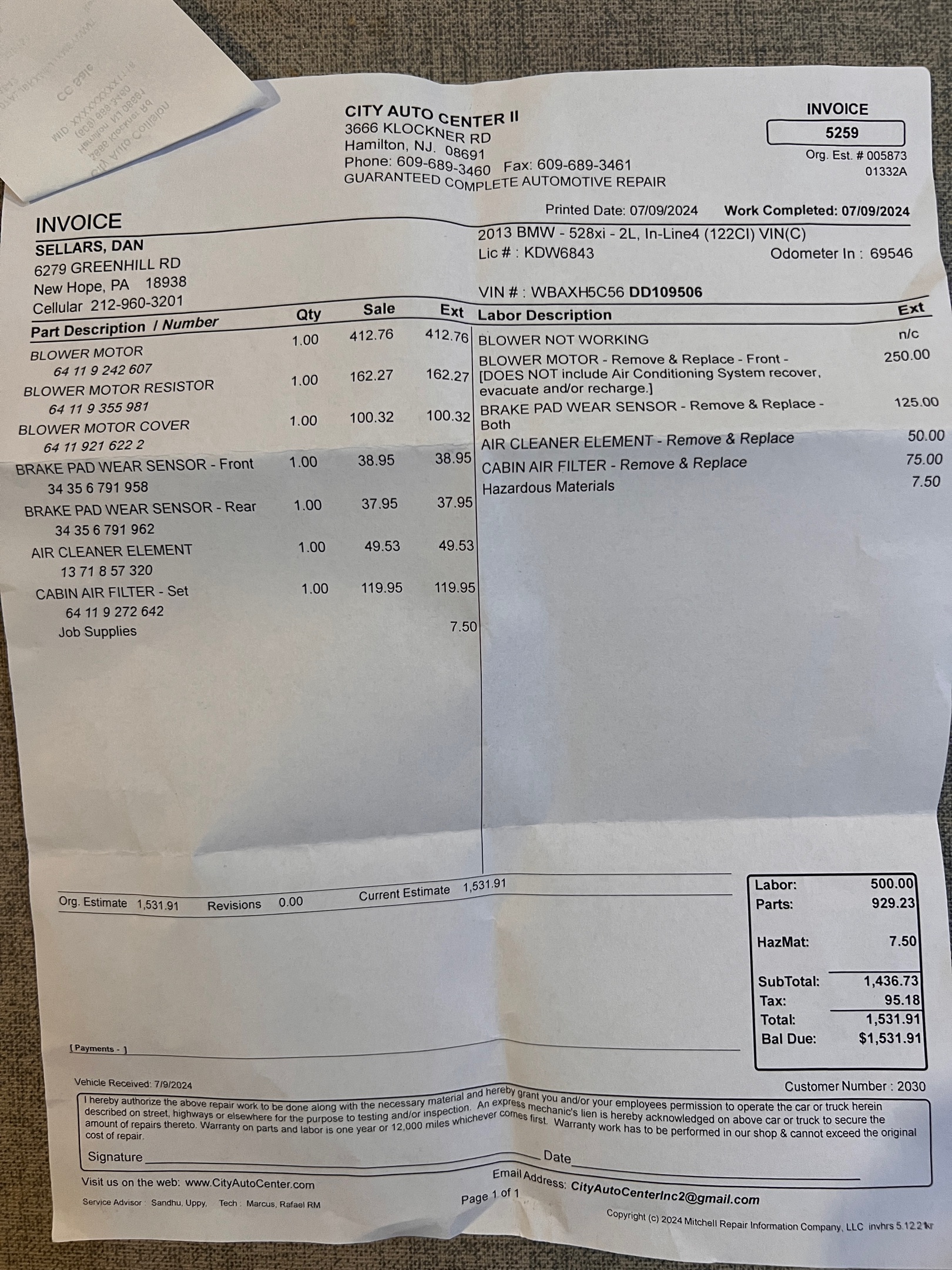 $1,531.91City auto center ac air fi
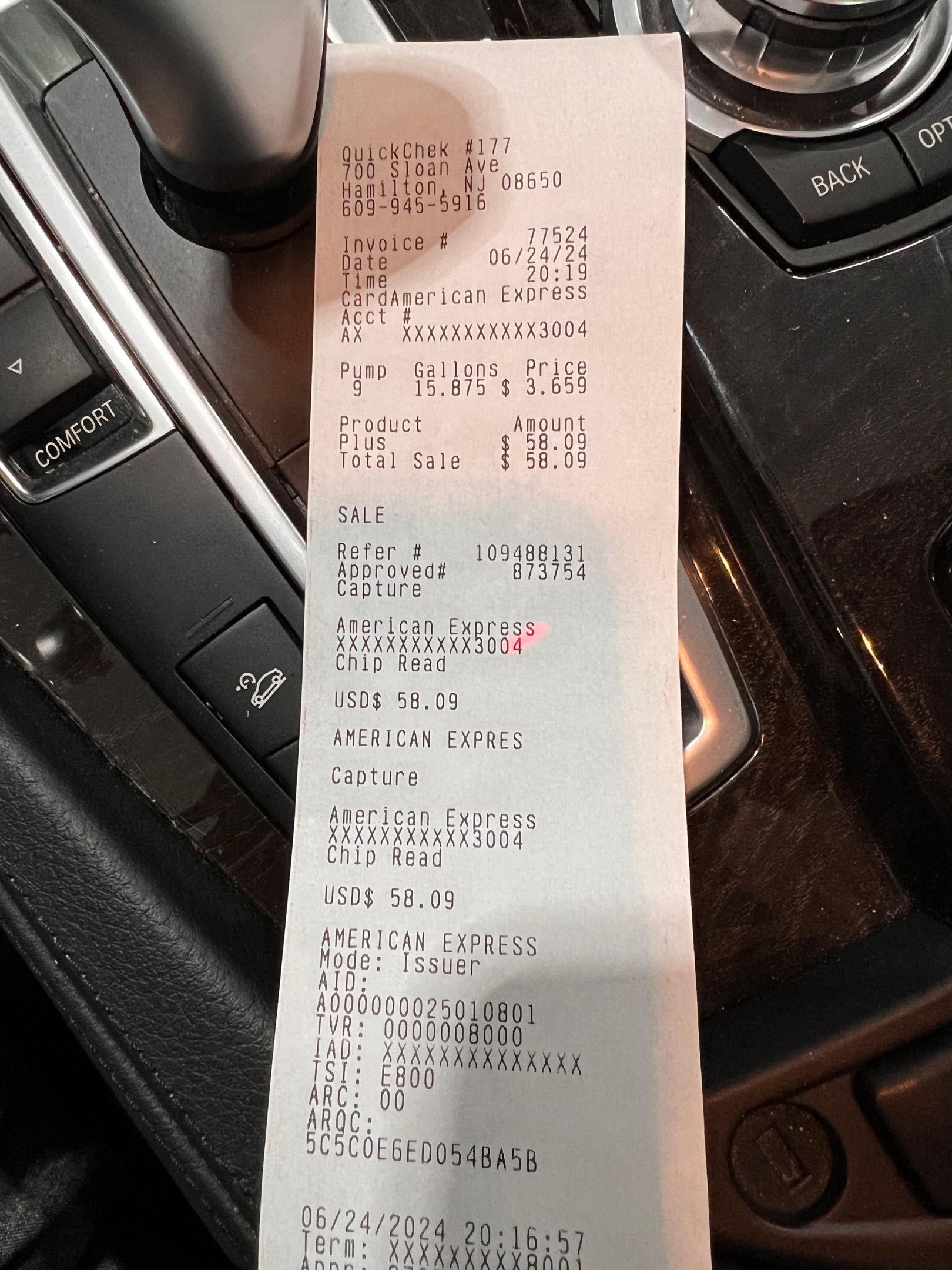 $58.00Fuel fill-up
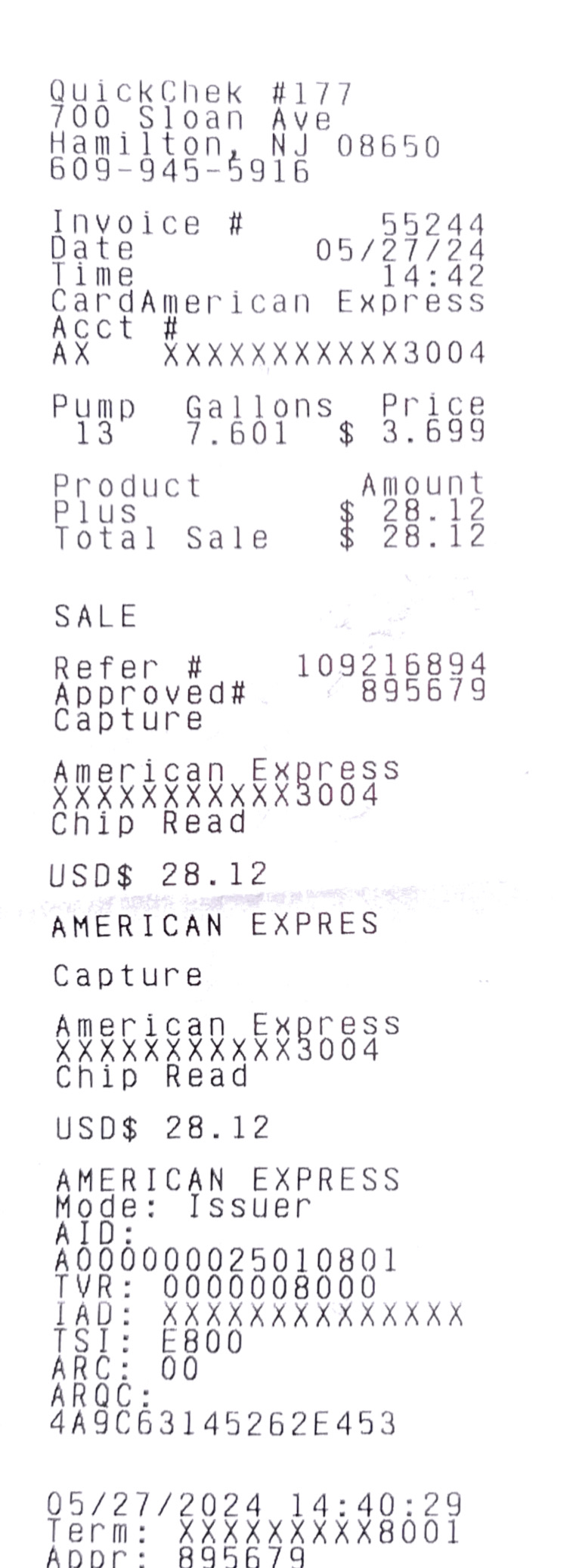 $28.12Fuel fill-up
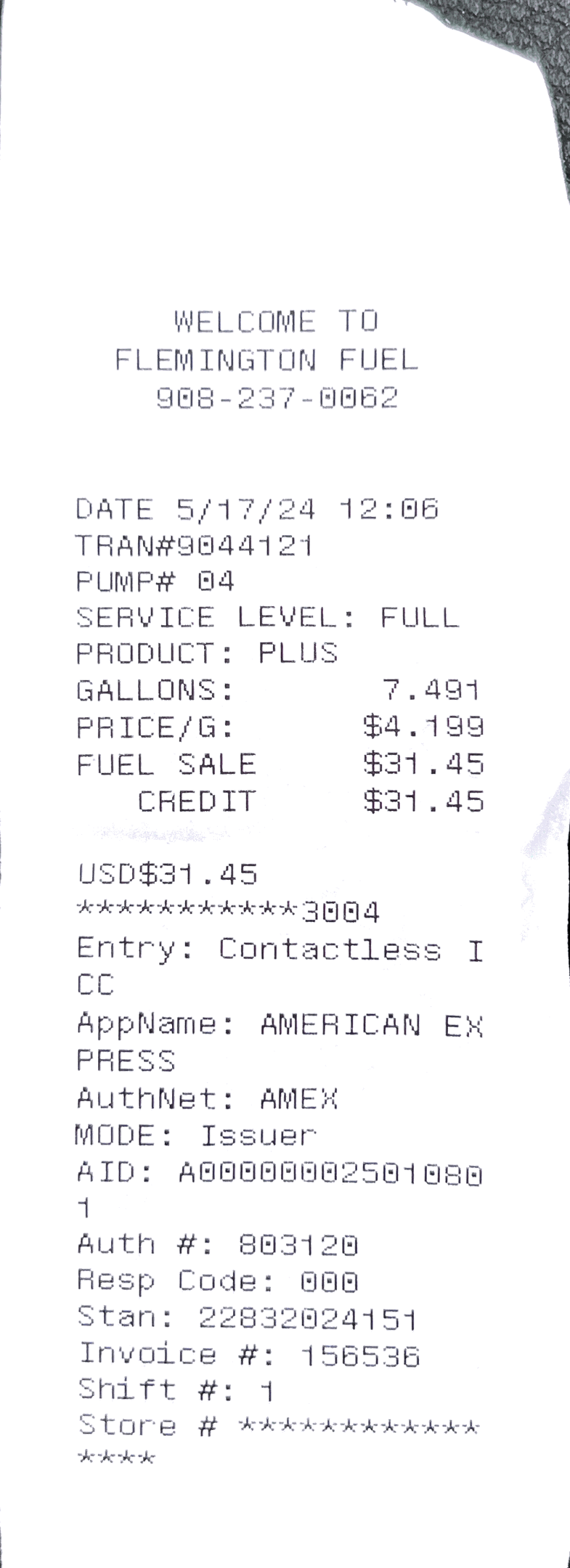 $31.45Fuel fill-up
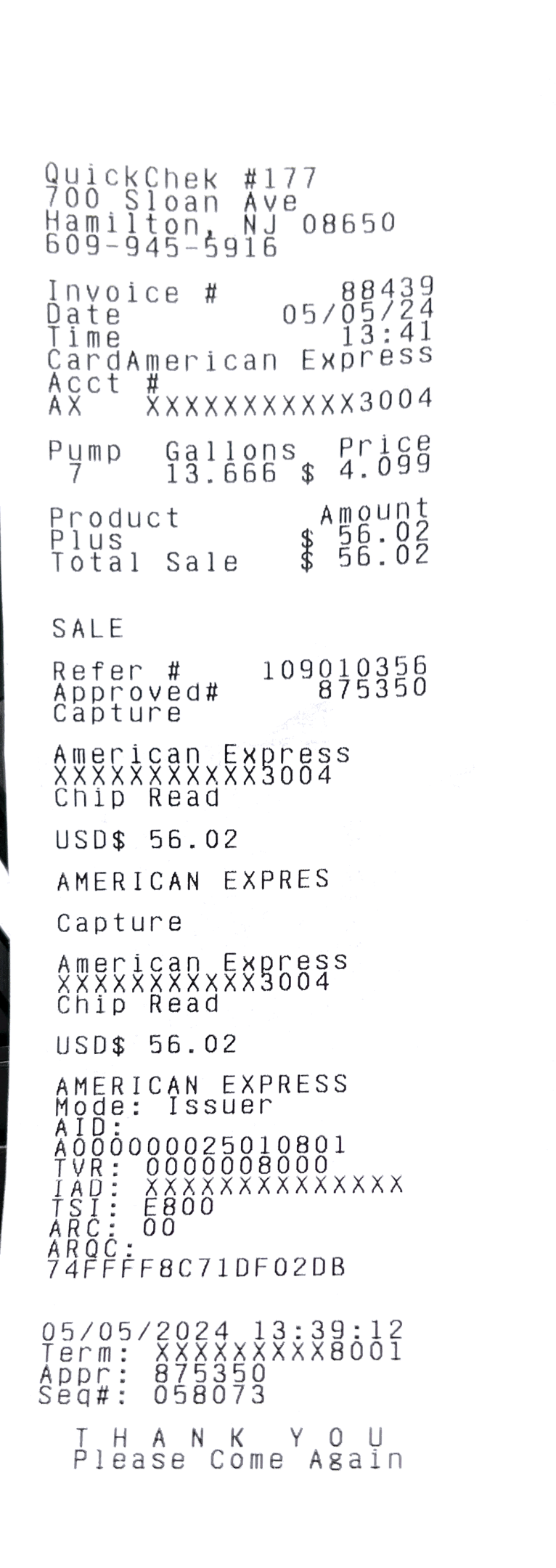 $56.02Fuel fill-up
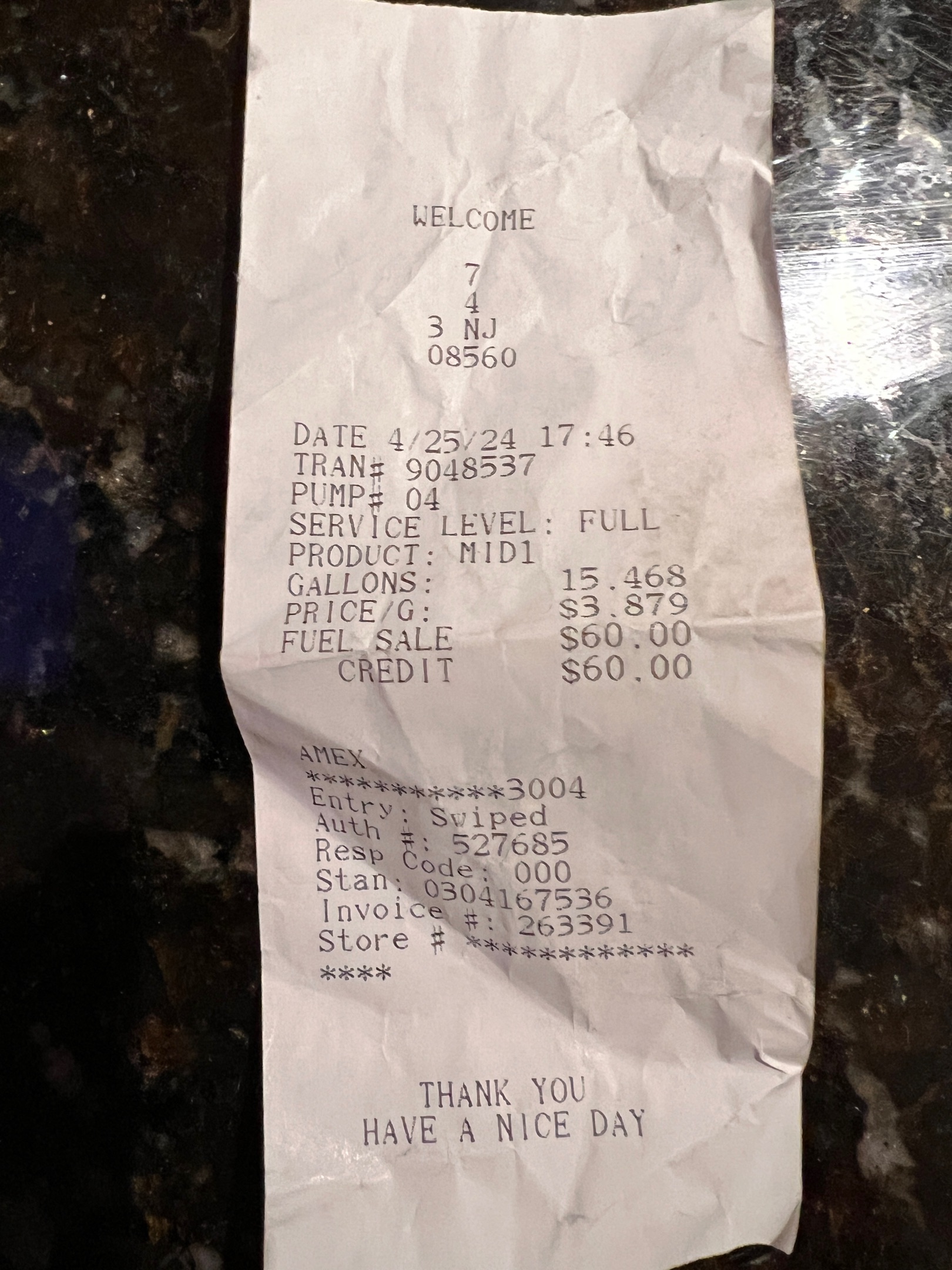 $60.00Fuel fill-up
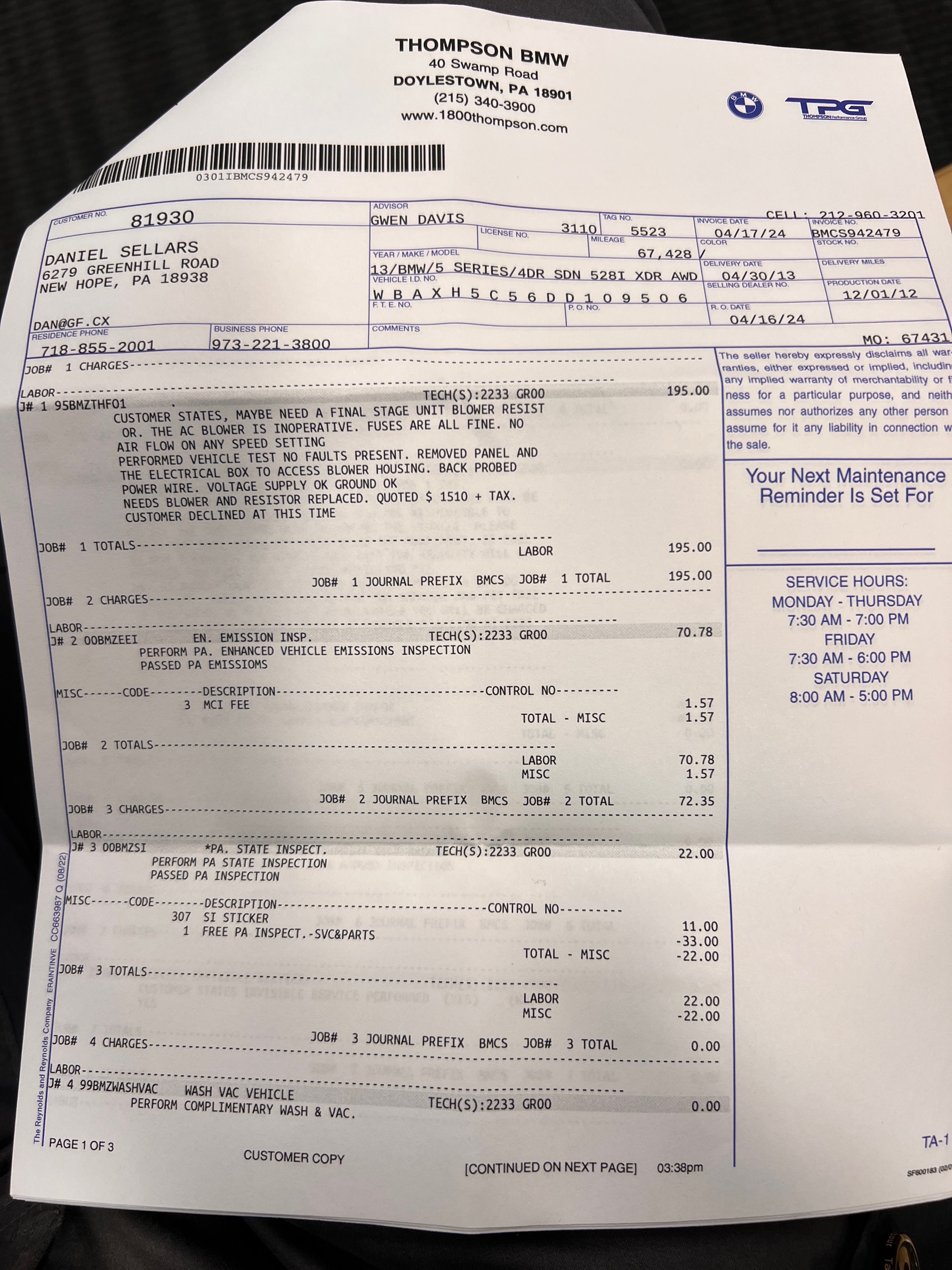 $395.00Service emissions diagnost
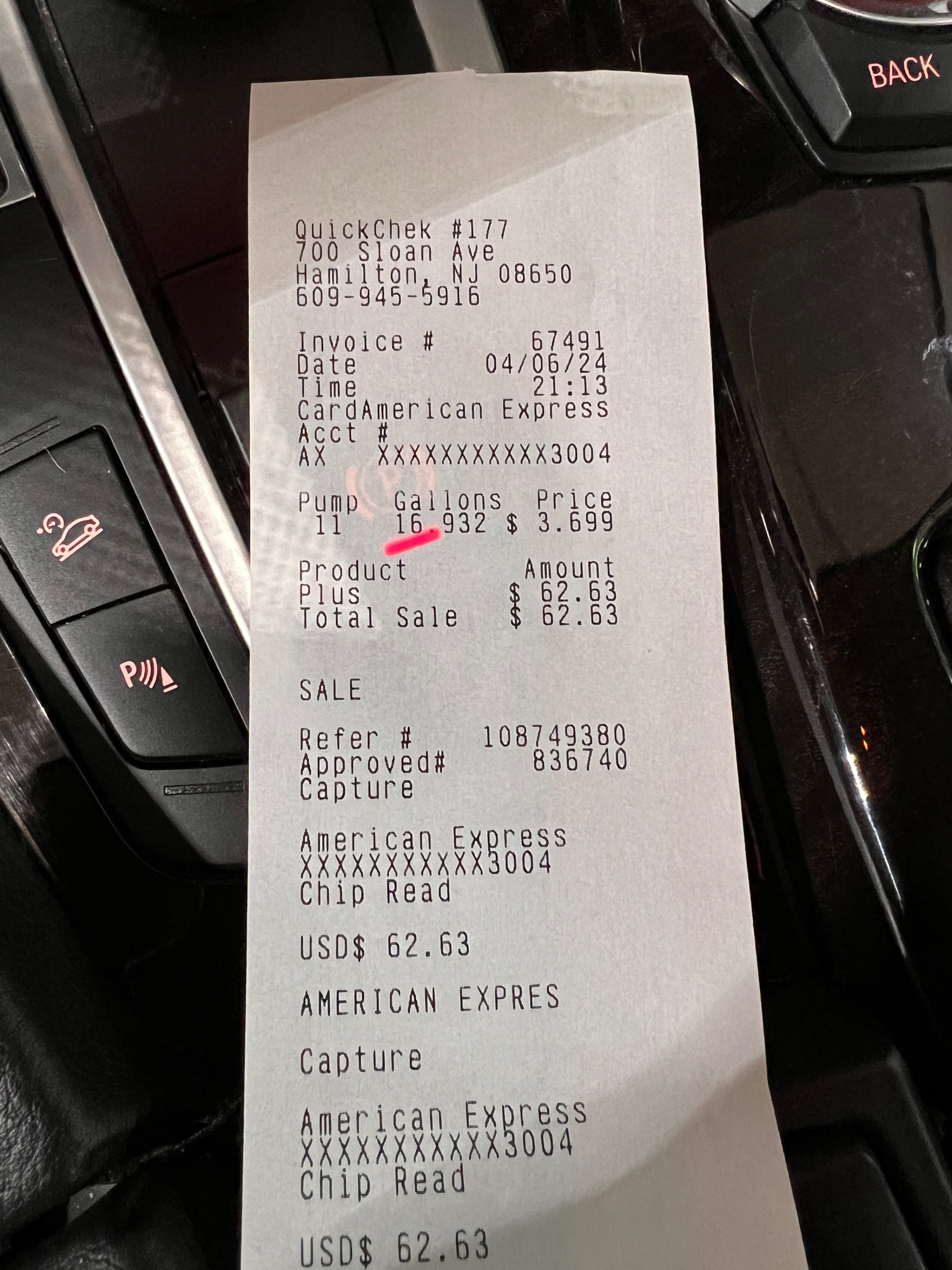 $62.63Fuel fill-up
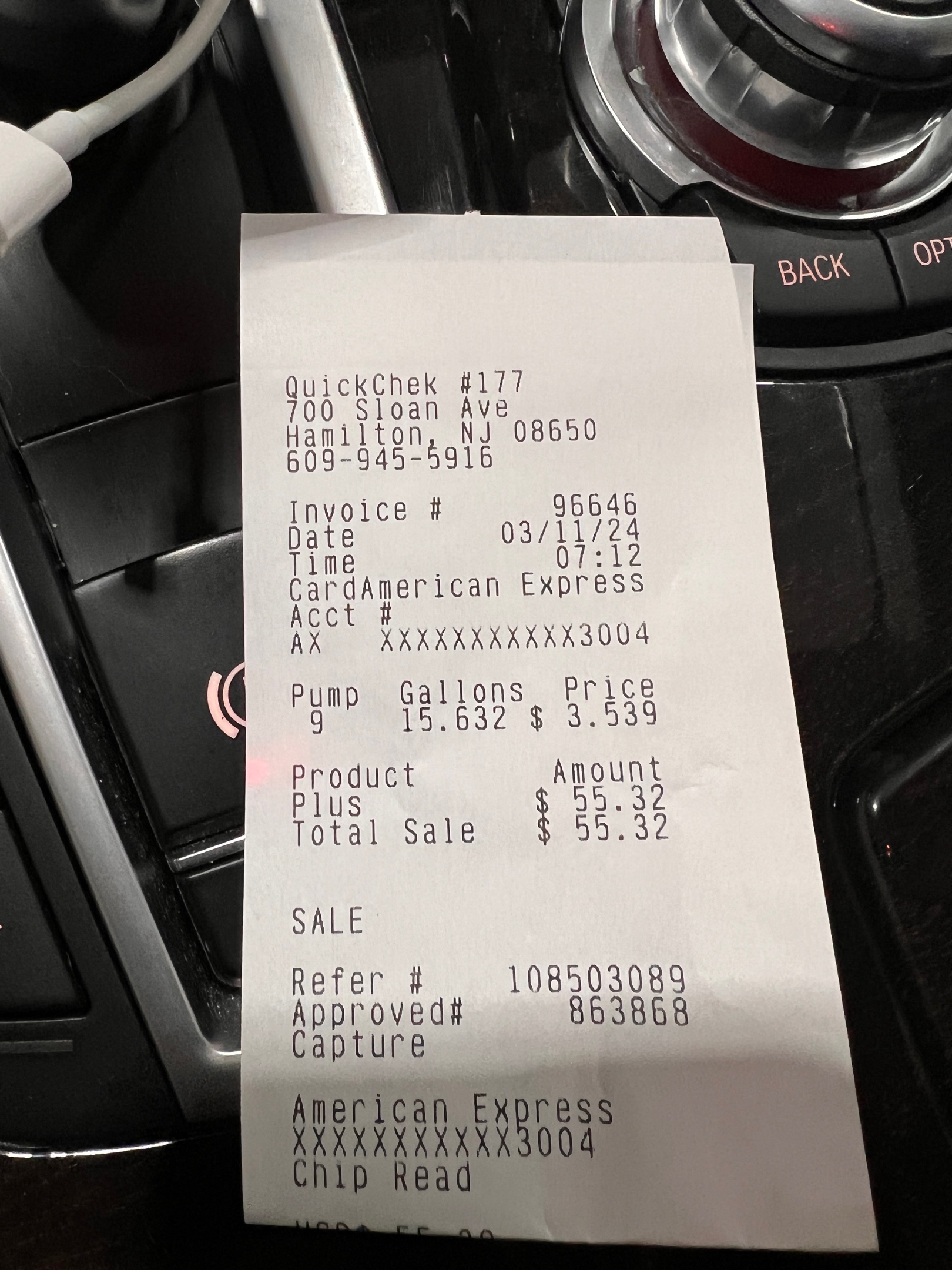 $55.00Fuel fill-up
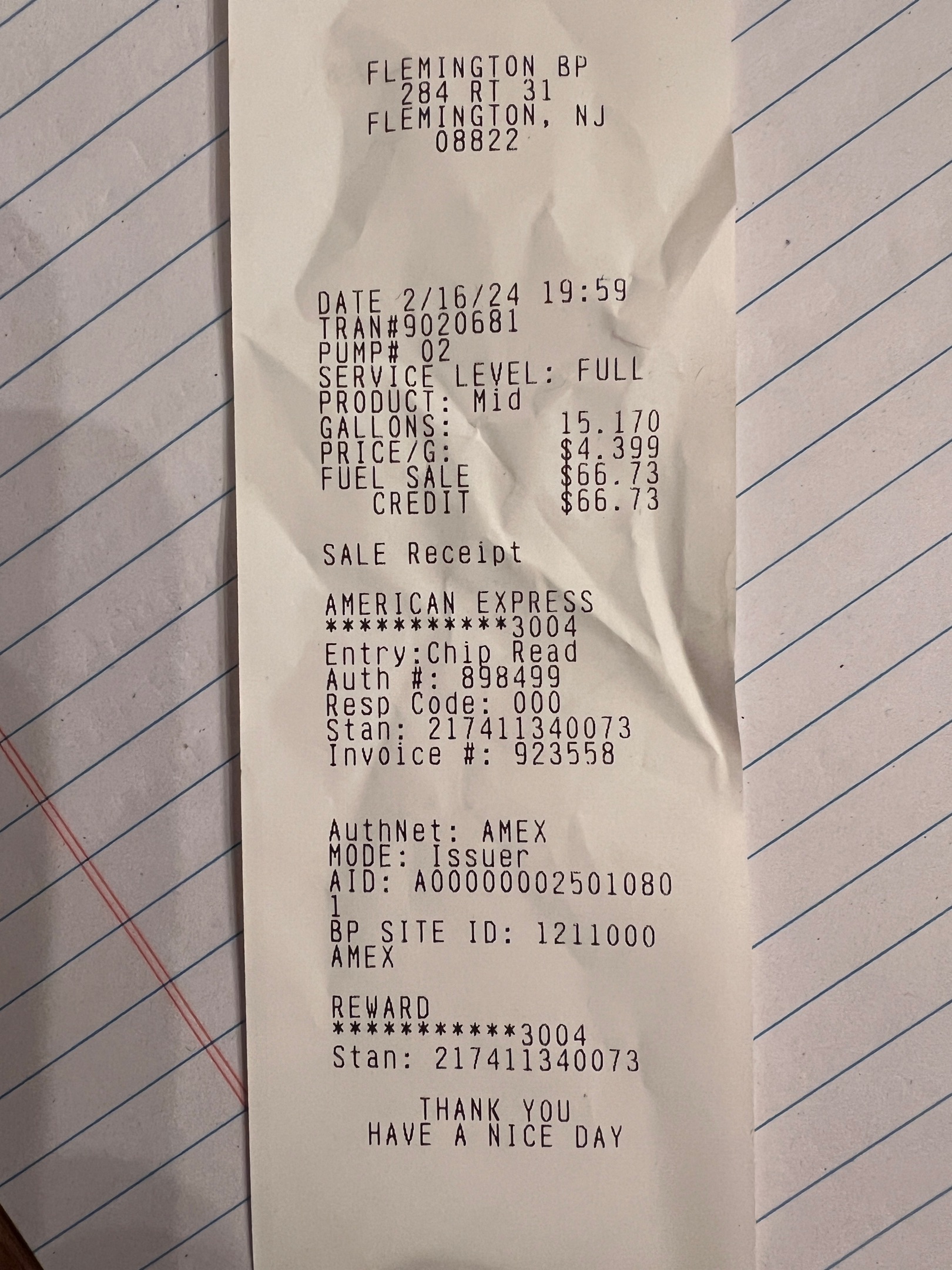 $66.73Fuel fill-up
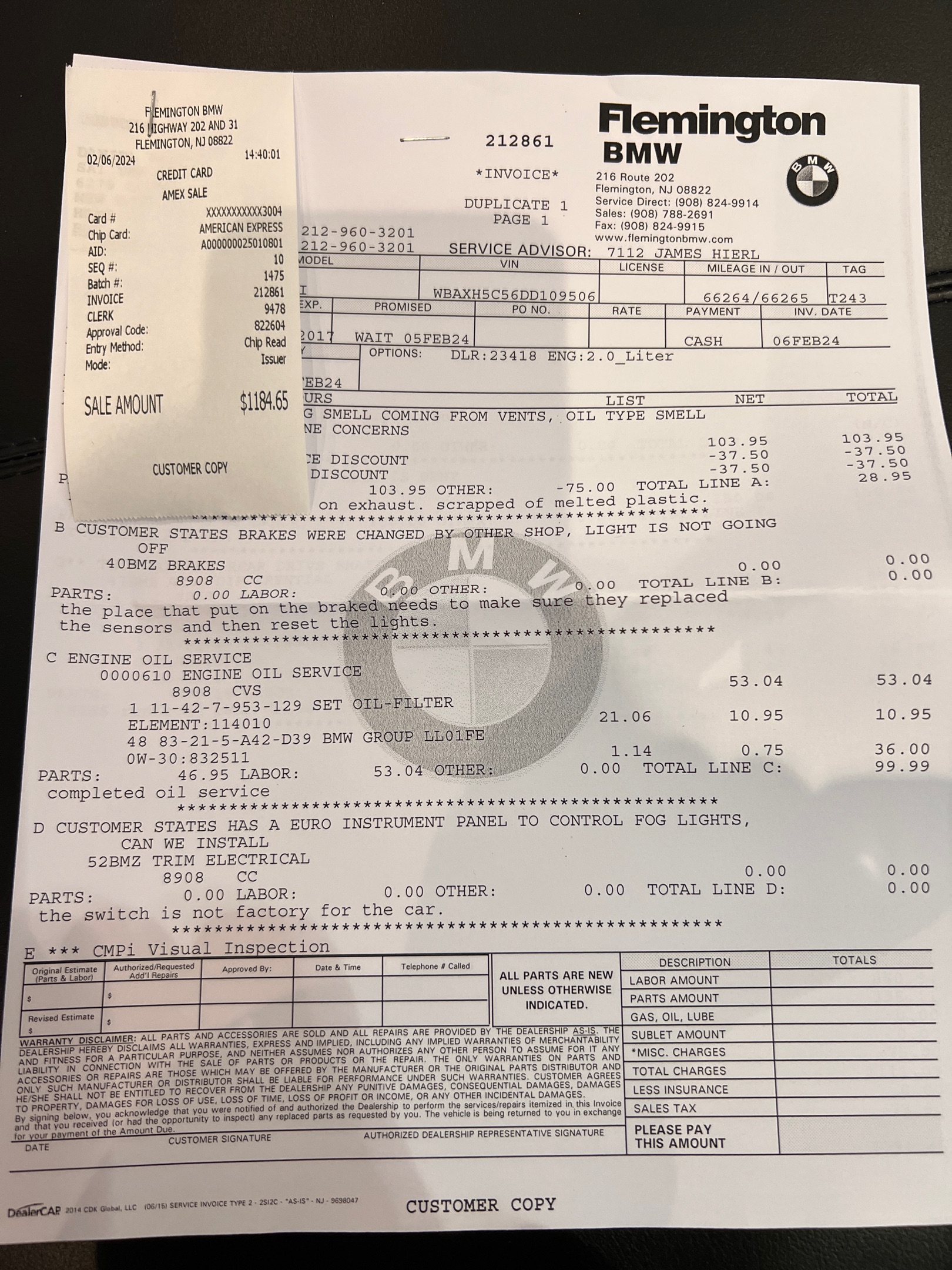 $1,184.00Service
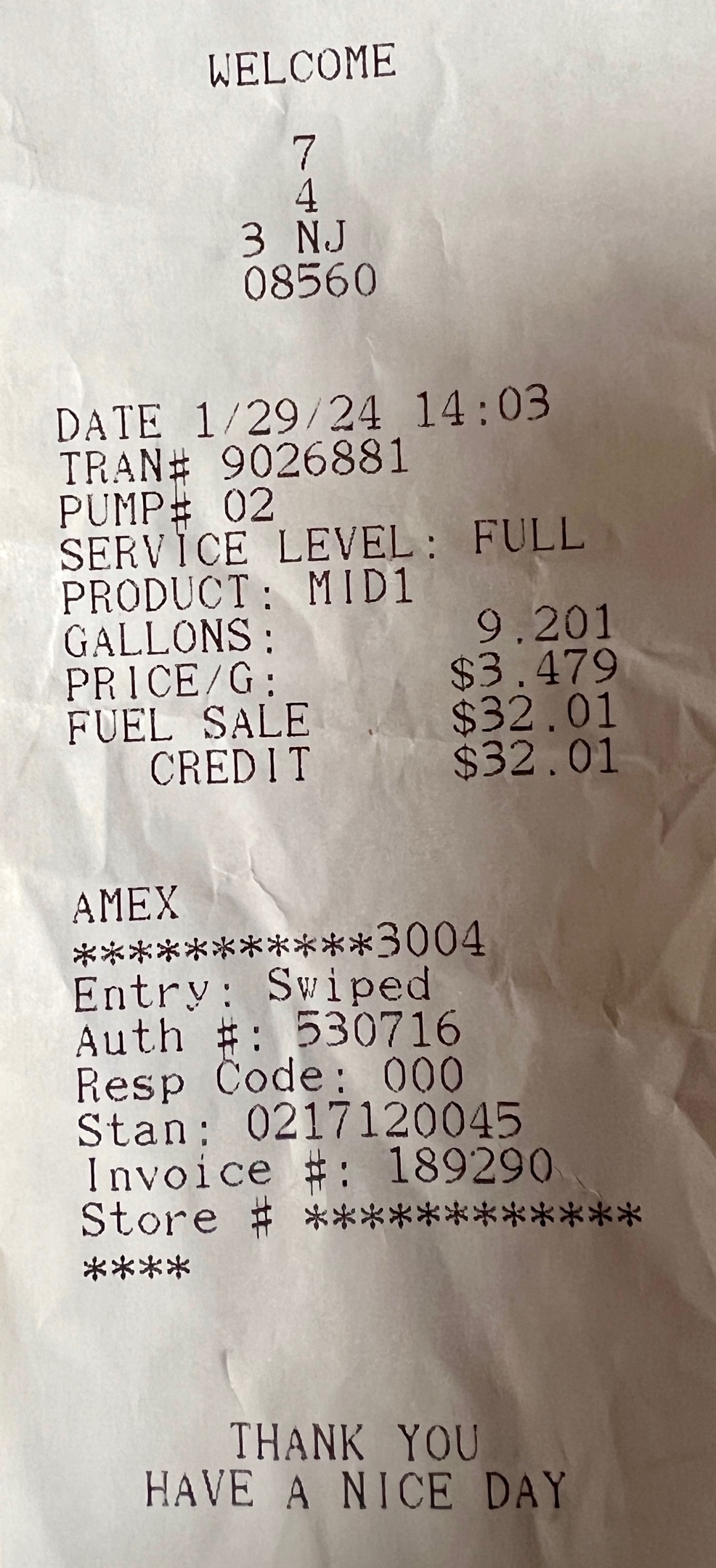 $32.00Fuel fill-up
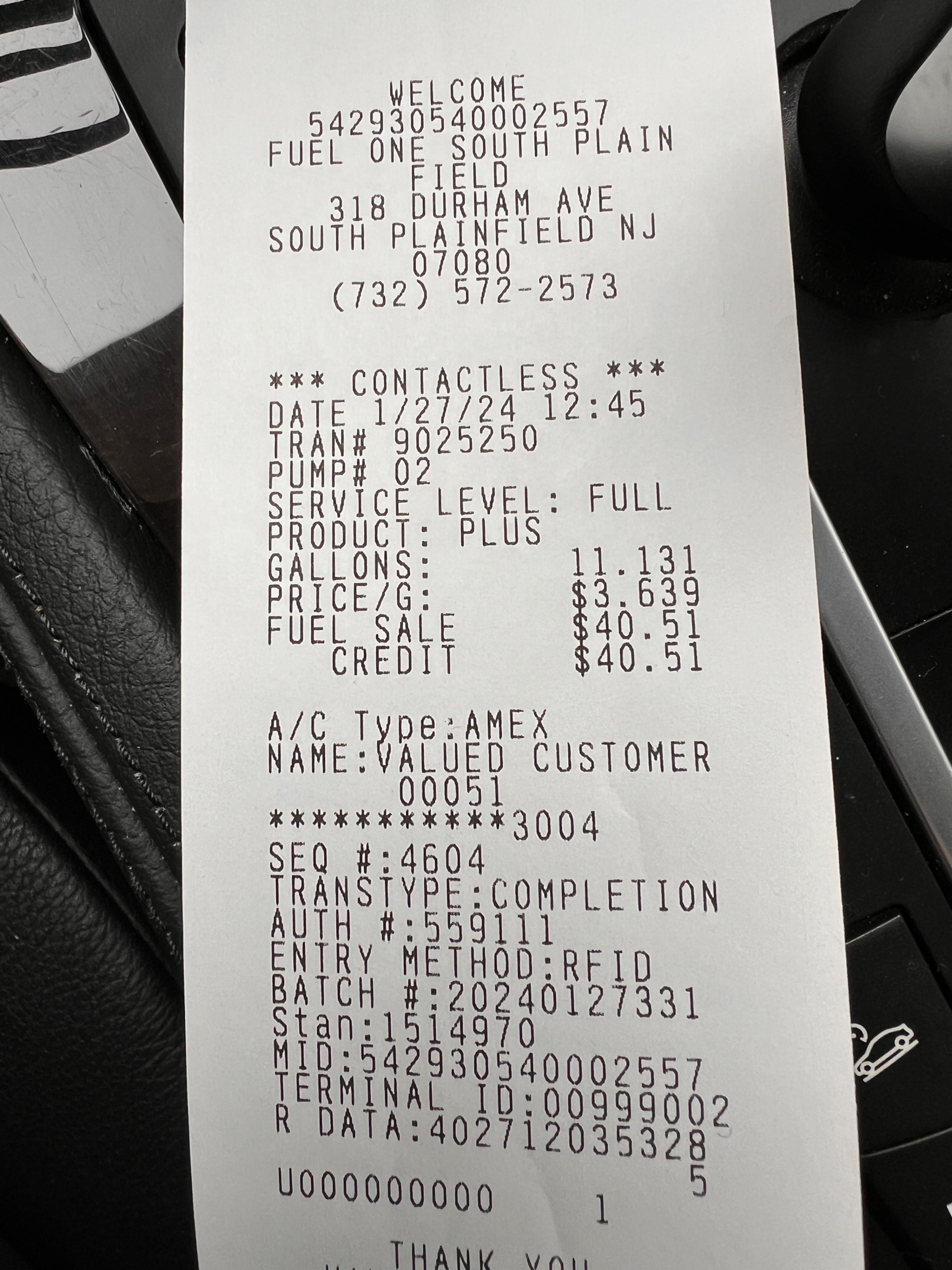 $40.51Fuel fill-up
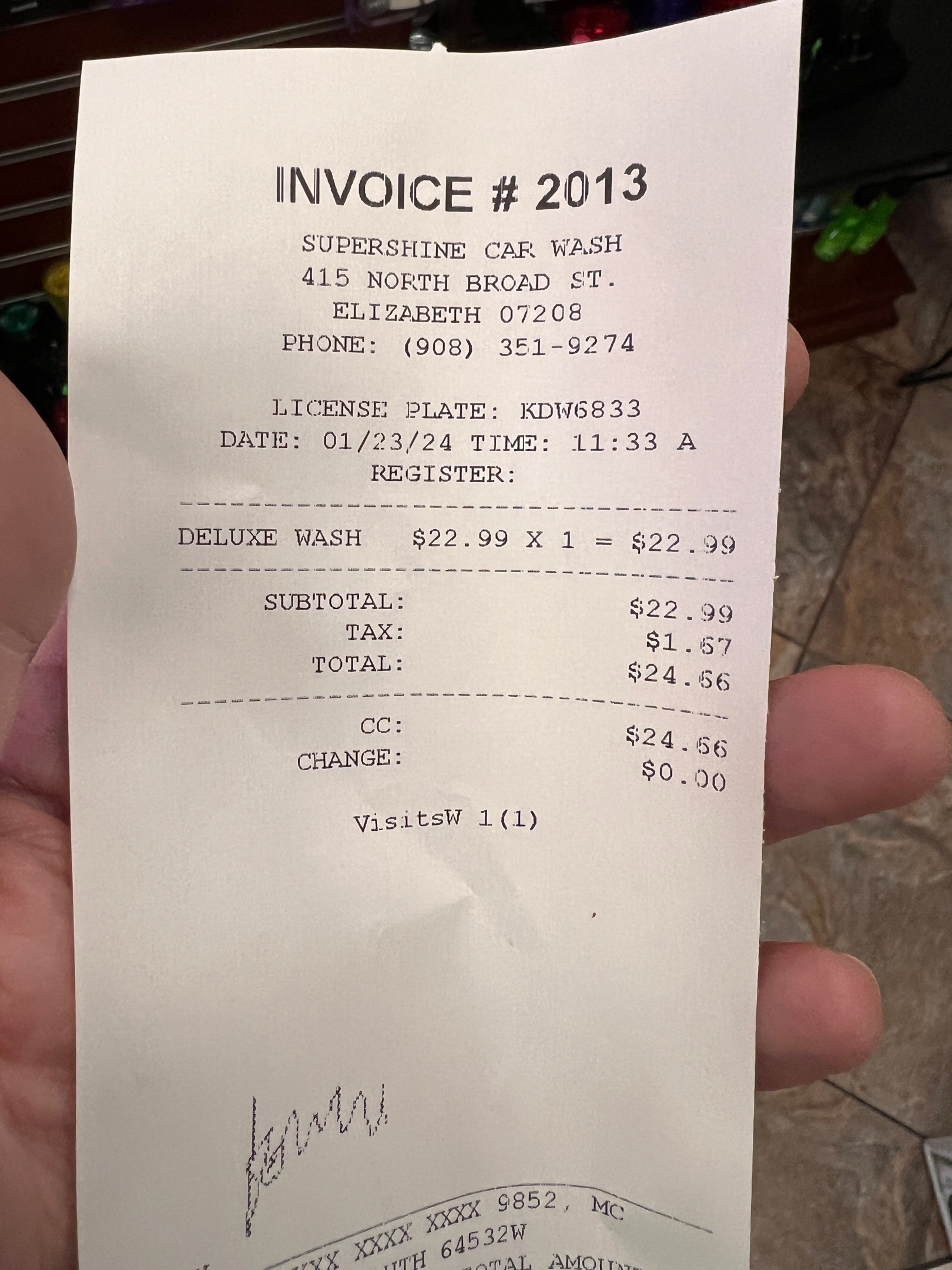 $25.00Car wash in union nj
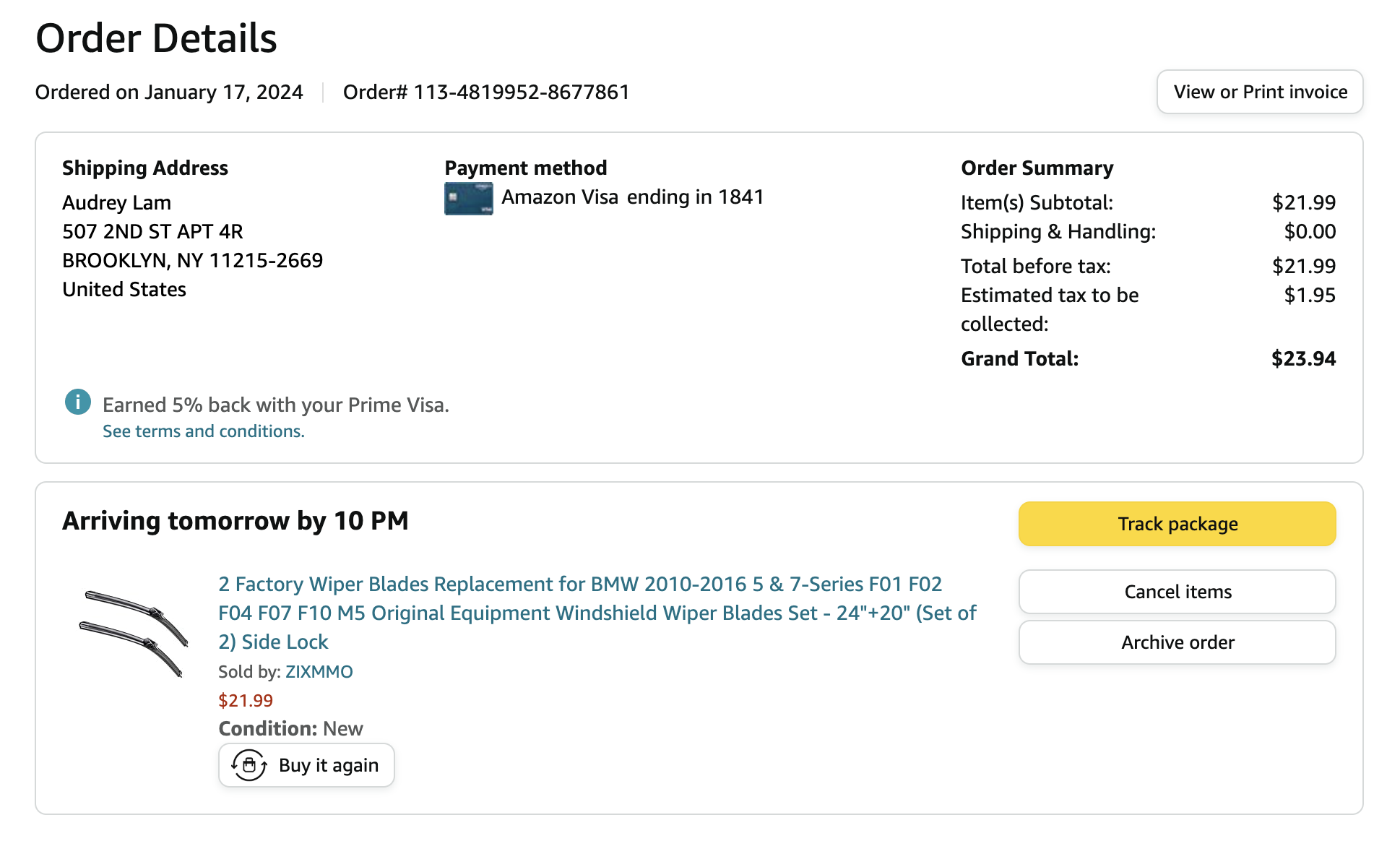 $23.94Wiper blades x 26 18 set
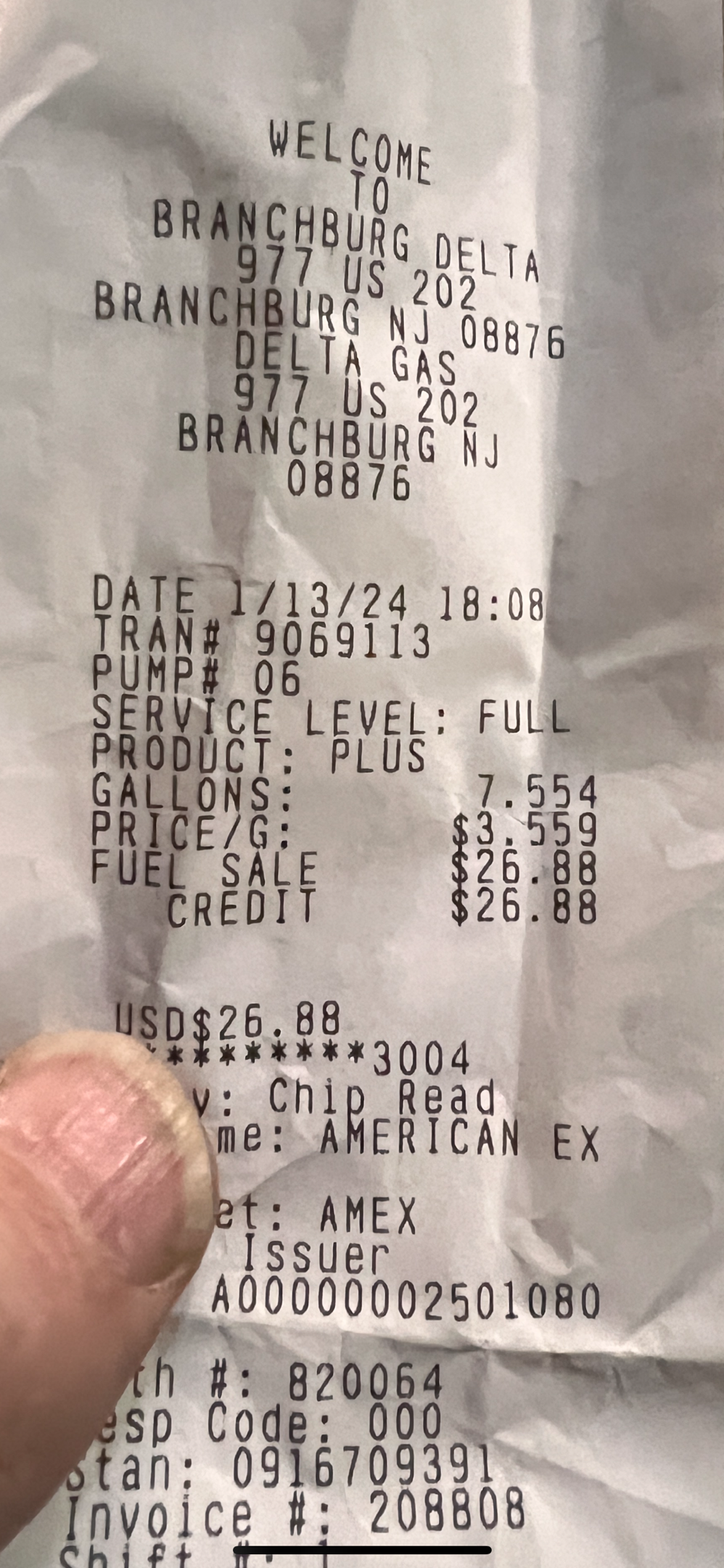 $26.66Fuel fill-up
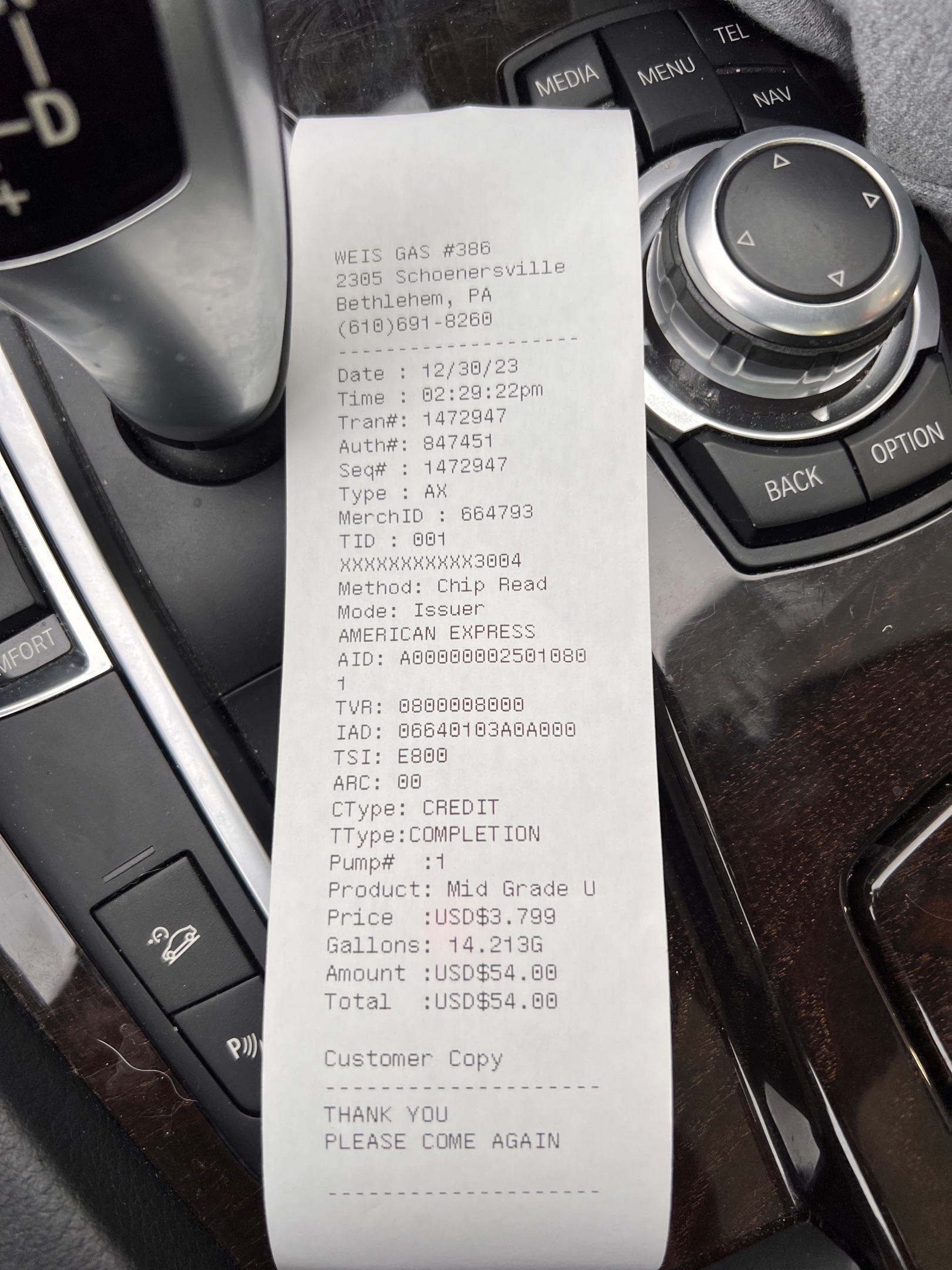 $54.00Fuel fill-up
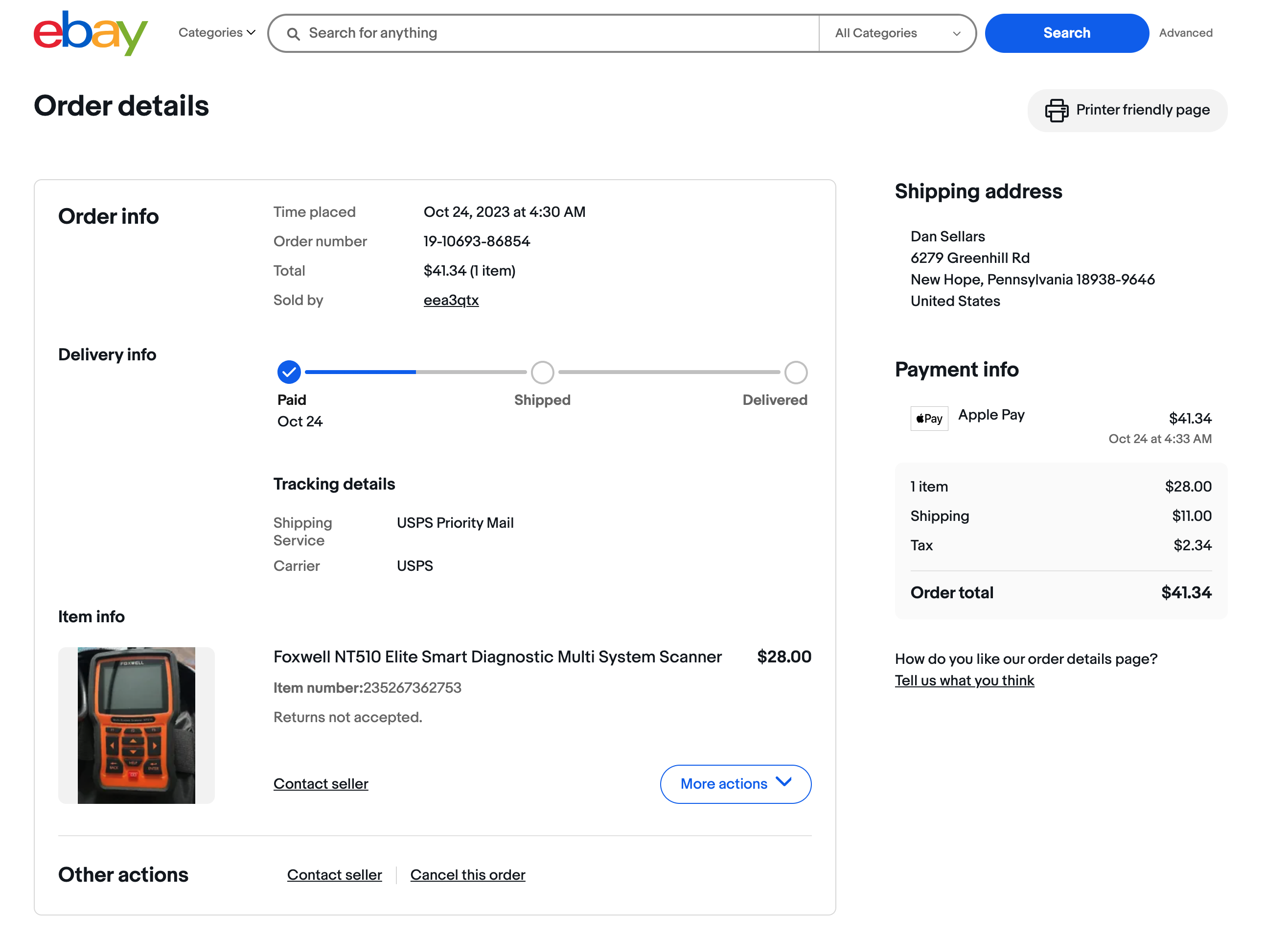 $41.34Smart diagnostic multi sys
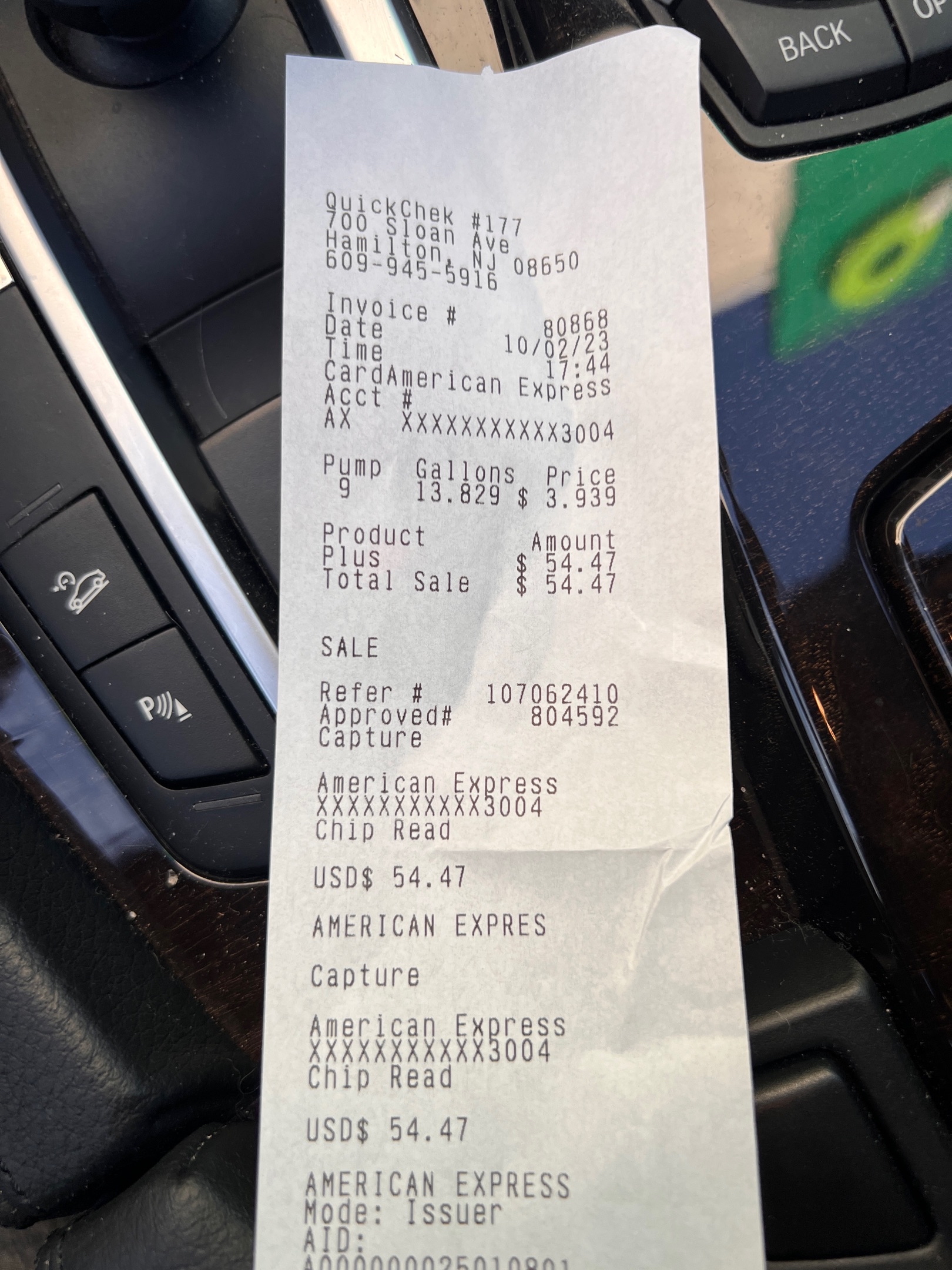 $55.50Fuel fill-up
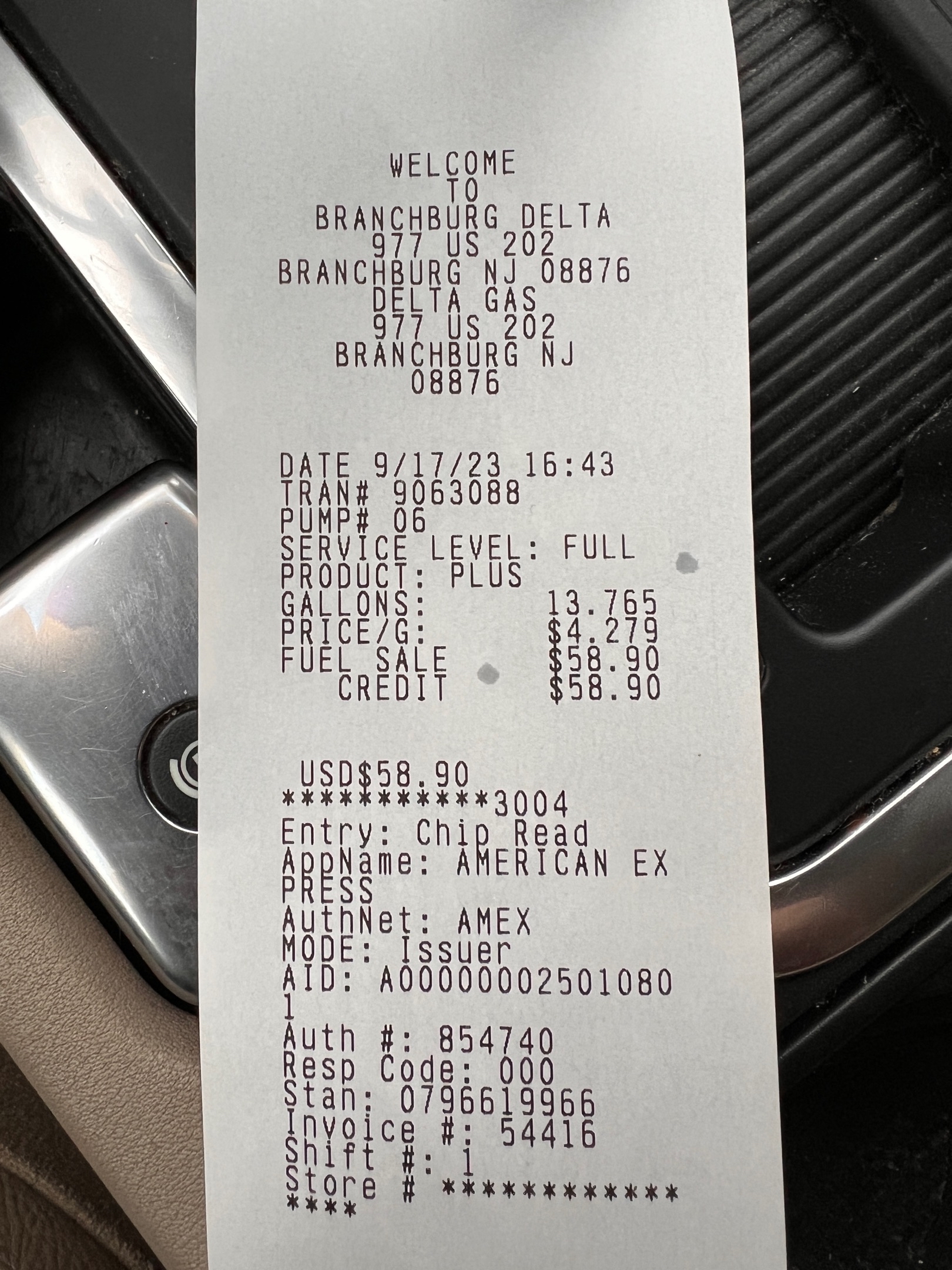 $59.00Fuel fill-up
 $60.42Fuel fill-up
 $64.00Fuel fill-up
 $64.00Replacement fog light pane
 $410.50Goodyear brakes
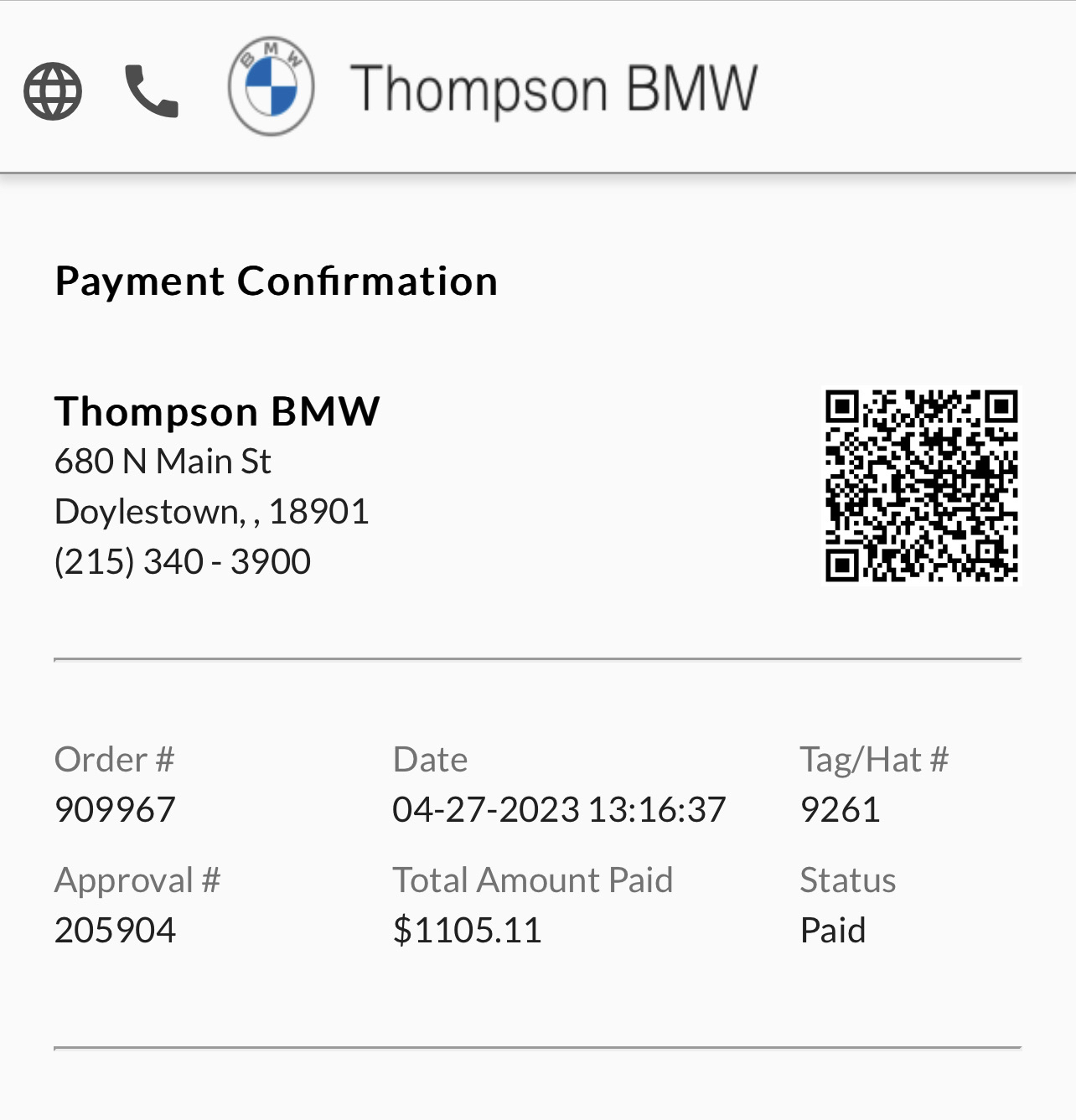 $1,105.00Service rebalance tires oi
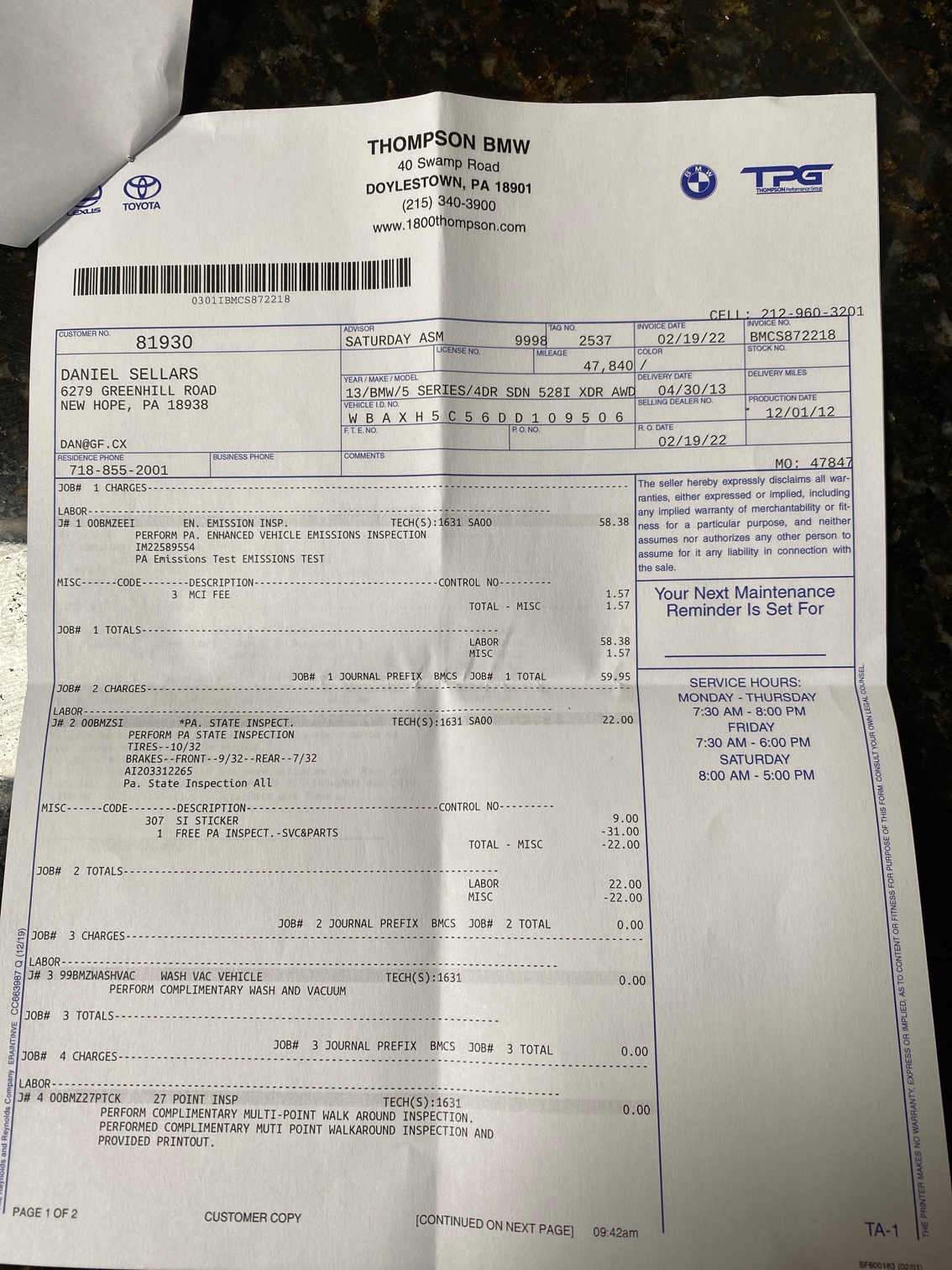 $65.55Thomson annual emissions
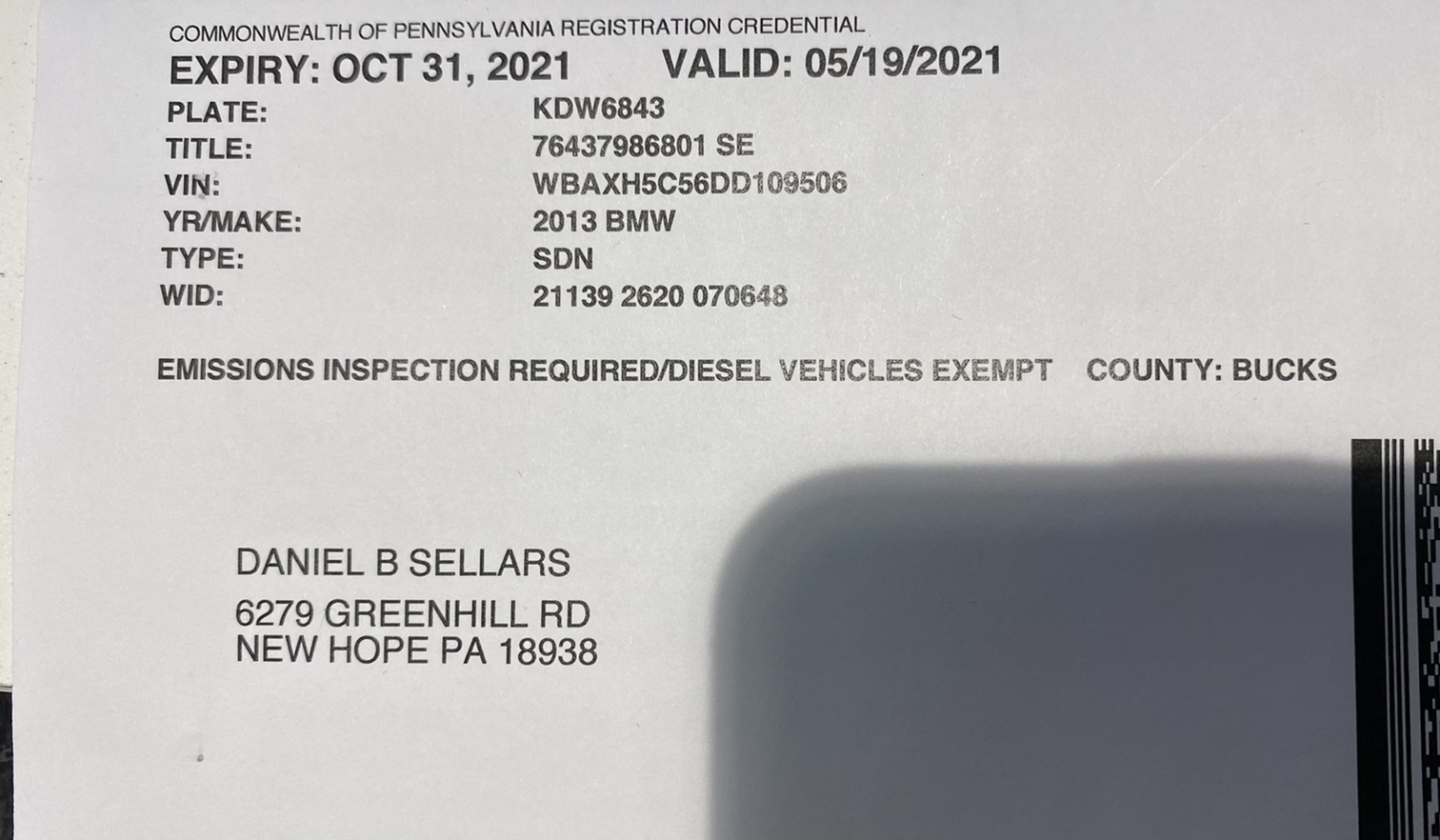 $88.002 year license for pa
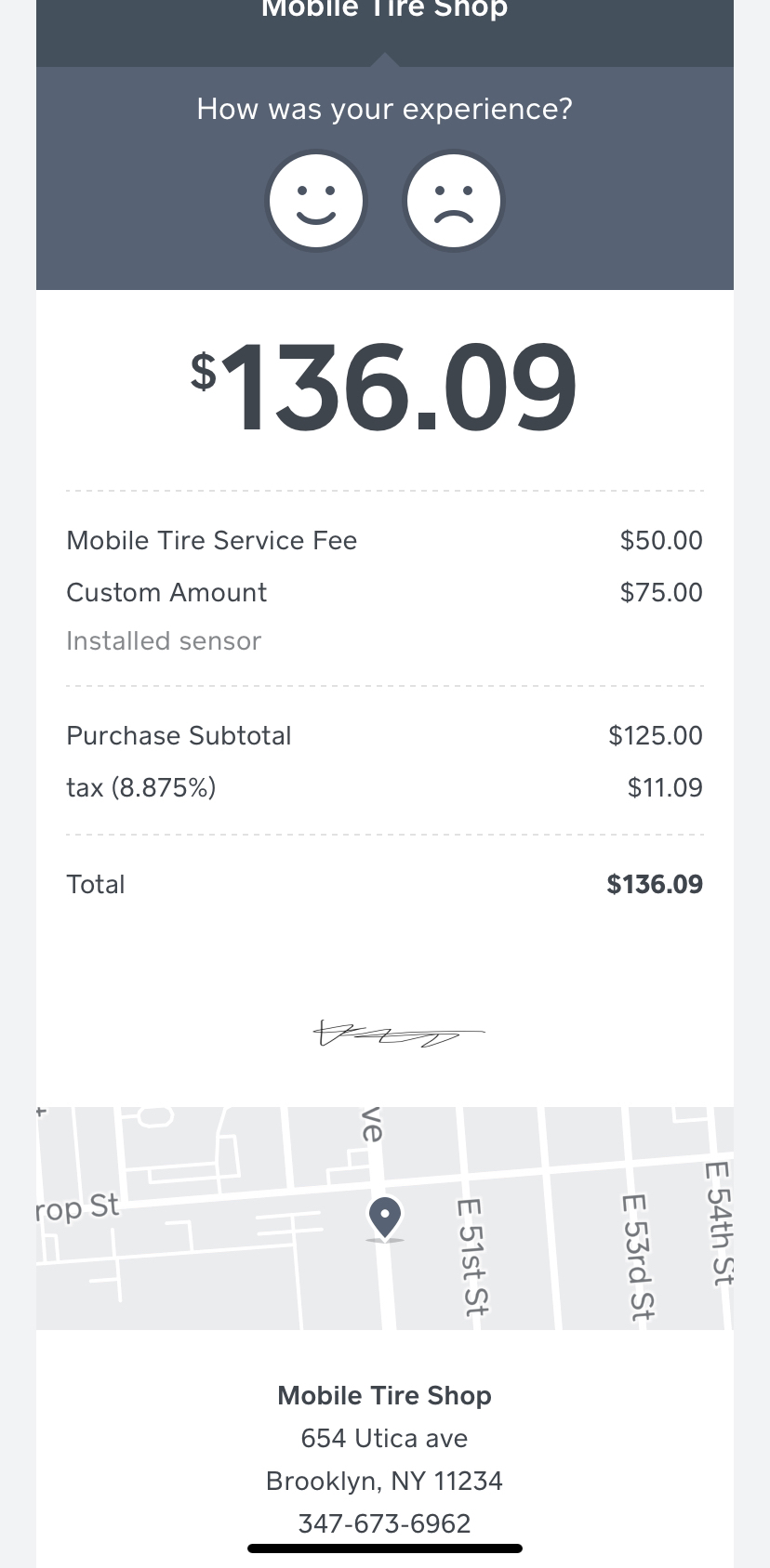 $136.09Sensor install and balance
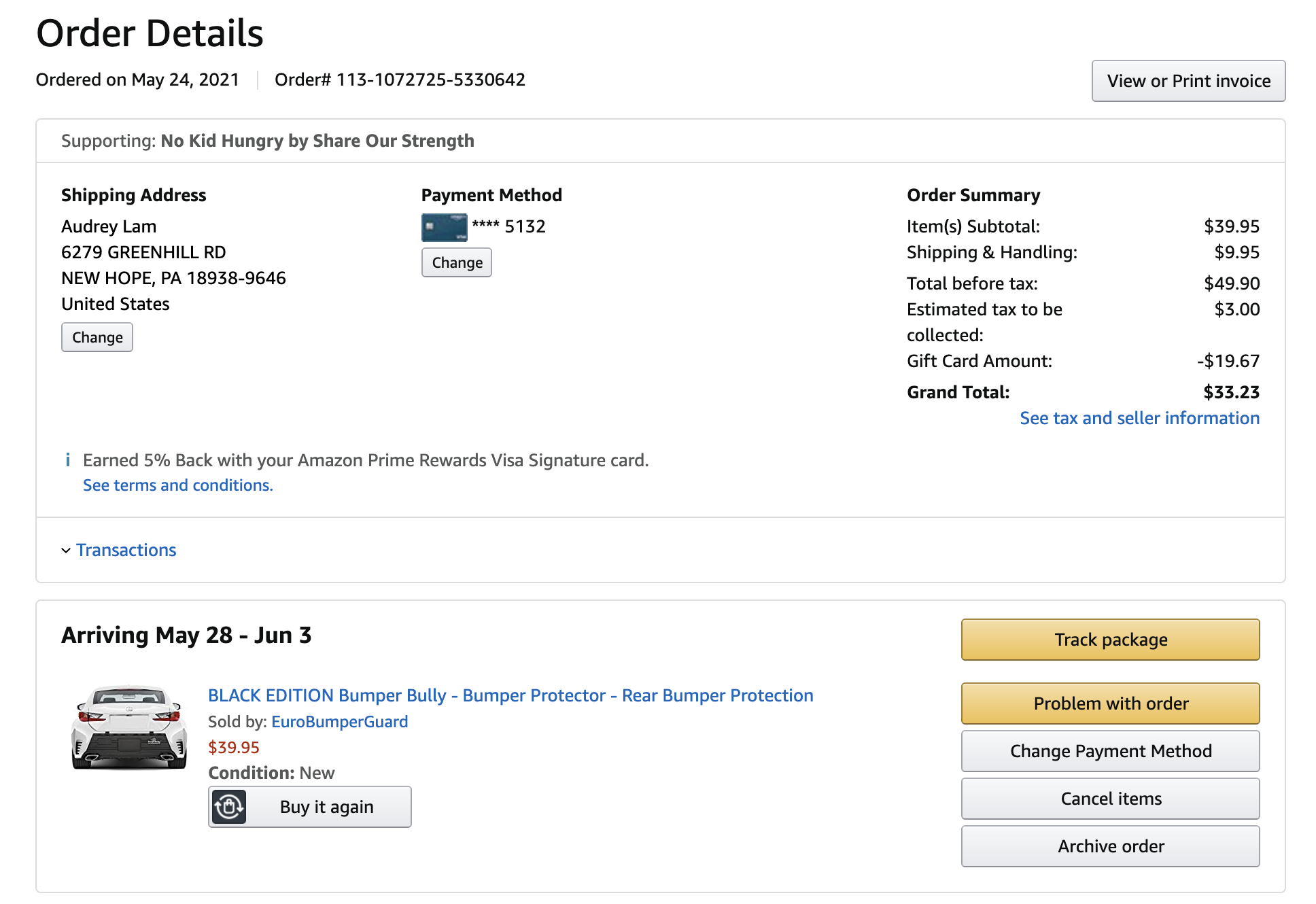 $49.90Bumper cover for via amazo
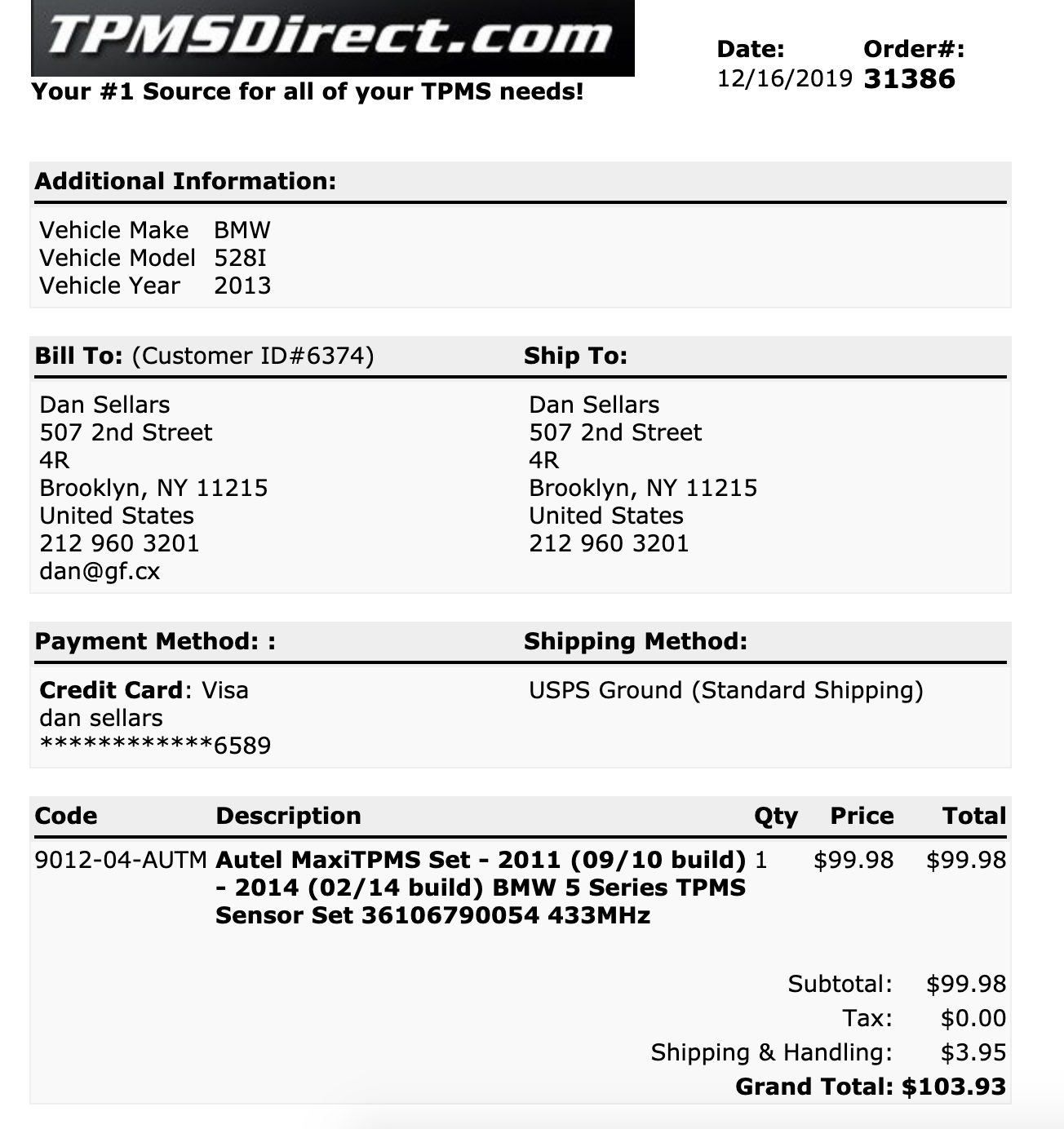 $103.93Tpms for 2013 for winter t
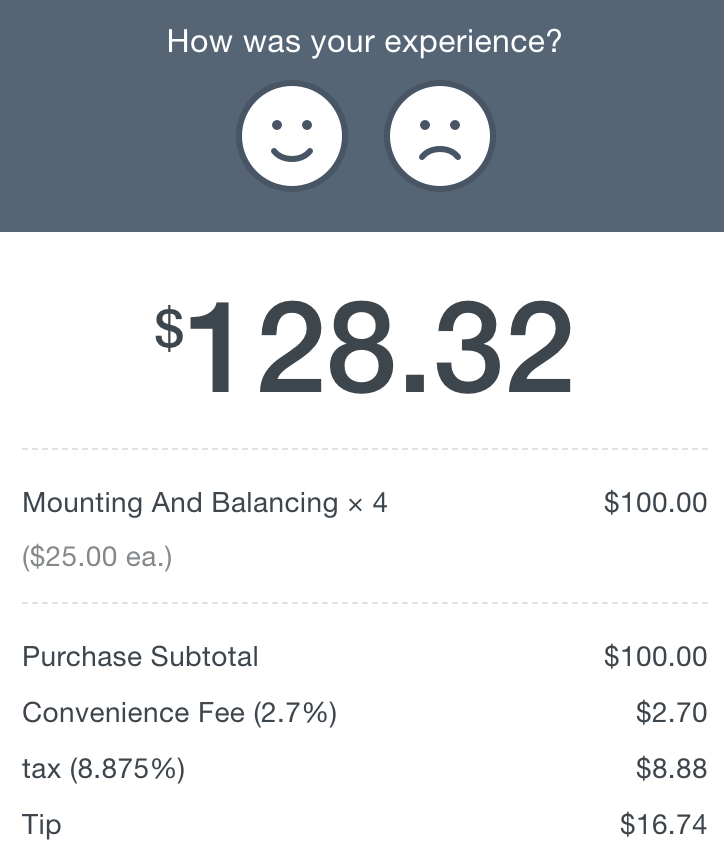 $128.32Winter tires swap
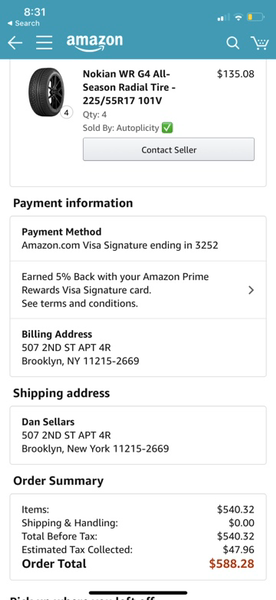 $588.284 x nokia now winter tires
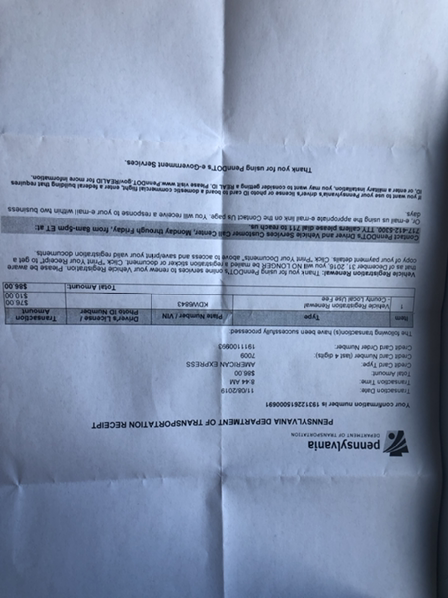 $86.002 year registration
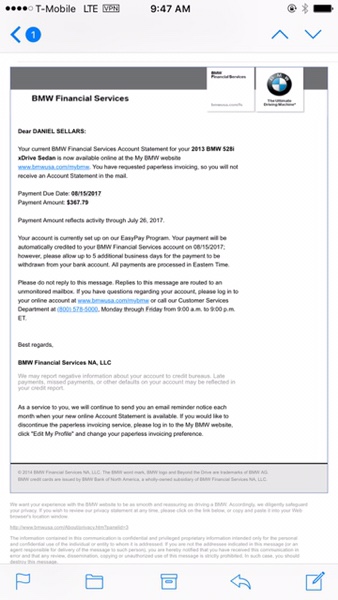 $367.79August 2017
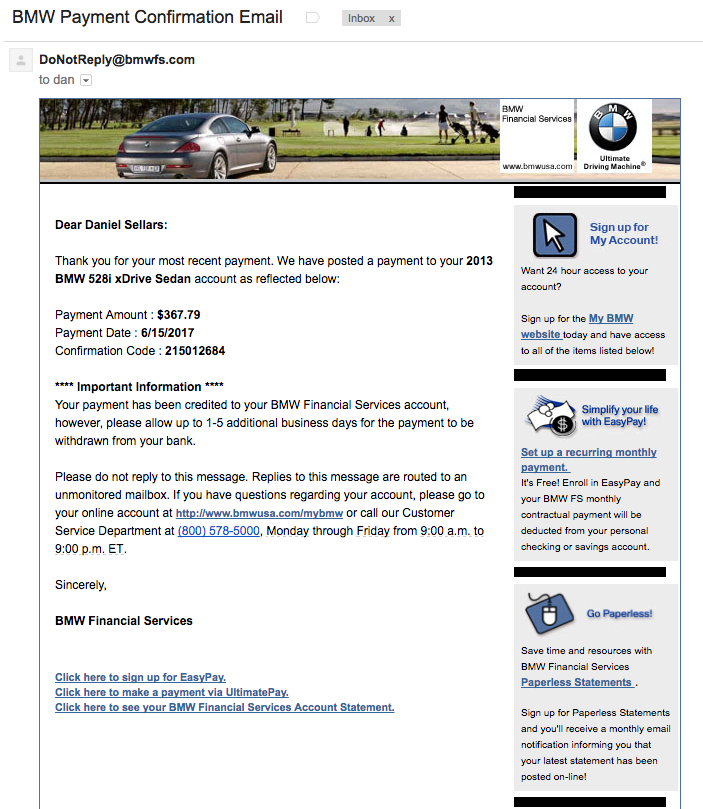 $367.79Payment june
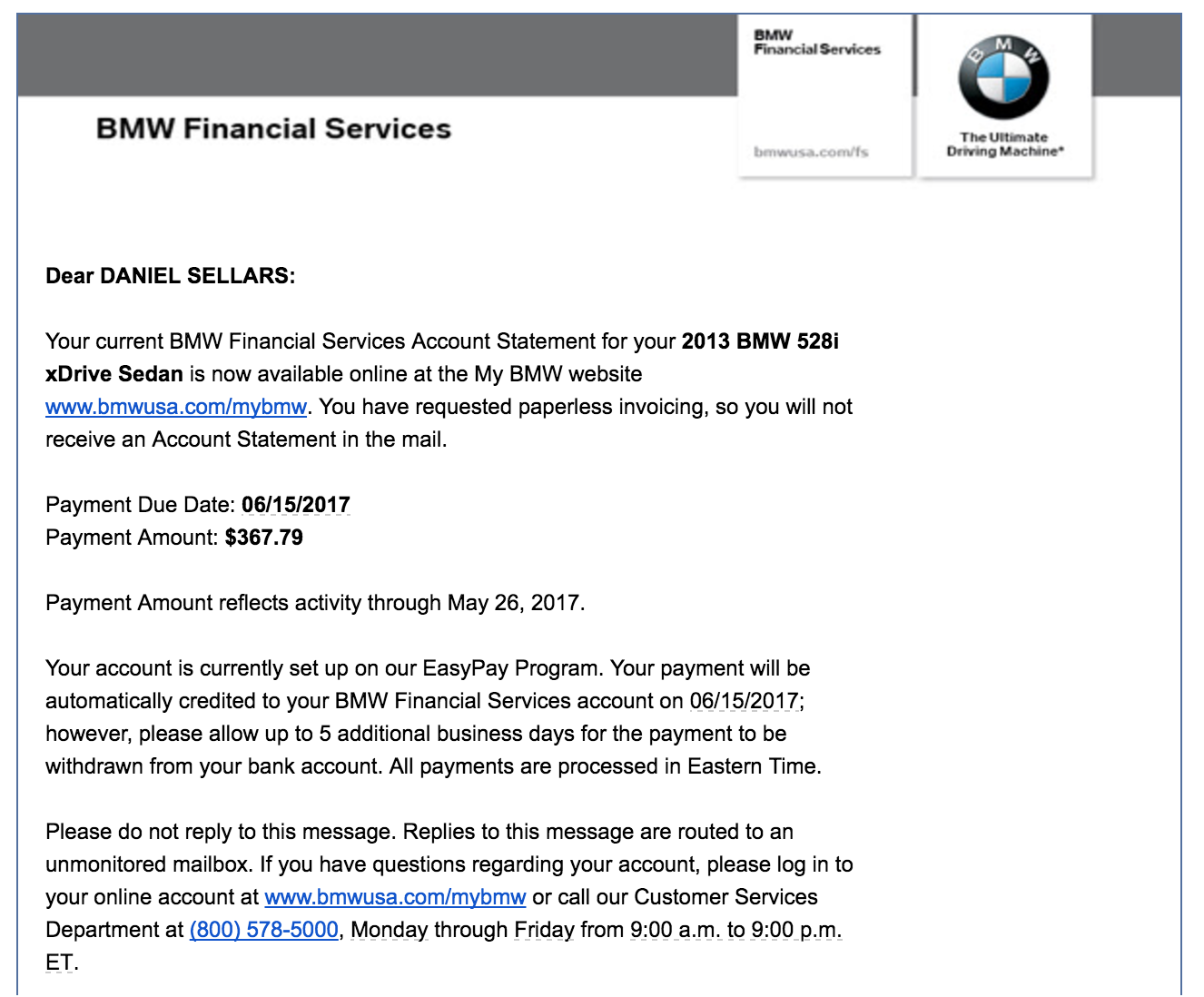 $367.79Repayment june 2017
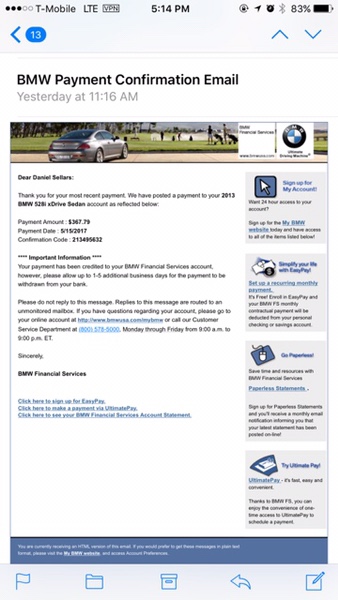 $367.79Repayment may
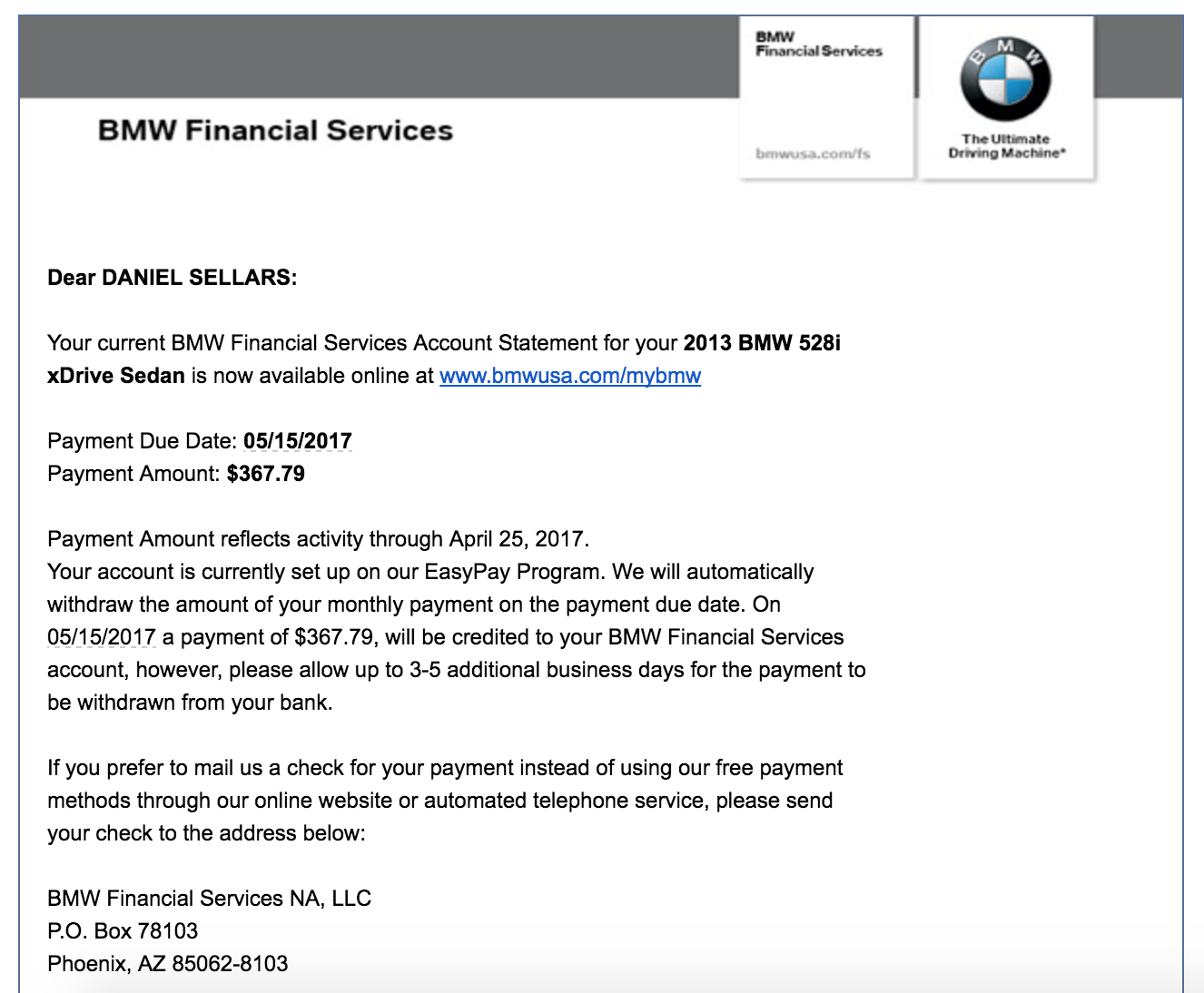 $367.95Repayment may 2017
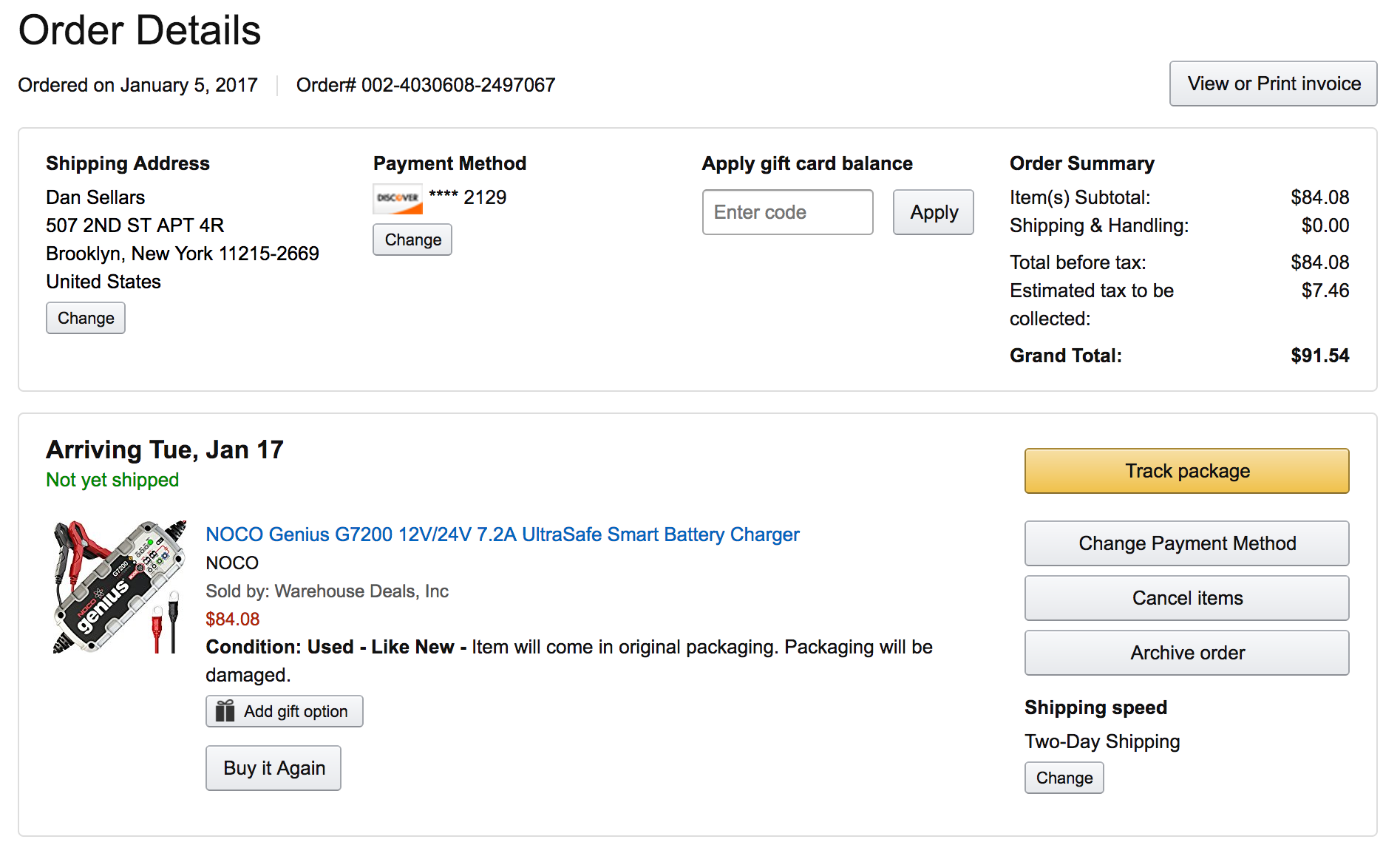 $91.54Advanced charger for lr4 c
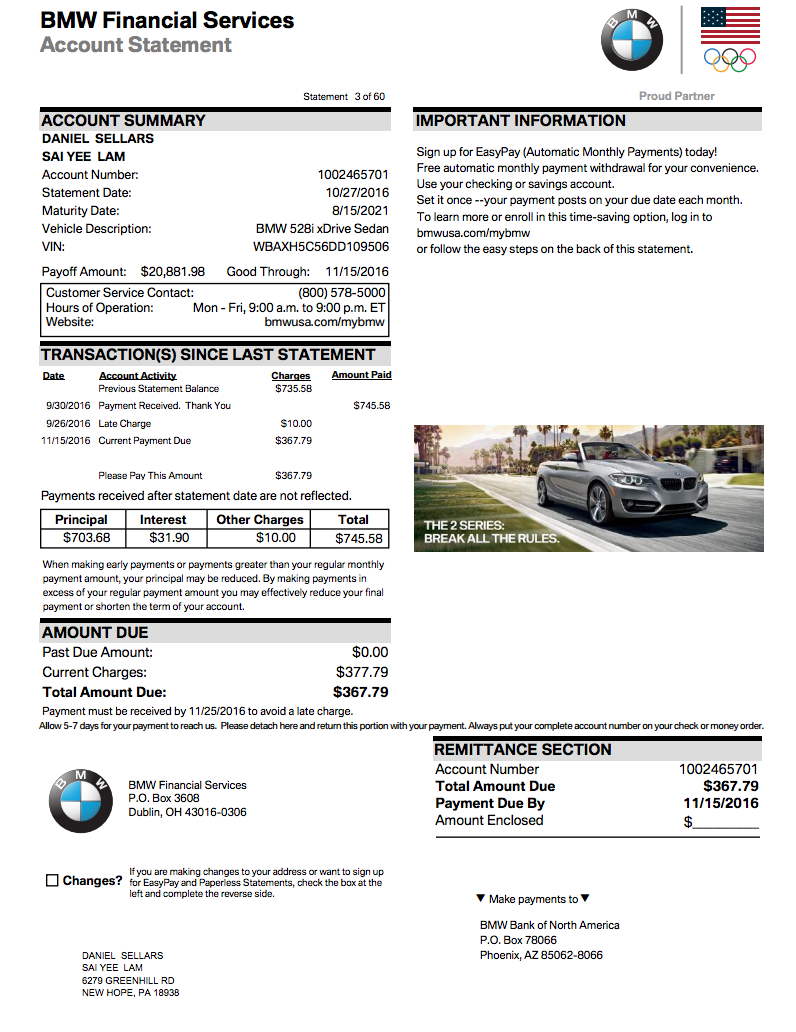 $367.79Monthly repayment
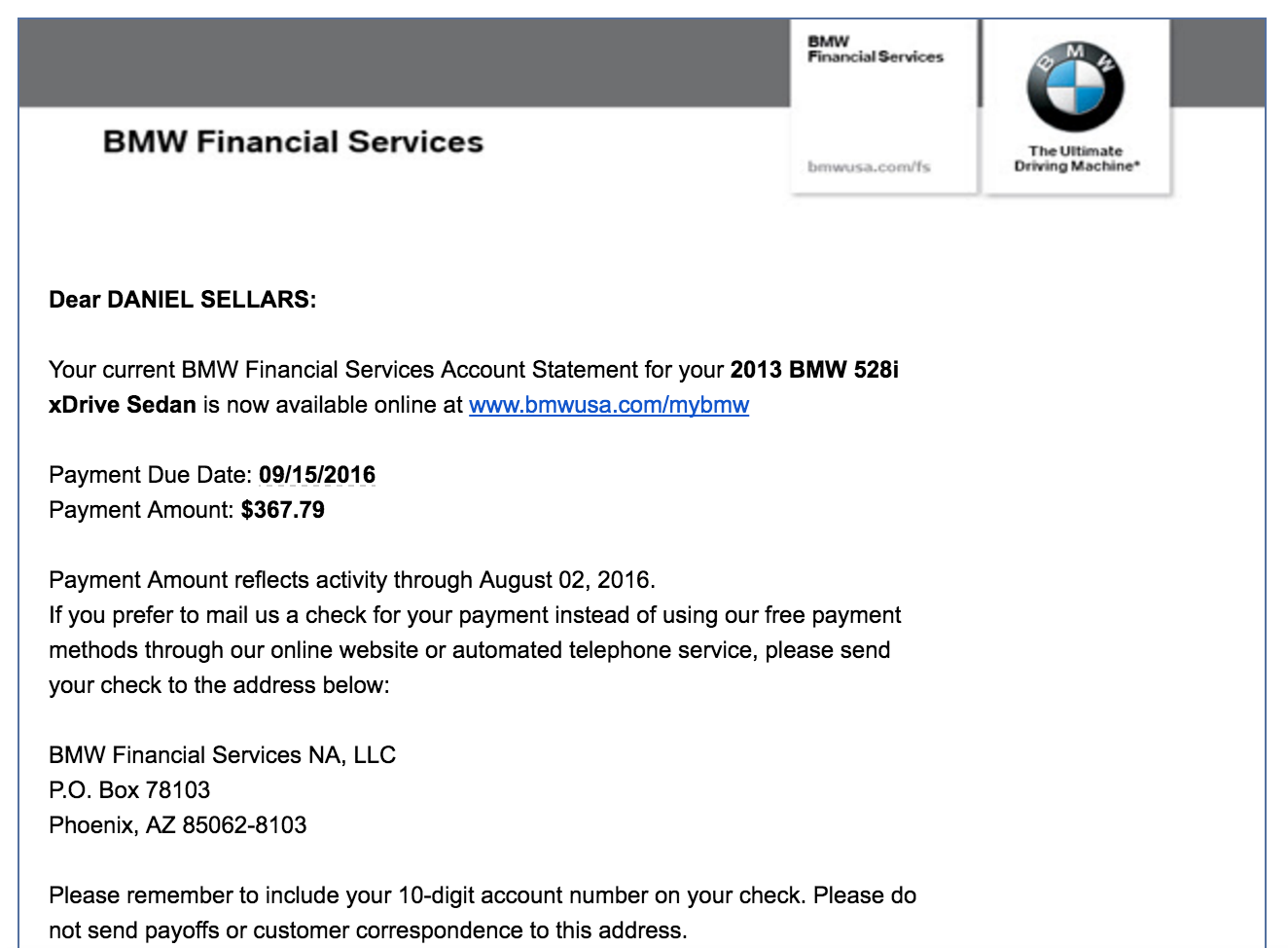 $367.79Car repayment monthly
Q&A captures
Mac can't see the R4 when plugged in — what's the CP210x driver thing?
5 things to know — CP210x driver on macOS
- The R/TACH tool ships TWO installers, not one. The GUI app + a separate Silicon Labs CP210x VCP driver. Easy to miss the second one and wonder why the app "doesn't work."
- What CP210x actually is: a USB-to-UART bridge driver. It's what lets macOS see the R4 as a serial device. Without it, the R/TACH app launches but reports "no device" when you plug in.
- The CP210x installer commonly hangs on Mac. Almost always because of the system-extension approval flow — macOS Gatekeeper blocks it until you explicitly allow it.
- Approval path: System Settings → Privacy & Security → scroll down → "System software from 'Silicon Labs' was blocked from loading" → click Allow, authenticate, reboot if prompted.
- Verify the driver loaded: plug R4 in (USB only, no 12V) →
ls /dev/tty.* | grep -i SLABin Terminal → should show/dev/tty.SLAB_USBtoUART. If it appears, the driver's good and the R/TACH app will see the detector.
Full answer
The R/TACH tool ships with two installers. The main app is just the GUI; the second installer is the Silicon Labs CP210x VCP driver — the USB-to-UART bridge that lets the Mac actually see the R4 as a serial device. Without the driver, the app launches but reports "no device" when you plug in.
The CP210x installer hanging is a well-known Mac issue and it's almost always the system-extension approval flow:
- Open System Settings → Privacy & Security
- Scroll down — you should see a message like "System software from 'Silicon Labs' was blocked from loading" with an Allow button
- Click Allow, authenticate, and reboot if prompted
If you don't see that prompt at all, the second installer probably didn't get far enough to register the extension. In that case, run the installer again — it usually completes on the second pass once Gatekeeper has already chewed through the notarization check once. Uniden has a specific walkthrough for the 2.22 tool on macOS covering exactly this driver step if you hit it again.
Quick verification once it's in: plug the R4 in (USB only, no 12V) and check ls /dev/tty.* | grep -i SLAB in Terminal — you should see something like /dev/tty.SLAB_USBtoUART. If that appears, the driver loaded; the app will see the detector.
Why this matters
This is the gate you have to pass through BEFORE the 6-modules-behind firmware flash (see the accessory block above + the next Q&A) can even begin. Sequence on next attempt:
- Re-run the CP210x installer; watch for the Gatekeeper prompt
- Allow in System Settings → reboot if asked
- Plug R4 via USB (NOT 12V) → check
/dev/tty.SLAB_USBtoUARTappears - Launch R/TACH tool → device should be detected → proceed with the firmware flash plan from the next Q&A
If /dev/tty.SLAB_USBtoUART does NOT appear after the Allow + reboot, that's the signal to chase Uniden's macOS-specific walkthrough or check if the driver supports the macOS version on this MacBook (CP210x driver versions occasionally lag macOS major releases by weeks).
Does the Uniden R4 have a battery — does USB keep it powered during a firmware update?
5 things to know — firmware update via USB
- No internal battery. The R4 has no buffer — power comes from the USB cable for the entire flash.
- Two ports, very different jobs. USB (data, far left) for updates; 12V (power, far right) for normal radar-detection mode. Update uses USB only.
- Never plug both at the same time during an update. Forum users warn this can fry the unit. USB-only during the flash, 12V-only afterward in the car.
- USB power is enough for updating, not for normal use. The detector will run its update sequence on USB but won't operate in normal radar-detection mode without the 12V cord.
- If the cable gets yanked mid-flash → Recovery Mode. The R Series Updater Tool has a built-in Recovery Mode to reflash a bricked unit. Don't panic if interrupted; rerun the tool and engage recovery.
Full answer
No internal battery. The R4 gets its power from the USB cable during a firmware update — the computer's USB port supplies enough to keep the detector alive through the flash.
Couple of things worth knowing from the user guides and forum threads:
- The R4 has two ports: USB (data, far left) and a separate 12V power port (far right). During an update you connect only the USB cable. The detector boots in update mode and stays powered for the duration.
- Do not plug in both USB and 12V at the same time during an update — forum users warn this can fry the unit.
- USB power is enough for updating, but it won't run the detector in normal radar-detection mode; that still needs the 12V cord.
So practically: if your laptop has decent power, you're fine — there's no battery buffer, but the wired USB connection itself is what keeps it alive. Just don't yank the cable mid-flash. If it does get interrupted, there's a Recovery Mode in the R Series Updater tool to reflash a bricked unit.
Why this matters
The R4 currently has 6 modules behind on firmware (UI, DSP, GPS, SoundDb, GPSDb, BT — see the accessory block above). When you sit down to flash all six in sequence, the operation needs to run uninterrupted across maybe 15-30 minutes on USB power alone. Don't start the update on a laptop with 5% battery; plug into wall power, kill any sleep timers, and confirm the USB cable seats firmly before launching the R Series Updater Tool.
Service notes
Maintenance assessment at 111,877 miles · 2013 (13 years old) · F10 528i xDrive · N20B20 2.0L turbo I4 · ZF 8HP50 8-speed auto · xDrive AWD. Sourced from Harvest expense records — see log below for full history. Red = overdue or unknown risk item. Amber = due soon or unverified. Green = confirmed recent.
Rewritten 12 Aug 2026 — this section previously described the wrong engine.
It was written against an N52B30 3.0L inline-six. An NHTSA VIN decode of
WBAXH5C56DD109506 returns a 4-cylinder, 2.0 litre, 241 hp
engine — the N20B20 turbo four. The 528i switched from the six to the four for the 2012 model
year, so the six was never fitted to a 2013 car. Everything engine-specific here has been
replaced: the six-cylinder plug count and part number, the N52 water-pump and thermostat
failure modes, the VANOS and valve-cover rows. The N20's own defining failure — the timing
chain and its plastic guides — was absent entirely and now leads the section.
The rewrite also surfaced three open NHTSA safety recalls naming this exact
model, including a 2024 campaign on the water pump whose stated consequence is fire. All three
carry a free remedy. Nothing in the service record shows any of them was performed. They are
listed first because they cost nothing and outrank every paid item below.
| Item | Status | Last known | Next due | Notes |
|---|---|---|---|---|
| Open safety recalls — free remedy, dealer only | ||||
| Water pump — fire risk NHTSA 24V608000 |
Do now | No record of remedy | Book now | An improperly sealed electrical connector on the water pump can be exposed to water and short circuit; NHTSA states the consequence as increased risk of fire. Covers 2012–2016 528i xDrive, so this car is in scope. Remedy is inspection, water pump and connector replaced as necessary, plus a protective shield — free of charge. Owner letters went out 28 Mar 2025. Nothing in the record shows it was done, and the Jun 2026 Flemington visit was oil service and wheel balancing. Verify by VIN at nhtsa.gov/recalls or quote the campaign number to Flemington BMW. |
| Brake vacuum pump NHTSA 13V454000 + 14V627000 |
Verify | No record of remedy | Check with VIN | Insufficient lubrication can fail the vacuum pump that supplies brake power assistance — NHTSA consequence is reduced braking power and increased crash risk. Both campaigns name the 2012–2013 528i xDrive sedan explicitly; 14V627 is an expansion of 13V454, so the later remedy (a locking ring in the camshaft to retain the seal disk) supersedes. Free of charge. These are old campaigns and may well have been done by a previous owner — that is exactly why it needs a VIN check rather than an assumption. |
| Rear reflex reflectors NHTSA 15V188000 |
Low priority | No record of remedy | Bundle with above | Rear reflectors may not reflect enough light, failing FMVSS 108. Cosmetic-adjacent but still an open federal campaign with a free remedy — worth adding to the same dealer visit rather than a trip of its own. |
| Fluids — driveline (xDrive priority stack) | ||||
| Transmission fluid ZF 8HP50 · pan + filter service |
Do now | No Harvest record | Overdue at 110k | ZF spec: Lifeguard Fluid 8 (LGF 8). Pan drop + filter + fill. "Lifetime fluid" = marketing — BMW enthusiasts consensus is 60–80k interval. If never done, do it now before it becomes a rebuild. |
| Transfer case fluid xDrive ATC — torque-split unit |
Do now | No Harvest record | Overdue at 110k | xDrive-specific risk item. Transfer case meters torque to front axle; fluid degrades around 30–60k. Neglected transfer cases are one of the more expensive xDrive failure modes. Do with trans service in one visit. |
| Front differential fluid AWD front axle diff |
Do now | No Harvest record | Overdue at 110k | AWD = front AND rear diff, not just rear. "Full driveline service" (trans + transfer case + front diff + rear diff) is a reasonable single-visit scope at this mileage. |
| Rear differential fluid | Unknown | Possibly 2018 (not confirmed BMW) | Do with driveline service | A 2018 Harvest entry covers "front/rear diff fluid and transfer case fluid" — likely the LR4, not the BMW. Cannot confirm. Do with the front diff and transfer case in one pass. |
| Fluids — engine & chassis | ||||
| Engine oil & filter | Verify via OBC | Feb 2024 service ($1,184) — scope unconfirmed | Check OBC CB% remaining | Last explicit oil change noted: Apr 2023. Feb 2024 $1,184 service may have included it — scope unknown. BMW OBC shows "CB" (condition-based) service indicator. Check before assuming due. Use 0W-30 LL-01 spec. |
| Brake fluid | Overdue | Nov 2022 (DIY · $11 · 3.5 yr ago) | Now | Hygroscopic fluid absorbs moisture over time, lowering boiling point. BMW recommends every 2 years. Last noted Nov 2022 — overdue. DOT 4 LV (Low Viscosity) for F10. |
| Coolant flush | Overdue on age | No Harvest record | Now | BMW blue coolant (HT-12 or equivalent). Interval 4 years / 100k miles. Car is 13 years old — coolant degradation is age-driven regardless of mileage. Unknown if ever changed. |
| Power steering fluid F10 528i = hydraulic rack |
Unknown | No Harvest record | Check condition / top up | F10 528i uses hydraulic power steering (electric assist on later models). CHF 11S fluid. No known change. Check reservoir condition at next service. |
| Engine — wear items (N20B20 2.0L turbo four) | ||||
| Timing chain + guides The N20's defining failure |
Inspect now | No Harvest record | Assess at 112k | The single most important row on this page. Early N20s use plastic timing chain guides that break, letting slack into the chain; left alone it can jump timing and destroy the engine. BMW revised the parts in Feb 2015 — a 2013 build is on the old design. BMW covered it under a Customer Care Program extended to 7 years / 70,000 miles, which at 13 years and 111,877 mi expired long ago, so any work now is out of pocket. Listen for a whine or rattle from the front of the engine, most audible around 1,500–2,500 rpm and on cold start. Ask the next shop to assess chain stretch directly. Replacement is a large job; a seized engine is a larger one. |
| Water pump / thermostat Electric pump — see recall above |
Risk item | No Harvest record | Inspect now | The N20's electric water pump typically fails somewhere between 60k and 180k, clustering near 100k — this car is past that at 111,877 mi. Failure can be sudden and without an external leak. Replace the thermostat at the same time: it is a common failure point and the labour to reach it is already paid for. Note this overlaps the open fire-risk recall above, so get the recall done before paying anyone to replace the pump. |
| Spark plugs N20 · 4 cylinders, turbocharged |
Likely overdue | No Harvest record | Overdue at 111k | Four plugs, not six. BMW’s interval for the N20 is every 4th oil service, roughly 60,000 miles; NGK 97506 is the factory fitment. At 111,877 mi with no record, this is likely the second set due and possibly never changed. Misfire under boost, rough idle or a hesitation on part throttle are the tells. Confirm the part against the VIN before ordering — this table previously carried a six-cylinder plug number for this car. |
| Carbon buildup on intake valves Direct injection — no fuel wash |
Likely present | Never done | Inspect / walnut blast | A direct-injection engine sprays fuel into the cylinder, not the port, so nothing washes the back of the intake valves. Deposits accumulate from oil vapour and at this mileage are near-certain. Symptoms are rough idle, hesitation under load and drifting fuel economy rather than a hard fault. Remedy is walnut blasting; sensible to bundle with the plugs since the intake comes off for both. |
| Oil filter housing gasket Common N20 leak point |
Unknown | No Harvest record | Inspect | One of the two leaks the N20 is known for. Oil weeps from the filter housing and can reach the belt. Cheap part, moderate labour, and easy to spot — ask for a look at the next oil change. |
| Valve cover / gasket The other known N20 leak |
Unknown | No Harvest record | Inspect | The gasket hardens and shrinks with heat cycling and eventually seeps. Tells are an oil smell in the engine bay, smoke off the exhaust where oil drips, and a slow drop in level between changes. Same inspection visit as the filter housing above. |
| High-pressure fuel pump Batch-specific, not universal |
Monitor | No Harvest record | Monitor only | Not a certainty on the N20 the way it was on the N54, but a known fault on some production batches, usually surfacing past 60–80k. Listed to monitor rather than to act on: long crank, stumble under hard acceleration, or a fuel-pressure code. No preventive replacement warranted without symptoms. |
| Brakes & suspension | ||||
| Front brakes | Good | Jun 2023 · Goodyear · $411 | Monitor wear sensor | Brake wear sensor replaced Jul 2024 ($1,532 City Auto job). Sensor active = still have pad material. ~2 years old. |
| Rear brakes | Unknown | No clear Harvest record | Check at next service | No explicit rear brake job in Harvest. At 110k, rear pads/rotors likely have some life but worth verifying. Ask shop to measure at next visit. |
| Front suspension Axle · control arms |
Fresh | Feb 2026 · $1,930 | 3–5 yr | Front axle and control arms replaced Feb 2026. Fresh. |
| Filters, tyres & consumables | ||||
| Tires (4x) | Good | Apr 2025 · Costco · $1,099 | ~2029 or 50k mi | ~13 months old. Rotate at next service. Winter tire set also on hand (Nokian, installed seasonally). |
| Cabin + engine air filters | Good | Jul 2024 · City Auto · in $1,532 job | ~2026 | Both replaced Jul 2024 as part of the AC + sensors service. ~2yr / 20–25k interval. |
| Wiper blades | Inspect | Jan 2024 · 26"/18" set · $24 | ~Jan 2025 — check condition | 1.5 years old. Smearing or streaking in rain = replace. Bosch Icon or OEM size 26"/18" rear 13". |
| Registration & compliance | ||||
| PA registration | Current | Feb 2026 · $106 · 2yr | Feb 2028 | 2-year registration current through Feb 2028. |
| PA state inspection + emissions | Verify | Apr 2024 · Thomson BMW · $395 | Apr 2026 — due now | PA emissions/inspection is annual. Apr 2024 was the last Harvest record. No 2025 entry found — either not captured or due. Verify sticker on windshield. |
Harvest service log
BMW-specific expense records from Harvest + sidecar receipts · most recent first · fuel entries excluded · odometer stamped from the matching receipt scan where present
| Date | Cost | Vendor · mi | Description |
|---|---|---|---|
| 2026 | |||
| 2026-06 | $670 | Flemington BMW · 111,877 mi | Rear brakes low/due; wheels, brakes & alignment (invoice #248282) |
| 2026-02 | $1,930 | City Auto Center II · 102,624 mi | All four wheels bent — straightened; front axle + control arms |
| 2026-02 | $106 | — | BMW road tax / registration — 2 years until 2028 |
| 2025 | |||
| 2025-04 | $1,099 | Costco Tire Center | 4× Bridgestone DriveGuard run-flat 225/55R17 (65k-mi warranty) |
| 2025-01 | $1,760 | City Auto Center II · 77,222 mi | Headlight assembly install + programming/coding (shop labour) |
| 2025-01 | $292 | eBay (parts) | BMW front light replacement parts |
| 2024 | |||
| 2024-07 | $1,532 | City Auto Center II · 69,546 mi | Blower motor remove & replace (front); AC service, air filters, brake sensors |
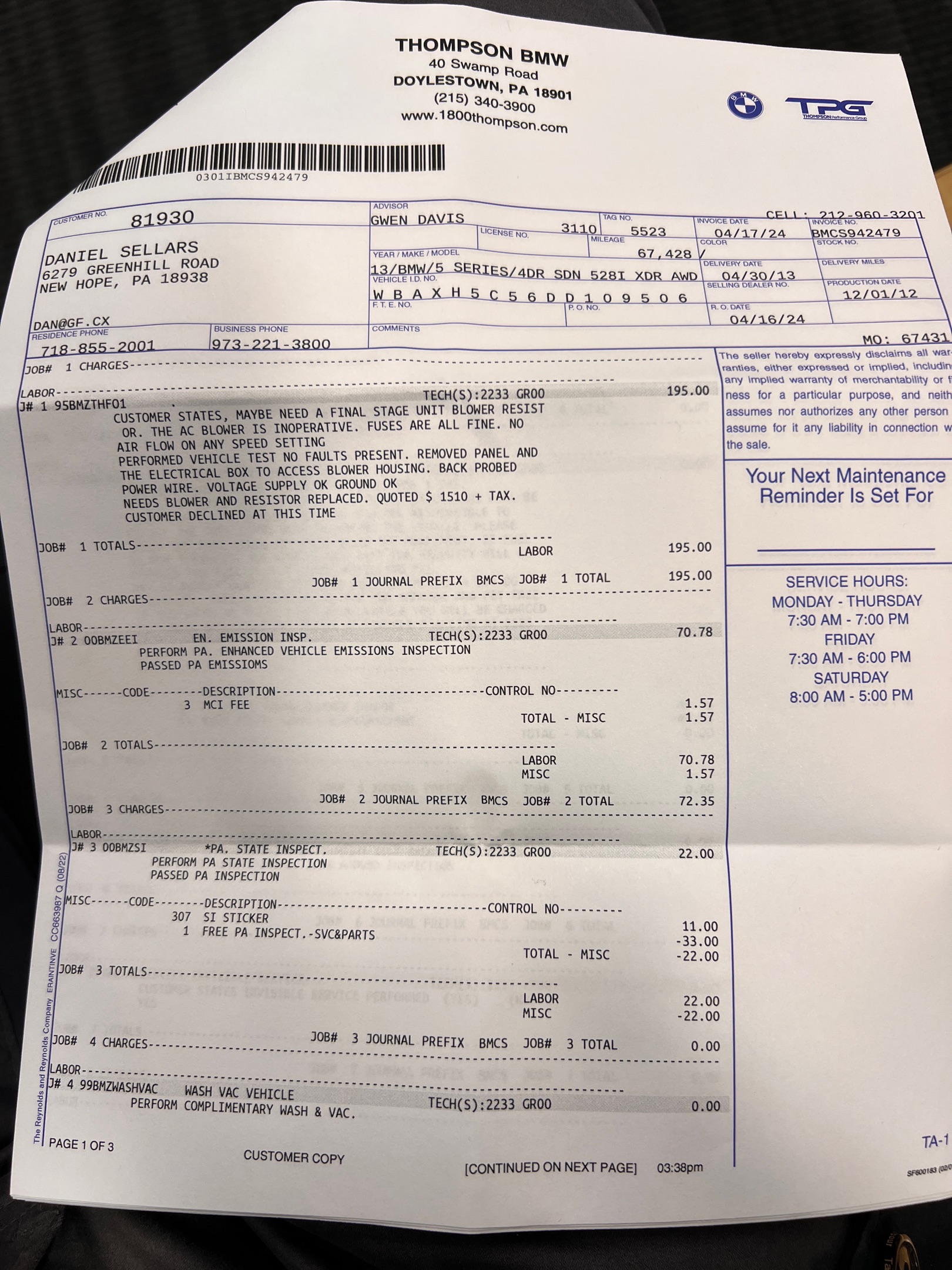
| 2024-04 | $395 | Thompson BMW · 67,428 mi | Emissions + diagnostic — AC blower / final-stage resistor fault |
| 2024-02 | $1,184 | Flemington BMW · 66,265 mi | Diagnosed oil-type smell from vents; exhaust work |
| 2024-02 | $100 | — | 2-year PA car registration |
| 2024-01 | $24 | — | Wiper blades 26"/18" set — BMW |
| 2023 | |||
| 2023-10 | $41 | eBay (tool) | BMW Smart Diagnostic multi-system scanner |
| 2023-07 | $257 | Mobile tire | Mobile tire swap ($20 tip) |
| 2023-07 | $64 | eBay (parts) | BMW replacement fog light panel |
| 2023-06 | $411 | Goodyear (Flemington NJ) · 59,710 mi | Rear brakes due; fronts also checked |
| 2023-06 | $41 | — | Tire swap |
| 2023-04 | $1,105 | Thomson BMW | Rebalance tires, oil change, state emissions, replace door lock |
| 2022 | |||
| 2022-11 | $11 | — | Brake fluid ×3 (DIY) |
| 2022-10 | $120 | Mobile tire | Tire swap |
| 2022-02 | $66 | Thompson BMW · 47,840 mi | Annual PA emissions test |
| 2021 | |||
| 2021-12 | $136 | Mobile tire | TPMS sensor install + balance BMW winter wheels |
| 2021-11 | $93 | Mobile tire | Mobile tires swap |
| 2021-06 | $160 | Mobile tire | Mobile tire swap outs |
| 2021-05 | $93 | Mobile Guys | Winter tire swap out |
| 2021-05 | $50 | Amazon | Bumper cover |
| 2020 | |||
| 2020-11 | $109 | Mobile tire | Winter tires installed |
| 2019 | |||
| 2019-12 | $128 | — | Winter tires swap — BMW |
| 2019-12 | $104 | TPMSDirect | TPMS sensors for winter tires |
| 2019-11 | $588 | — | 4× Nokian winter tires — BMW 528i xDrive |
| 2019-11 | $86 | — | 2-year registration BMW |
| 2019-11 | $64 | — | State emissions · annual |